অ্যাডমিন পেজ ক্রিয়েটর
কন্টেন্ট
অ্যাডমিন পেজ ক্রিয়েটর আপনাকে WordPress অ্যাডমিন ড্যাশবোর্ডের মধ্যে সহজে নতুন অ্যাডমিন পেজ এবং সাব-পেজ যোগ করতে সাহায্য করবে। এটি ব্যবহার করে আপনি একটি ওয়েলকাম পেজ বা টিউটোরিয়াল পেজ তৈরি করতে পারেন, যা নতুন ব্যবহারকারীদের জন্য একটি ল্যান্ডিং পেজ হিসেবে কাজ করতে পারে। আপনি Beaver Builder, Elementor, Brizy, এবং Oxygen-এর মতো পেজ বিল্ডার ব্যবহার করে কোনো ঝামেলা ছাড়াই পেজ ডিজাইন করতে পারবেন।
এটি কাস্টম HTML, CSS এবং JavaScript সাপোর্টও দেয়, পাশাপাশি প্ল্যান এবং ব্যবহারকারীর ভূমিকার (user role) উপর ভিত্তি করে অ্যাক্সেস কন্ট্রোলও প্রদান করে!
ফিচারসমূহ
- কাস্টম HTML এবং CSS সাপোর্ট
- JavaScript সাপোর্ট
- PHP কন্টেন্ট মোড
- ব্যবহারকারীর ভূমিকার (User role) উপর ভিত্তি করে অনুমতি
- পেজ বিল্ডার সাপোর্ট
ডকুমেন্টেশন
Multisite Ultimate ব্যবহার করে কাস্টম অ্যাডমিন পেজ এবং সাব-পেজ তৈরি করা: অ্যাডমিন পেজ ক্রিয়েটর
ইনস্টলেশন
১. ultimate-multisite-admin-page-creator ফাইলটি /wp-content/plugins/ ডিরেক্টরিতে আপলোড করুন। ২. আপনার WordPress Network Admin-এর Plugins মেনু থেকে প্লাগইনটি অ্যাক্টিভেট করুন।
ব্যবহার নির্দেশিকা
যদিও WordPress সাইটগুলোর ফ্রন্ট এন্ডে কন্টেন্ট যোগ করা খুব সহজ করে তোলে, অ্যাডমিন সাইডে পেজ এবং সাব-পেজ তৈরি করার জন্য কিছু প্রাথমিক কোডিং দক্ষতা প্রয়োজন। Ultimate Multisite: Admin Page Creator এর লক্ষ্য হলো আপনার নেটওয়ার্ক সাইটগুলোর ব্যাক এন্ডে ফ্রন্ট এন্ডের মতোই ব্যবহার সহজ করে তোলা।
অ্যাডমিন পেজ ক্রিয়েটর কেন ব্যবহার করবেন?
হয়তো আপনি আপনার ক্লায়েন্টদের অ্যাডমিন প্যানেলে টিউটোরিয়াল সহ একটি কাস্টম পেজ দিতে চান, অথবা আপনি FAQ এবং একটি কন্টাক্ট উইজেট সহ একটি কাস্টম পেজ যোগ করতে চান। অ্যাডমিন পেজ ক্রিয়েটরের মাধ্যমে সম্ভাবনাগুলো অফুরন্ত, এবং আজ আমরা টিউটোরিয়ালে সেটাই দেখব।
একটি এমবেডেড YouTube প্লেলিস্ট সহ টিউটোরিয়াল পেজ তৈরি করা এখন সম্ভব!
ব্যবহারকারীর ড্যাশবোর্ড প্যানেলে চূড়ান্ত ফলাফলটি এখানে:
আপনার প্রথম কাস্টম অ্যাডমিন পেজ তৈরি করা
Ultimate Multisite: Admin Page Creator ইনস্টল এবং অ্যাক্টিভেট করার পরে, আপনার নেটওয়ার্ক অ্যাডমিন মেনুতে যান এবং অ্যাডমিন পেজে যান।
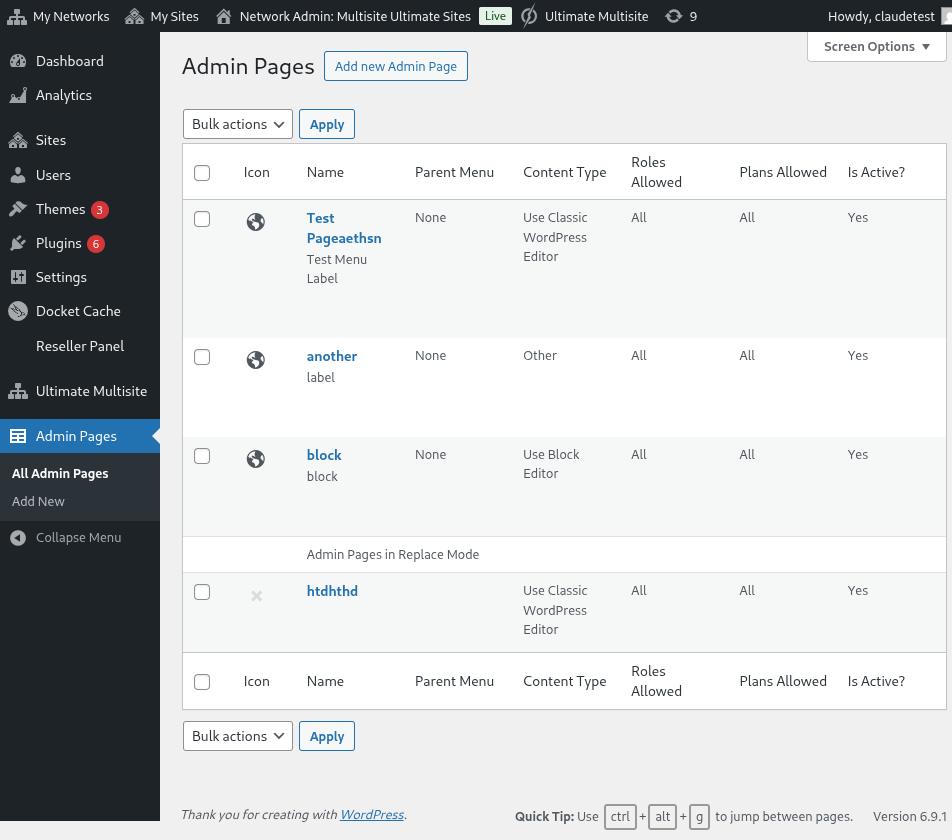
Network Admin-এ কাস্টম অ্যাডমিন পেজগুলির তালিকা
আপনি এখন পর্যন্ত তৈরি করা সমস্ত অ্যাডমিন পেজগুলির একটি তালিকা দেখতে পাবেন (যেহেতু এটি আপনার প্রথম ভিজিট, তাই তালিকাটি খালি থাকবে)। এগিয়ে গিয়ে Add new Admin Page এ ক্লিক করুন। আপনাকে অ্যাডমিন পেজ এডিটরে রিডাইরেক্ট করা হবে।
অ্যাডমিন পেজের উপাদানসমূহ
অ্যাডমিন পেজ এডিটরে, আপনি আপনার পেজটি কাস্টমাইজ করার জন্য বিভিন্ন অপশন পাবেন।
পেজ টাইটেল
এটি সেই শিরোনাম যা পেজের উপরে প্রদর্শিত হবে, অ্যাডমিন মেনু লেবেল নয়।
একটি পেজ টাইটেল লিখুন
কন্টেন্ট টাইপ সিলেক্টর
Ultimate Multisite: Admin Page Creator আপনাকে পেজের কন্টেন্টের ক্ষেত্রে দুটি বিকল্প দেয়: আপনি হয় ডিফল্ট WordPress WYSIWYG এডিটর ব্যবহার করতে পারেন অথবা একটি HTML এডিটরে পরিবর্তন করতে পারেন।
আপনি যদি HTML সম্পর্কে পরিচিত না হন, তবে ডিফল্ট WordPress এডিটর ব্যবহার করুন। আপনি একটি সাধারণ পোস্ট বা পেজের মতো পেজের কন্টেন্ট এডিট করতে সক্ষম হবেন।
ডিফল্ট WordPress WYSIWYG এডিটর ব্যবহার করে
সিনট্যাক্স হাইলাইট এবং এরর অ্যালার্ট সহ HTML এডিটর অপশন ব্যবহার করে
মেনু অপশনসমূহ
সাইডের General Options meta-box-এ, আপনি মেনু টাইপ, লেবেল এবং আরও অনেক কিছু কনফিগার করতে সক্ষম হবেন।
মেনু টাইপসমূহ
আপনার নতুন কাস্টম অ্যাডমিন পেজে দুটি ভিন্ন মেনু টাইপ থাকতে পারে: টপ-লেভেল মেনু এবং সাব-মেনু।
টপ-লেভেল মেনু পেজ, যেমন নাম থেকে বোঝা যায়, আপনার নতুন তৈরি করা পেজটিকে ডিফল্ট WordPress পেজগুলোর পাশাপাশি অ্যাডমিন মেনুতে যোগ করবে।
আপনি যদি টপ-লেভেল অপশনটি নির্বাচন করেন, তবে আপনি মেনুর অর্ডার এবং একটি মেনু আইকনও নির্বাচন করতে পারবেন।
আপনি যদি এই পেজটিকে একটি সাব-মেনু পেজ করতে চান, তবে আপনি একটি প্যারেন্ট পেজ নির্বাচন করতে পারবেন যার সাথে এই পেজটি যুক্ত হবে। আপনি আপনার কাস্টম পেজটি ডিফল্ট WordPress পেজগুলিতে বা আপনার টপ-লেভেল কাস্টম অ্যাডমিন পেজগুলিতে যোগ করতে পারেন।
এই কাস্টম পেজের জন্য মেনু আইটেমটি সম্পূর্ণ কাস্টমাইজ করুন
আপনি আপনার নিজস্ব কাস্টম টপ-লেভেল পেজ সহ অন্যান্য মেনু পেজের সাব-মেনু হিসেবেও এই পেজটি যোগ করতে পারেন।
অ্যাডভান্সড অপশনসমূহ
আপনার কাস্টম অ্যাডমিন পেজগুলিতে সব ধরনের কন্টেন্ট যোগ করার ক্ষমতা আপনার থাকা উচিত। এর মধ্যে CSS রুলস এবং ফাইল, JavaScript, এবং এক্সটার্নাল লাইব্রেরিও অন্তর্ভুক্ত। আপনি অ্যাডভান্সড অপশনস ট্যাব ব্যবহার করে এটি করতে পারেন।
কাস্টম CSS
CSS ট্যাবে, আপনি আপনার নিজস্ব কাস্টম CSS কোড যোগ করতে পারেন, পাশাপাশি রিমোট সাইটগুলো (যেমন CDN, Google Fonts ইত্যাদি) থেকে CSS ফাইলও ইমপোর্ট করতে পারেন।
কাস্টম CSS সাপোর্ট করে। আপনি এক্সটার্নাল স্টাইল ফাইলও অন্তর্ভুক্ত করতে পারেন!
কাস্টম JavaScript
JavaScript-এর ক্ষেত্রেও একই কথা প্রযোজ্য। আপনি আপনার কাস্টম JavaScript কোডে ব্যবহার করার জন্য এক্সটার্নাল লাইব্রেরি যোগ করতে পারেন।
আপনার নিজস্ব JavaScript কোড যোগ করুন!
অনুমতি (Permissions)
অ্যাডভান্সড অপশনসেও, আপনি কোন সাব-সাইটগুলির এই পেজে অ্যাক্সেস থাকবে তা নির্বাচন করতে সক্ষম হবেন। উদাহরণস্বরূপ, আপনি যদি বিভিন্ন প্ল্যান টিয়ারকে বিভিন্ন এক্সক্লুসিভ কন্টেন্ট পরিবেশন করার পরিকল্পনা করেন তবে এটি কার্যকর।
এই পেজটি কোথায় প্রদর্শিত হবে তার উপর আপনার সম্পূর্ণ নিয়ন্ত্রণ আছে
গুরুত্বপূর্ণ: পেজটি প্রদর্শিত হওয়ার জন্য উভয় শর্ত পূরণ করতে হবে। এর মানে হলো, যদি ব্যবহারকারী কোনো নির্দিষ্ট প্ল্যানের ক্লায়েন্ট হন, কিন্তু নির্বাচিত ভূমিকাগুলির মধ্যে কোনোটি না থাকে (অথবা বিপরীতটা), তবে পেজটি তাদের প্যানেলে দেখা যাবে না।
সক্রিয় (Active)
যদি আপনি কোনো কাস্টম অ্যাডমিন পেজ মুছে না ফেলে বা পারমিশন নিয়ে ঘাঁটাঘাঁটি না করে নিষ্ক্রিয় করতে চান, তবে শুধু Active অপশনটি আনচেক করুন।
একটি টপ-লেভেল পেজ নিষ্ক্রিয় করলে স্বয়ংক্রিয়ভাবে সেই প্যারেন্ট পেজটির সাথে যুক্ত সমস্ত সাব-পেজও নিষ্ক্রিয় হয়ে যাবে।
ব্যবহারকারীর প্যানেলে চূড়ান্ত ফলাফল!