Gestion des taxes
Ultimate Multisite intègre un module de collecte des taxes dans notre plugin principal ; ainsi, si vous devez collecter des taxes de vente sur vos plans, forfaits et services, vous pouvez le faire facilement sans recourir à l’installation d’extensions.
Pour les entreprises situées en Europe, nous proposons un module complémentaire qui ajoute des outils et fonctionnalités afin de mieux prendre en charge la conformité à la TVA.
Ultimate Multisite ne déclare ni ne reverse les taxes en votre nom au gouvernement ; nous vous aidons simplement à collecter les taxes appropriées au moment de la transaction. Vous devrez toujours reverser les taxes vous-même.
Activer la collecte des taxes
La collecte des taxes n’est pas activée par défaut. Pour l’activer, vous devez aller dans Ultimate Multisite > Settings > Taxes et basculer l’option pour activer le réglage Activer les taxes.
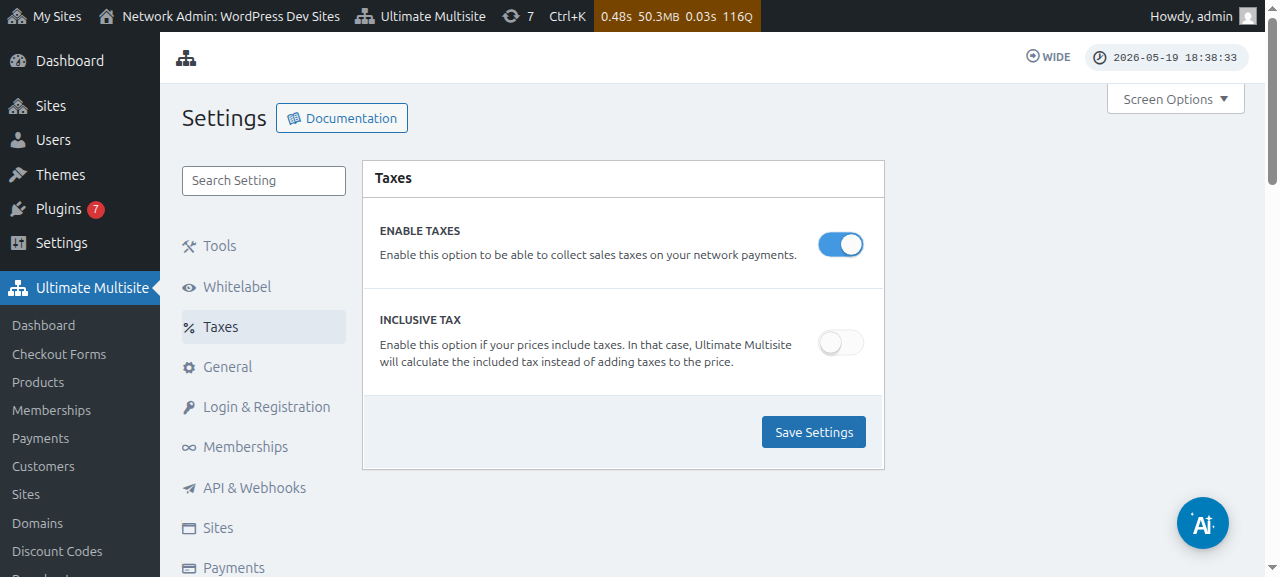
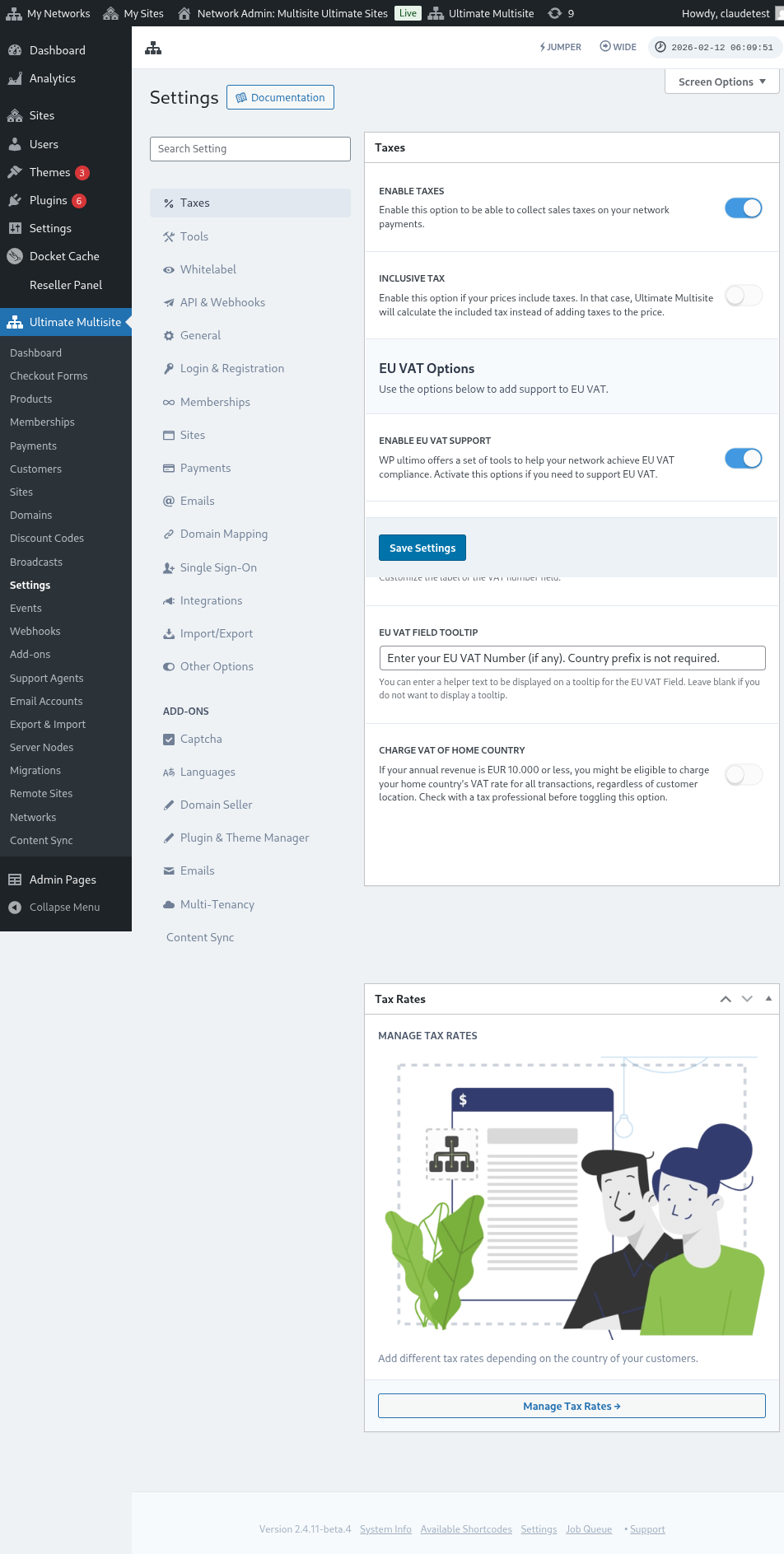
Voici une vue complète de la page des réglages de taxes :
Vous pouvez également afficher les réglages de taxes pour des produits individuels :
Taxes exclues vs. taxes incluses
Par défaut, tous les prix de vos produits sont hors taxes, ce qui signifie que les taxes ne sont pas incluses dans le prix du produit. Si nous déterminons qu’un client doit payer des taxes sur un achat donné, nous ajouterons les taxes en plus du sous-total.
Si vous préférez que les taxes soient incluses dans le prix de votre produit, vous pouvez le faire en activant le réglage Taxe incluse.
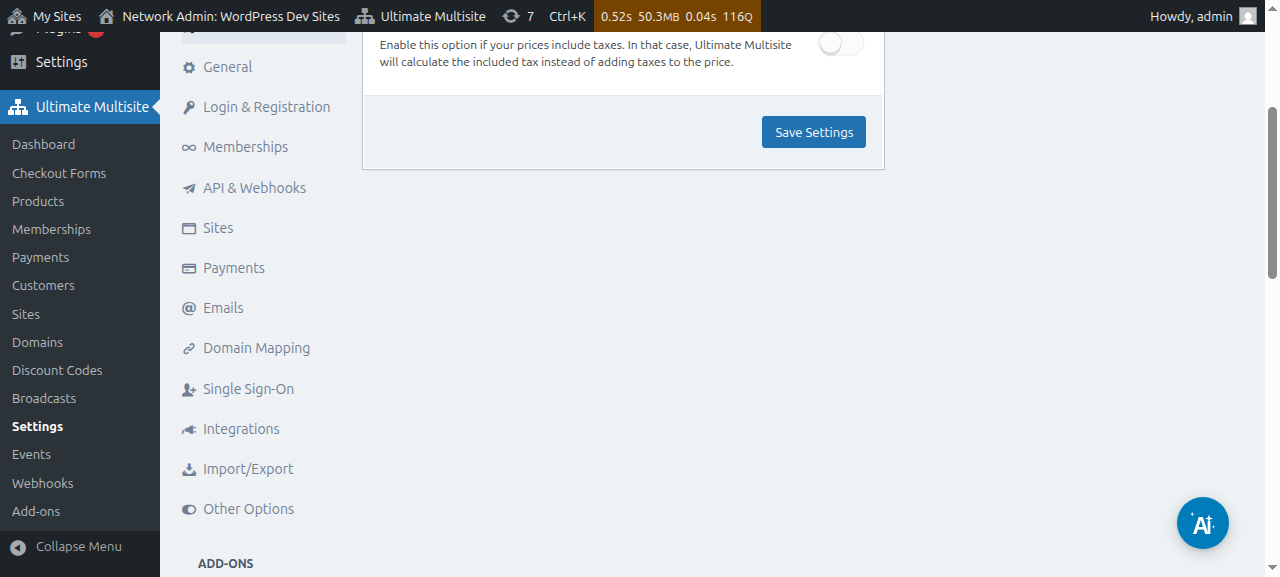
N’oubliez pas d’enregistrer les modifications que vous avez apportées.
Créer des taux de taxe
Après avoir activé la collecte des taxes, vous devrez créer des taux de taxe pour des emplacements spécifiques à l’aide de notre éditeur de taux de taxe.
Vous pouvez accéder à l’éditeur en cliquant sur le bouton Gérer les taux de taxe dans la barre latérale de la page des réglages de taxes.
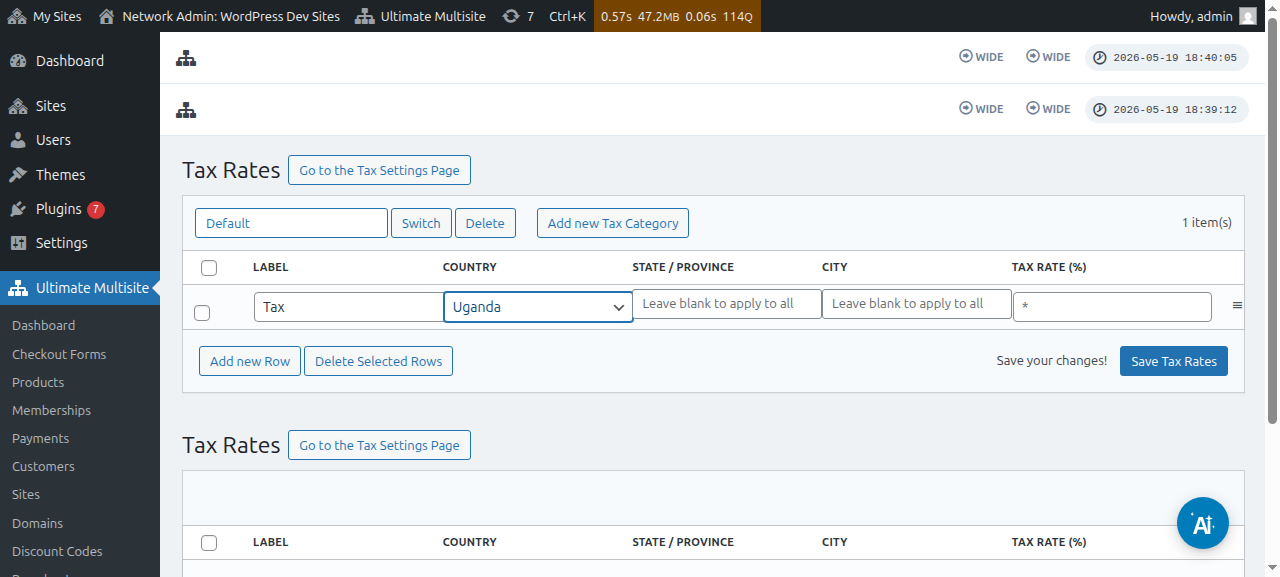
Sur la page de l’éditeur de taux de taxe, vous pouvez ajouter de nouveaux taux de taxe en cliquant sur le bouton Ajouter une nouvelle ligne.
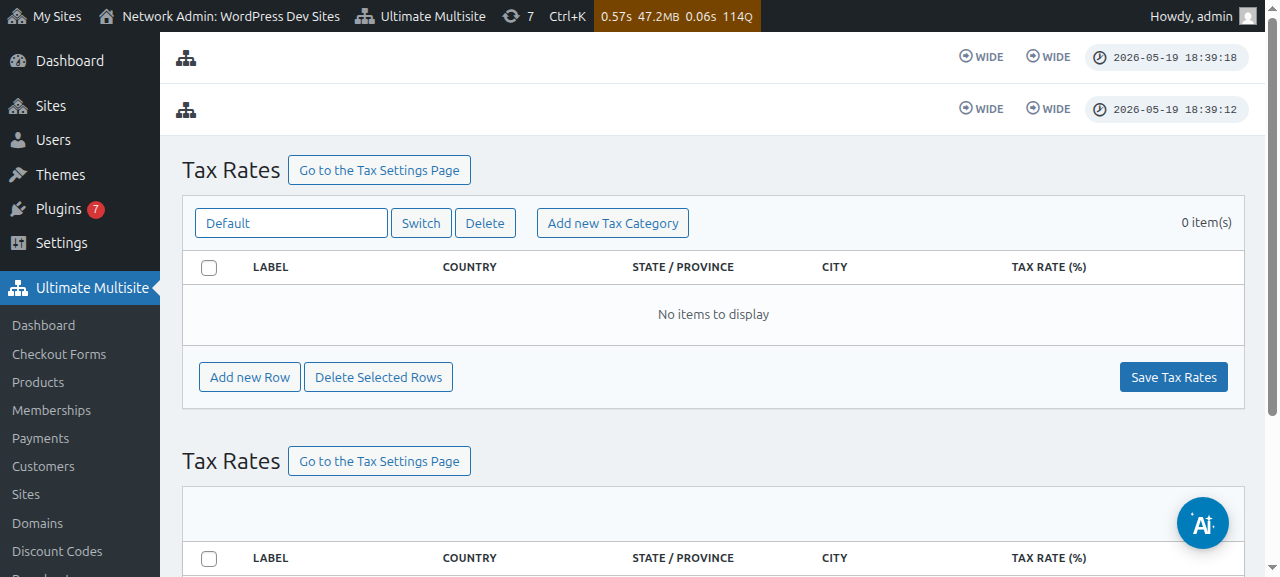
Vous devrez attribuer à chaque taux de taxe un titre (utilisé sur les factures). Vous pouvez ensuite choisir le pays (obligatoire), l’État/la région, et la ville (tous deux facultatifs) où cette taxe sera facturée. Enfin, ajoutez le taux de taxe en pourcentage.
Catégories de taxe
Vous pouvez également créer plusieurs catégories de taxe, afin d’ajouter des taux de taxe différents pour différents types de produits.
Cliquez sur Ajouter une nouvelle catégorie de taxe, puis saisissez le nom de votre catégorie et appuyez sur Créer.
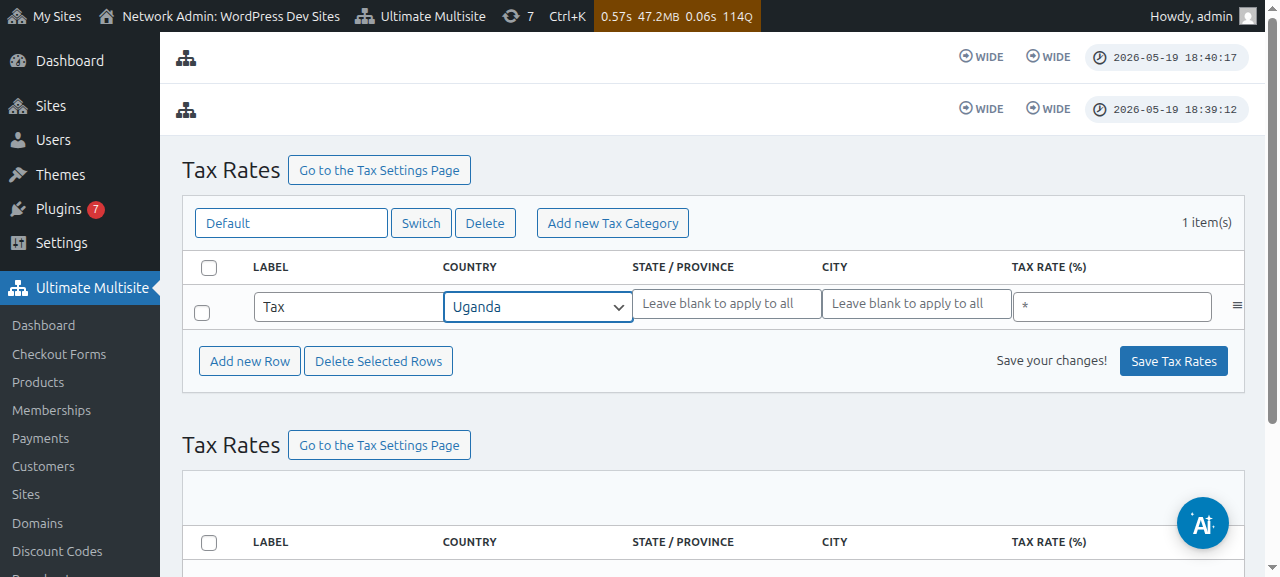
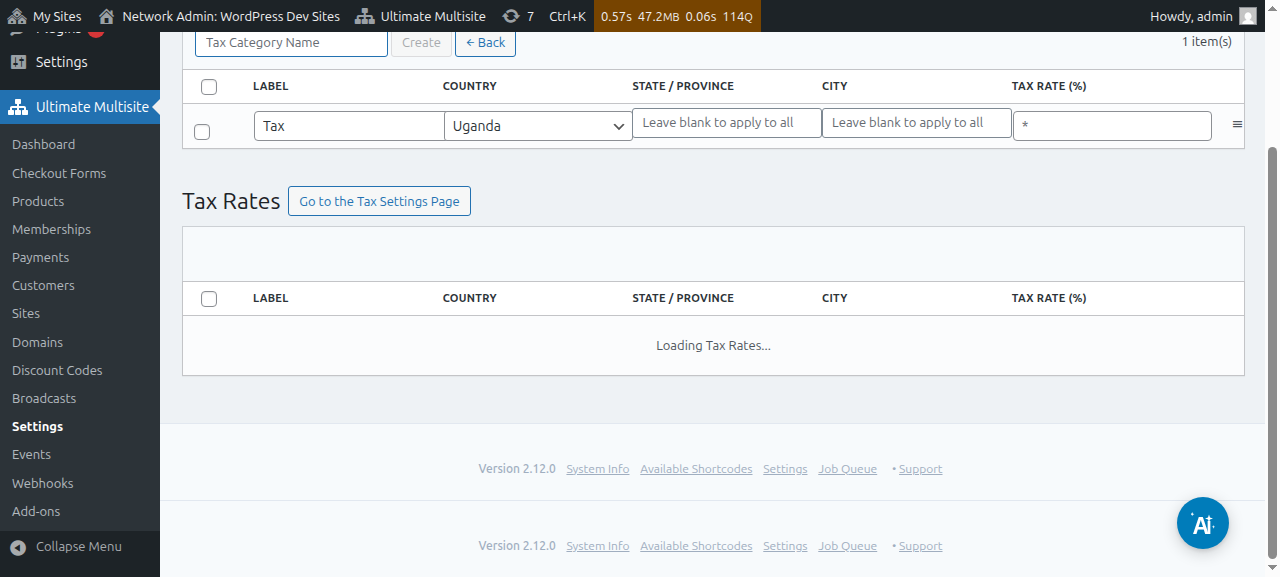
Pour parcourir les catégories, cliquez sur Changer et sélectionnez la catégorie à laquelle vous souhaitez ajouter de nouvelles taxes.
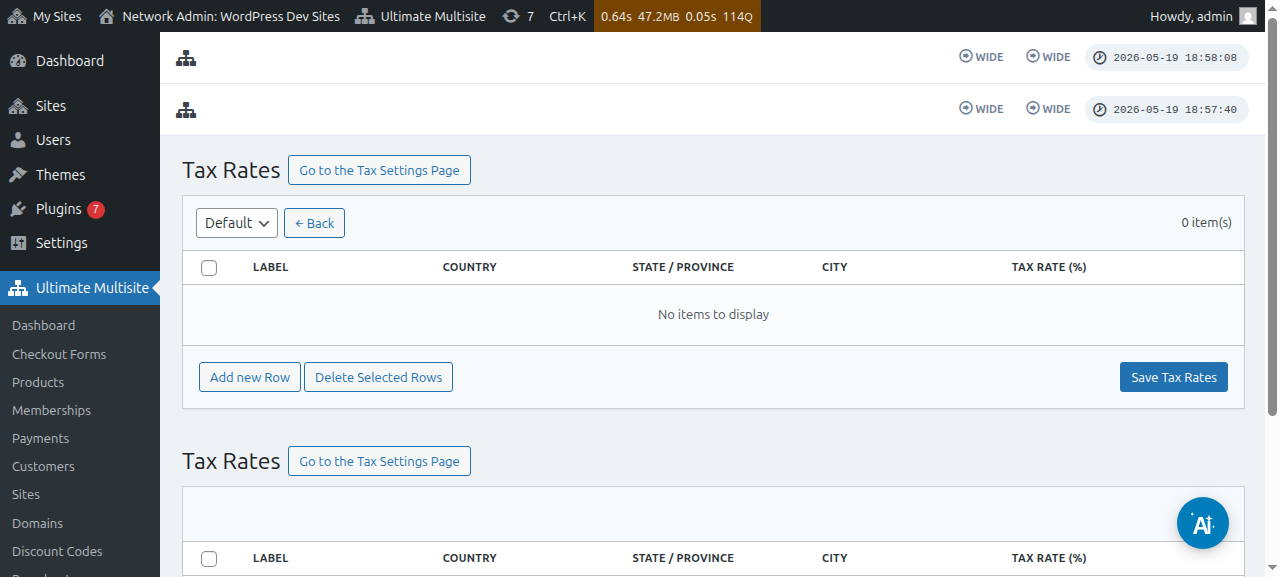
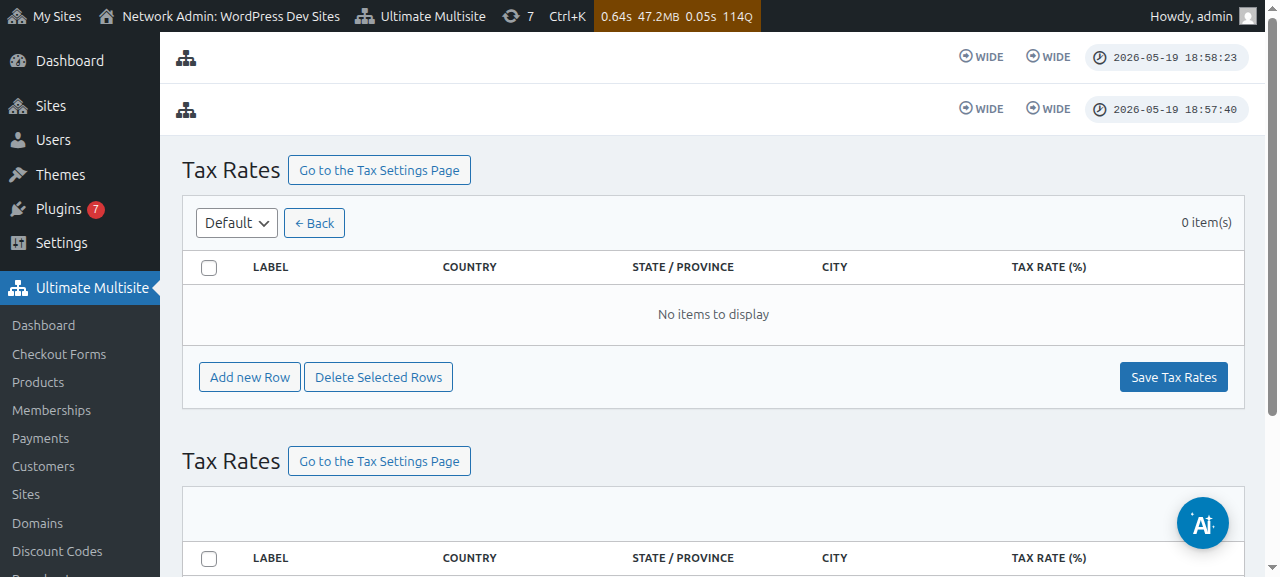
Vous pouvez définir la catégorie de taxe pour un produit particulier en allant sur la page de modification du produit, puis dans l’onglet Taxes.
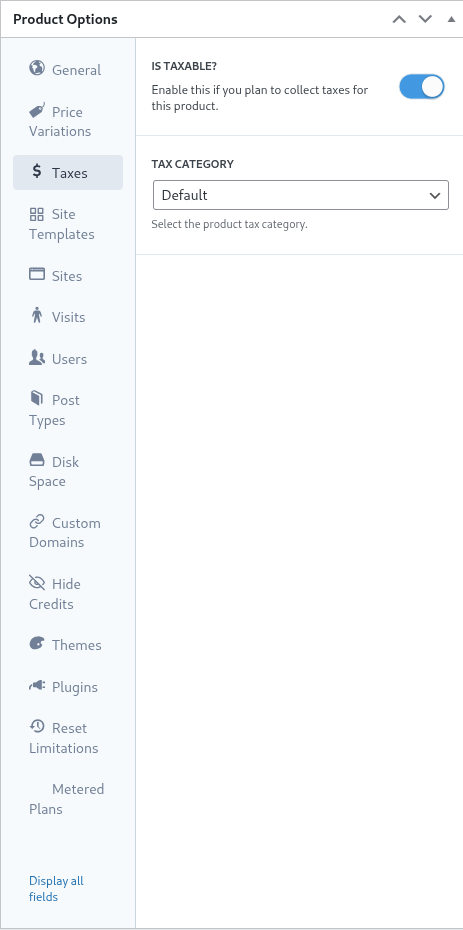
Sur ce même écran, vous pouvez désactiver le bouton Est imposable ? pour indiquer à Ultimate Multisite qu’il ne doit pas collecter de taxes sur ce produit donné.
Prise en charge de la TVA européenne
Comme mentionné précédemment, nous proposons un module complémentaire pour les clients de l’UE qui ont des exigences supplémentaires en raison des réglementations européennes en matière de TVA.
Nos outils de TVA aident pour quelques éléments importants :
-
Chargement facile des taux de TVA de l’UE ;
-
Collecte et validation du numéro de TVA - et autoliquidation pour les entités exonérées de TVA (comme les entreprises disposant de numéros de TVA valides) ;
Pour installer ce module complémentaire, allez dans Ultimate Multisite > Settings, puis cliquez sur le lien de barre latérale Consultez nos modules complémentaires.

Vous serez redirigé vers notre page de modules complémentaires. Là, vous pouvez rechercher le module complémentaire TVA Ultimate Multisite et l’installer.
Ensuite, allez dans Network Admin > Plugins et activez ce module complémentaire sur tout le réseau.
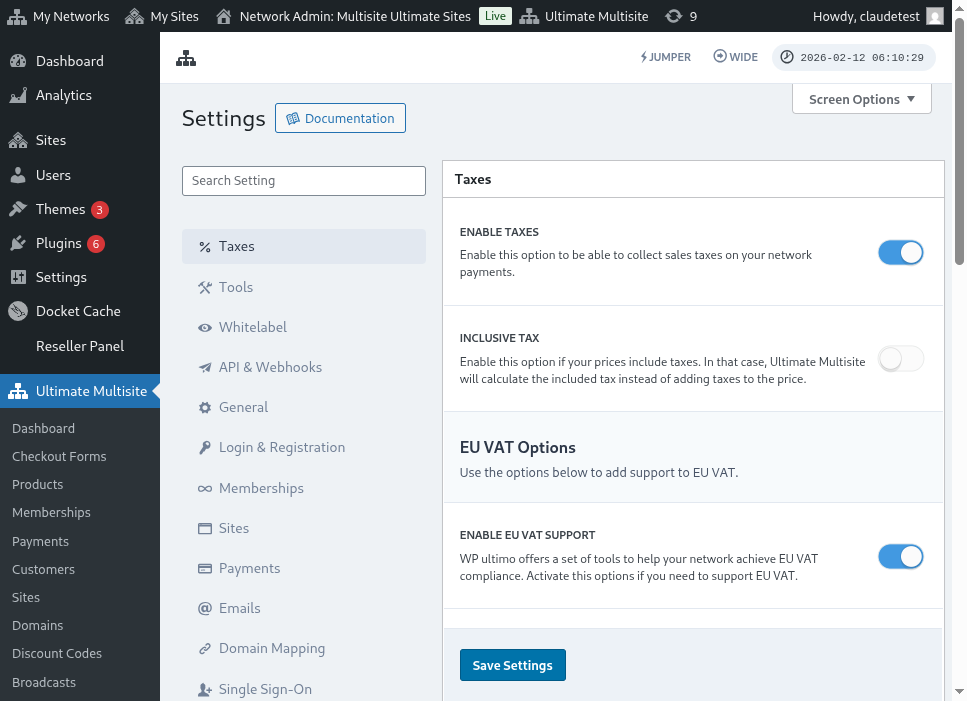
Si vous retournez dans l’onglet Réglages de taxes, vous verrez de nouvelles options disponibles. Activez l’option Activer la prise en charge de la TVA pour activer les nouveaux outils de TVA. N’oubliez pas d’enregistrer vos réglages !
Importer les taux de TVA
L’un des outils ajoutés par notre intégration est la possibilité de charger les taux de taxe des États membres de l’UE. Cela peut être fait en visitant la page de l’éditeur de taux de taxe après avoir activé la prise en charge de la TVA de l’UE.
En bas de la page, vous verrez les options d’importation de la TVA. Sélectionner un type de taux et cliquer sur le bouton Mettre à jour les taux de TVA de l’UE importera et remplira automatiquement le tableau avec les taux de taxe de chaque État membre de l’UE. Ensuite, il ne vous restera plus qu’à l’enregistrer.
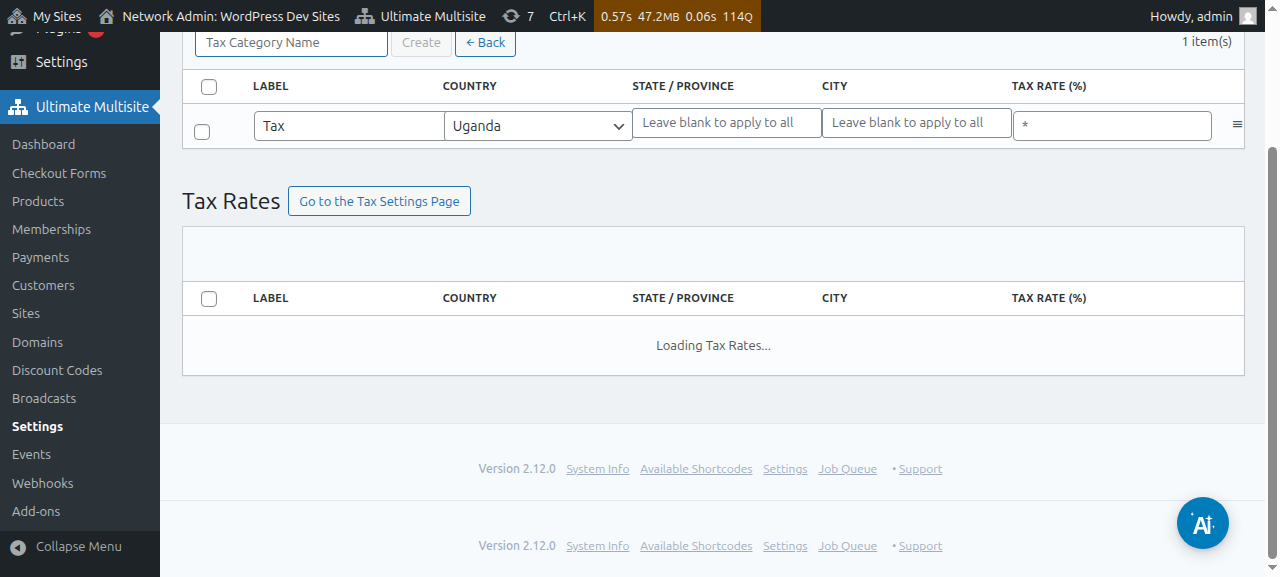
Vous pouvez également modifier les valeurs après les avoir importées. Pour ce faire, modifiez simplement la ligne du tableau dont vous avez besoin et cliquez pour enregistrer les nouvelles valeurs.
Validation de la TVA
Lorsque la prise en charge de la TVA est activée, Ultimate Multisite ajoute un champ supplémentaire au formulaire de checkout, sous le champ de l’adresse de facturation. Le champ ne s’affichera que pour les clients situés dans l’UE.
Ultimate Multisite validera ensuite le numéro de TVA et, s’il s’avère valide, le mécanisme d’autoliquidation est appliqué et le taux de taxe est fixé à 0 % sur cette commande.