GoCardless
Multisite Ultimate: GoCardless 支付
让您的客户使用 GoCardless 通过直接借记支付 Multisite Ultimate 会员和产品!
Installation
- 将 'ultimate-multisite-gocardless' 上传到 '/wp-content/plugins/' 目录
- 在 WordPress 的 'Plugins' 菜单中激活插件
- 按照逐步向导设置插件
Usage Guide
GoCardless 是一个可在 欧洲和英国 使用的支付网关,支持 直接借记 支付。
Ultimate Multisite: GoCardless Gateway 为 Ultimate Multisite 添加了 GoCardless 支持,使您能够在该地区使用直接借记向客户收费。
本教程将介绍如何设置 GoCardless,以便在您的 Ultimate Multisite 网络上开始接受其支付。
注意:GoCardless 仅支持以下货币: EUR、GBP、AUD、SEK 和 DKK。
Installing the Add-on
首先,您需要为 Ultimate Multisite 安装 GoCardless 插件。您可以通过进入 Ultimate Multisite > Settings > Add-ons(侧边栏) 并在列表中选择 GoCardless 插件来完成此操作。
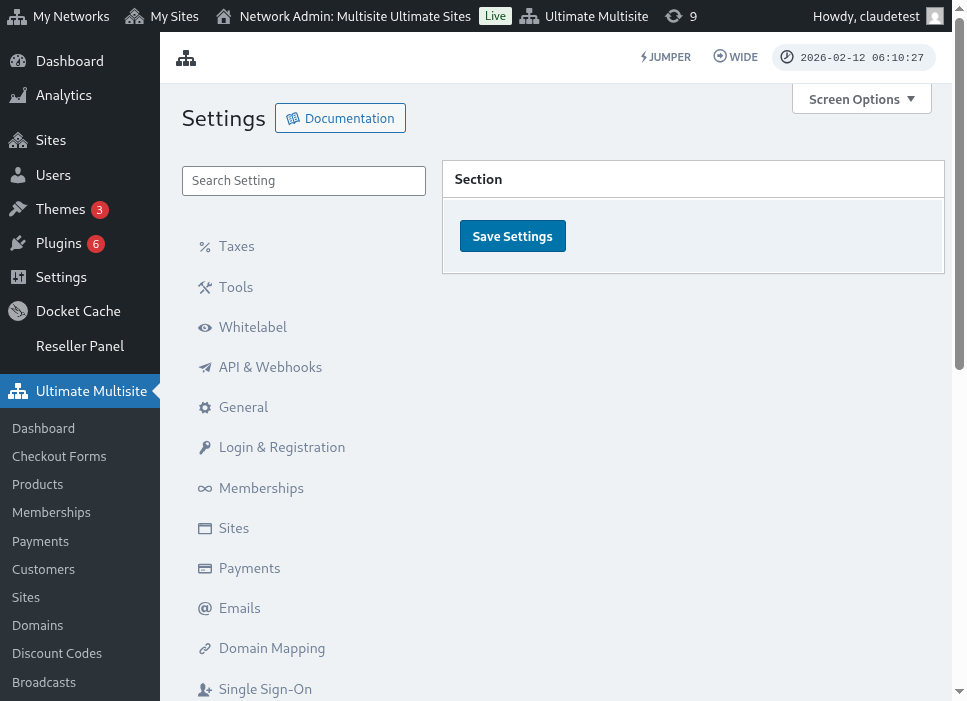
插件安装并激活后,转到 Ultimate Multisite > Settings > Payments,切换 GoCardless 选项并保存。
Getting an Access Token
在 GoCardless 上创建一个账户(或在 GoCardless 沙箱上创建,如果您想先 测试,这被推荐)。登录后,导航到 Developers 菜单项。
在 Developers 页面,点击屏幕右上角的 Create 按钮,然后点击 Access Token 选项。
这将打开一个新模态窗口,允许您创建新令牌。为其命名为易于识别的名称,并确保在 Scope 菜单中选择 Read-write access 选项。
访问令牌将显示在屏幕上。复制它并粘贴到您的 Ultimate Multisite > Settings > Payments > GoCardless 菜单中。
确保将其放在正确的字段中。如果是 live token,在粘贴令牌之前将 sandbox mode 关闭。
第一步完成。接下来,您需要设置一个 webhook 监听器。
Setting up the Webhook Listener
在处理订阅时,Ultimate Multisite 需要了解订阅状态的变化、新支付的发生以及其他相关信息。
支付网关通过 webhook 调用 通知 Ultimate Multisite 这些变化。因此,为了让集成 100% 工作,我们需要告诉 GoCardless 需要调用的 URL。
返回您的 GoCardless > Developers 面板,再次点击 Create 按钮,但这次选择 Webhook endpoint 选项。
new window will open with the webhook endpoint options. It asks for the webhook URL, so head back to your Ultimate Multisite settings > Payments > GoCardless and copy the webhook URL listed in there:
将打开一个新窗口,显示 webhook 端点选项。它会询问 webhook URL,因此请返回您的 Ultimate Multisite settings > Payments > GoCardless 并复制其中列出的 webhook URL:
此外,您可以输入一个 webhook secret,用于签署您的 webhook 调用。您在该字段中输入的任何内容,也需要在 Ultimate Multisite Webhook Secret 字段中输入。
通过点击 Create webhook endpoint 按钮保存端点,然后 保存您的 Ultimate Multisite 设置 来完成。
现在您应该可以接受 GoCardless 了!