GoCardless
Multisite Ultimate: GoCardless Payment
¡Permite a tus clientes pagar membresías y productos de Multisite Ultimate con domiciliación bancaria usando GoCardless!
Installation
- Upload 'ultimate-multisite-gocardless' to the '/wp-content/plugins/' directory
- Activate the plugin through the 'Plugins' menu in WordPress
- Follow the step by step Wizard to set the plugin up
Usage Guide
GoCardless es una pasarela de pago disponible en Europa y Reino Unido que permite pagos mediante Domiciliación Bancaria.
La Ultimate Multisite: GoCardless Gateway añade soporte para GoCardless a Ultimate Multisite, permitiéndote cobrar a tus clientes en esa región mediante Domiciliación Bancaria.
Este tutorial cubrirá cómo configurar GoCardless para comenzar a aceptar pagos a través de él en tu red Ultimate Multisite.
Nota: GoCardless solo funciona con las siguientes monedas: EUR, GBP, AUD, SEK y DKK.
Installing the Add-on
En primer lugar, necesitarás instalar el complemento GoCardless para Ultimate Multisite. Puedes hacerlo yendo a Ultimate Multisite > Settings > Add-ons (en la barra lateral) y seleccionando el complemento GoCardless en esa lista.
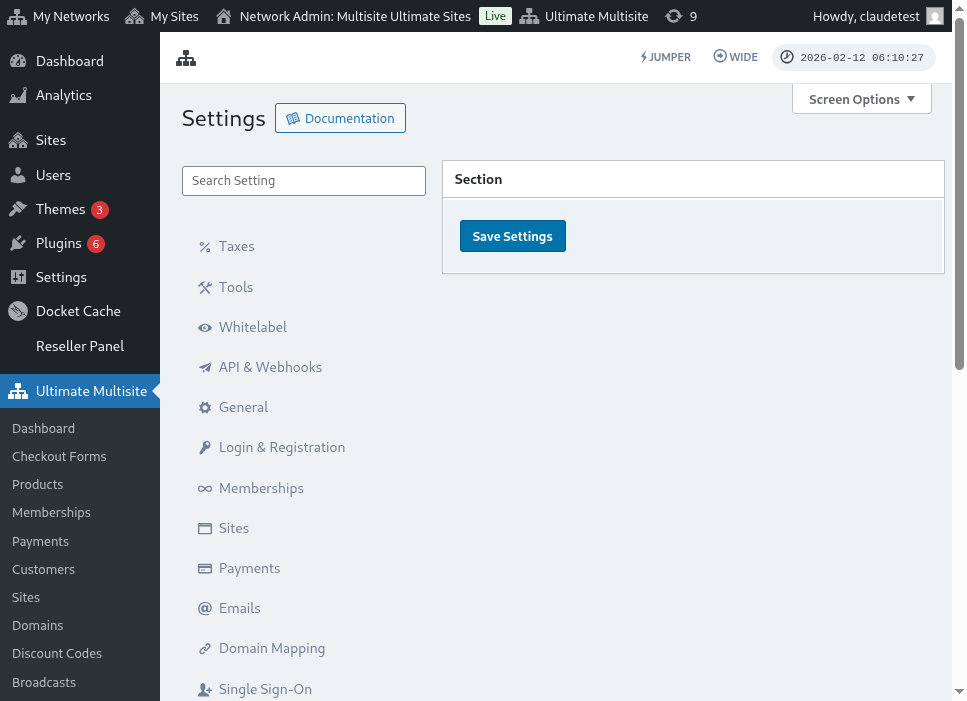
Una vez instalado y activado el complemento, ve a Ultimate Multisite > Settings > Payments, activa la opción GoCardless y guarda.
Getting an Access Token
Crea una cuenta en GoCardless (o en el sandbox de GoCardless, si quieres probarlo primero, lo cual se recomienda). Luego, después de iniciar sesión, navega al elemento de menú Developers.
On the Developers page, click on the Create button at the top-right corner of the screen, then click on the option Access Token.
This will open a new modal window, allowing you to create a new token. Give it a recognizable name and make sure you select the Read-write access option in the Scope menu.
The access token will appear on the screen. Copy that over and paste it onto your Ultimate Multisite > Settings > Payments > GoCardless menu.
Be sure to place it on the right field. If it's a live token, toggle the sandbox mode off before pasting the token.
That's it for the first step. Next, you need to setup a webhook listener.
Setting up the Webhook Listener
Al tratar con suscripciones, Ultimate Multisite necesita recibir información sobre cambios en el estado de la suscripción, nuevos pagos realizados y otras cosas similares.
La forma en que las pasarelas de pago notifican a Ultimate Multisite de esos cambios es mediante webhook calls. Por esa razón, para que la integración funcione al 100 %, necesitamos decirle a GoCardless qué URL llamar con toda esa información.
Regresa a tu panel GoCardless > Developers y haz clic en el botón Create nuevamente, pero esta vez selecciona la opción Webhook endpoint.
A new window will open with the webhook endpoint options. It asks for the webhook URL, so head back to your Ultimate Multisite settings > Payments > GoCardless and copy the webhook URL listed in there:
Additionally, you can enter a webhook secret that will be used to sign your webhook calls. Whatever you enter on that field, you'll need to enter on the Ultimate Multisite Webhook Secret field as well.
Finish up by saving the endpoint by clicking the Create webhook endpoint button and then save your Ultimate Multisite settings as well.
You should be ready to accept GoCardless now!