Creating Discount Codes (v2)
IMPORTANT NOTE: This article refers to Ultimate Multisite version 2.x.
With Ultimate Multisite you can create discount codes to give your clients discounts on their subscriptions. And creating them is easy!
Creating and Editing Discount Codes
To create or edit a discount code, go to Ultimate Multisite > Discount Codes.
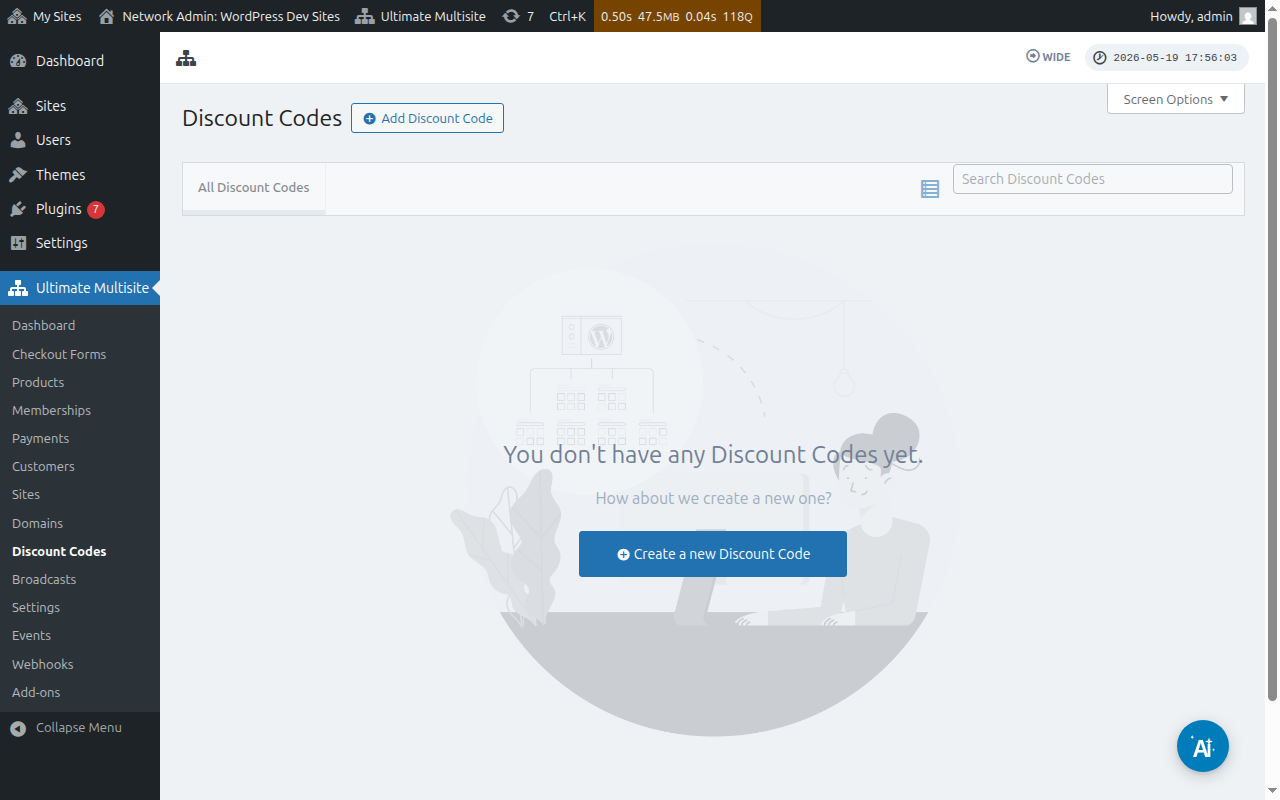
There you'll have a list of the discount codes you've already created.
You can click on Add Discount Code to create a new coupon or you can edit the ones you have by hovering over them and clicking Edit.
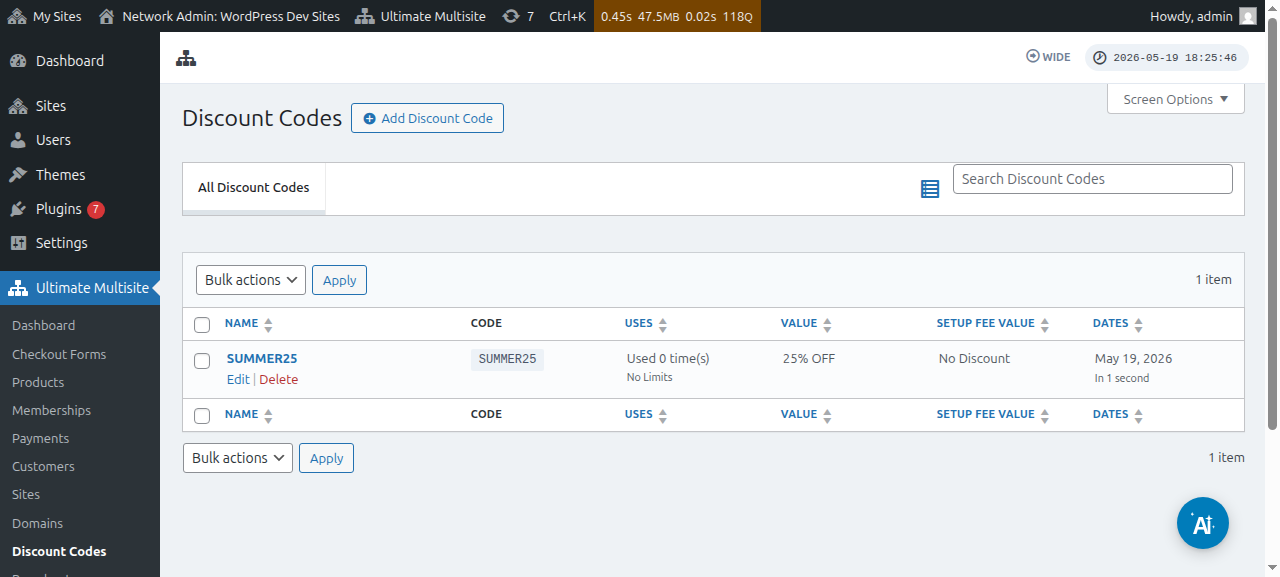
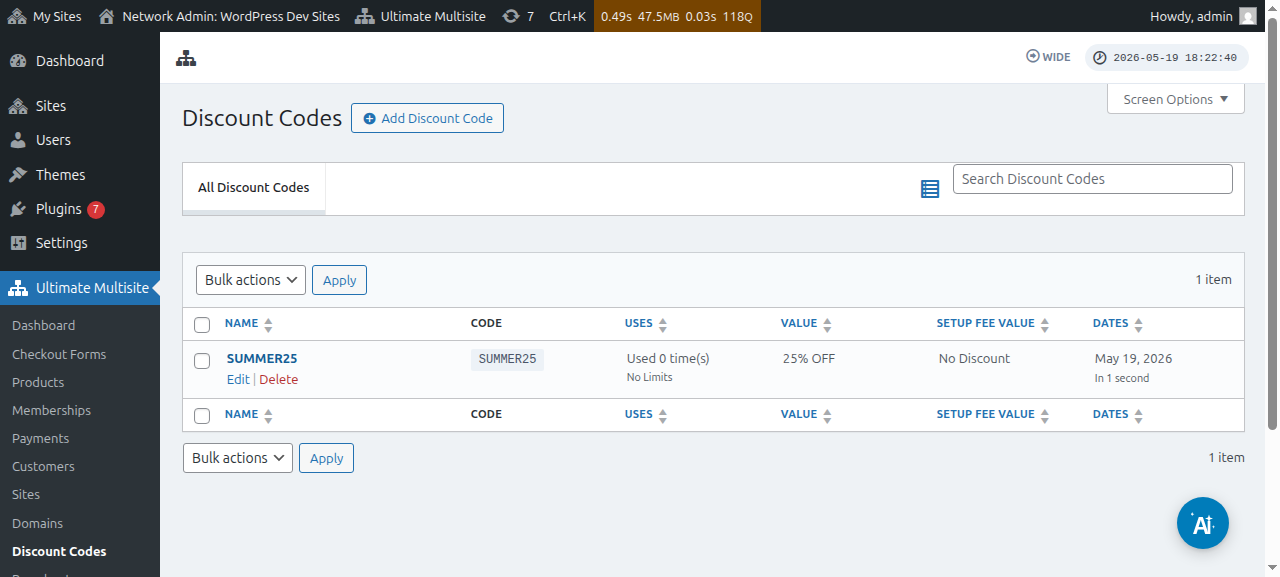
You will be redirected to the page where you will create or edit your coupon code. On this example we will create a new one.
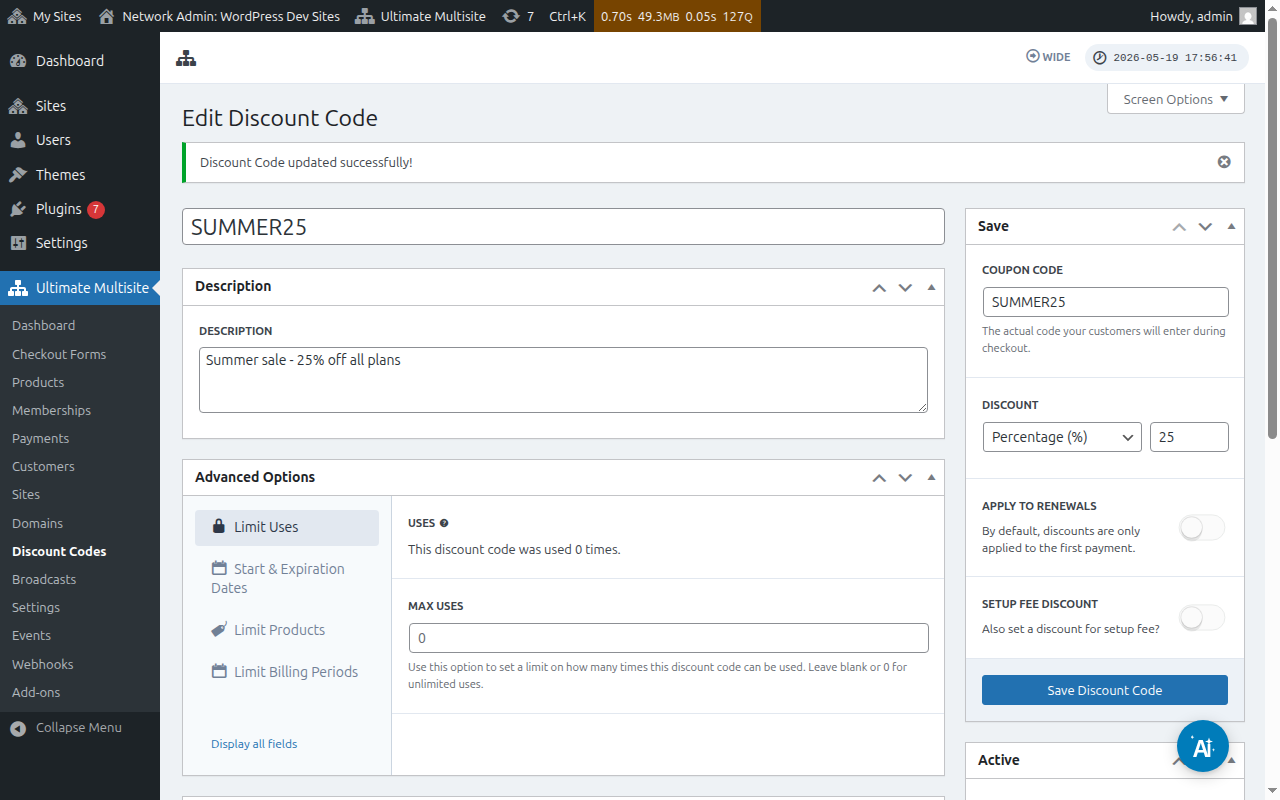
Lets take a look at the settings available here:
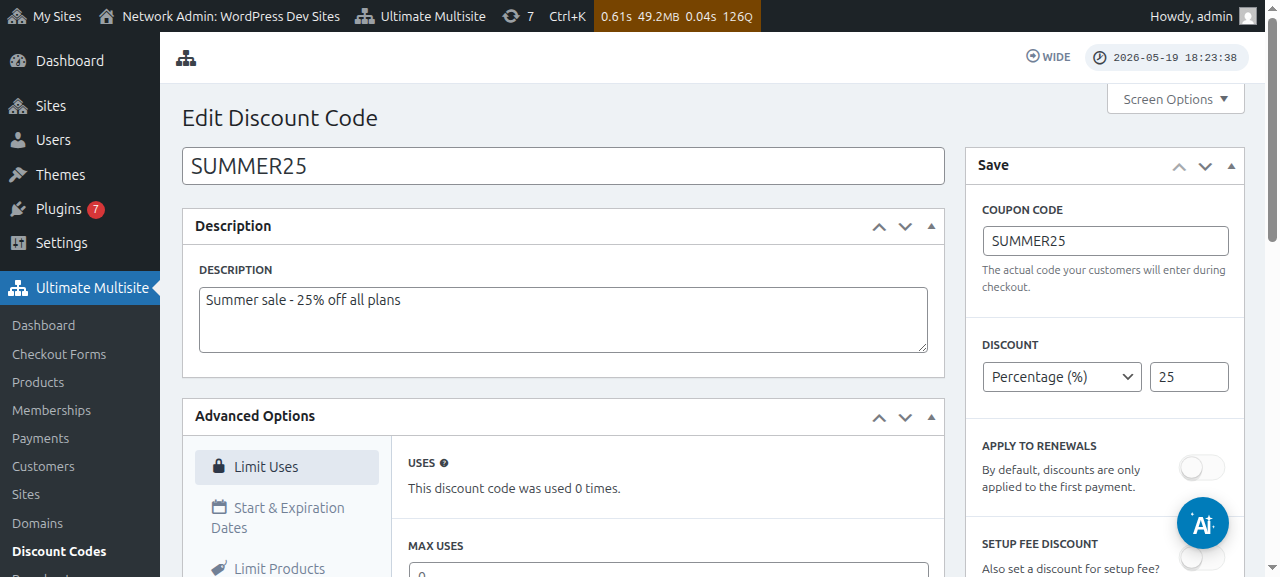
Enter Discount Code: This is just the name of your discount code. This is not the code your customers will need to use on the checkout form.
Description: Here, you can briefly describe what this coupon is for.
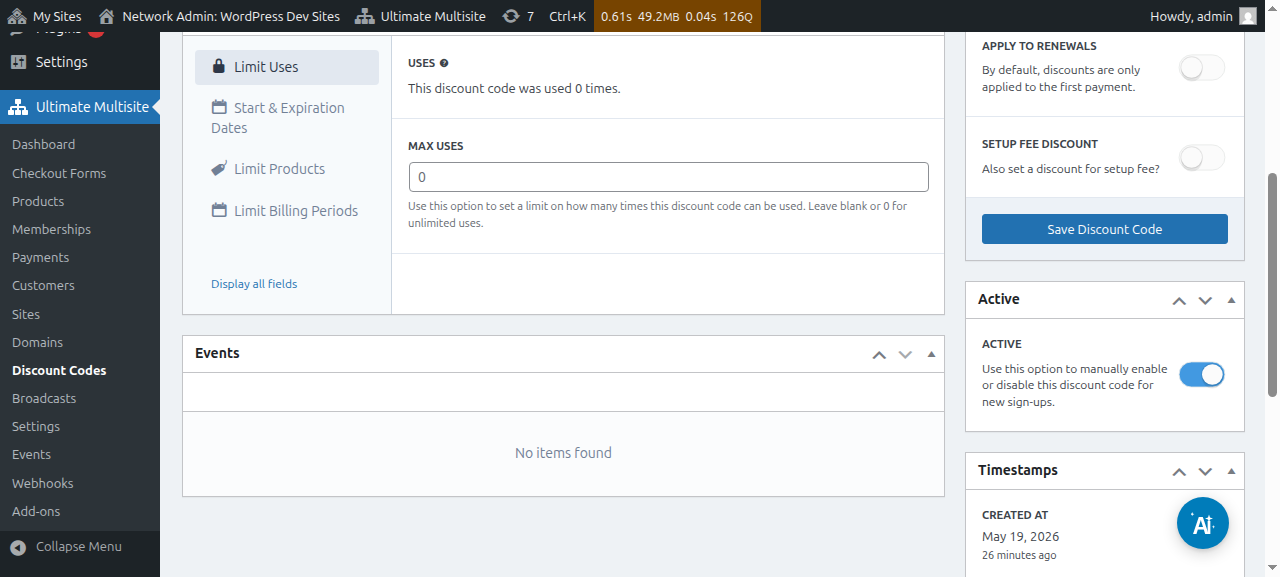
You can also view the discount code as active or inactive:
Coupon code: Here is where you define the code your customers will need to enter during the checkout.
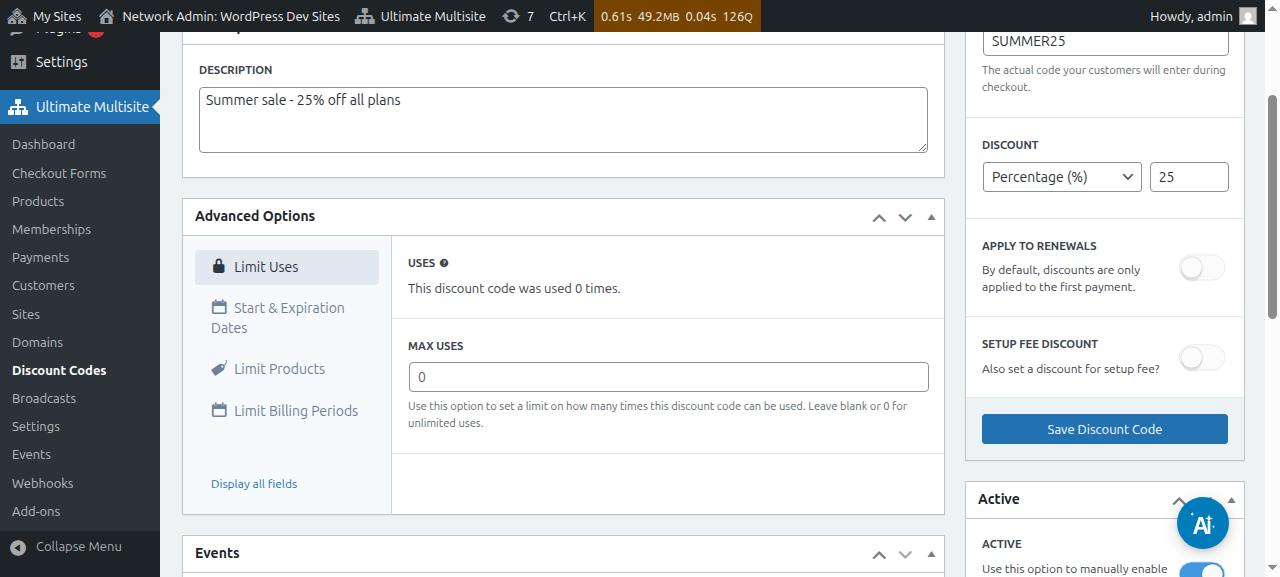
Discount: Here, you can set either a percentage or a fixed amount of money for your discount code.
Apply to renewals: If this option is toggled off, this discount code will only be applied to the first payment. All the other payments will have no discount. If this option is toggled on, the discount code will be valid for all future payments.
Setup fee discount: If this option is toggled off, the coupon code will not give any discount for the setup fee of the order. If this option is toggled on, you can set the discount (percentage or fixed amount) that this coupon code will apply to the setup fee of your plans.
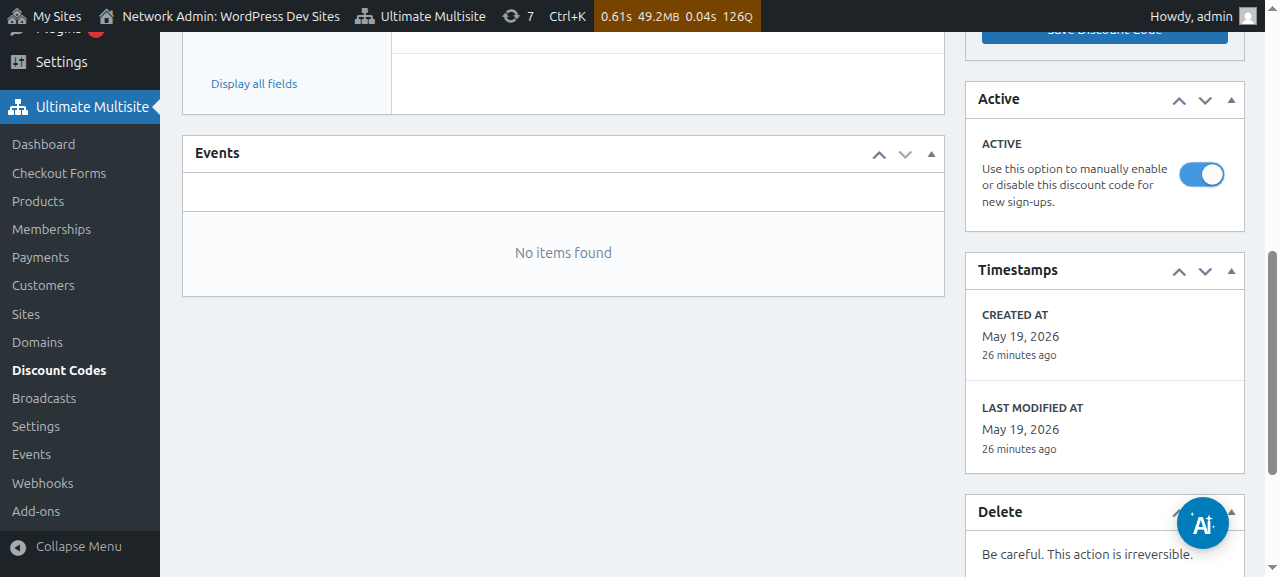
Active: Manually activate or deactivate this coupon code.
Under Advanced Options, we have the following settings:
Limit uses:
-
Uses: Here, you can see how many times the discount code was used.
-
Max uses: This will limit the amount of times users can use this discount code. For example, if you put 10 here, the coupon could only be used 10 times. After this limit, the coupon code cannot be used anymore.
Start & expiration dates: Here you will have the option to add a start date and/or an expiration date to your coupon.
Limit products: If you toggle Select products on, all your products will be shown to you. You will have the option to manually select (by toggling on or off) which product can accept this coupon code. Products that are toggled off here will not show any change if your customers try to use this coupon code to them.
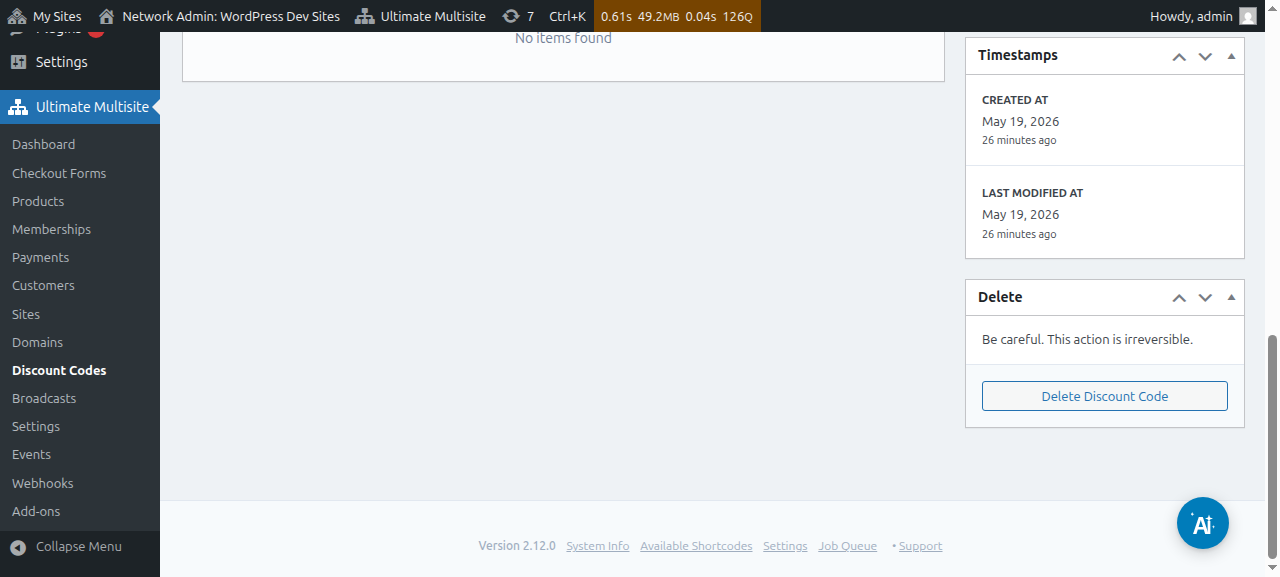
After setting up all of these options, click on Save Discount Code to save your coupon and it’s done!
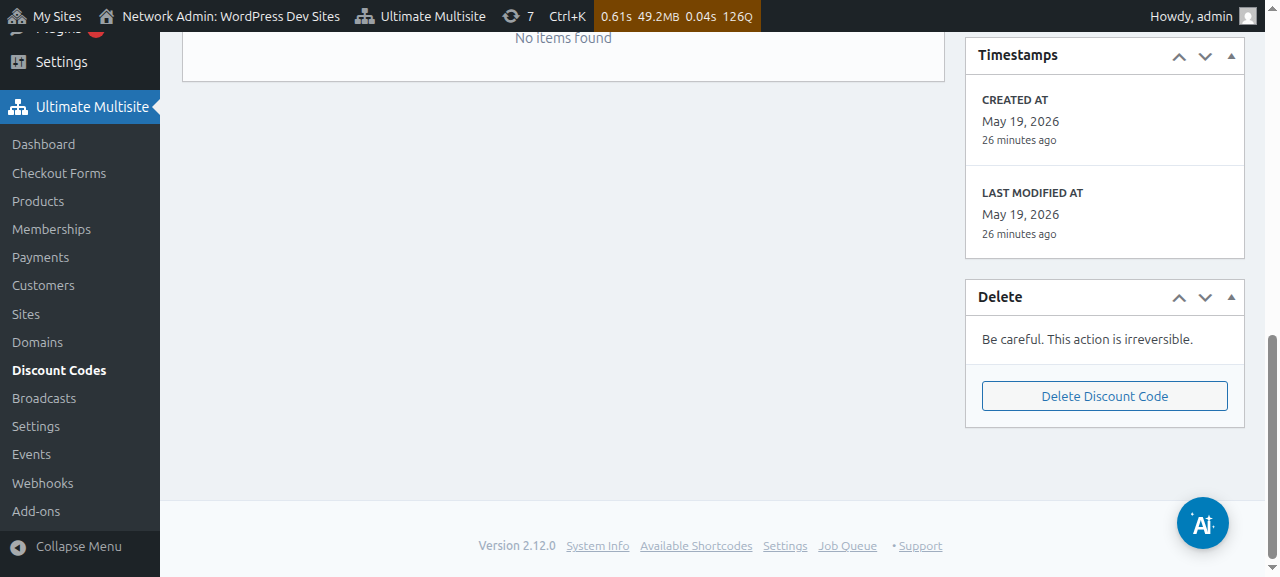
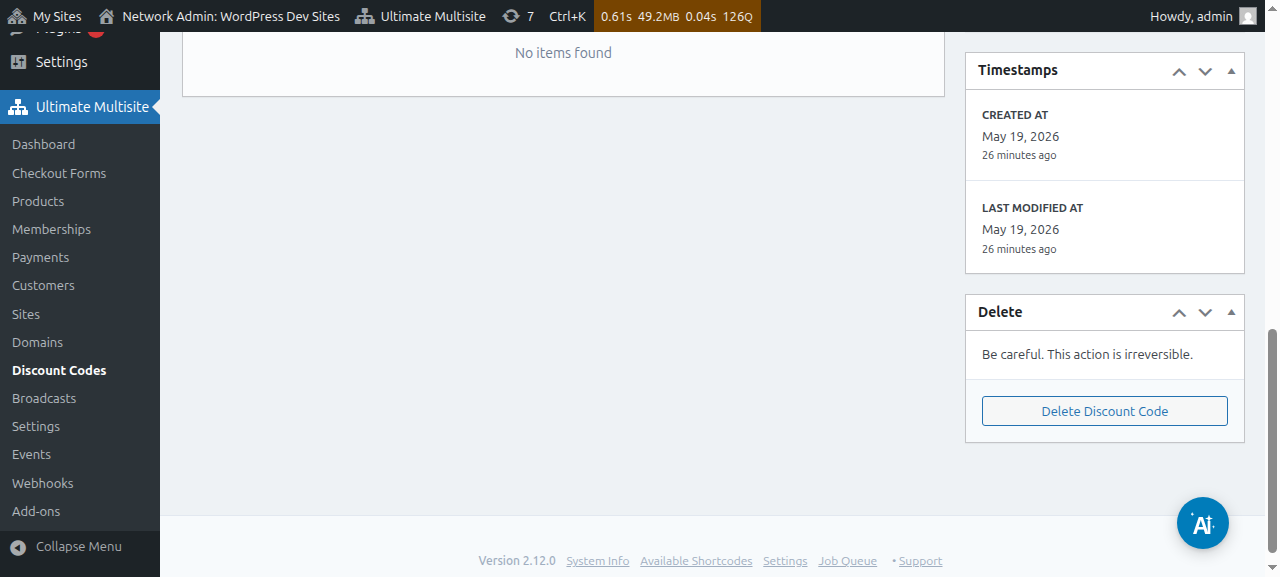
The coupon is now on your list and, from there, you can click to edit or delete it.
Using URL Parameters:
If you want to customize your pricing tables or build a nice coupon code page for your website and want to apply a discount code to your checkout form automatically, you can do this via URL parameters.
First, you need to get the shareable link for your plan. To do this, go to Ultimate Multisite > Products and select a plan.
Click on the Click to Copy Shareable Link button. This will give you the shareable link to this specific plan. In our case, the shareable link given was mynetworkdomain.com/register/premium/.
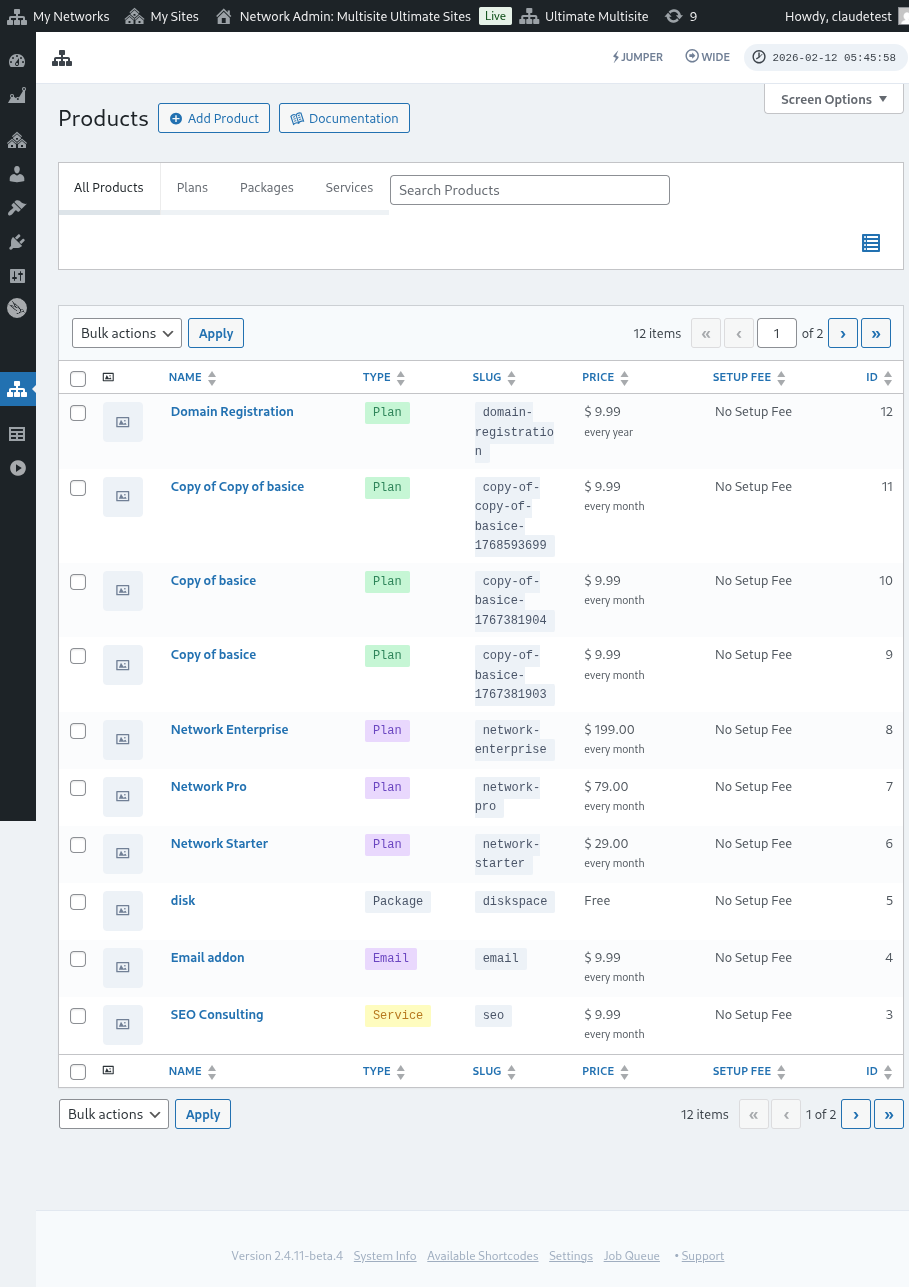
To apply your discount code to this specific plan, just add the parameter ?discount_code=XXX to the URL. Where XXX is the coupon code.
In our example here, we will be applying the coupon code 50OFF to this specific product.
The URL for this specific plan and with the 50OFF discount code applied will look as: mynetworkdomain.com/register/premium/ ?discount_code=50OFF.