न्ने क्लाइंटको खातीໜ້າ (v2)
ສຳຄັນໝາຍເຫດ: ບົດຄວາມນີ້ອ້າງອີງເຖິງ Ultimate Multisite version 2.x.
ເມື່ອລູກຄ້າສະໝັກແຜນໃດໜຶ່ງໃນເຄືອຂ່າຍຂອງທ່ານ, ພວກເຂົາຈະໄດ້ເຂົ້າເຖິງເວັບໄຊທ໌ ແລະ ແດັດບອດຂອງມັນກັບຂໍ້ມູນສຳຄັນກ່ຽວກັບການຈ່າຍເງິນ, ການເປັນສະມາຊິກ, ໂດເມນ, ຂີດຈຳກັດແຜນ, ແລະ ອື່ນໆ...
ໃນບົດຮຽນນີ້, ພວກເຮົາຈະພາທ່ານໄປເບິ່ງໜ້າບັນຊີຂອງລູກຄ້າ ແລະ ທ່ານຈະໄດ້ເຫັນວ່າລູກຄ້າສາມາດເຫັນ ແລະ ເຮັດຫຍັງໄດ້ພາຍໃນນັ້ນ.
ໜ້າບັນຊີ (The Account Page)
ໜ້າບັນຊີສາມາດເຂົ້າເຖິງໄດ້ໂດຍການຄລິກໃສ່ Account (ບັນຊີ) ຢູ່ພາຍໃນ dashboard ຂອງລູກຄ້າ.
ໃນເຄືອຂ່າຍ sovereign tenant, Ultimate Multisite v2.13.0 ຈະຮັກສາປະສົບການການຈັດການລູກຄ້າສະບັບນີ້ໄວ້ຢູ່ເທິງເວັບໄຊທ໌ຫຼັກ. ຖ້າລູກຄ້າເປີດບັນຊີ, checkout, billing, invoice, site-management, template-switching, ຫຼື domain-mapping actions ຈາກ sovereign tenant, ການກະທຳເຫຼົ່ານັ້ນຈະກັບໄປຫາ customer panel ຂອງ main-site ເພື່ອໃຫ້ຂໍ້ມູນການເກັບຄ່າບໍລິການ ແລະ ປະຫວັດສະມາຊິກຂອງເຄືອຂ່າຍຍັງເປັນເຈົ້າຂອງ.
ເມື່ອລູກຄ້າເຂົ້າມາຈາກ sovereign tenant, customer panel ຂອງ main-site ສາມາດມີລິ້ງກັບຄືນໄປຫາ tenant site ໄດ້. ລິ້ງກັບຄືນນີ້ຈະສະແດງອອກເມື່ອ Ultimate Multisite ສາມາດຢັ້ງຢືນເປົ້າໝາຍທີ່ຈະກັບໄປເປັນໜຶ່ງໃນເວັບໄຊທ໌ຂອງລູກຄ້າໄດ້, ເຊິ່ງປ້ອງກັນການປ່ຽນໜ້າແບບບໍ່ມີລະບຽບ ໃນຂະນະທີ່ຍັງຮັກສາ workflow ຂອງ tenant site ໄວ້.

ຫຼັງຈາກທີ່ລູກຄ້າຄລິກໃສ່ມັນ, ພວກເຂົາຈະເຫັນພາບລວມຂອງການເປັນສະມາຊິກ, ທີ່ຢູ່ບิลລින්, invoice, ໂດເມນ, ຂີດຈຳກັດຂອງເວັບໄຊທ໌, ແລະ ຍັງສາມາດປ່ຽນ Site Template (Template ເພື່ອຈັດຮູບແບບເວັບໄຊ) (ຖ້າຖືກອະນຸຍາດໃນເຄືອຂ່າຍຂອງທ່ານ) ໄດ້ອີກດ້ວຍ.
ພວກເຂົາຍັງສາມາດປ່ຽນການເປັນສະມາຊິກໄປເປັນແຜນອື່ນ, ຫຼື ຊື້ package ຫຼື service ອື່ນໆທີ່ທ່ານສະເໜີໃຫ້ໄດ້. ເຮົາຂໍເບິ່ງແຕ່ລະພາກສ່ວນຢ່າງແຍກຕ່າງຫາກ.
ཁྱེད་ཀྱི་Membership སྐོར་བར། (Your Membership Overview:)
ཁྱེད་ཀྱི་customer website name ལས་གསུམ་འདི་ནང་གི་ block དང་པོ་ནི་ཁོང་ཚོས་ད་ལྟ་བའི་ plan དང་ service/package ག་རེ་ཡོད་པ་ཤེས་ཐရတဲ့ overview ཞིག་ཡོད། དེའི་ནང་ལ་membership number, སྐྱོན་ཆ་འདིར་སྔོན་མ་འགྲོ་བའི་ amount, plan དང་ service/package གཅིག་གི་ລາຄាག་རེ་ཡོད་པ་དང་,ဒီ membership ལ་ဘယ်နှစ်ကြိမ် Billing བྱས་ཡོད་པ་དེ་ལྟར་ཡང་མཐོང་རྒྱུ་ཡོད། དེ་ཚོས་membership འདི་ Active (བདུད་རྩ་ཡོད་པའི་) ཡིན་ན་, Expired (ໝົດ காலའགྲོ་བའི་), ཡང་ན་ Canceled (བཅོལ་བའི་) 状態ག་རེ་ཡིན་པ་ཤེས་ཐရརྒྱུ་ཡོད།

ဒီ block འདི་ལས་གནས་པའི་အောက်မှာ customer ཚོས་ About This Site နဲ့ Site Limits blocks တွေကို જોઈလို့ရတယ်။ ဒီ blocks တွေက သူတို့ရဲ့ plan ལ་ཡོད་တဲ့ ကန့်သတ်ချက် (limitations) ག་རེ་ൊക്കെလဲဆိုတာ བསྟན་ပေးတယ်။ disk space, posts, pages, visits စတဲ့ ကန့်သတ်ချက်တွေပေါ့... ဒီ limit တွေကို Ultimate Multisite > Products ནང་གི་ plan page རེ་རེའི་上 မှာ ချိန်ညှိလို့ရတယ်။

Your Membership འདིའི་右 side ལ་customer ཚོས་ Change ကို click བྱས་နိုင်တယ်။ ဒါက သူတို့ ရွေးချယ်လို့ရတဲ့ plan နဲ့ package/service တွေ အားလုံးကို ပြသပေးလိမ့်မယ်။ သူတို့ နောက်ထပ် plan တစ်ခုကို ရွေးလိုက်ရင်၊ ဒီ membership ရဲ့ ကန့်သတ်ချက်တွေအစား အဲဒီ new plan ရဲ့ ကန့်သတ်ချက်တွေက အစားထိုးသွားမှာဖြစ်တယ်— downgrade လုပ်သည်ဖြစ်စေ, upgrade လုပ်သည်ဖြစ်စေ ဂရုမစိုက်ပါနဲ့။
အခု၊ customer ཚོས་ ဒီ current membership အတွက် package ဒါမှမဟုတ် service တွေ (ဥပမာ- disk space ပိုယူတာ ဒါမှမဟုတ် visits ပိုသုံးတာ) ဝယ်ချင်ရင်တောင်၊ current membership ကို ပြောင်းလဲမှာ မဟုတ်ဘူး။ အဲဒီအစား new packages တွေကိုပဲ ထည့်သွင်းပေးမှာ ဖြစ်တယ်။
Note လုပ်ထားရမှာက coupon codes တွေကို ဒီmembership change page မှာ ထည့်လို့မရပါဘူး။ Customer က ပထမဆုံး membership ဝယ်တဲ့အခါ coupon code သုံးခဲ့ရင်၊ အဲဒီ code ဟာ ဒီ new membership အတွက်လည်း အကျိုးသက်ရောက်မှု ရှိနေမှာ ဖြစ်ပါတယ်။
Billing Address ကို Update လုပ်ခြင်း:
Sa page ntawm account, cov neeg uas yuav tsum zaum los rov qab (update) zaj nrhiav chaw hauv txhais (billing address). Cov neeg tsuas tsis txhob txhob, tsim txhua Update hauv lub hauv Billing Address.

Lub window tshiab yuav tsum tsim rau cov neeg uas yuav tsum zaum los rov qab (update). Cov neeg tsuas tsis txhob txhob, tsim lub chaw hauv tshiab thiab tsim Save Changes.

Rooj cov template ntawm website:
Tus tuaj ye los cov neeg uas yuav tsum zaum los rov qab (update) cov template ntawm website, koj yuav tsum mus rau Ultimate Multisite > Settings > Sites thiab thov lub option Allow Template Switching.
Tsawg, hauv Ultimate Multisite > Products, siv cov plan uas koj xav thiab mus rau tab Site Templates. Tsim txhua Allow Site Templates los yog hauv Site Template Selection Mode, siv lub option Choose Available Site Templates.
Koj yuav thov tau pam cov template uas muaj pom rau website ntawm koj. Siv tias koj xav tsim tawm qab (available) thiab siv tias koj tsis xav tsim tawm qab rau cov neeg uas txais lub plan no. Txhua option no yuav ua raws li tab checkout los, kaya template uas tau tsim tawm Not Available yuav tsis pom rau hauv registration page rau lub plan no.
Tawm, cov neeg uas yuav tsum zaum los rov qab (update) site template yuav tsum tsim hauv account page ntawm lawv.

Ultimate Multisite 2.10.0 muaj tab tsim panel switch template uas tau tsim tshiab. Panel no yuav mus rau current-template card kom cov neeg uas yuav tsum zaum los rov qab (update) paub tias template uas tsis txhob tsim tawm (active) thaum lawv tsim tab tsim lub template tshiab.
Customer-om tshoob (site templates) chuav tshoob (visible) nuam, tias tshoob (helps) customer-om tshoob (review) tshoob (options) chuav tshoob (available). Tias tshoob (helps) tias tshoob (compare) plan-om tshoob (allowed) template-om chuav tshoob (losing sight) current selection.

Tias tshoob (after selecting) one they want to change to, tias tshoob (ask) confirm the change.

Tias tshoob (after toggling on) confirmation and clicking to Process Switch, new site template chuav tshoob (used) on your customer's website.
Customers chuav tshoob (also use) Reset current template from this panel when they need to reset the site back to the currently assigned template. Like switching to another template, resetting a template chuav tshoob (can overwrite) site content, tias tshoob (should only confirm) when they understand the reset action.
Custom Domains-om tshoob (Adding Custom Domains):
Customer-om chuav tshoob (also have option) add custom domain for this plan on their account page. To allow your customers to use custom domains, go to Ultimate Multisite > Settings > Domain Mapping.
Toggle on the option Enable Domain Mapping. Tias tshoob (will allow) your customers chuav tshoob (use) custom domains on a network level.
Don't forget to also check if domain mapping chuav tshoob (enabled) on a product basis - because you can limit a product to not allow your customers to use custom domains.
Go to Ultimate Multisite > Products. Select the plan of your choice and go to the Custom Domains tab. Toggle on the option Allow Custom Domains.
ئនេះ թույլ կտա այս պլանին բժանված բոլոր հաճախորդներին օգտագործել սեփական ադոմենները (custom domains)։ Այժմ, Account էջում ձեր հաճախորդները կարող են սեփական ադոմեն ավելացնել՝ սեղմելով Add Domain-ի վրա:

Բացվող առաջին պատուհանը կցուցի ձեր հաճախորդներին, թե ինչպես թարմացնել իրենց DNS գրանցումները՝ այս սեփական ադոմենը աշխատեցնելու համար ձեր ցանցում։

Այս հաղորդագրությունը կարելի է խմբագրել (ձեզ կողմից) Ultimate Multisite > Settings > Domain Mapping > Add New Domain Instructions-ում։
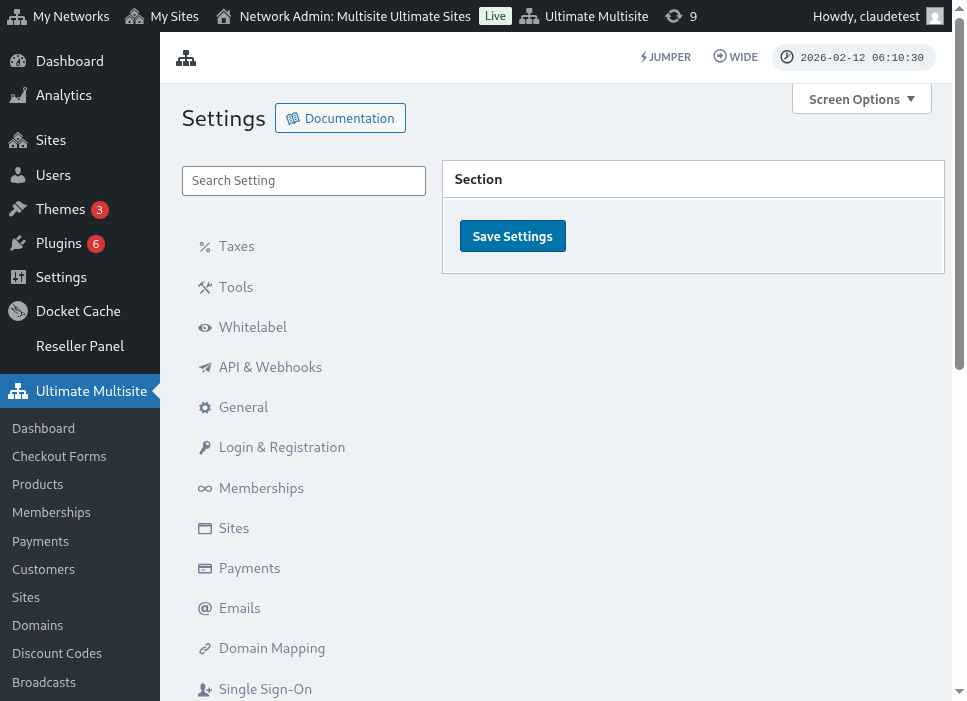
Ահա ադոմեն մ్యాփինգի (domain mapping) կարգավորումների ամբողջական տեսքը.
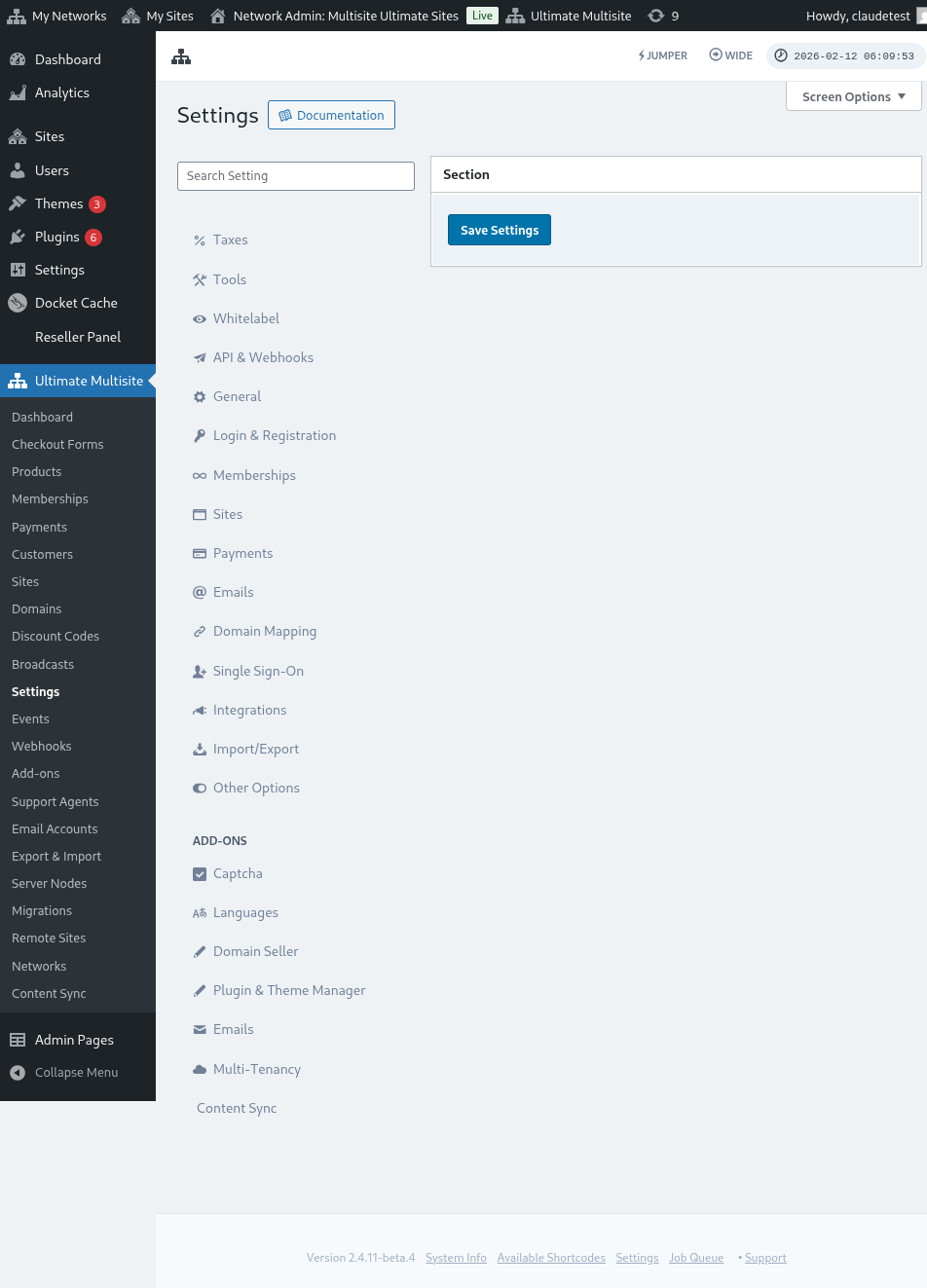
Next Step-ը սեղմելուց հետո ձեր հաճախորդները կարող են ավելացնել իրենց սեփական ադոմենի անունը և ընտրել, թե արդյոք այս սեփական ադոմենը կլինի առաջնայինը։ Նկատի ունեցեք, որ ձեր հաճախորդները կարող են իրենց වෙබ්անայերի համար օգտագործել մի քանիսը սեփական ադոմեններ, ուստի նրանք կարող են ընտրել, թե որն է առաջնայինը։

Add Domain-ը սեղմելուց հետո ադոմենը կավելացվի ձեր հաճախորդի հաշվին։ Այժմ ամեն ինչ, ինչ պետք է անեն, դա այս սեփական ադոմենի DNS գրանցումները փոխելն է իրենց ադոմենի գրանցող կայքում (domain registrar)։
Գաղտնաբառը փոխելը:
Account dashboard-ի ներսում ձեր հաճախորդները կարող են նաև փոխել իրենց գաղտնաբառը՝ սեղմելով Change Password-ի վրա։

ئនេះຈະສະແດງໜ້າຕ່າງໃໝ່ ທີ່ລູກຄ້າຂອງເຈົ້າຈະຕ້ອງໃສ່ລະຫັດຜ່ານປັດຈຸບັນ ແລະ ຈາກນັ້ນໃສ່ລະຫັດຜ່ານໃໝ່ທີ່ຢາກໃຊ້.

ສາຍພົບກັບອັນຕະລາຍ (Danger Zone):
ພວກເຮົາຍັງມີທາງເລືອກສອງຢ່າງທີ່ສະແດງຢູ່ໃນສ່ວນ Danger Zone: Delete Site ແລະ Delete Account. ທັງສອງຢ່າງນີ້ຢູ່ໃນ Danger Zone ເພາະວ່າການກະທຳເຫຼົ່ານີ້ບໍ່ສາມາດກັບມາໄດ້. ຖ້າລູກຄ້າຂອງເຈົ້າລຶບເວັບໄຊ ຫຼື ລຶບບັນຊີຂອງເຂົາເຈົ້າ, ເຈົ້າຈະບໍ່ສາມາດເອົາຄືນມາໄດ້ອີກ.
ຖ້າລູກຄ້າຂອງເຈົ້າກົດເລືອກໃດໜຶ່ງໃນສອງທາງເລືອກນີ້, ຈະມີໜ້າຕ່າງປ່ອງທີ່ເຂົາເຈົ້າຕ້ອງເປີດສະຫຼຸບ (toggle on) ເພື່ອເອົາເວັບໄຊ ຫຼື ບັນຊີອອກ ແລະ ຈະໄດ້ຮັບຄຳເຕືອນວ່າ ການກະທຳນີ້ບໍ່ສາມາດຍົກເລີກໄດ້.

ຖ້າເຂົາເຈົ້າລຶບເວັບໄຊຂອງຕົນ, ບັນຊີ ແລະ ການເປັນສະມາຊິກຂອງເຂົາເຈົ້າຈະບໍ່ຖືກແກ້ໄຂ. ເຈົ້າພຽງແຕ່ຈະສູນເສຍເນື້ອໃນທັງໝົດໃນເວັບໄຊຂອງເຂົາເຈົ້າເທົ່ານັ້ນ. ຖ້າເຂົາເຈົ້າລຶບບັນຊີ, ເວັບໄຊທັງໝົດ, ການເປັນສະມາຊິກ ແລະ ຂໍ້ມູນທີ່ກ່ຽວຂ້ອງກັບບັນຊີນີ້ຈະສູນເສຍໄປທັງໝົດ.