Multisite Setup Wizard
Ultimate Multisite includes a built-in wizard that automatically converts a standard WordPress installation into a WordPress Multisite network. This eliminates the need to manually edit wp-config.php or run database commands.
If your WordPress installation is already running as a Multisite network, you can skip this step entirely. The wizard only appears when Multisite is not yet enabled.
When Does the Wizard Appear?
When you activate Ultimate Multisite on a standard (non-Multisite) WordPress installation, the plugin detects that Multisite is not enabled and automatically redirects you to the Multisite Setup Wizard instead of the regular setup wizard.
You can also access it directly at WP Admin > Ultimate Multisite > Multisite Setup.
Prerequisites
Before running the wizard, make sure:
- You have administrator access to your WordPress installation
- Your server's
wp-config.phpfile is writable by the web server - You have a recent backup of your files and database
The wizard modifies your wp-config.php file and creates new database tables. Always create a backup before proceeding.
Step 1: Welcome
The first screen explains what WordPress Multisite is and what the wizard will do:
- Enable the Multisite feature in your WordPress configuration
- Create the necessary network database tables
- Add the required multisite constants to
wp-config.php - Network-activate Ultimate Multisite across the network
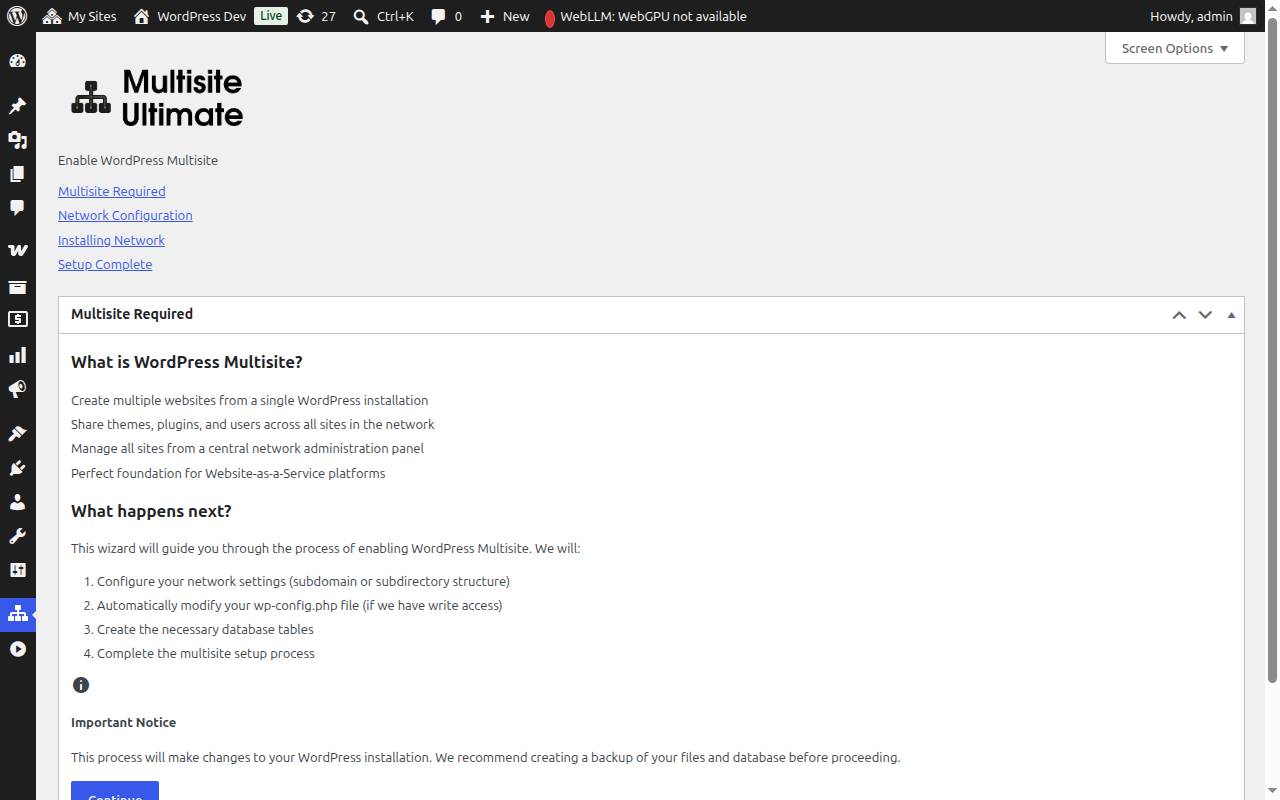
Click Continue to proceed.
Step 2: Network Configuration
This step asks you to configure your network settings.
Site Structure
Choose how your network sites will be organized:
- Sub-domains (Recommended) — Sites get their own subdomain, e.g.
site1.yourdomain.com - Sub-directories — Sites are created as paths, e.g.
yourdomain.com/site1
If you choose sub-domains, you will need to configure wildcard DNS and a wildcard SSL certificate for your domain. Most managed WordPress hosts handle this automatically. See Ultimate Multisite 101 for a detailed comparison.
Network Title
Enter a name for your network. This defaults to your current site title with "Network" appended. You can change this later from the network settings.
Network Admin Email
The email address used for network administration notifications. This defaults to the current user's email address.
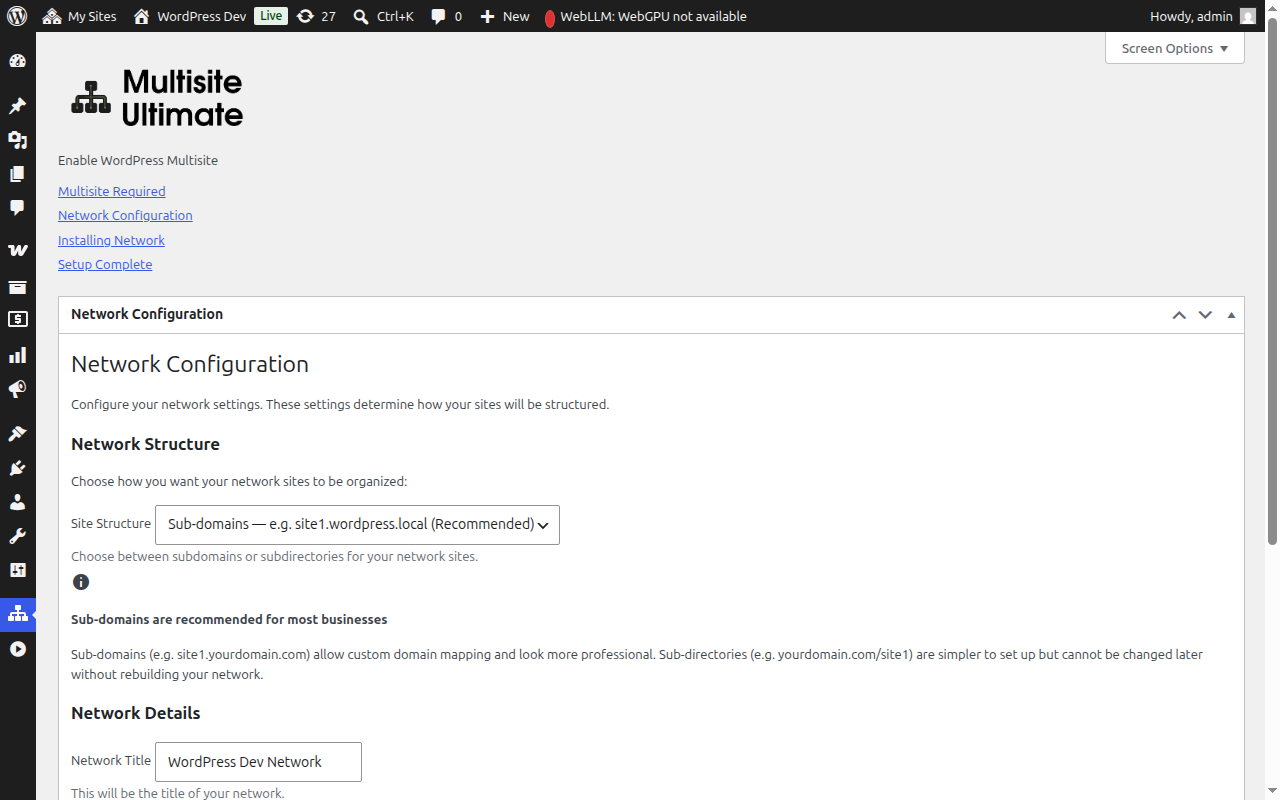
After filling in the fields, click Continue to proceed.
Step 3: Installation
Click the Install button to begin. The wizard performs five automated steps in sequence, each showing its progress in real-time:
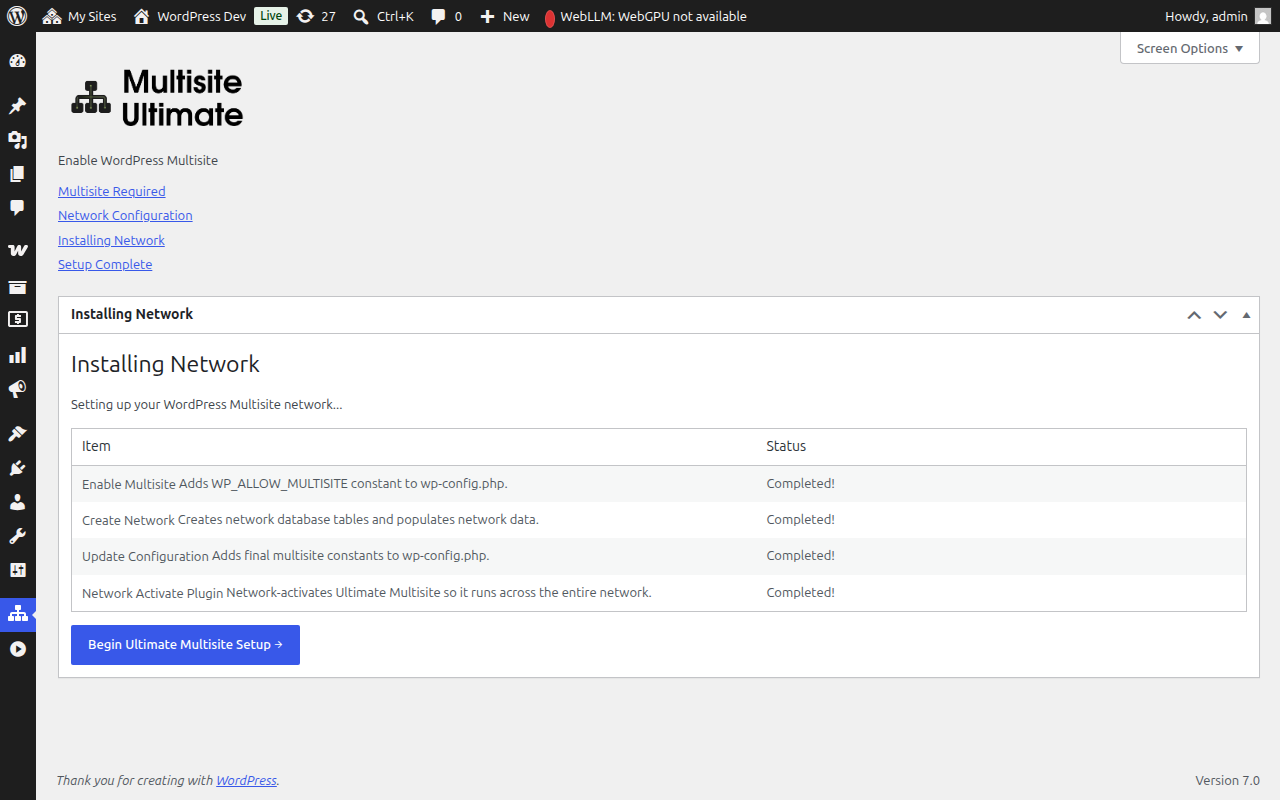
| Step | Description |
|---|---|
| Enable Multisite | Adds the WP_ALLOW_MULTISITE constant to wp-config.php |
| Create Network | Creates the multisite database tables (wp_site, wp_sitemeta, wp_blogs, etc.) and populates them with your network configuration |
| Update Configuration | Adds the final multisite constants to wp-config.php (MULTISITE, SUBDOMAIN_INSTALL, DOMAIN_CURRENT_SITE, etc.) |
| Fix Cookies | Ensures the site URL is correct in the network metadata to prevent authentication issues after activation |
| Network Activate Plugin | Network-activates Ultimate Multisite so it runs across the entire network |
Each step displays one of these statuses:
- Pending — Waiting to be processed
- Installing... — Currently running
- Success! — Completed successfully
- Error message — An error occurred (the message will describe the issue)
Once all steps complete successfully, you will see a green "Success!" status for each item:
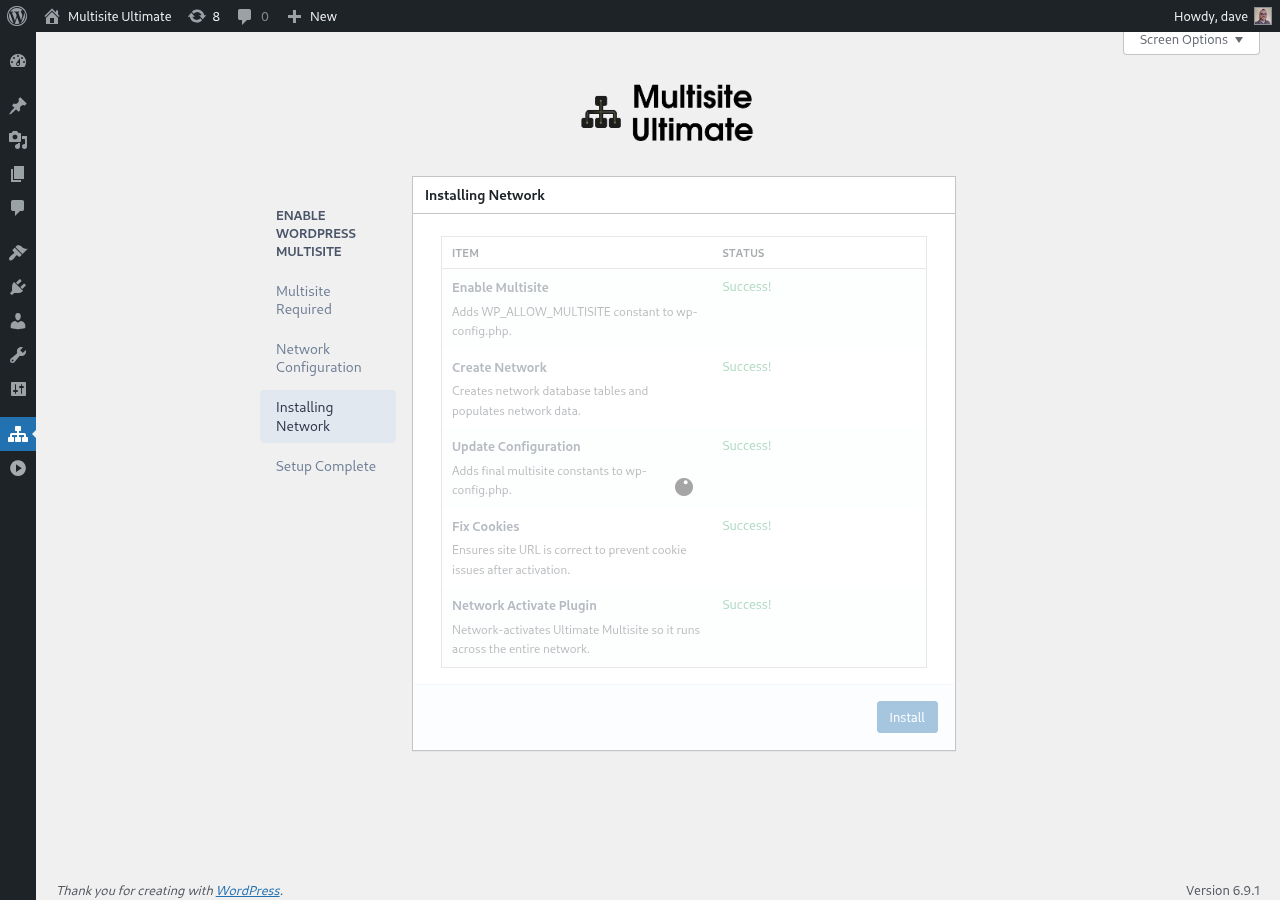
The wizard will then automatically proceed to the completion screen.
Step 4: Complete
Once the installation is complete, you will see a success message confirming that WordPress Multisite has been enabled.
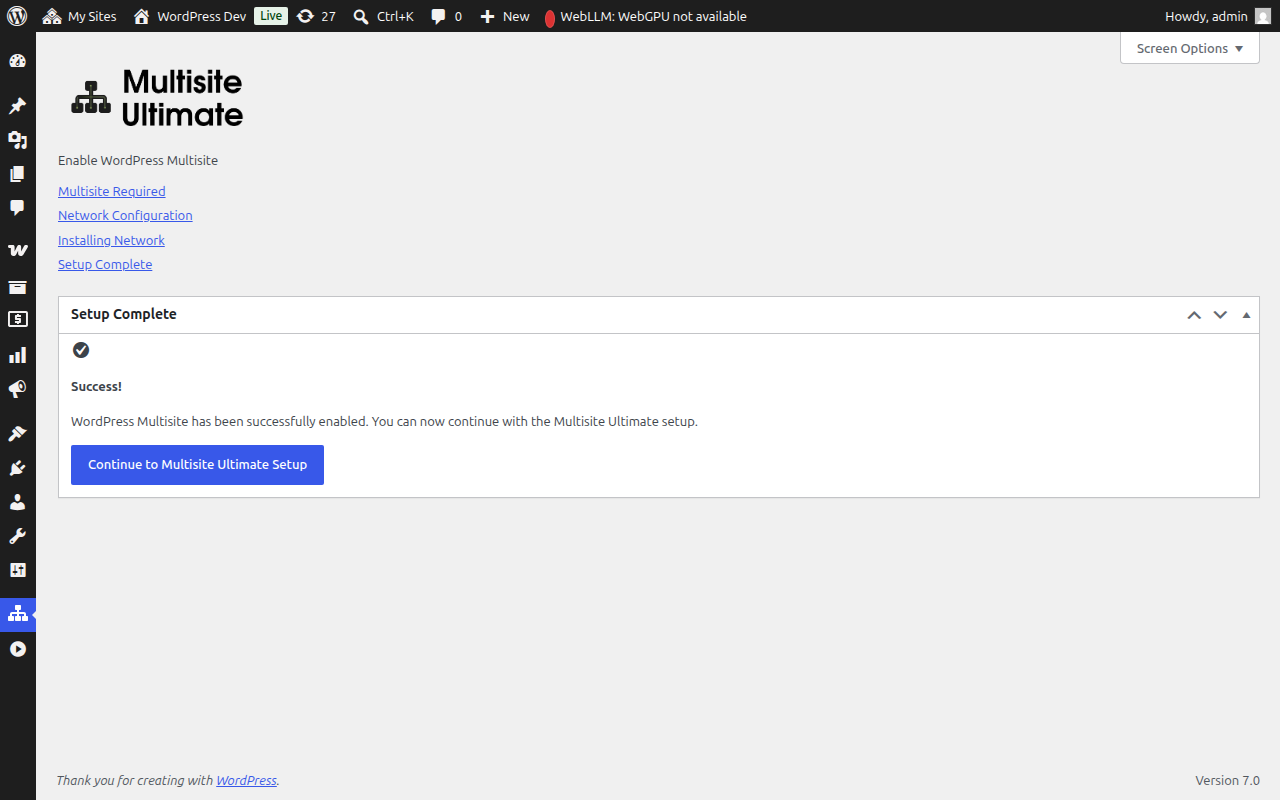
You can now continue with the Ultimate Multisite setup wizard to configure your WaaS platform (company details, default content, payment gateways, etc.).
After the multisite installation completes, your browser will redirect through the newly-enabled network admin. You may need to log in again as the authentication cookies are updated for the multisite environment.
Manual Setup Fallback
If the wizard cannot write to your wp-config.php file (due to file permissions or server restrictions), it will display the exact code you need to add manually:
- The wp-config.php constants that need to be added above the
/* That's all, stop editing! */line - The .htaccess rewrite rules appropriate for your chosen site structure (subdomain or subdirectory)
After making the manual changes, refresh the page and the wizard will detect that multisite is now active.
Troubleshooting
The wizard says wp-config.php is not writable
Your web server process needs write permission to the wp-config.php file. You can either:
- Temporarily change the file permissions to
644or666 - Use the manual setup fallback instructions provided by the wizard
- Ask your hosting provider for assistance
Sites are not accessible after setup (subdomains)
If you chose the subdomain structure, you need to configure wildcard DNS for your domain. Add a DNS record:
Type: A (or CNAME)
Host: *
Value: [your server IP]
Check with your hosting provider if you are unsure how to configure this.
Authentication issues after setup
If you are logged out or experience cookie errors after the multisite setup:
- Clear your browser cookies for the site
- Log in again at
yourdomain.com/wp-login.php - If the issue persists, check that your
wp-config.phpdoes not haveCOOKIE_DOMAINset tofalse— this is a known issue on subdomain multisite installations
A step failed during installation
If one of the installation steps shows an error:
- Note the error message displayed
- Go back to the configuration step and try again
- If the error persists, check your server's PHP error log for more details
- Steps that have already completed will be skipped on subsequent runs (the installer is idempotent)