Site-exporteur
Inhoud
We begrijpen de behoefte om subsites binnen je netwerk te kunnen verplaatsen naar een installatie met één site, en omgekeerd, als je klant besluit zijn website te migreren. De add-on voor site-export en -import maakt deze taak eenvoudiger. Deze tool exporteert en importeert sites met zip-bestanden, die ook als back-up kunnen dienen.
Functies
-
Sites exporteren en importeren
-
Gebruiksvriendelijke interface
-
Siteback-up maken
Documentatie
Een site exporteren en importeren
Installatie
- Upload ultimate-multisite-site-exporter naar de map /wp-content/plugins/
- Activeer de plugin via het menu Plugins in WordPress
- Volg de stapsgewijze Wizard om de plugin in te stellen
Gebruikshandleiding
Met Ultimate Multisite kun je een site uit je netwerk exporteren of een site importeren naar je multisite- of single-site-installatie.
Ga om het proces te starten naar onze add-ons-pagina en installeer de Ultimate Multisite: Site Exporter & Importer-add-on.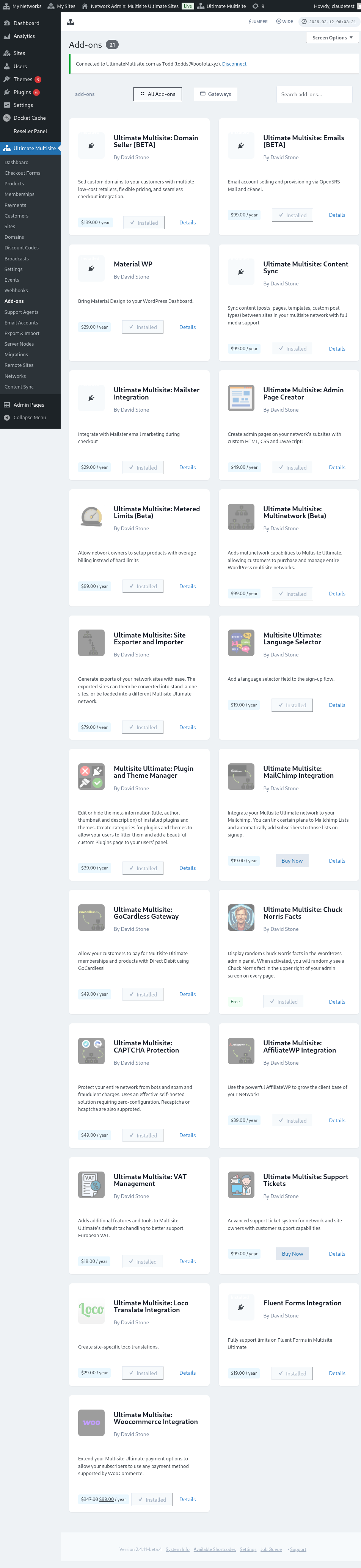
Ga naar je Plugins-pagina en klik op Netwerk activeren voor de add-on die je zojuist hebt geïnstalleerd.
De optie Exporteren en importeren vind je in het Ultimate Multisite-menu aan de linkerkant.
Een site exporteren
Om een site uit je netwerk te exporteren, ga je naar Exporteren en importeren in het Ultimate Multisite-menu en klik je op het tabblad Sites exporteren op Nieuwe site-export genereren.
Zoek naar de site die je wilt exporteren en selecteer de onderdelen die je in het geëxporteerde bestand wilt opnemen. Je kunt thema's, plugins en uploads opnemen. Als je site te groot is, kun je ervoor kiezen om het exportproces op de achtergrond uit te voeren.
Klik op de knop Site exporteren. Je geëxporteerde site is beschikbaar in de lijst Bestaande exports. Klik op de knop ZIP downloaden om het bestand te downloaden. Export-ZIP's bevatten een zelfstartende index.php en readme.txt, zodat ze op een nieuwe host kunnen worden geïnstalleerd zonder eerst een aparte importplugin te installeren.
Het hele netwerk exporteren
Om alle subsites samen te exporteren, ga je naar Exporteren en importeren in het Ultimate Multisite-menu en gebruik je de optie Netwerkexport op het exportscherm. Het gegenereerde archief bevat alle subsites in één ZIP voor hostmigraties, staging-heropbouw of back-ups op netwerkniveau.
Netwerkexports kunnen groot zijn. Voer ze uit wanneer er weinig verkeer is en controleer of de server voldoende opslagruimte heeft voor het archief en eventuele inbegrepen uploads, plugins en thema's.
Een site importeren
Om een site te importeren, ga je naar het tabblad Een site importeren en upload je het .zip-bestand van de site die je wilt importeren. Je kunt de URL wijzigen naar een nieuwe of de oude URL behouden door het veld leeg te laten. Je kunt ook het vakje aanvinken om het .zip-bestand na de import uit je installatie te verwijderen. Klik vervolgens op Import starten.
Het proces kan even duren. Je ziet een import in behandeling in de lijst onder de importer.
Je kunt het proces stoppen door op Import annuleren te klikken.
Nadat het proces is voltooid, is je site al beschikbaar op je netwerk.
Een site importeren op een single install
Om een site naar je single install te importeren, installeer en activeer je eerst de importer op je site. Je kunt de link om deze te downloaden vinden op het exportertabblad.
Je vindt de importer in het menu Tools aan de linkerkant, onder het subitem Exporteren en importeren.
Upload het .zip-bestand van de site die je wilt importeren. Je kunt de URL wijzigen naar een nieuwe of de oude URL behouden door het veld leeg te laten. Je kunt ook het vakje aanvinken om het .zip-bestand na de import uit je installatie te verwijderen. Klik vervolgens op Import starten.
Het proces kan even duren. Je ziet een import in behandeling in de lijst onder de importer.
Je kunt het proces stoppen door op Import annuleren te klikken.
Nadat het proces is voltooid, wordt je site vervangen door de site die je zojuist hebt geïmporteerd.