તમારું પ્રથમ સબ્સ્ક્રિપ્શન પ્રોડક્ટ બનાવવું (v2)
મહત્વપૂર્ણ નોંધ: આ લેખ માત્ર Ultimate Multisite સંસ્કરણ 2.x વપરાશકર્તાઓ માટે છે. જો તમે સંસ્કરણ 1.x વાપરી રહ્યા છો, _આ લેખ જુઓ_.
તમારું નેટવર્ક ચલાવવાનું શરૂ કરવા અને સંભવિત વપરાશકર્તાઓને તમારી સેવાઓ વેચવાનું શરૂ કરવા માટે, તમારી પાસે વિવિધ સબ્સ્ક્રિપ્શન વિકલ્પો હોવા જરૂરી છે. તમે આ પ્રોડક્ટ્સ કેવી રીતે બનાવશો? તમે કયા પ્રકારના પ્રોડક્ટ્સ ઓફર કરી શકો? આ લેખમાં, અમે પ્રોડક્ટ્સ વિશે તમને જાણવાની જરૂરી દરેક બાબત આવરી લઈશું.
પ્રોડક્ટ પ્રકાર
Ultimate Multisite સાથે તમે તમારા ક્લાયન્ટ્સને પ્રોડક્ટ્સની બે શ્રેણીઓ ઓફર કરી શકો છો: પ્લાન્સ અને એડ-ઓન્સ (ઓર્ડર બમ્પ). એડ-ઓન્સને બે પ્રકારમાં વહેંચી શકાય છે:પેકેજીસ અને સેવાઓ. આગળ આપણે તેમના તફાવતો અને વિશેષતાઓ જોઈશું.
-
પ્લાન્સ : Ultimate Multisite નું મૂળભૂત પ્રોડક્ટ. તમારા ક્લાયન્ટ પાસે સભ્યતા માત્ર ત્યારે જ હોઈ શકે જ્યારે તે કોઈ પ્લાન સાથે જોડાયેલ હોય. પ્લાન તમારા ક્લાયન્ટ્સને એક અથવા વધુ સાઇટ્સ (તે તમારા પ્લાનની ગોઠવણીઓ પર આધાર રાખે છે) આપે છે, જેમાં તમે તમારા પ્રોડક્ટ સંપાદન પેજ પર નક્કી કરેલી મર્યાદાઓ હોય છે.
-
પેકેજીસ : એવા એડ-ઓન્સ જે Ultimate Multisite પ્લાન્સની કાર્યક્ષમતાઓ પર સીધી અસર કરે છે. તેઓ મર્યાદાઓમાં ફેરફાર કરે છે અથવા તમારા ક્લાયન્ટે ખરીદેલા મૂળ પ્લાનમાં નવા સંસાધનો, plugins અથવા themes ઉમેરે છે. ઉદાહરણ તરીકે, એક બેઝિક પ્લાન દર મહિને 1,000 મુલાકાતોની મંજૂરી આપી શકે છે અને તમે એવું પેકેજ ઉપલબ્ધ કરી શકો છો જે આ સંખ્યાને 10,000 સુધી વધારે.
-
સેવાઓ: એવા એડ-ઓન્સ જે Ultimate Multisite ની કાર્યક્ષમતાઓમાં ફેરફાર કરતા નથી. તે એવા કાર્યો છે જે તમે તમારા ક્લાયન્ટ માટે તેઓએ ખરીદેલા પ્લાન ઉપરાંત કરશો. ઉદાહરણ તરીકે, તમારો ગ્રાહક એવો પ્લાન ખરીદી શકે છે જે એક જ સાઇટ માટે મંજૂરી આપે છે અને સાથે જ આ સાઇટ ડિઝાઇન કરાવતી વધારાની સેવા માટે પણ ચૂકવણી કરે છે.
પ્રોડક્ટ્સ મેનેજ કરવી
ઘણા માટે Ultimate Multisite માં પ્રોડક્ટ્સ ટૅબ (Ultimate Multisite > Products) પરંપરાગત હોસ્ટિંગ પર્યાવરણમાં પ્લાન્સ સમાન ગણાવી શકાય છે.
Ultimate Multisite અંદર Products ટૅબ ચોક્કસ પ્રોડક્ટ અથવા સેવા માટે લાગુ પડતી રચના અને મર્યાદાઓ વ્યાખ્યાયિત કરે છે. આવી રચનાઓ પ્રોડક્ટ અથવા સેવા વર્ણન, કિંમત, કર અને પરવાનગીઓ સુધી વિસ્તરે છે.
આ વિભાગ Ultimate Multisite ના આ આવશ્યક આધારસ્તંભ વિશેની તમારી સમજણને માર્ગદર્શન આપશે.
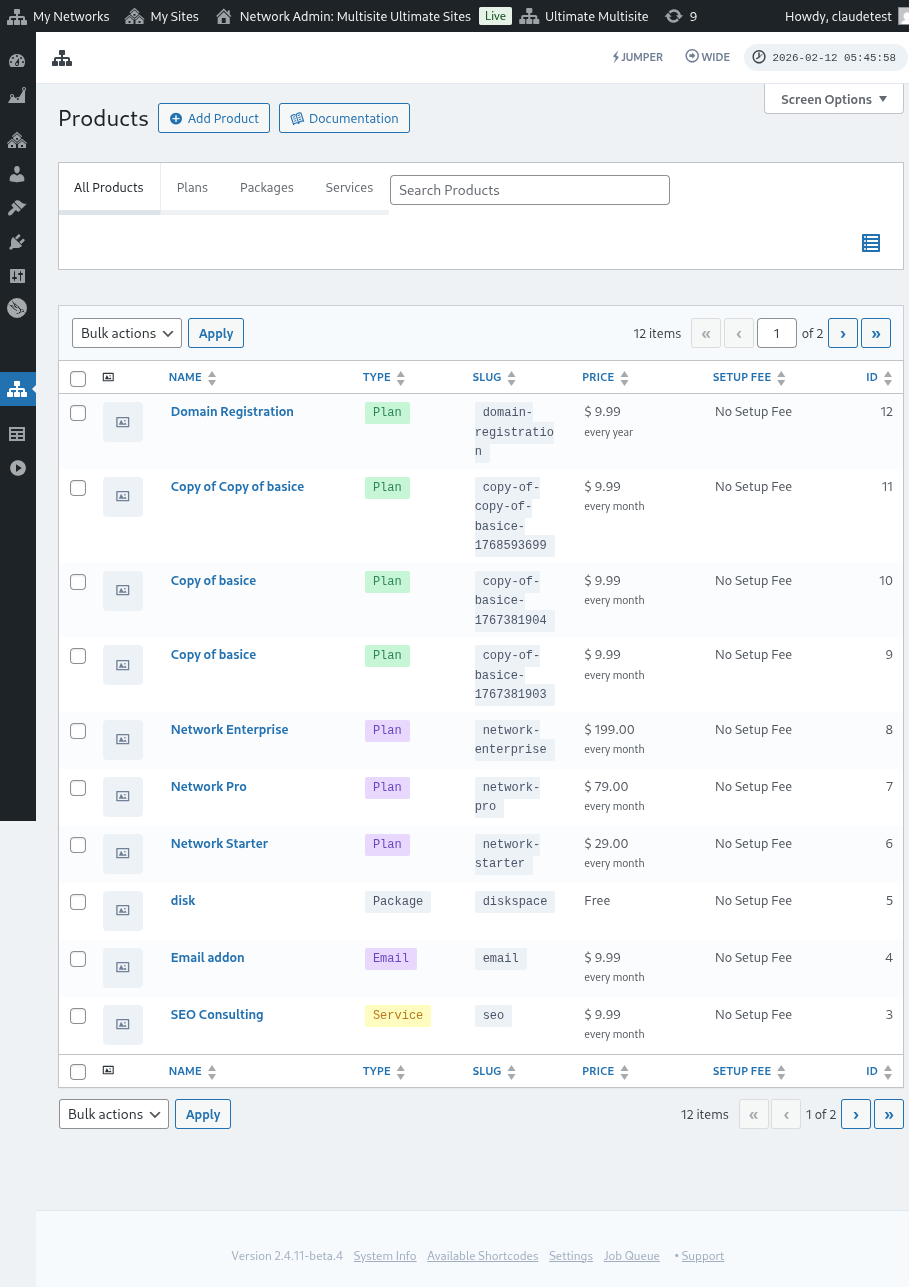
પ્રોડક્ટ્સ ઉમેરવી
પ્લાન, પેકેજ અથવા સેવા — કોઈ પણ હોય, નવી વસ્તુ વ્યાખ્યાયિત કરવાની પ્રવેશ બિંદુ Ultimate Multisite > Products > Add Product મારફતે છે.

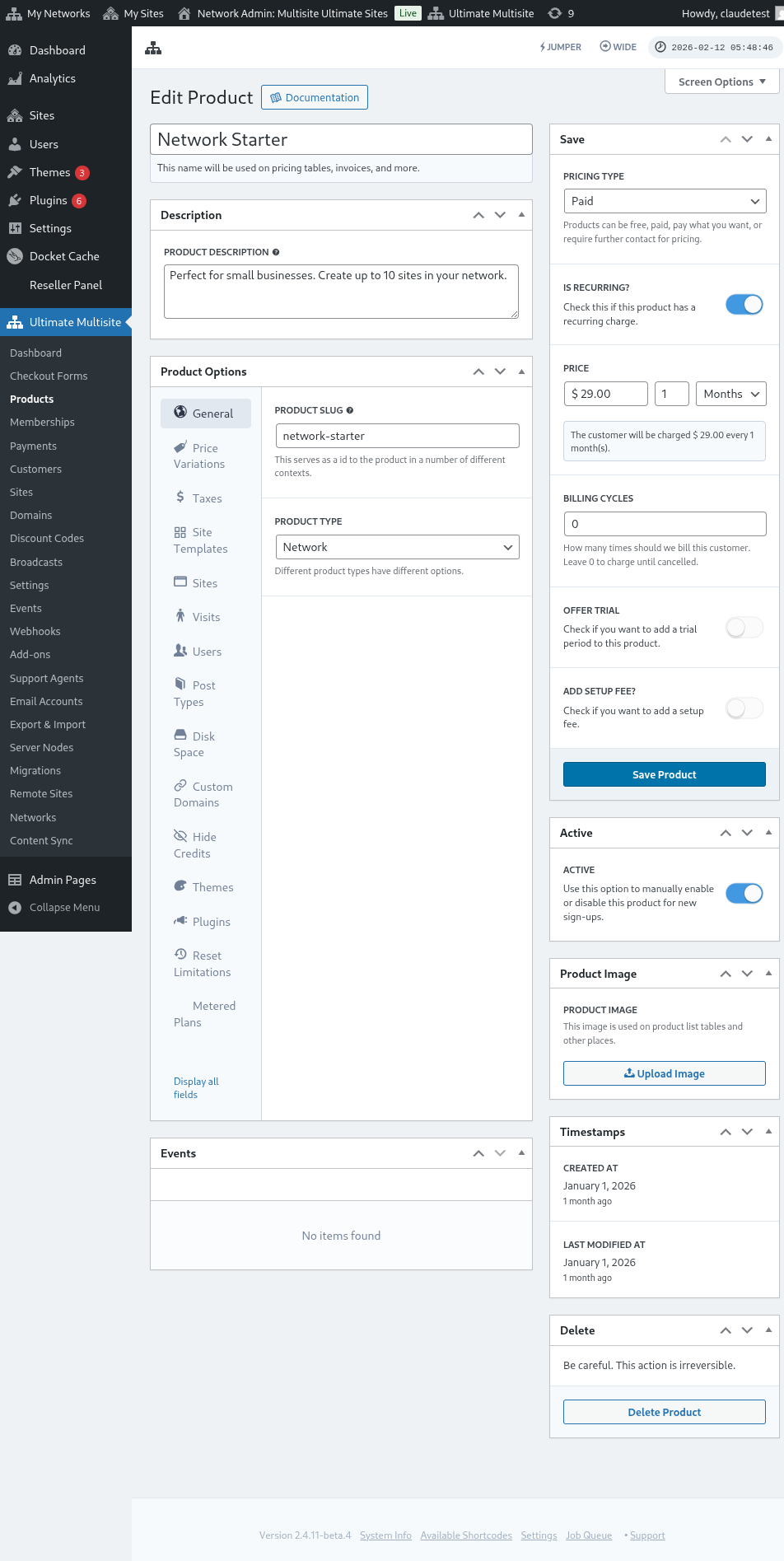
ઇન્ટરફેસમાં બે મુખ્ય વિભાગો છે. ડાબી બાજુએ અનેક ટૅબ્સ છે જે પ્રોડક્ટની વ્યાખ્યા કરવામાં મદદ કરે છે અને જમણી બાજુએ પ્રોડક્ટની મૂળ કિંમત, તેની સક્રિય સ્થિતિ અને પ્રોડક્ટ છબી વ્યાખ્યાયિત કરવા માટે થોડા વિભાગો છે.
વર્ણન
મૂળ પ્રોડક્ટ માહિતી પ્રોડક્ટ નામ અને વર્ણન આપીને વ્યાખ્યાયિત કરી શકાય છે. આ ઓળખકર્તાઓ જ્યાં જ્યાં પ્રોડક્ટ માહિતી જરૂરી હોય ત્યાં દર્શાવવામાં આવે છે, જેમ કે પ્લાન અને કિંમત પસંદગી, ઇન્વૉઇસ, અપગ્રેડ્સ વગેરે.

કિંમત પ્રકાર
ઇન્ટરફેસની જમણી બાજુએ, મૂળ કિંમત વ્યાખ્યાયિત કરી શકાય છે.
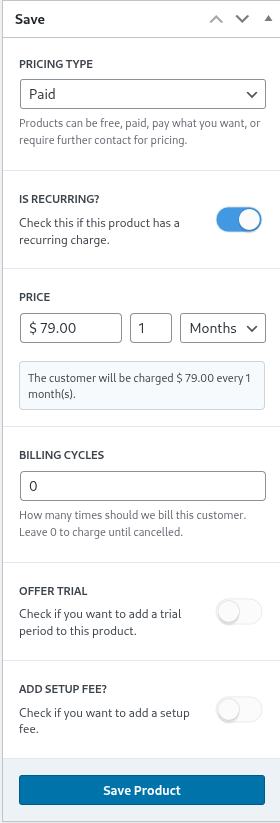
Ultimate Multisite ત્રણ જુદા જુદા કિંમત પ્રકારોને સપોર્ટ કરે છે. ચૂકવેલ વિકલ્પ નેટવર્ક એડમિનિસ્ટ્રેટરને પ્રોડક્ટની કિંમત અને બિલિંગ આવર્તન સંબંધિત માહિતી માટે પૂછે છે.
કિંમત
કિંમત ઘટક મૂળ પ્રોડક્ટ કિંમત અને બિલિંગ અંતરાલ વ્યાખ્યાયિત કરે છે.
આ રીતે $29.99 ની ઉદાહરણ કિંમત અને 1 મહિનાની સેટિંગ સાથે દર મહિને $29.99 બિલ થશે. એ જ રીતે, $89.97 ની કિંમત અને 3 મહિનાની સેટિંગ સાથે દરેક ત્રિમાસિકે એ રકમ બિલ થશે.
બિલિંગ ચક્રો
બિલિંગ ચક્ર વિભાગ ઉપરોક્ત બિલિંગ અંતરાલની આવર્તન નિર્દિષ્ટ કરે છે અને સામાન્ય રીતે કરારો અથવા નિશ્ચિત અવધિના સંદર્ભમાં સમજાય છે.
ઉદાહરણ તરીકે, $29.99 ની પ્રોડક્ટ કિંમત, 1 મહિનાનું અંતરાલ અને 12 બિલિંગ ચક્રો સાથે, આગામી 12 મહિના સુધી પ્રોડક્ટ માટે દર મહિને $29.99 બિલ થશે. બીજા શબ્દોમાં કહીએ તો, આવી સેટિંગ 12 મહિના માટે દર મહિને $29.99 ની નિશ્ચિત-કિંમત અવધિ સ્થાપિત કરશે અને ત્યારબાદ બિલિંગ બંધ કરશે.
ટ્રાયલ અવધિ
ઓફર ટ્રાયલ ટૉગલ સક્ષમ કરવાથી નેટવર્ક એડમિનિસ્ટ્રેટર પ્રોડક્ટ માટે ટ્રાયલ અવધિ વ્યાખ્યાયિત કરી શકે છે.
ટ્રાયલ અવધિ દરમિયાન, ગ્રાહકો પ્રોડક્ટનો મફતમાં ઉપયોગ કરી શકે છે અને ટ્રાયલ અવધિ પૂરી ન થાય ત્યાં સુધી તેમને બિલ કરવામાં નહીં આવે.
સેટઅપ ફી
તમે તમારા પ્લાન પર સેટઅપ ફી પણ લાગુ કરી શકો છો.
આનો અર્થ એ છે કે તમારો ક્લાયન્ટ પ્રથમ ચાર્જ પર (કિંમત પ્લાન ઉપરાંત) વધારાની રકમ ચૂકવશે, જે આ વિભાગમાં તમે વ્યાખ્યાયિત કરેલી ફીને અનુરૂપ છે.
સક્રિય
સક્રિય ટૉગલ અસરકારક રીતે વ્યાખ્યાયિત કરે છે કે પ્રોડક્ટ નવા સાઇન-અપ્સ માટે ગ્રાહકોને ઉપલબ્ધ છે કે નહીં.

જો આ પ્લાન પર હાજર ગ્રાહકો હોય, તો ટૉગલને અક્ષમ સ્થિતિમાં સેટ કરવાથી પ્લાનને અસરકારક રીતે ભવિષ્યના સાઇન-અપ્સમાંથી દૂર કરીને ગ્રાન્ડફાધર કરવામાં આવે છે. પ્લાન પર હાજર ગ્રાહકોને બિલિંગ ચાલુ રહેશે જ્યાં સુધી તેમને નવા પ્લાનમાં સ્થાનાંતરિત કરવામાં ન આવે અથવા પ્લાનમાંથી દૂર ન કરવામાં આવે.
પ્રોડક્ટ છબી
છબી અપલોડ કરો બટન નેટવર્ક એડમિનિસ્ટ્રેટરને પ્રોડક્ટ છબી પસંદ કરવા અથવા અપલોડ કરવા માટે મીડિયા લાઇબ્રેરીનો ઉપયોગ કરવાની મંજૂરી આપે છે.

કાઢી નાખો
પ્રોડક્ટ કાઢી નાખો બટન સિસ્ટમમાંથી પ્રોડક્ટ કાઢી નાખે છે. પ્રોડક્ટ પ્રકાશિત થયા પછી તે દેખાય છે.

અન્ય કાઢી નાખવાની ક્રિયાઓથી વિપરીત, પ્રોડક્ટ કોઈપણ ટ્રેશ સ્થિતિમાં મૂકાતી નથી. તેથી એકવાર કાઢી નાખ્યા પછી ક્રિયા પાછી ફેરવી શકાતી નથી.
પ્રોડક્ટ વિકલ્પો
એકવાર મૂળ-સ્તરની ઉત્પાદન માહિતી નિર્ધારિત થઈ જાય પછી, ઉત્પાદન વિકલ્પો નેટવર્ક સંચાલકને ઉત્પાદનના ચોક્કસ લક્ષણોને વધુ વ્યાખ્યાયિત કરવામાં મદદ કરે છે.
સામાન્ય
સામાન્ય ટેબ ઉત્પાદનના એવા સામાન્ય લક્ષણોને વ્યાખ્યાયિત કરે છે, જે અન્ય કોઈપણ ઉત્પાદન-વિશિષ્ટ ટેબ પર લાગુ પડતા નથી.
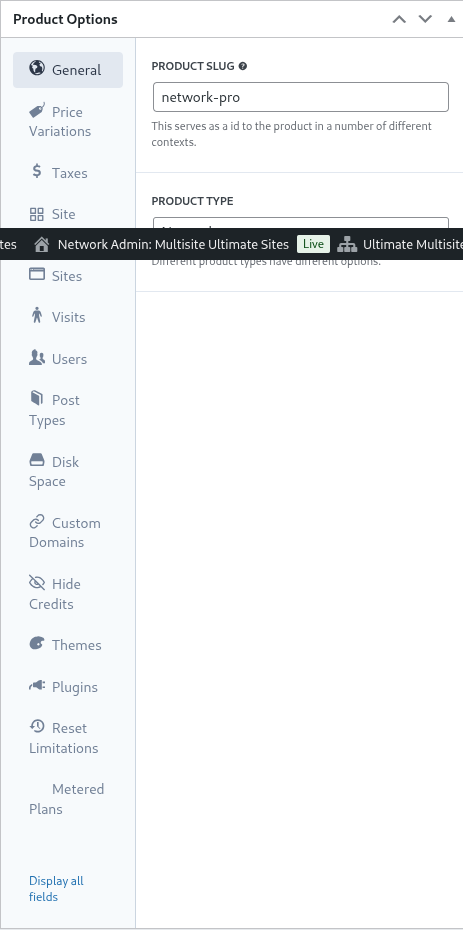
સ્વયંસ્પષ્ટ ઉત્પાદન સ્લગ તે સ્લગ વ્યાખ્યાયિત કરે છે જેના દ્વારા ઉત્પાદન URLs અને Ultimate Multisiteના અન્ય વિસ્તારોમાં ઓળખાય છે.
Ultimate Multisite અનેક ઉત્પાદન પ્રકારોને સપોર્ટ કરે છે, જેમ કે યોજના, પેકેજ અને સેવા. નિર્ધારિત ઉત્પાદન પ્રકારના આધારે ઉત્પાદન વિકલ્પો ટેબ ગતિશીલ રીતે સમાયોજિત થાય છે.
ગ્રાહક ભૂમિકા તે ભૂમિકા નિર્ધારિત કરે છે જે સાઇટ બનાવવામાં આવે ત્યારે ગ્રાહકને સોંપવામાં આવે છે. સામાન્ય રીતે મોટાભાગના નેટવર્ક સંચાલકો માટે, આ Ultimate Multisite ડિફૉલ્ટ અથવા સંચાલક હશે. Ultimate Multisite ડિફૉલ્ટ ભૂમિકા Ultimate Multisite > Settings > Login & Registration માં સેટ કરી શકાય છે.
અપગ્રેડ અને ડાઉનગ્રેડ
આ ટેબ ગ્રાહકને તેમના ચોક્કસ સ્તરની અંદર ઉપલબ્ધ અપગ્રેડ અને ડાઉનગ્રેડ માર્ગો નિર્ધારિત કરે છે.
આ સંકલ્પનાને સમજવા માટે એક ઉદાહરણ ધ્યાનમાં લો, જ્યાં એક વિશિષ્ટ Ultimate Multisite ઇન્સ્ટોલેશન તેના ગ્રાહકોને લર્નિંગ મેનેજમેન્ટ સોલ્યુશન્સ પ્રદાન કરે છે. આ હાંસલ કરવા માટે ત્રણ યોજનાઓ (Basic, Plus, અને Premium) વ્યાખ્યાયિત કરવામાં આવે છે અને દરેક યોજના માટે ચોક્કસ plugins સક્રિય કરવામાં આવે છે (plugins કેવી રીતે સક્રિય કરવા તેની સૂચનાઓ માટે આ વિભાગમાં આગળ જુઓ).
જો Ultimate Multisite ઇન્સ્ટોલેશન વ્યવસાયિક વેબસાઇટ્સ અથવા eCommerce વેબસાઇટ્સને પણ સેવા આપે છે, તો તે યોજનાઓને અલગ plugins ઇન્સ્ટોલ અને સક્રિય કરવાની જરૂર પડી શકે છે.
આ હદ સુધી, eLearning ગ્રાહકોને eCommerce યોજનાઓમાં પરિવર્તિત થવાની મંજૂરી આપવી અનિચ્છનીય અને સમસ્યારૂપ રહેશે, કારણ કે આ યોજનાઓ, કિંમતો અને મર્યાદાઓ યોગ્ય રીતે અનુકૂળ ન હોઈ શકે.
આથી ગ્રાહકનો માર્ગ મર્યાદિત કરવા અને ઘટનાઓ અટકાવવા માટે નેટવર્ક સંચાલક યોજના જૂથ વ્યાખ્યાયિત કરી શકે છે અને તે જૂથની અંદર ગ્રાહક કઈ યોજનાઓમાં પરિવર્તિત થઈ શકે તે નિર્ધારિત કરી શકે છે.
યોજના જૂથ વ્યાખ્યાયિત કરવા માટે યોજના જૂથ યાદીમાં સુસંગત યોજનાઓ નિર્ધારિત કરો. ઉત્પાદન ક્રમ નક્કી કરે છે કે યોજનાઓ સૌથી નીચેથી સૌથી ઊંચી સુધી કેવી રીતે ગોઠવાય અને પ્રદર્શિત થાય છે.
Ultimate Multisite માં ઓર્ડર બમ્પ સુવિધા પણ શામેલ છે, જ્યાં યોગ્ય ઍડ-ઑન ઉત્પાદનો અને સેવાઓ યોજનાઓમાં ઉમેરવામાં આવી શકે છે. આ ગ્રાહકને વધારાની વસ્તુઓ તરીકે ઑફર કરવામાં આવે છે, જેને checkout પર અથવા અપગ્રેડ દરમિયાન યોજનાઓમાં ઉમેરવામાં આવી શકે છે.
કિંમત ભિન્નતાઓ
કિંમત ભિન્નતાઓ નેટવર્ક સંચાલકને અવધિ અનુસાર વૈકલ્પિક કિંમતી સ્તરો નિર્ધારિત કરવાની મંજૂરી આપે છે. આ સેટિંગ એક જ ઉત્પાદન માટે માસિક, ત્રિમાસિક, વાર્ષિક અથવા અન્ય કોઈપણ બિલિંગ અવધિ ઑફર કરવાનું શક્ય બનાવે છે. ઉદાહરણ તરીકે, તમે ઉત્પાદન $29.99/મહિના પર અને ડિસ્કાઉન્ટેડ વાર્ષિક વિકલ્પ $249.99/વર્ષ પર સેટ કરી શકો છો.
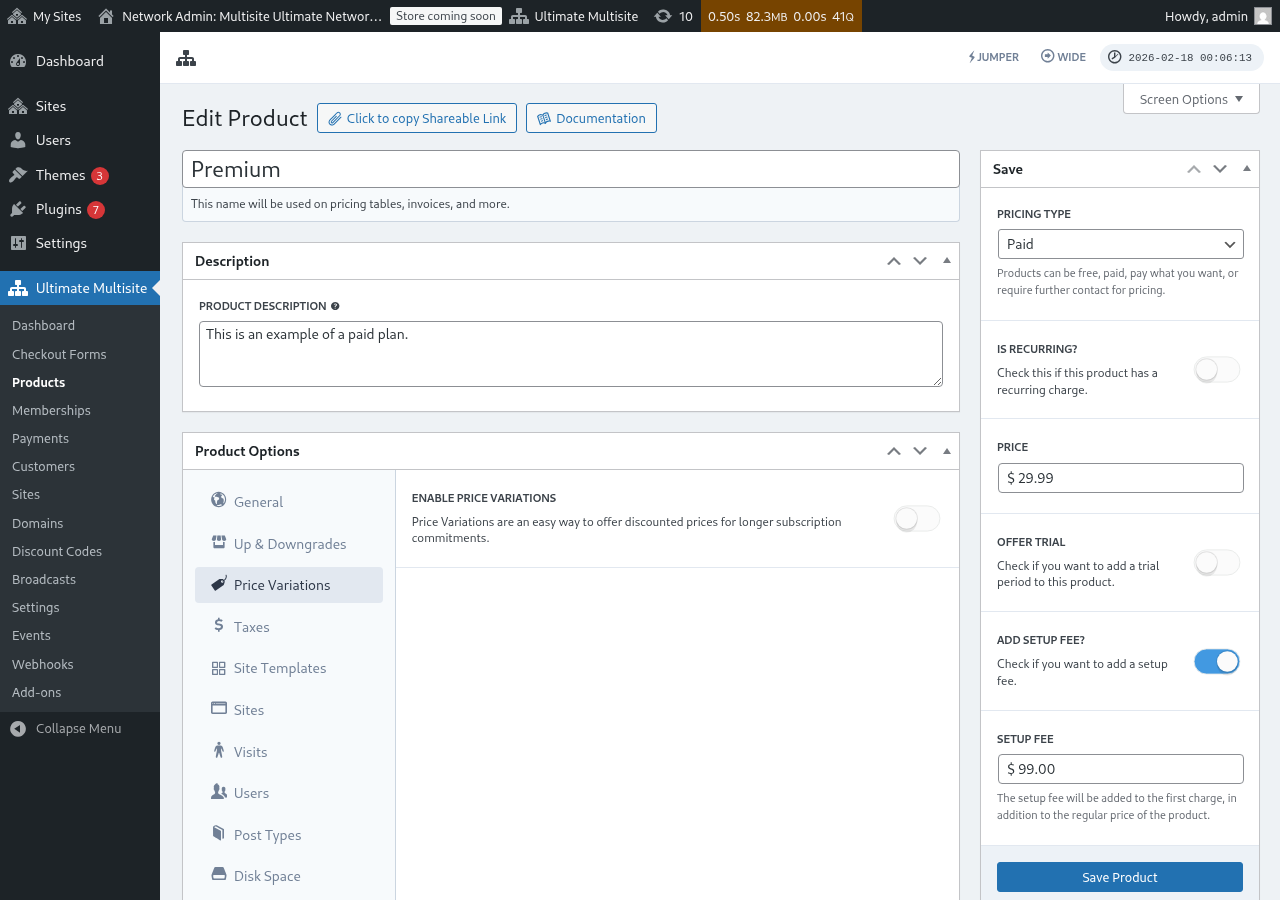
કિંમત ભિન્નતાઓ સ્થાપિત કરવા માટે, કિંમત ભિન્નતાઓ સક્ષમ કરો ટોગલને સક્રિય પર સેટ કરો અને નવી કિંમત ભિન્નતા ઉમેરો બટન પર ક્લિક કરો.
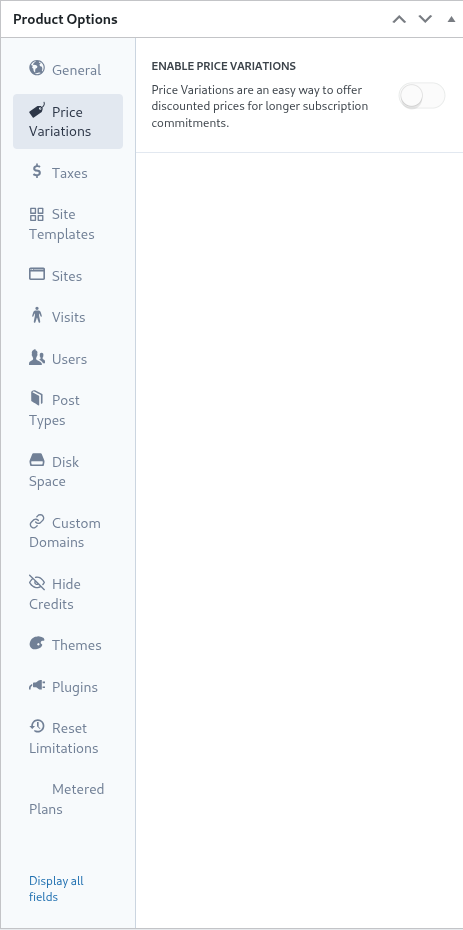
ભિન્નતા દાખલ કરવા માટે, ભિન્નતાની અવધિ, સમયગાળો અને કિંમત સેટ કરો. બટન પર ફરી ક્લિક કરીને વધારાની ભિન્નતાઓ દાખલ કરી શકાય છે.
ઉદાહરણ તરીકે, જો તમારી મૂળ ઉત્પાદન કિંમત દર મહિને $29.99 હોય, તો તમે ઉમેરશો:
- 3 મહિના $79.99 પર (માસિકની સરખામણીમાં નાનું ડિસ્કાઉન્ટ)
- 1 વર્ષ $249.99 પર (વાર્ષિક પ્રતિબદ્ધતા માટે નોંધપાત્ર ડિસ્કાઉન્ટ)
માત્ર કિંમત ભિન્નતાઓ frontend checkout પર ટોગલ અથવા સ્વિચ ઉમેરતી નથી. ગ્રાહકોને બિલિંગ સમયગાળાઓ વચ્ચે સ્વિચ કરવાની મંજૂરી આપવા માટે (દા.ત. માસિક / વાર્ષિક), તમારે તમારા checkout ફોર્મમાં સમયગાળો પસંદગી ક્ષેત્ર ઉમેરવાની જરૂર છે. પગલું-દર-પગલું સૂચનાઓ માટે Checkout ફોર્મ્સ: સમયગાળો પસંદગી ટોગલ ઉમેરવું જુઓ.
કર
કર ટેબ Ultimate Multisite > Settings > Taxes માં નિર્ધારિત કર સેટિંગ્સ અને વધુ ખાસ કરીને વ્યાખ્યાયિત કર દરો સાથે સુસંગત છે. કર સક્ષમ કરવા અને લાગુ કર દરો વ્યાખ્યાયિત કરવા માટે કૃપા કરીને Ultimate Multisite: Settings પર દસ્તાવેજીકરણ જુઓ
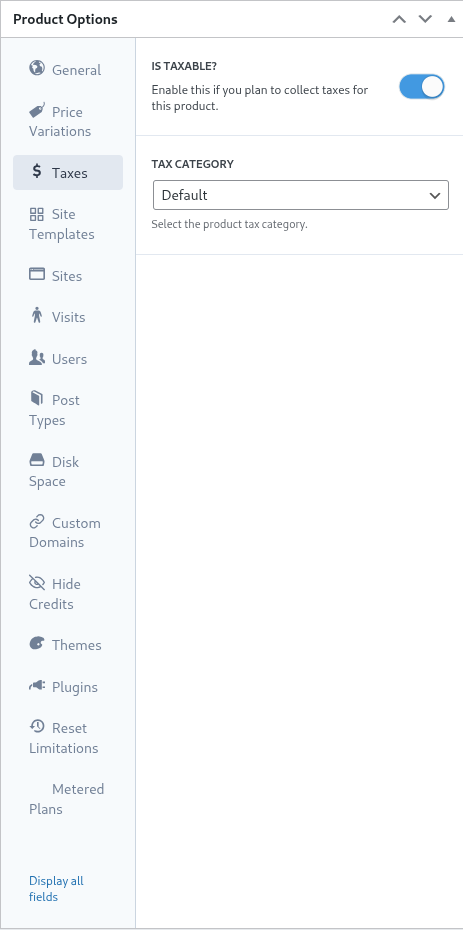
અગાઉના ઉદાહરણમાં, અમે કેલિફોર્નિયા (યુનાઇટેડ સ્ટેટ્સ ઑફ અમેરિકા)ના ગ્રાહકોને લાગુ પડતો 7.25% નો સ્થાનિક કર દર વ્યાખ્યાયિત કર્યો હતો.
એકવાર કર દર Ultimate Multisite > Settings > Manage Tax Rates માં વ્યાખ્યાયિત થઈ જાય પછી તે ઉત્પાદન સ્તરે પસંદ કરી શકાય છે.
ઉત્પાદન કરપાત્ર વસ્તુ છે તે દર્શાવવા માટે, કરપાત્ર છે ટોગલને સક્રિય પર સેટ કરો અને કર શ્રેણી dropdownમાંથી લાગુ કર દર પસંદ કરો.
સાઇટ ટેમ્પ્લેટ્સ
મૂળભૂત રીતે, સાઇટ ટેમ્પ્લેટ્સ પૂર્ણ WordPress વેબસાઇટ્સ છે, જે ગ્રાહકના subscriptionની શરૂઆતમાં તેમની સાઇટ પર ક્લોન કરવામાં આવે છે.
નેટવર્ક સંચાલક ટેમ્પ્લેટ સાઇટને સક્રિય અને કન્ફિગર કરેલી themes, plugins અને સામગ્રી સાથે સામાન્ય WordPress સાઇટ તરીકે બનાવે અને કન્ફિગર કરે છે. ટેમ્પ્લેટ સાઇટ ગ્રાહક માટે યથાવત્ ક્લોન કરવામાં આવે છે.
આ ટેબ નેટવર્ક સંચાલકને નવી subscription પર સાઇટ ટેમ્પ્લેટ્સનું વર્તન નિર્ધારિત કરવાની મંજૂરી આપે છે. આ યોજના માટે સાઇટ ટેમ્પ્લેટ્સનો ઉપયોગ કરવા માટે, સાઇટ ટેમ્પ્લેટ્સ મંજૂર કરો ટોગલને તેની સક્રિય સ્થિતિમાં સેટ કરો.
જ્યારે સાઇટ ટેમ્પ્લેટ્સ મંજૂર કરો નિષ્ક્રિય હોય, ત્યારે checkout ફોર્મ, શેર કરી શકાય તેવી લિંક અથવા URL પેરામીટર અન્યથા ટેમ્પ્લેટ્સ ઉપલબ્ધ બનાવે તોય યોજનાના ગ્રાહકો ટેમ્પ્લેટ્સ પસંદ કરી શકતા નથી. Ultimate Multisite હવે ઉપલબ્ધ પ્રવેશ બિંદુઓમાં fallback ચેઇન દ્વારા આ મર્યાદા લાગુ કરે છે: પહેલા યોજના સેટિંગ્સ તપાસવામાં આવે છે, પછી checkout-ફોર્મ ટેમ્પ્લેટ સેટિંગ્સ, ત્યારબાદ પૂર્વ-પસંદ કરેલા અથવા URL-દ્વારા પ્રદાન કરેલા ટેમ્પ્લેટ્સ. આ યોજના મર્યાદાઓને સુસંગત રાખે છે અને જેમણે તે ઑફર ન કરવા જોઈએ એવા ઉત્પાદનો માટે ટેમ્પ્લેટ્સ દેખાવાથી અટકાવે છે.
સાઇટ ટેમ્પલેટ પસંદગી મોડ સબ્સ્ક્રિપ્શન પ્રક્રિયા દરમિયાન સાઇટ ટેમ્પલેટ્સના વર્તનને નિર્ધારિત કરે છે.
D efault સેટિંગ ચેકઆઉટ ફોર્મના પગલાંને અનુસરે છે. જો નેટવર્ક એડમિનિસ્ટ્રેટરે ચેકઆઉટ પ્રક્રિયામાં ટેમ્પલેટ પસંદગીનું પગલું વ્યાખ્યાયિત કર્યું હોય અને તે પગલું ટેમ્પલેટ્સ સાથે વ્યાખ્યાયિત કરવામાં આવ્યું હોય, તો આ સેટિંગ ચેકઆઉટ પગલામાં સ્થાપિત નિર્દેશોનું પાલન કરશે.
A ssign Site Template નિર્દિષ્ટ કરેલા ટેમ્પલેટની પસંદગીને ફરજિયાત બનાવે છે. પરિણામે, ચેકઆઉટ પ્રક્રિયામાંના કોઈપણ ટેમ્પલેટ પસંદગીના પગલાં દૂર કરવામાં આવે છે.
છેલ્લે, C hoose Available Site Templates ચેકઆઉટ પગલામાં નિર્દિષ્ટ કરેલા ટેમ્પલેટ્સને આ સેટિંગમાં પસંદ કરેલા ટેમ્પલેટ્સથી ઓવરરાઇડ કરે છે. ગ્રાહકને પસંદગીમાં સહાય કરવા માટે પૂર્વ-પસંદ કરેલ ટેમ્પલેટ પણ વ્યાખ્યાયિત કરી શકાય છે.
અંતે, જો નેટવર્ક એડમિનિસ્ટ્રેટર ચેકઆઉટ પગલાંમાં ટેમ્પલેટ પસંદગી થવી ઇચ્છે છે, તો ' default ' ની સેટિંગ પૂરતી રહેશે. વૈકલ્પિક રીતે, ટેમ્પલેટ પસંદગીને દૂર અને લૉક કરવા અને પસંદગીને પ્લાન સેટિંગ્સને સોંપવા માટે ' assign new template ' અથવા ' choose available site templates ' વિકલ્પો ઇચ્છનીય હોઈ શકે છે.
સાઇટ્સ
સાઇટ્સ ટેબ Ultimate Multisiteની મર્યાદાઓની કાર્યક્ષમતાનો ભાગ છે.
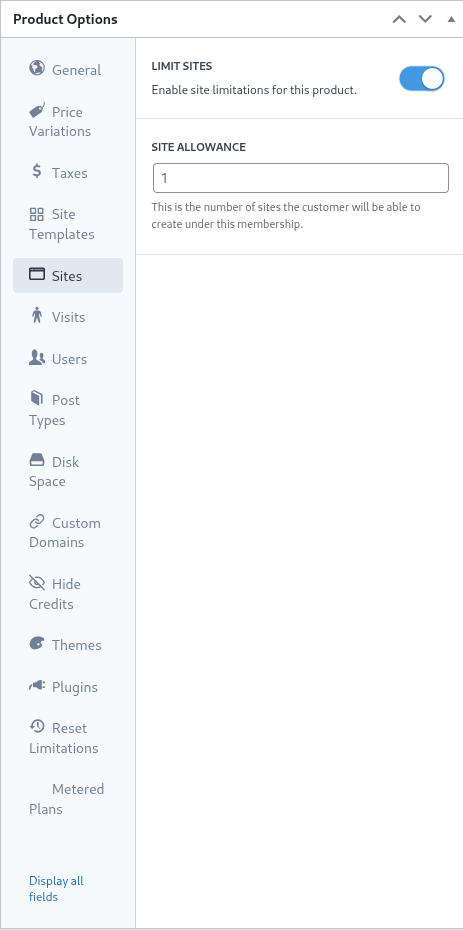
આ સેટિંગ ગ્રાહક તેમની સભ્યતા હેઠળ બનાવી શકે તેવી સાઇટ્સની મહત્તમ સંખ્યા નિર્દિષ્ટ કરે છે.
મર્યાદા સક્ષમ કરવા માટે, સાઇટ્સ મર્યાદિત કરો ટૉગલને તેની સક્રિય સ્થિતિમાં સેટ કરો અને સાઇટ ભથ્થું ફીલ્ડમાં સાઇટ્સની મહત્તમ સંખ્યા નિર્દિષ્ટ કરો.
મુલાકાતો
મુલાકાતો ટેબ Ultimate Multisiteની મર્યાદાઓ સિસ્ટમનો વધુ એક ભાગ છે. આ સેટિંગ ગ્રાહકની સાઇટ પર અનન્ય મુલાકાતીઓની ગણતરી અને ત્યારબાદ થ્રોટલિંગ માટે પરવાનગી આપે છે.
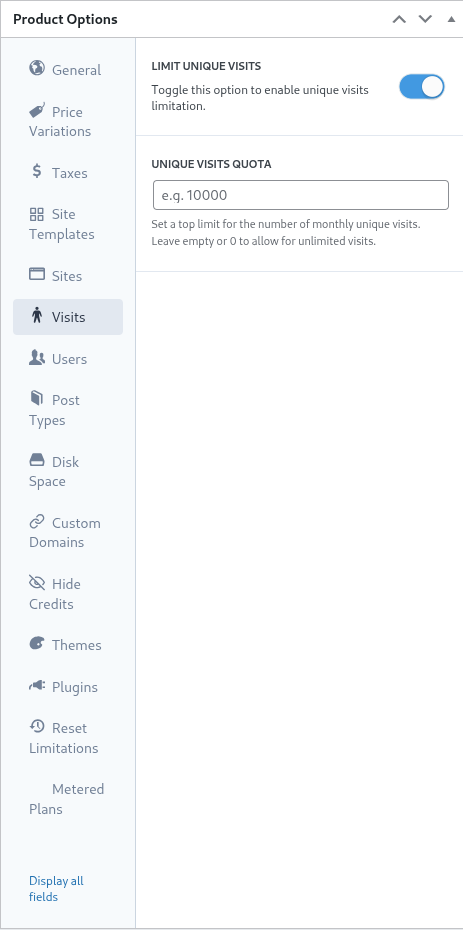
માર્કેટિંગ દૃષ્ટિકોણથી, નેટવર્ક એડમિનિસ્ટ્રેટર્સ મર્યાદાઓ પહોંચી જાય પછી ગ્રાહકોને તેમના પ્લાનને અપગ્રેડ કરવા પ્રોત્સાહિત કરવા માટે આ સેટિંગનો ઉપયોગ કરી શકે છે. આ સેટિંગ સિસ્ટમ સંસાધનો સાચવવા માટે સાઇટ્સ પર અતિશય ટ્રાફિકને રોકવા અને અટકાવવામાં નેટવર્ક એડમિનિસ્ટ્રેટરને પણ મદદ કરી શકે છે.
આ સુવિધાનો ઉપયોગ કરવા માટે, અનન્ય મુલાકાતો મર્યાદિત કરો ટૉગલને તેની સક્રિય સ્થિતિમાં સેટ કરો અને અનન્ય મુલાકાતો ક્વોટા ફીલ્ડમાં અનન્ય મુલાકાતીઓની મહત્તમ સંખ્યા નિર્દિષ્ટ કરો.
એકવાર આ મર્યાદા પહોંચી જાય, પછી Ultimate Multisite મર્યાદાઓ ઓળંગાઈ ગઈ છે તે દર્શાવવા માટે સંદેશ બતાવવાને બદલે ગ્રાહકની સાઇટ સર્વ કરવાનું બંધ કરશે.
વપરાશકર્તાઓ
Ultimate Multisiteની 'વપરાશકર્તાઓ' મર્યાદાઓ નેટવર્ક એડમિનિસ્ટ્રેટરને બનાવવામાં અને ભૂમિકાઓને સોંપવામાં આવતા વપરાશકર્તાઓની સંખ્યા પર મર્યાદાઓ લાદવાની મંજૂરી આપે છે.
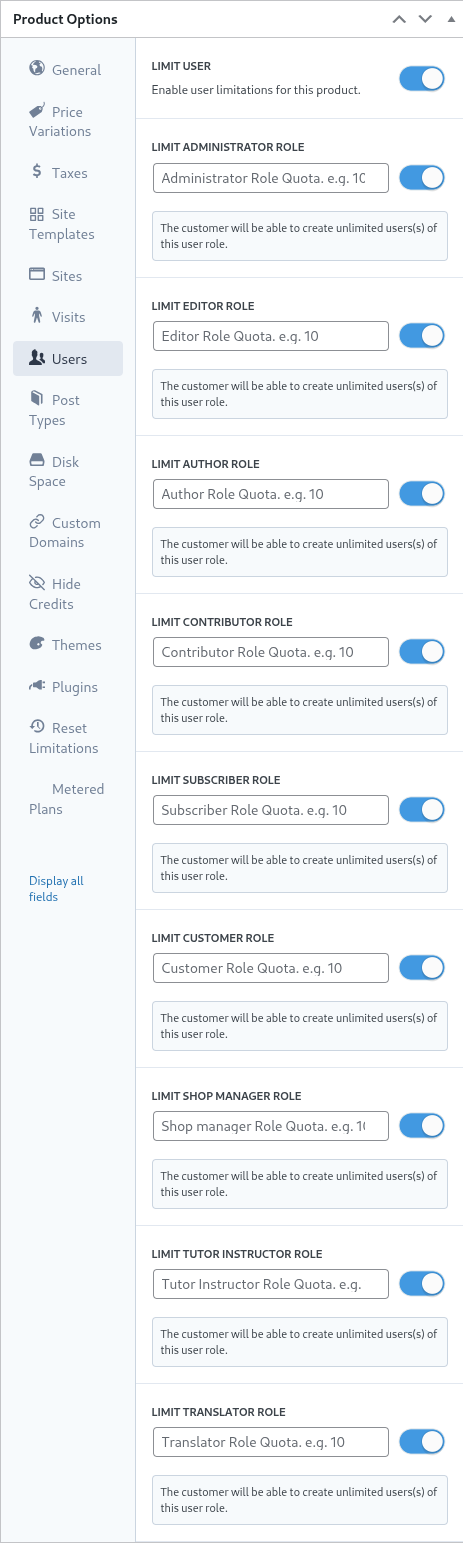
મર્યાદાઓની સુવિધા સક્ષમ કરવા માટે, વપરાશકર્તા મર્યાદિત કરો ટૉગલને જમણી તરફ સરકાવીને તેની સક્રિય સ્થિતિમાં સેટ કરો.
પછી મર્યાદિત કરવાની દરેક ભૂમિકા માટે, તેની બાજુના ટૉગલને સક્રિય સ્થિતિમાં સેટ કરો અને યોગ્ય ફીલ્ડમાં મહત્તમ ઉપરની મર્યાદા વ્યાખ્યાયિત કરો.
પોસ્ટ પ્રકારો
પોસ્ટ પ્રકારો ટેબ નેટવર્ક એડમિનિસ્ટ્રેટરને WordPressની અંદર પોસ્ટ પ્રકારોની વિશાળ શ્રેણી પર સૂક્ષ્મ મર્યાદાઓ લાદવાની મંજૂરી આપે છે.
WordPressની રચનાને કારણે, પોસ્ટ્સ અને પોસ્ટ પ્રકારો તેની મુખ્ય કાર્યક્ષમતાનો મહત્વપૂર્ણ ઘટક છે, અને તેથી Ultimate Multisiteની મર્યાદાઓ સિસ્ટમ નેટવર્ક એડમિનિસ્ટ્રેટરને મર્યાદાઓ સ્થાપિત અને જાળવવામાં મદદ કરવા માટે રચાયેલ છે.
આ મર્યાદાઓ સબસિસ્ટમ સક્ષમ કરવા માટે, પોસ્ટ પ્રકારો મર્યાદિત કરો ટૉગલને જમણી તરફ સરકાવીને તેની સક્રિય સ્થિતિમાં સેટ કરો.
પછી, મર્યાદિત કરવાના દરેક પોસ્ટ પ્રકાર માટે, તેને જમણી તરફ સરકાવીને ચાલુ કરો અને યોગ્ય ફીલ્ડમાં મહત્તમ ઉપરની મર્યાદા નિર્દિષ્ટ કરો.
ડિસ્ક સ્પેસ
ડિસ્ક સ્પેસ ટેબ નેટવર્ક એડમિનિસ્ટ્રેટર્સને ગ્રાહકો દ્વારા વપરાતી જગ્યા પર પ્રતિબંધ મૂકવાની મંજૂરી આપે છે.
સામાન્ય રીતે WordPress multisiteમાં મુખ્ય ફાઇલો બધી સાઇટ્સ વચ્ચે વહેંચાયેલી હોય છે અને મીડિયા ફાઇલો અને અપલોડ્સ માટે વ્યક્તિગત ડિરેક્ટરીઝ બનાવવામાં આવે છે, જેના પર આ સેટિંગ્સ અને મર્યાદાઓ લાગુ પડે છે.
ડિસ્ક ઉપયોગની મર્યાદા સક્ષમ કરવા માટે, દર સાઇટે ડિસ્ક કદ મર્યાદિત કરો ટૉગલને જમણી તરફ સરકાવીને તેની સક્રિય સ્થિતિમાં સેટ કરો.
પછી, ડિસ્ક સ્પેસ ભથ્થું ફીલ્ડમાં મેગાબાઇટ્સમાં મહત્તમ ઉપરની મર્યાદા નિર્દિષ્ટ કરો.
કસ્ટમ ડોમેન
આ વિકલ્પ ટૉગલ કરીને તમે ખાસ કરીને આ પ્લાન પર કસ્ટમ ડોમેન્સની મંજૂરી આપી શકો છો.
થીમ્સ
ઉત્પાદન વિકલ્પોની અંદર થીમ્સ ટેબ નેટવર્ક એડમિનિસ્ટ્રેટરને ગ્રાહકો માટે પસંદગી માટે થીમ્સ ઉપલબ્ધ કરાવવાની અને વૈકલ્પિક રીતે થીમની સ્થિતિ ફરજિયાત કરવાની મંજૂરી આપે છે.

નોંધ: ગ્રાહકોને થીમ્સ ઉપલબ્ધ કરાવવા માટે તે નેટવર્ક એડમિનિસ્ટ્રેટર દ્વારા નેટવર્ક સક્ષમ હોવી આવશ્યક છે.
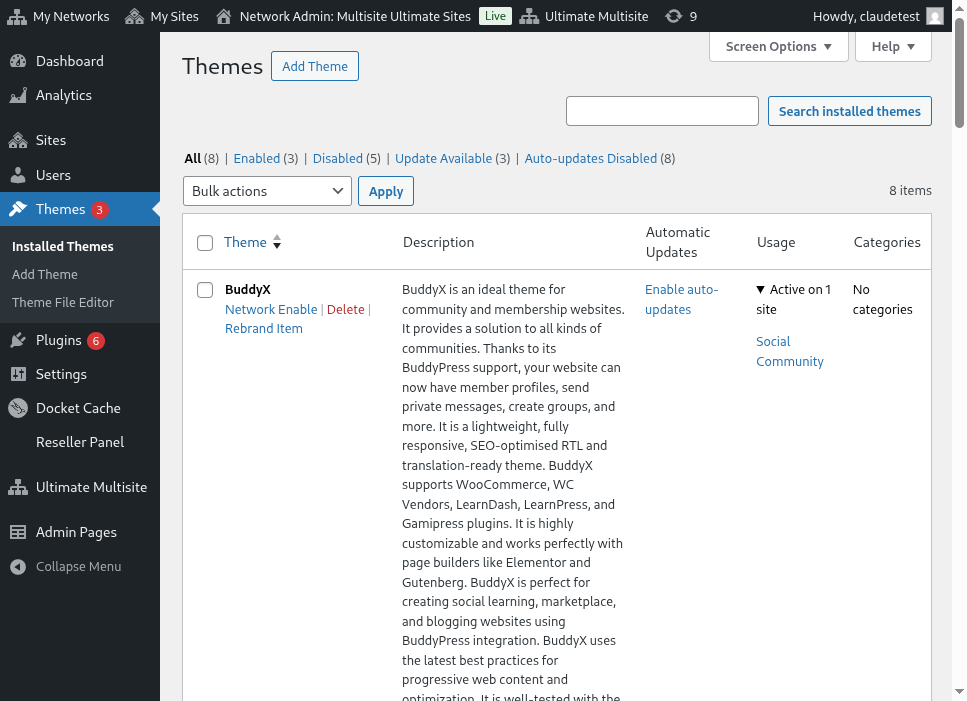
દૃશ્યતા વિકલ્પ નક્કી કરે છે કે ગ્રાહક તેમની સાઇટમાં દેખાવ > થીમ્સ ટેબ જોતા હોય ત્યારે આ થીમ તેમને દેખાય છે કે નહીં. આ વિકલ્પને છુપાયેલ પર સેટ કરવાથી થીમ દૃશ્યમાંથી દૂર થાય છે અને તેથી તેને પસંદ અને સક્રિય કરવાની ક્ષમતા મર્યાદિત થાય છે.
વર્તન પસંદગી નેટવર્ક એડમિનિસ્ટ્રેટરને ગ્રાહક સાઇટ બનાવતી વખતે થીમની સ્થિતિ વ્યાખ્યાયિત કરવાની મંજૂરી આપે છે.
A vailable સ્થિતિમાં થીમ ગ્રાહકને પોતે સક્રિય કરવા માટે ઉપલબ્ધ કરાવવામાં આવે છે. વિપરીત રીતે, ઉપલબ્ધ નથી સ્થિતિ ગ્રાહક પાસેથી થીમ સક્રિય કરવાની ક્ષમતા દૂર કરે છે. છેલ્લે, ફોર્સ એક્ટિવેટ વિકલ્પ થીમની પસંદગી અને સક્રિયકરણને ફરજિયાત બનાવે છે, જેથી સાઇટ બનાવતી વખતે તેને ડિફૉલ્ટ તરીકે સેટ કરે છે.
પ્લગિન્સ
Themes ટેબ જેવી જ રીતે, Ultimate Multisite નેટવર્ક એડમિનિસ્ટ્રેટરને ગ્રાહકો માટે પ્લગિન્સની દૃશ્યતા તેમજ નવી સાઇટ બનાવતી વખતે તેમની સ્થિતિ વ્યાખ્યાયિત કરવાની મંજૂરી આપે છે.

દૃશ્યતા ડ્રોપ-ડાઉન પ્લગિનને ગ્રાહકથી દૃશ્યમાન અથવા છુપાયેલ રાખવાની મંજૂરી આપે છે જ્યારે તે તેમની સાઇટ પર Plugins મેનુ વિકલ્પ દ્વારા જોવામાં આવે છે.
નેટવર્ક એડમિનિસ્ટ્રેટર behavior ડ્રોપ-ડાઉનમાંના વિકલ્પોનો ઉપયોગ કરીને pluginsના વર્તનને વધુ નિયંત્રિત કરી શકે છે.
Default પસંદગી ગ્રાહક દ્વારા પસંદ કરાયેલા site templateમાં વ્યાખ્યાયિત plugin સ્થિતિનું પાલન કરે છે. તેથી templateની અંદર સક્રિય કરાયેલા plugins જ્યારે template ગ્રાહકની site પર clone કરવામાં આવે ત્યારે સક્રિય જ રહેશે.
Force Activate site સર્જન સમયે pluginને સક્રિય સ્થિતિમાં મૂકે છે અને તેના વિપરીત Force Inactivate site સર્જન સમયે pluginને નિષ્ક્રિય કરે છે. આ બંને પરિસ્થિતિઓમાં, pluginની સ્થિતિ ગ્રાહક તેમના WordPress Plugins menu દ્વારા હાથેથી બદલી શકે છે.
Force Activate & Lock સેટિંગ સમાન રીતે કાર્ય કરે છે પરંતુ plugin સ્થિતિને ગ્રાહક દ્વારા બદલાતી અટકાવે છે. તેથી Force Activate and Lock સેટિંગ pluginને તેની સક્રિય સ્થિતિમાં મજબૂર કરશે અને ગ્રાહકને તેને નિષ્ક્રિય કરવાથી અટકાવશે. તે જ રીતે, Force Inactivate & Lock સેટિંગ pluginને તેની નિષ્ક્રિય સ્થિતિમાં મજબૂર કરશે અને વપરાશકર્તાને pluginને સક્રિય કરવાથી અટકાવશે.
નેટવર્ક એડમિનિસ્ટ્રેટર site templates સાથે મળીને Force Activate & Lock અને Force Inactivate & Lock સેટિંગ્સ અંગે વિચારવા ઇચ્છી શકે છે, કારણ કે જો પસંદ કરવામાં આવે તો templatesની અંદરના plugins અને plugin સ્થિતિઓ પર આ સેટિંગ્સની અસર પડી શકે છે.
મર્યાદાઓ રીસેટ કરો
Reset Limitations ટૅબ product પર વ્યાખ્યાયિત તમામ custom limitsને રીસેટ કરે છે. મર્યાદાઓ રીસેટ કરવા માટે reset limitations બટન પર ક્લિક કરો.
ક્રિયાની પુષ્ટિ કરવા માટે confirm reset toggleને જમણી બાજુ તેની સક્રિય સ્થિતિમાં slide કરો અને reset limitations બટન પર ક્લિક કરો.
Product સંપાદિત, નકલ અથવા કાઢી નાખો
હાલના productsને Ultimate Multisite > Products પર જઈને અને હાલના product નામ પર hover કરીને સંપાદિત, નકલ અથવા કાઢી નાખી શકાય છે.
