אָפּצאָל־פֿאָרמען
אָפּצאָל־פֿאָרמען זענען אַן גרינגע און בייגזאַמע וועג צו עקספּערימענטירן מיט פֿאַרשידענע צוגאַנגען ווען מען פּרוּווט איבערצוצייגן נײַע קאַסטאַמערז.
Ultimate Multisite 2.0 אָפפערט אַן אָפּצאָל־פֿאָרעם־רעדאַקטאָר וואָס לאָזט אײַך שאַפֿן אַזוי פֿיל פֿאָרמען ווי איר ווילט, מיט פֿאַרשידענע פֿעלדער, פּראָדוקטן אין דער אָפֿער, אאַז״וו.
כּדי צוצוקומען צו דער פֿונקציע, גייט צום מעניו אָפּצאָל־פֿאָרמען, אויף דער לינקער זײַט־לײַסט.
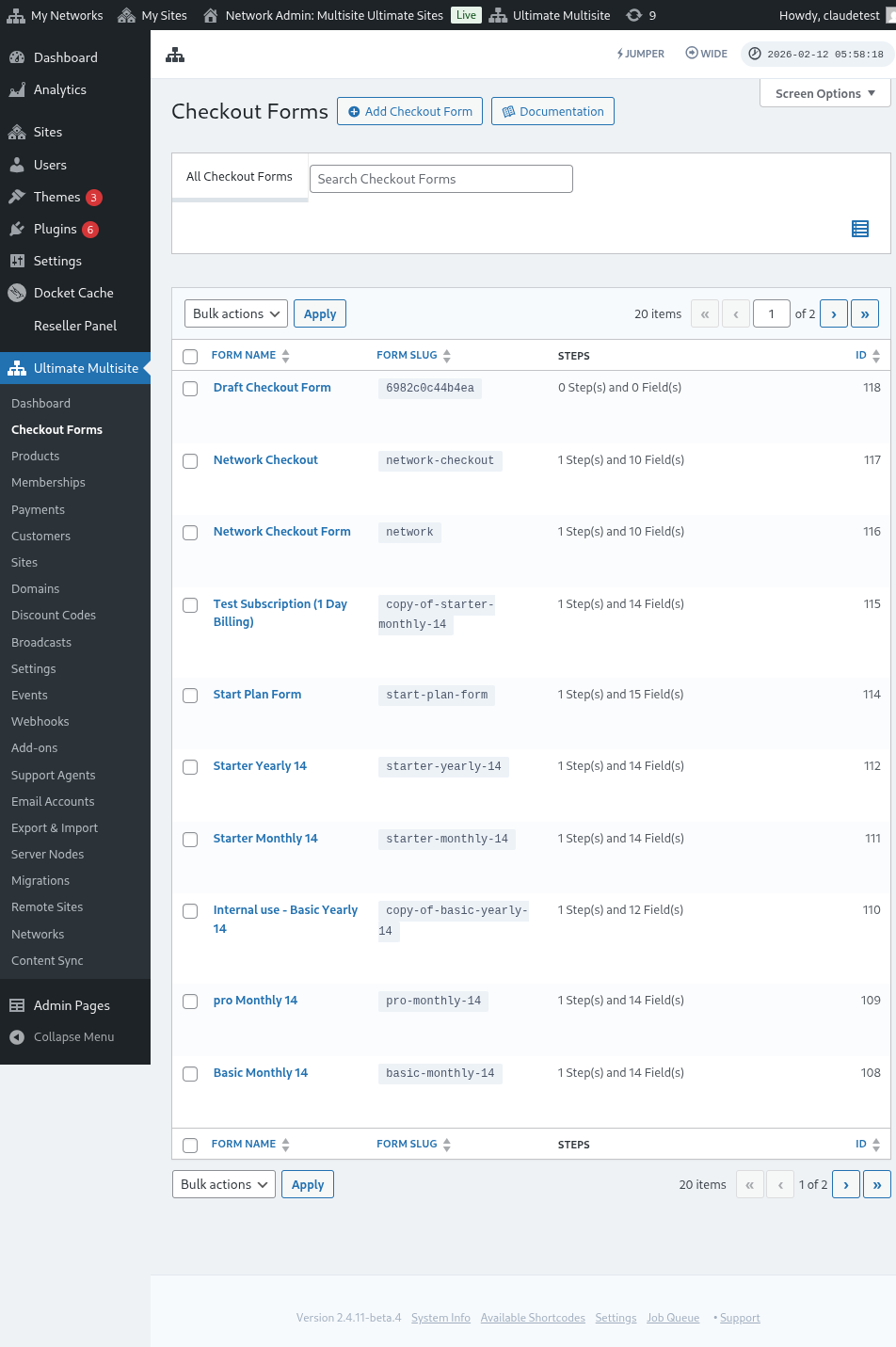
אויף דער זײַט קענט איר זען אַלע אָפּצאָל־פֿאָרמען וואָס איר האָט.
די רשימה־טאַבעלע נעמט אַרײַן אַ סטאַטוס־זײַל, כּדי איר זאָלט קענען באַשטעטיקן צי יעדער פֿאָרעם איז איצט צוטריטלעך פֿאַר קאַסטאַמערז:
| סטאַטוס | באַדײַטונג |
|---|---|
| אַקטיוו | די פֿאָרעם קען גענוצט ווערן וווּ נאָר איר shortcode אָדער רעגיסטראַציע־זײַט איז פֿאַרעפֿנטלעכט. |
| נישט אַקטיוו | די פֿאָרעם איז אויפֿגעהיט אָבער אויסגעלאָשן. קאַסטאַמערז קענען נישט פֿאַרענדיקן אָפּצאָל דערמיט ביז איר אַקטיוויזירט זי ווידער. |
ניצט דעם סטאַטוס־זײַל איידער איר רעדאַקטירט אַן עפֿנטלעכן רעגיסטראַציע־פֿלוס, בפֿרט ווען איר האַלט דראַפט־ אָדער סעזאָנעלע אָפּצאָל־פֿאָרמען צוזאַמען מיט אײַערע לעבעדיקע פֿאָרמען.
אויב איר ווילט שאַפֿן אַ נײַע, דריקט פּשוט Add Checkout Form אויבן אויף דער זײַט.
איר קענט אויסקלײַבן איינע פֿון די דרײַ אָפּציעס ווי אײַער אָנהייב־פּונקט: איין שריט, מערערע שריט אָדער ליידיק. דערנאָך דריקט צו גיין צום רעדאַקטאָר.
ווען איר קלײַבט אויס איין שריט אָדער מערערע שריט ווי אײַער אָנהייב־פּונקט, נעמט דער פֿאָרעם־מוסטער איצט אַרײַן אַ מוסטער־אויסקלייב־פֿעלד לויט דער פֿעליקייט. דאָס פֿעלד לאָזט אײַערע קאַסטאַמערז אויסקלײַבן אַ פּלאַץ־מוסטער בעת דעם רעגיסטראַציע־פּראָצעס. איר קענט עס לאָזן אויף זײַן אָרט, אַראָפּנעמען, אָדער איבערשטעלן ווי יעדעס אַנדער פֿעלד אינעם רעדאַקטאָר.
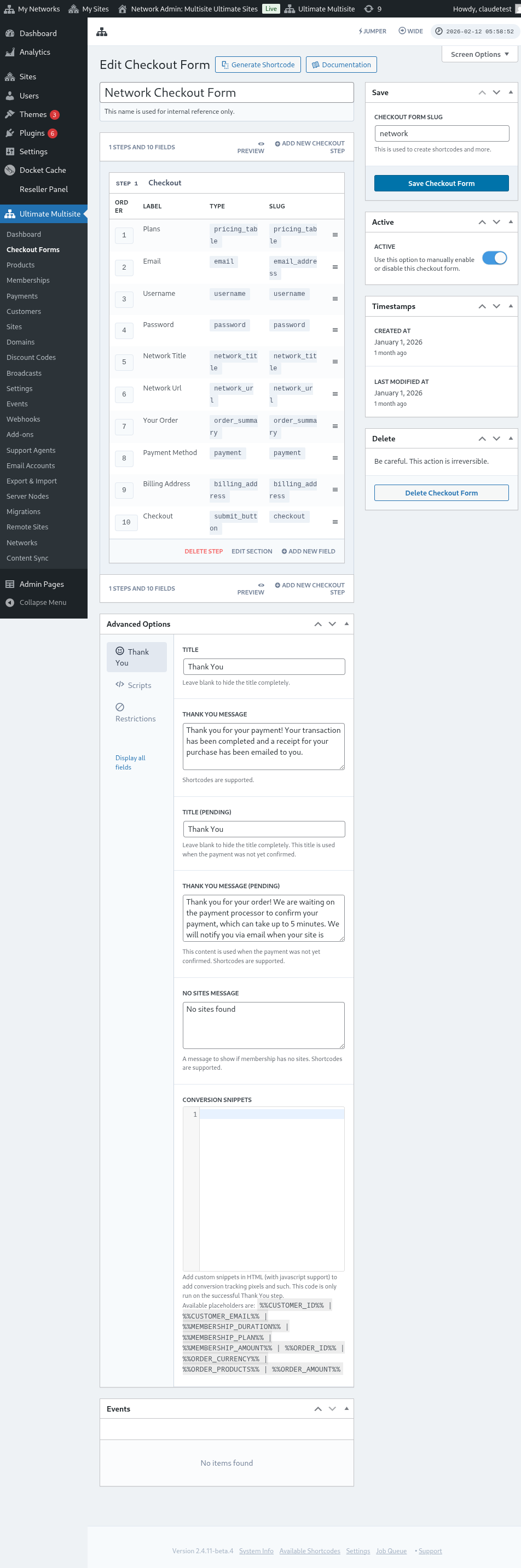
אַלטערנאַטיוו קענט איר רעדאַקטירן אָדער דופּליקירן די פֿאָרמען וואָס איר האָט שוין, דורך דריקן אויף די אָפּציעס אונטער איר נאָמען. דאָרטן וועט איר אויך געפֿינען די אָפּציעס צו קאָפּירן דעם shortcode פֿון דער פֿאָרעם אָדער אויסמעקן די פֿאָרעם.

איבערבליק פֿונעם אָפּצאָל־פֿאָרעם־רעדאַקטאָר
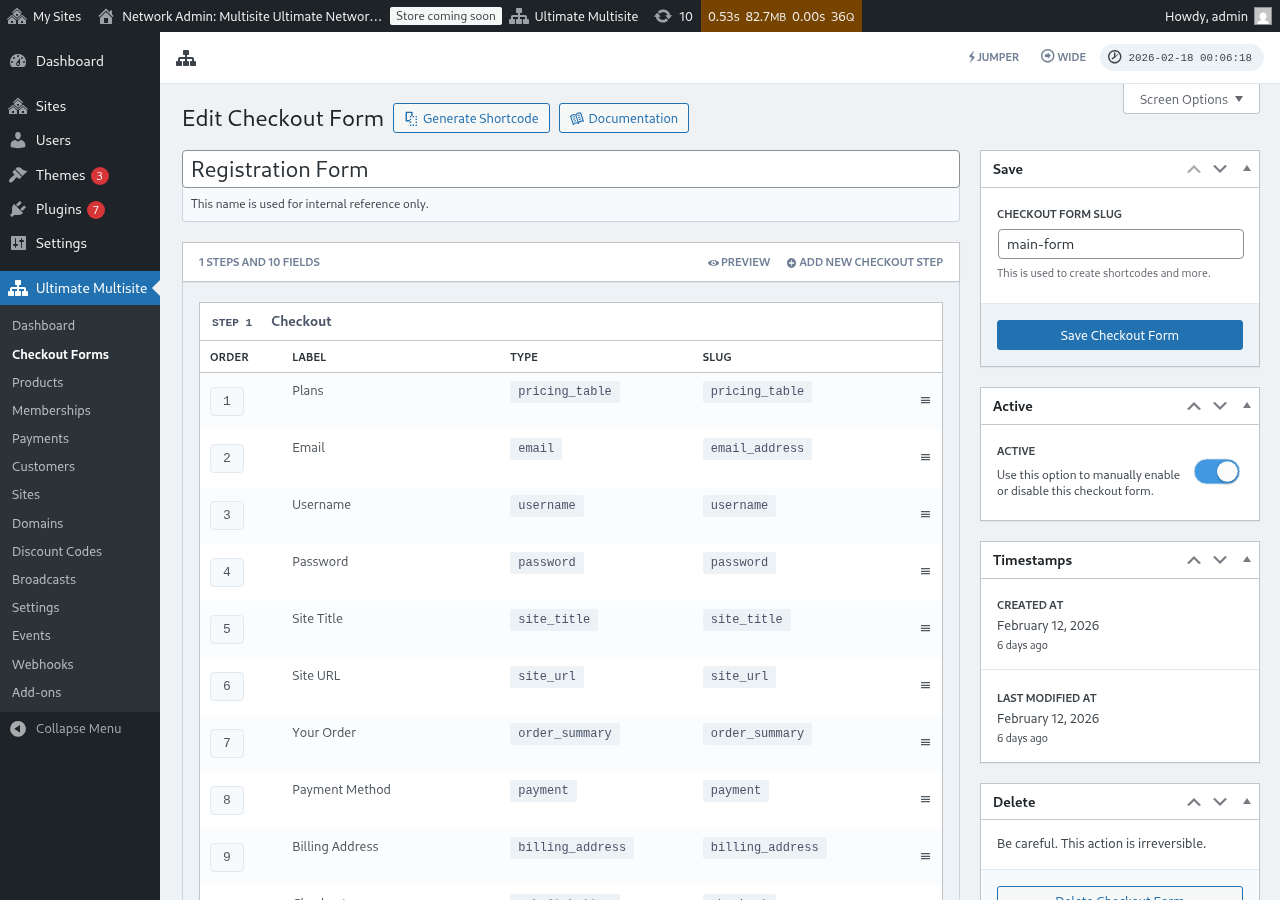
דער אָפּצאָל־פֿאָרעם־רעדאַקטאָר גיט אַ פולשטענדיקן צובינד צו בויען אײַערע רעגיסטראַציע־פֿאָרמען. דאָ איז אַן איבערבליק פֿונעם אויסלייג פֿונעם רעדאַקטאָר:
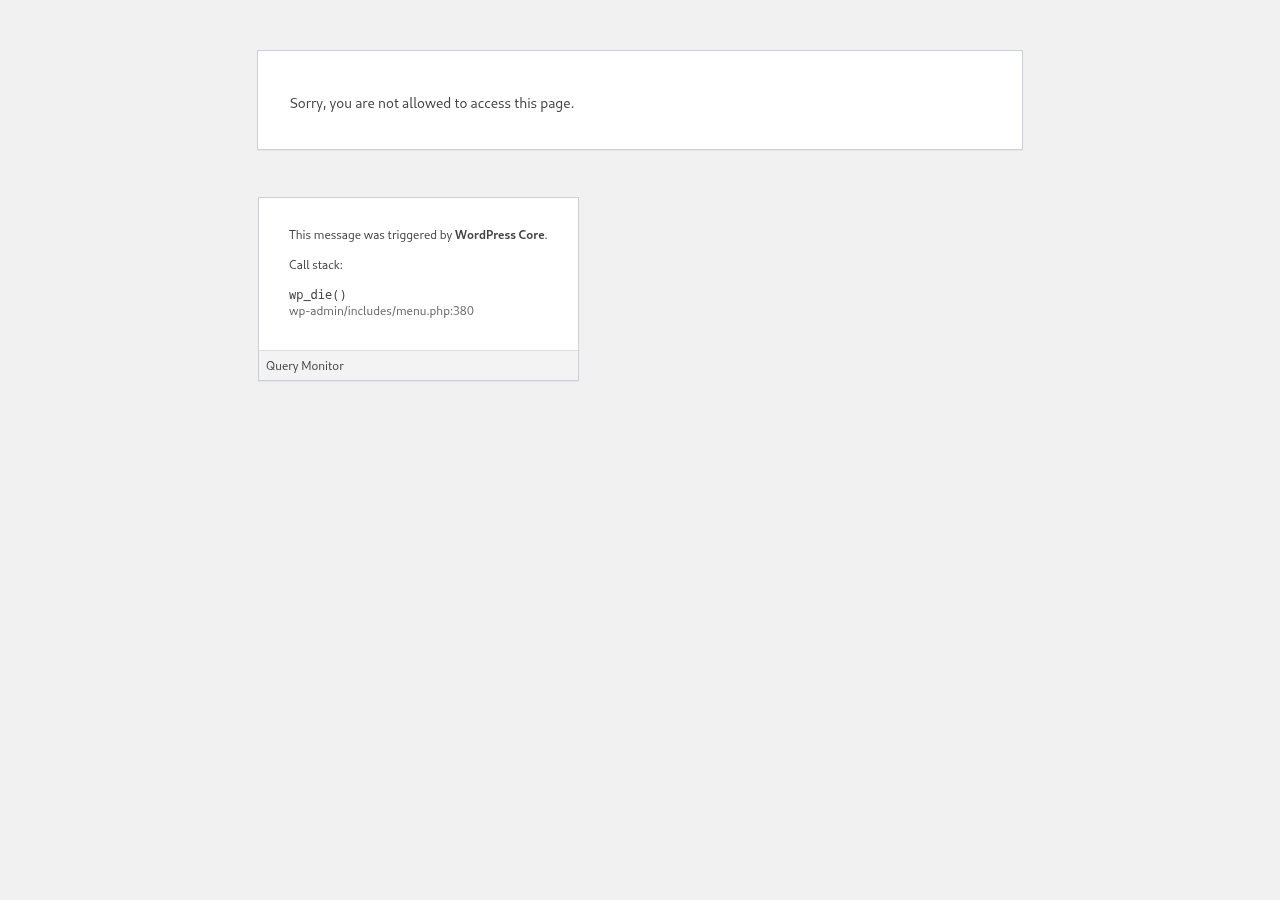
רעדאַקטירן אַן אָפּצאָל־פֿאָרעם
איר קענט שאַפֿן אָפּצאָל־פֿאָרמען פֿאַר פֿאַרשידענע צוועקן. אין דעם בײַשפּיל וועלן מיר אַרבעטן אויף אַ רעגיסטראַציע־פֿאָרעם.
נאָך דעם ווי איר נאַוויגירט צום אָפּצאָל־פֿאָרעם־רעדאַקטאָר, גיט אײַער פֿאָרעם אַ נאָמען (וואָס וועט גענוצט ווערן בלויז פֿאַר אינערלעכער רעפֿערענץ) און אַ slug (גענוצט צו שאַפֿן shortcodes, למשל).
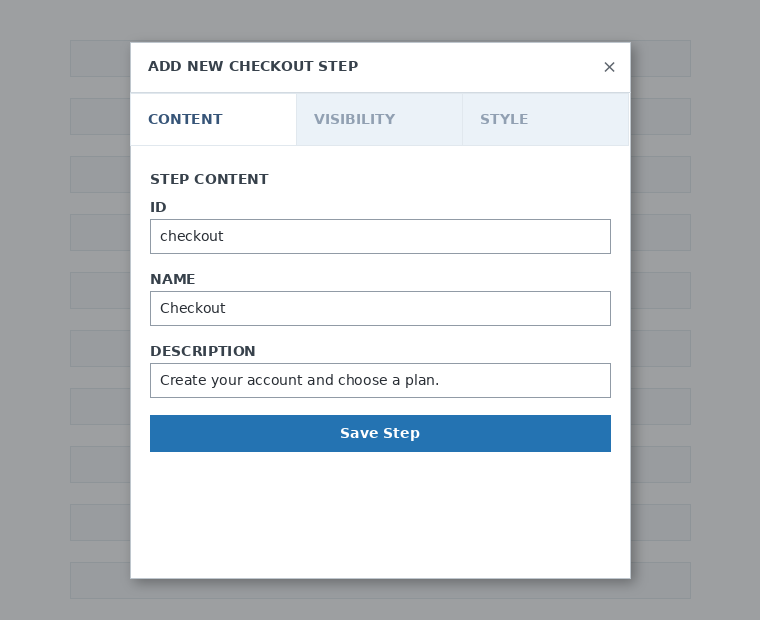
פֿאָרמען באַשטייען פֿון שריט און פֿעלדער. איר קענט צולייגן אַ נײַעם שריט דורך דריקן אויף Add New Checkout Step.

אויף דעם ערשטן קוויטל פֿונעם modal־פֿענצטער, פֿילט אַרײַן דעם אינהאַלט פֿון אײַער פֿאָרעם־שריט. גיט אים אַן ID, אַ נאָמען און אַ באַשרײַבונג. די זאַכן ווערן מערסטנס גענוצט אינערלעך.
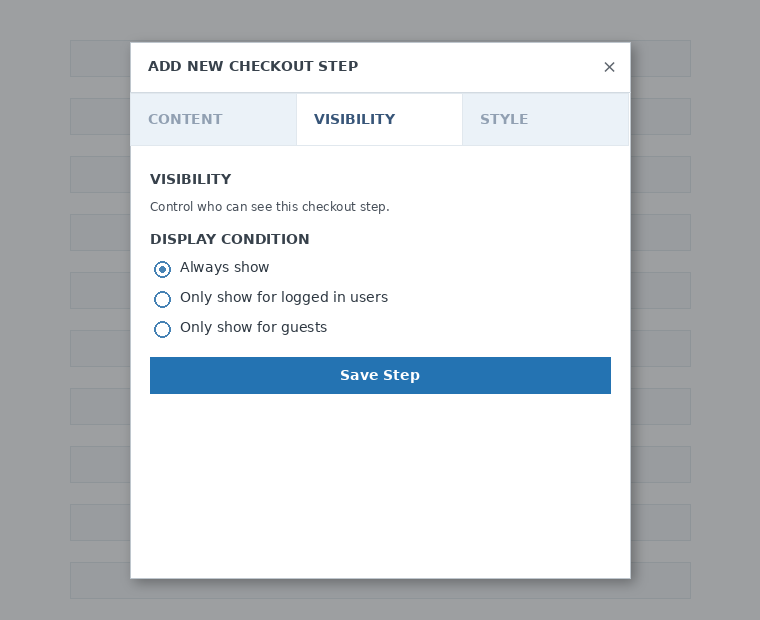
דערנאָך שטעלט איין די זעבאַרקייט פֿונעם שריט. איר קענט אויסקלײַבן צווישן "שטענדיק ווײַזן", "ווײַזן בלויז פֿאַר אײַנגעקלאָצטע באַניצער" אָדער "ווײַזן בלויז פֿאַר געסט".
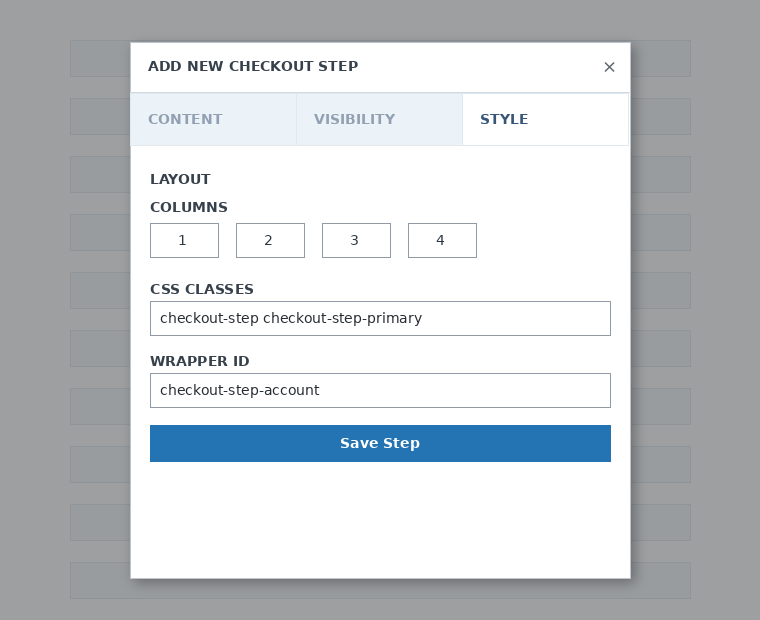
צום סוף, קאָנפֿיגורירט דעם שריט־סטיל. דאָס זענען אָפּציאָנעלע פֿעלדער.
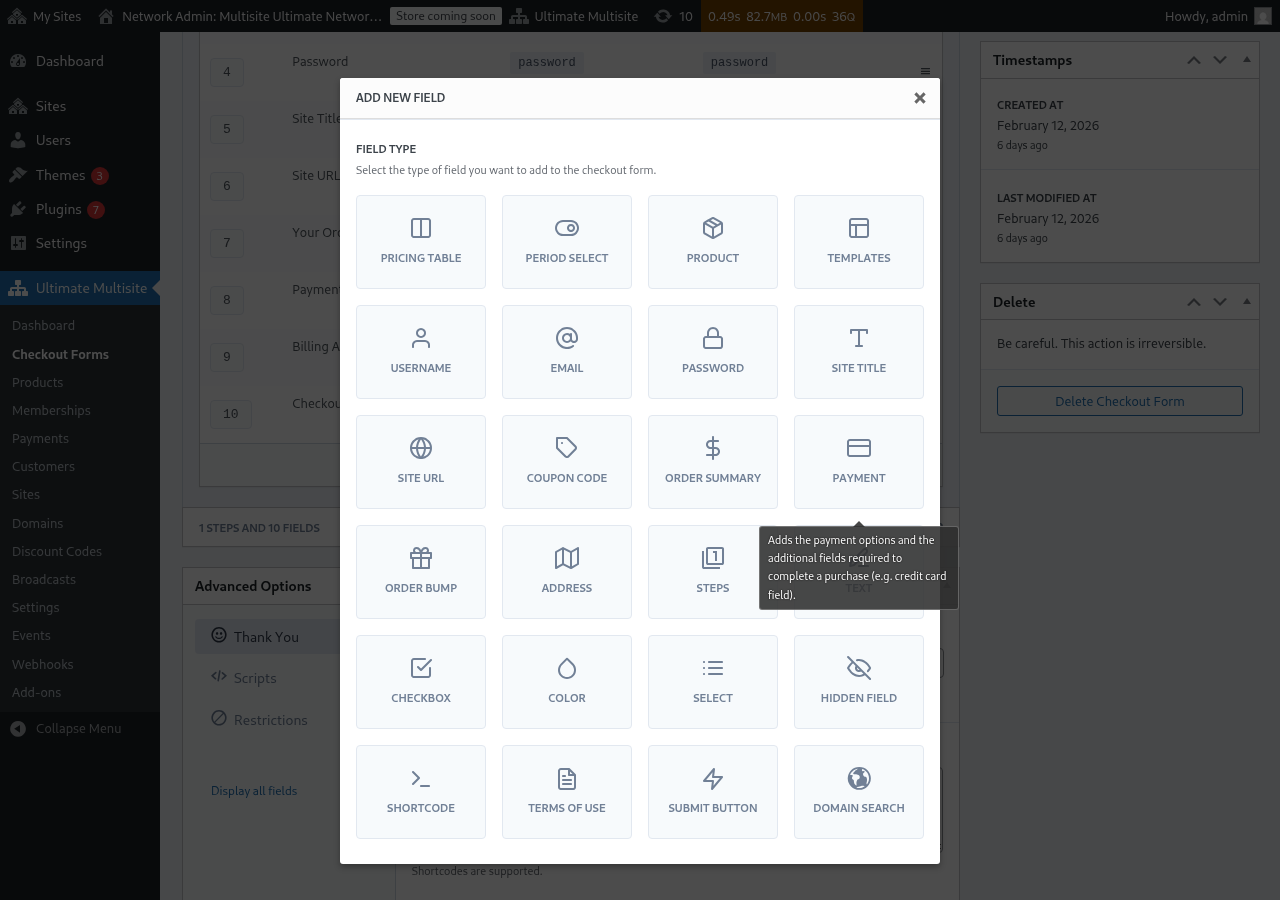
איצט איז צײַט צוצולייגן פֿעלדער צו אונדזער ערשטן שריט. דריקט פּשוט צו Add New Field און קלײַבט אויס דעם טיפּ אָפּטייל וואָס איר ווילט.
יעדעס פֿעלד האָט אַנדערע פּאַראַמעטערס וואָס דאַרפֿן אויסגעפֿילט ווערן. פֿאַר דעם ערשטן אַרײַנגאַנג וועלן מיר אויסקלײַבן דאָס "באַניצערנאָמען"־פֿעלד.
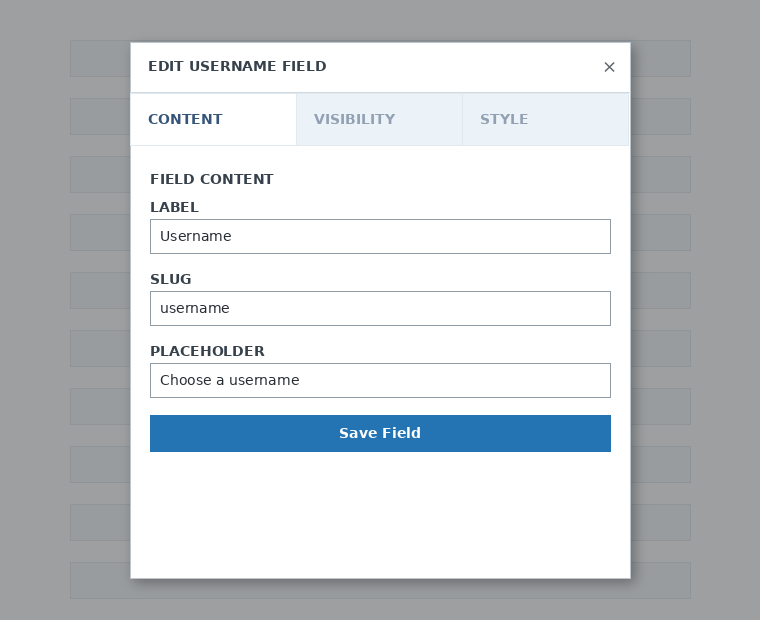
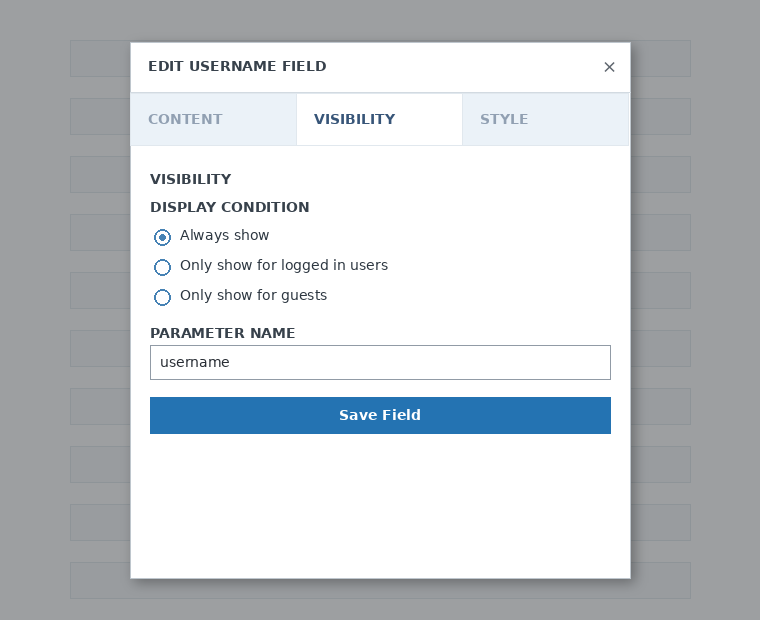
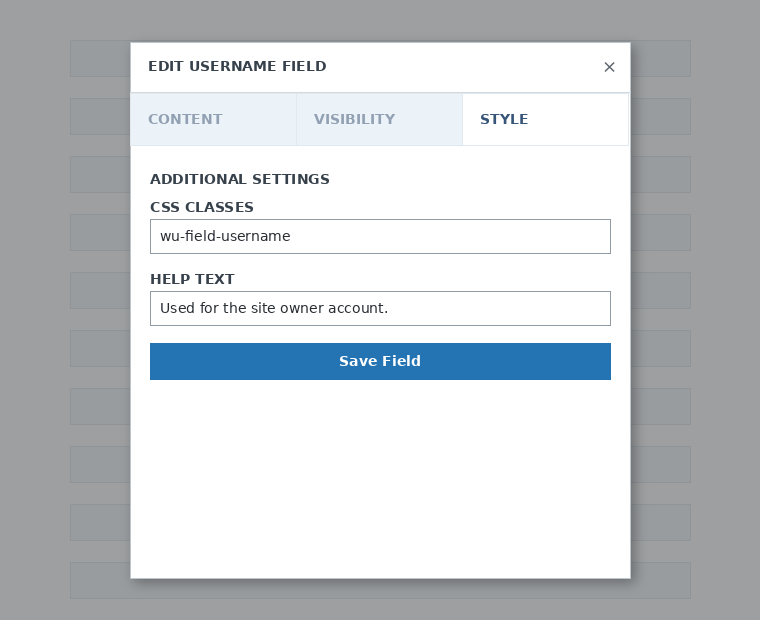
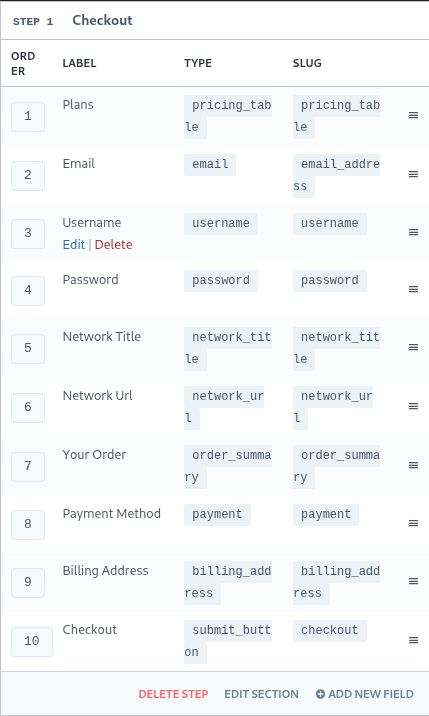
איר קענט צולייגן אַזוי פֿיל שריט און פֿעלדער ווי איר דאַרפֿט. כּדי צו ווײַזן אײַערע פּראָדוקטן פֿאַר אײַערע קאַסטאַמערז, אַז זיי זאָלן אויסקלײַבן איינס, ניצט דאָס פּרײַז־טאַבעלע־פֿעלד. אויב איר ווילט לאָזן אײַערע קליענטן אויסקלײַבן אַ מוסטער, לייגט צו דאָס מוסטער־אויסקלייב־פֿעלד. און אַזוי ווײַטער.
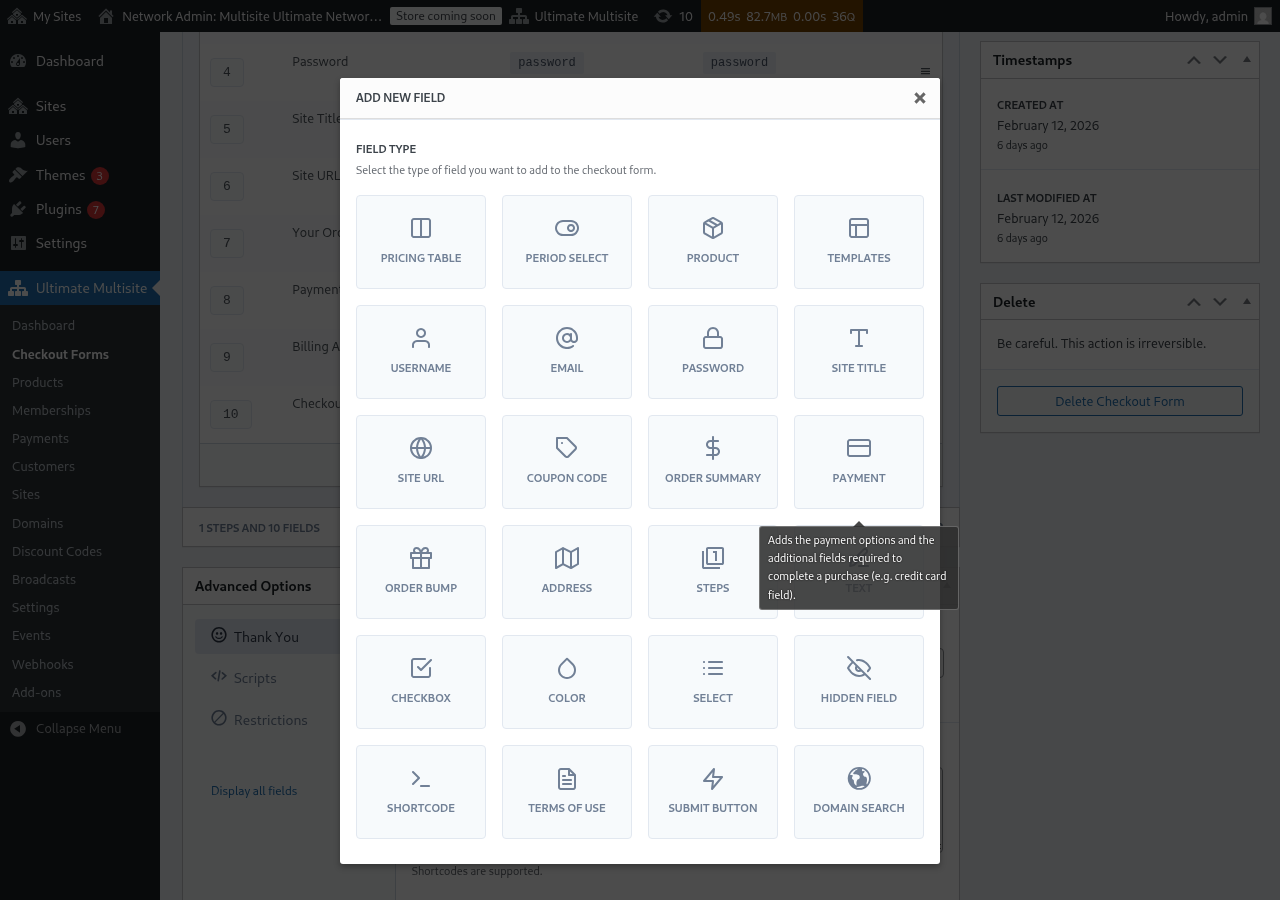
באַמערקונג: באַניצערנאָמען, בליצפּאָסט, פּאַראָל, פּלאַץ־טיטל, פּלאַץ־URL, באַשטעלונג־סיכום, צאָלונג, און אָפּשיק־קנעפּל זענען מאַנדאַטאָרישע פֿעלדער צו שאַפֿן אַן אָפּצאָל־פֿאָרעם.
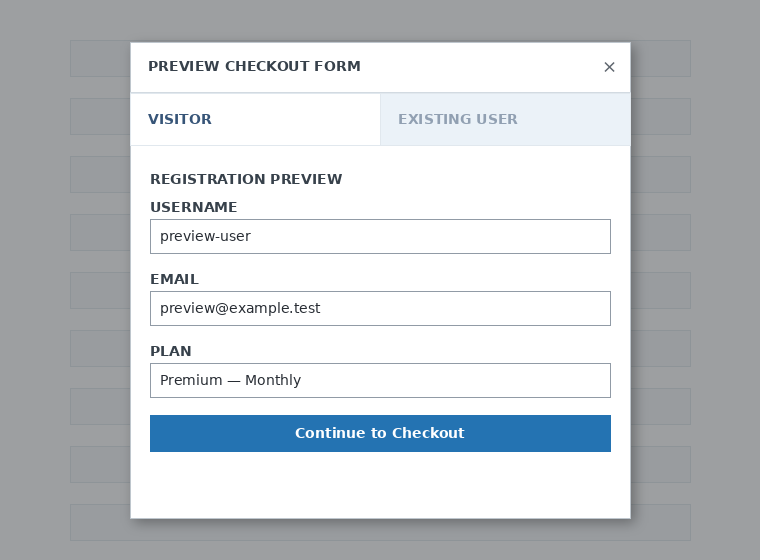
בעת איר אַרבעט אויף אײַער אָפּצאָל־פֿאָרעם, קענט איר שטענדיק ניצן דעם Preview־קנעפּל צו זען ווי אײַערע קליענטן וועלן זען די פֿאָרעם. איר קענט אויך בייטן צווישן דער בליק ווי אַן עקזיסטירנדער באַניצער אָדער ווי אַ באַזוכער

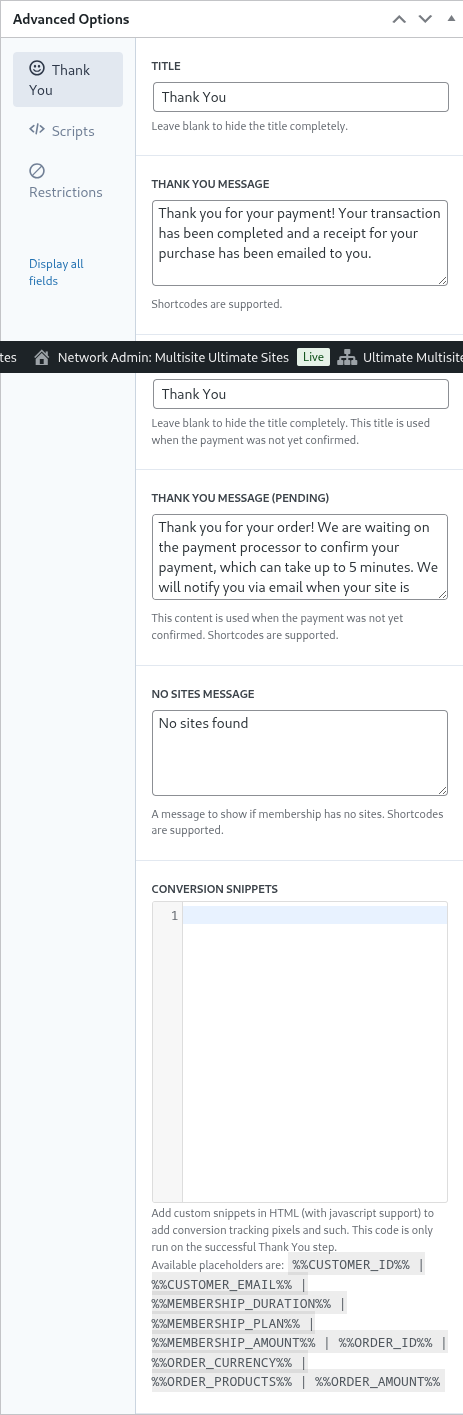
צום סוף, אין Advanced Options קענט איר קאָנפֿיגורירן דעם אָנזאָג פֿאַר דער "אַ דאַנק"־זײַט, צולייגן snippets צו נאָכפֿאָלגן conversions, צולייגן אייגענע CSS צו אײַער אָפּצאָל־פֿאָרעם אָדער באַגרענעצן זי צו געוויסע לענדער.
איר קענט אויך מאַנועל אַקטיוויזירן אָדער דיסאַקטיוויזירן אײַער אָפּצאָל־פֿאָרעם דורך איבערקניפּן די אָפּציע אין דער רעכטער זײַל, אָדער אויסמעקן די פֿאָרעם אויף שטענדיק.

כּדי אויסצומעקן אַ פֿאָרעם, דריקט די אויסמעק־אָפּציע אין די פֿאָרעם־אַקציעס:

פֿאַרגעסט נישט אויפֿצוהיטן אײַער אָפּצאָל־פֿאָרעם!

כּדי צו באַקומען דעם shortcode פֿון אײַער פֿאָרעם, דריקט צו Generate Shortcode און קאָפּירט דעם רעזולטאַט וואָס ווערט געוויזן אינעם modal־פֿענצטער.
דאָס פּרײַז־טאַבעלע־פֿעלד
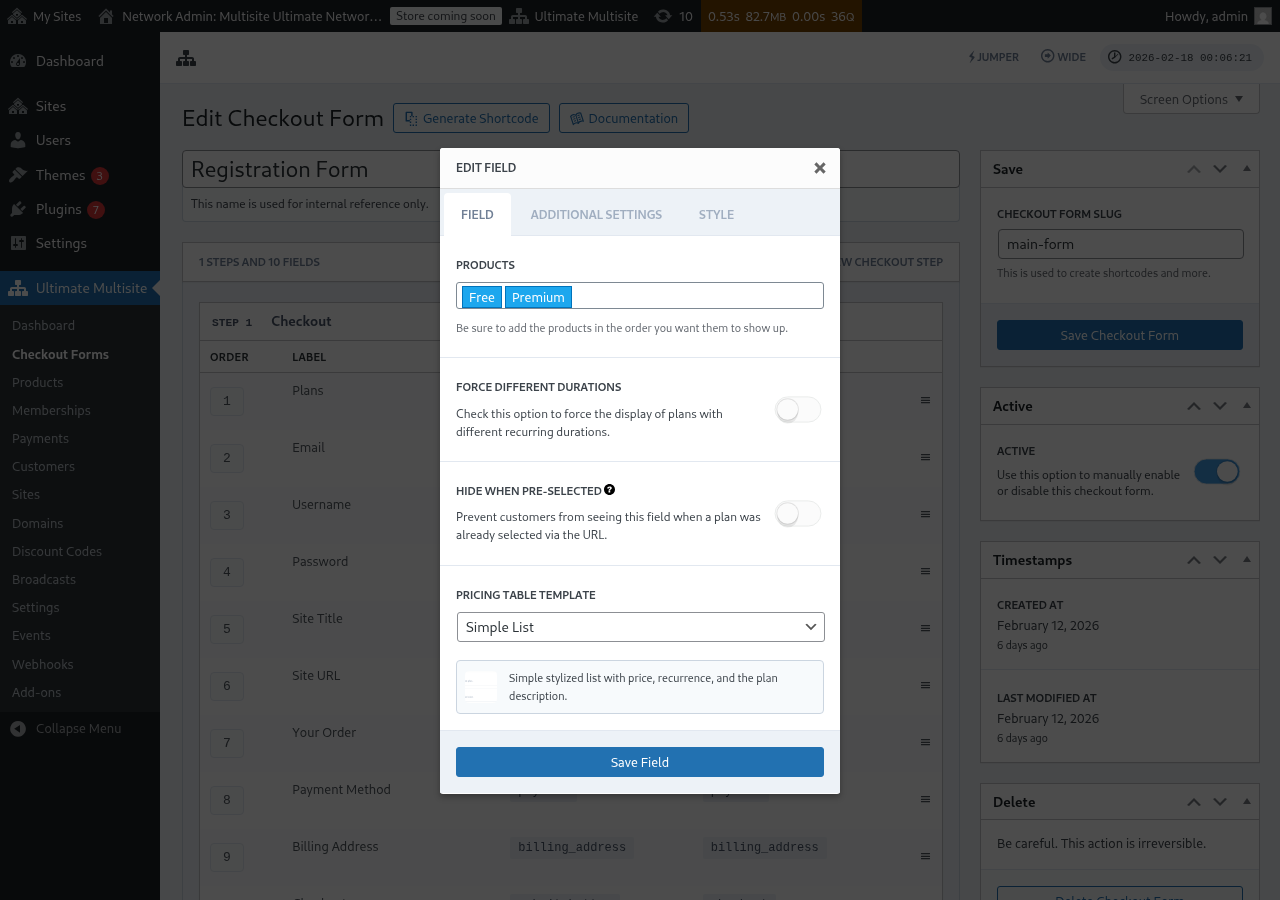
דאָס פּרײַז־טאַבעלע־פֿעלד ווײַזט אײַערע פּראָדוקטן אויף דער אָפּצאָל־פֿאָרעם, כּדי קאַסטאַמערז זאָלן קענען אויסקלײַבן אַ פּלאַן. ווען איר רעדאַקטירט דאָס פֿעלד, קענט איר קאָנפֿיגורירן עטלעכע אָפּציעס:
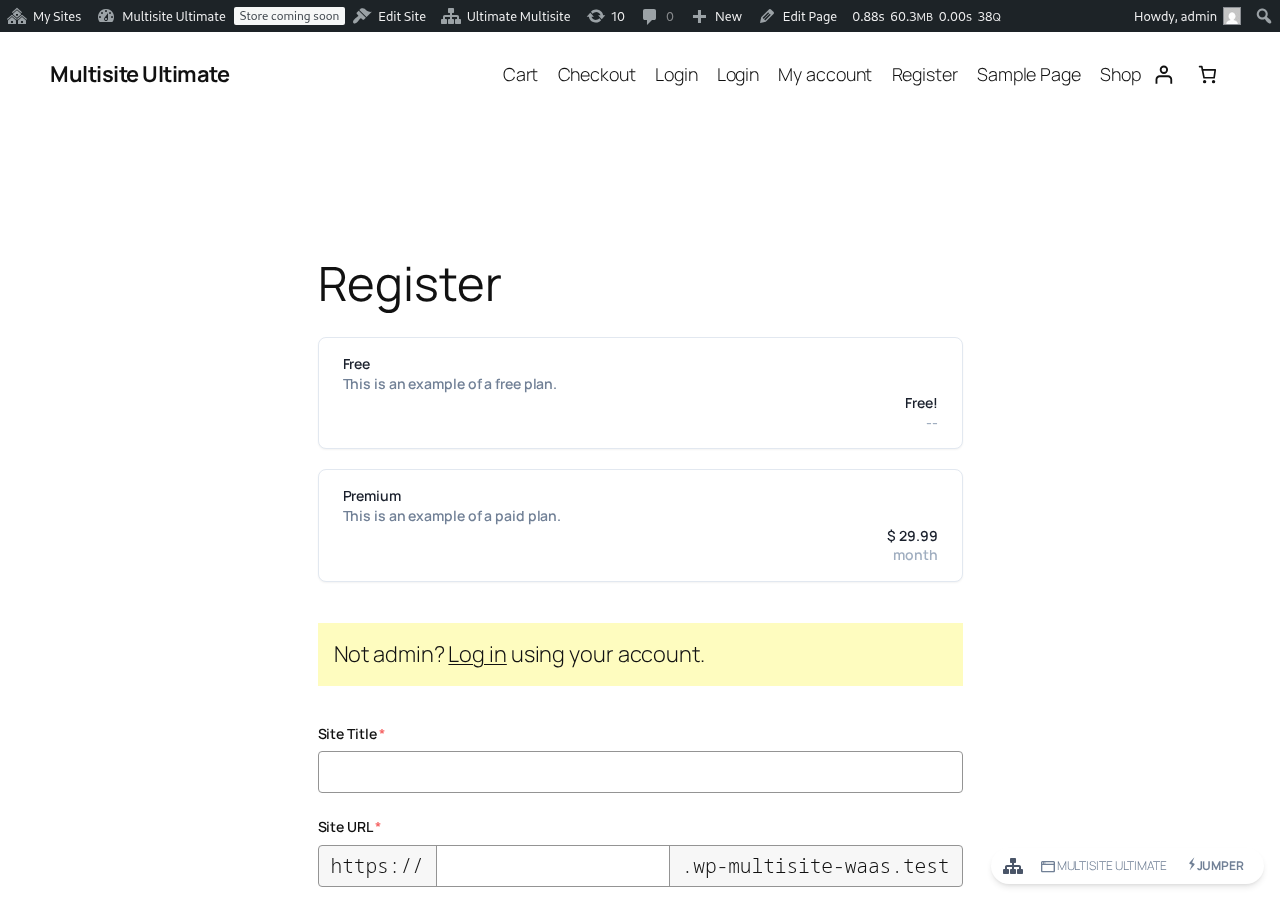
אַזוי דערשײַנט די פּרײַז־טאַבעלע אויף דער פֿראָנטענד־רעגיסטראַציע־פֿאָרעם:
- פּראָדוקטן: קלײַבט אויס וועלכע פּראָדוקטן צו ווײַזן און דעם סדר אין וועלכן זיי דערשײַנען.
- צווינגען אַנדערע משכים: ווען אַקטיווירט, ווערן אַלע פּראָדוקטן געוויזן, צי זיי האָבן צי נישט אַ פּאַסיקע פּרײַז־וואַריאַציע פֿאַר דעם איצט אויסגעקליבענעם רעכענונג־פּעריאָד. ווען נישט אַקטיווירט (נאָרמאַל), ווערן פּראָדוקטן אָן אַ וואַריאַציע פֿאַר דעם אויסגעקליבענעם פּעריאָד באַהאַלטן.
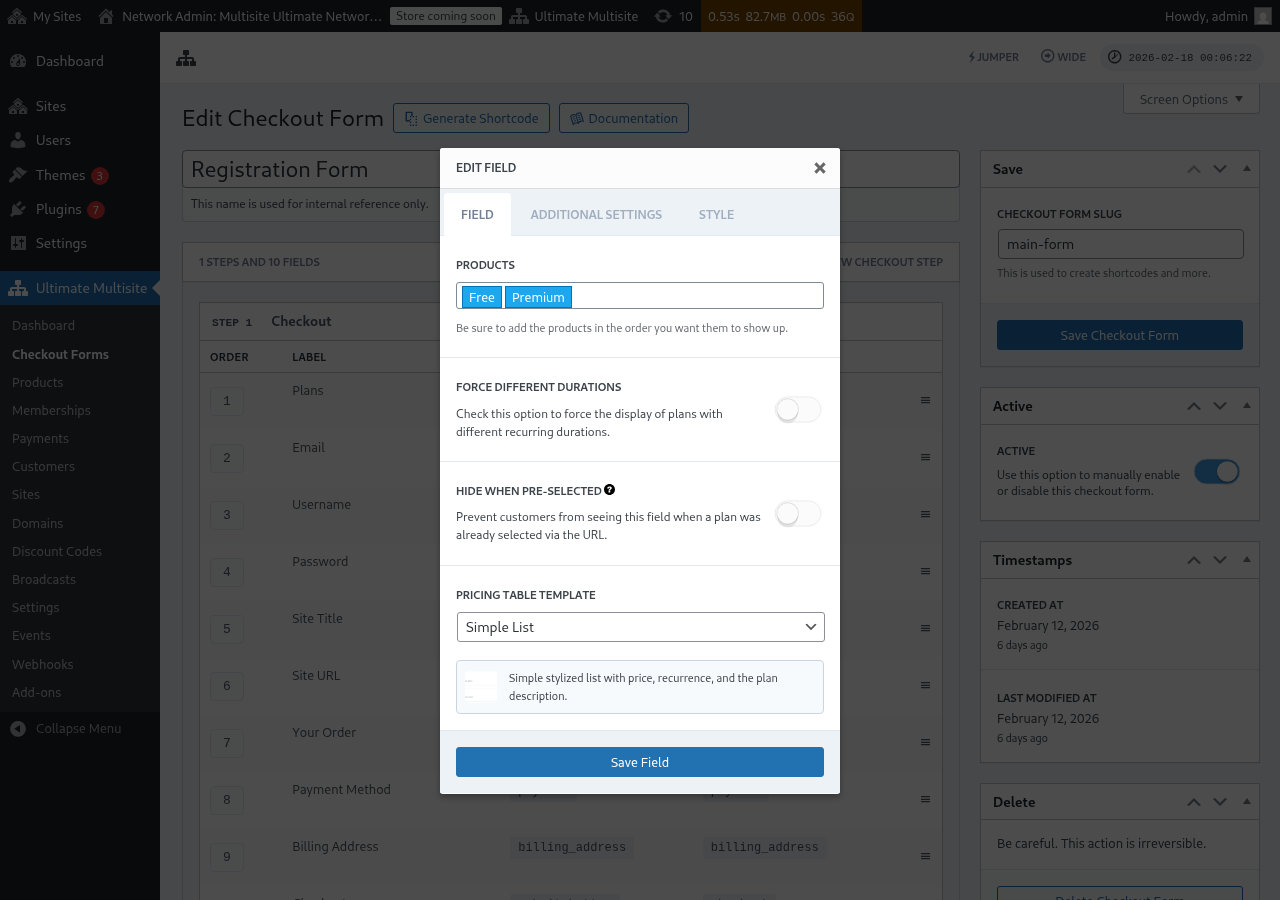
- באַהאַלטן ווען פֿאָרויס־אויסגעקליבן: באַהאַלט די פּרײַז־טאַבעלע ווען אַ פּלאַן איז שוין אויסגעקליבן געוואָרן דורך דעם URL (למשל
/register/premium). - פּרײַז־טאַבעלע מוסטער: קלײַבט דעם וויזועלן מוסטער פֿאַר דער פּרײַז־טאַבעלע (פּשוטע רשימה, Legacy, אאַז״וו).
אויב איר לייגט צו אַ פּראָדוקט אין דער פּרײַז־טאַבעלע איידער די פֿאָרעם נעמט אַרײַן די פֿעלדער וואָס זענען נייטיק צו פֿאַרענדיקן דעם קויפ־אָפּשלוס־פֿלוס פֿון יענעם פּראָדוקט, ווײַזט דער רעדאַקטאָר איצט אַ וואָרענונג. ניצט די וואָרענונג צו צולייגן דאָס פֿעלנדיקע נייטיקע פֿעלד איידער פּובליקירן אָדער אויפֿהיטן ענדערונגען פֿאַר אַ לעבעדיקער רעגיסטראַציע־פֿאָרעם.
צולייגן אַ פּעריאָד־אויסקלייב איבערבײַט־קנעפּל
אויב איר האָט קאָנפֿיגורירט פּרײַז־וואַריאַציעס אויף אייערע פּראָדוקטן (למשל חודשלעכע און יערלעכע פּרײַזן), קענט איר צולייגן אַ פּעריאָד־אויסקלייב פֿעלד צו אייער קויפ־אָפּשלוס־פֿאָרעם. דאָס פֿעלד ווײַזט אַן איבערבײַט־קנעפּל וואָס דערלויבט קונים איבערצושאַלטן צווישן רעכענונג־פּעריאָדן, און די פּרײַז־טאַבעלע דערהײַנטיקט זיך דינאַמיש אין אמתער צײַט.
שריט 1: אײַנשטעלן פּרײַז־וואַריאַציעס אויף אייערע פּראָדוקטן
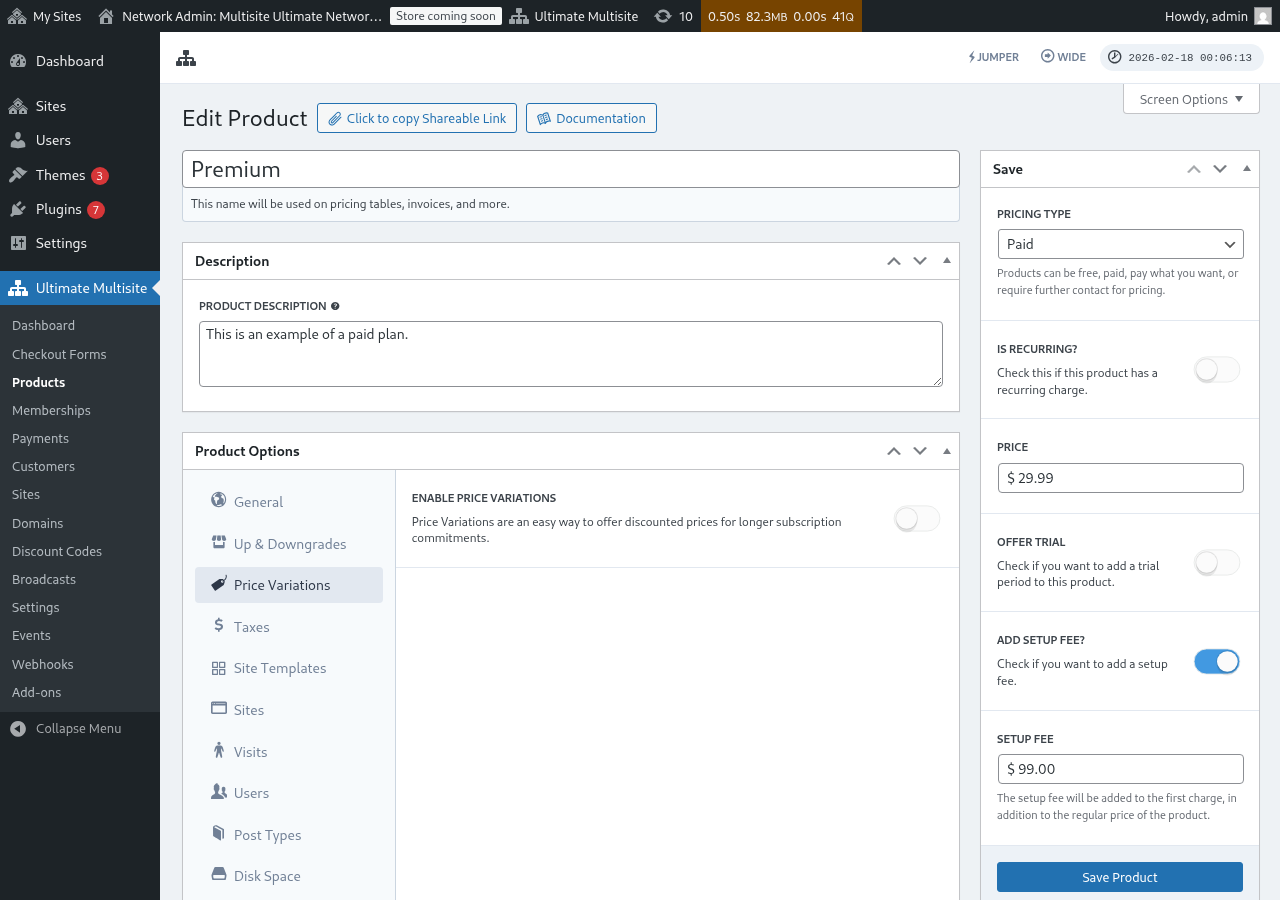
איידער צולייגן דאָס פּעריאָד־אויסקלייב פֿעלד, מאַכט זיכער אַז אייערע פּראָדוקטן האָבן קאָנפֿיגורירטע פּרײַז־וואַריאַציעס. גייט צו Ultimate Multisite > פּראָדוקטן, רעדאַקטירט אַ פּראָדוקט, און גייט צום פּרײַז־וואַריאַציעס קוויטל צו צולייגן אַלטערנאַטיווע רעכענונג־פּעריאָדן (למשל יערלעך מיט אַ אַראָפּרעכענטן פּרײַז).
שריט 2: צולייגן דאָס פּעריאָד־אויסקלייב פֿעלד צו אייער קויפ־אָפּשלוס־פֿאָרעם
-
גייט צו Ultimate Multisite > קויפ־אָפּשלוס־פֿאָרמען און רעדאַקטירט אייער קויפ־אָפּשלוס־פֿאָרעם.
-
ראָלט אַראָפּ צום שריט וואָס אַנטהאַלט אייער פּרײַז־טאַבעלע פֿעלד און גיט אַ קוועטש אויף צולייגן נײַ פֿעלד.
-
אין דעם פֿעלד־טיפּ אויסקלייב־דיאַלאָג, גיט אַ קוועטש אויף פּעריאָד אויסקלייב.
-
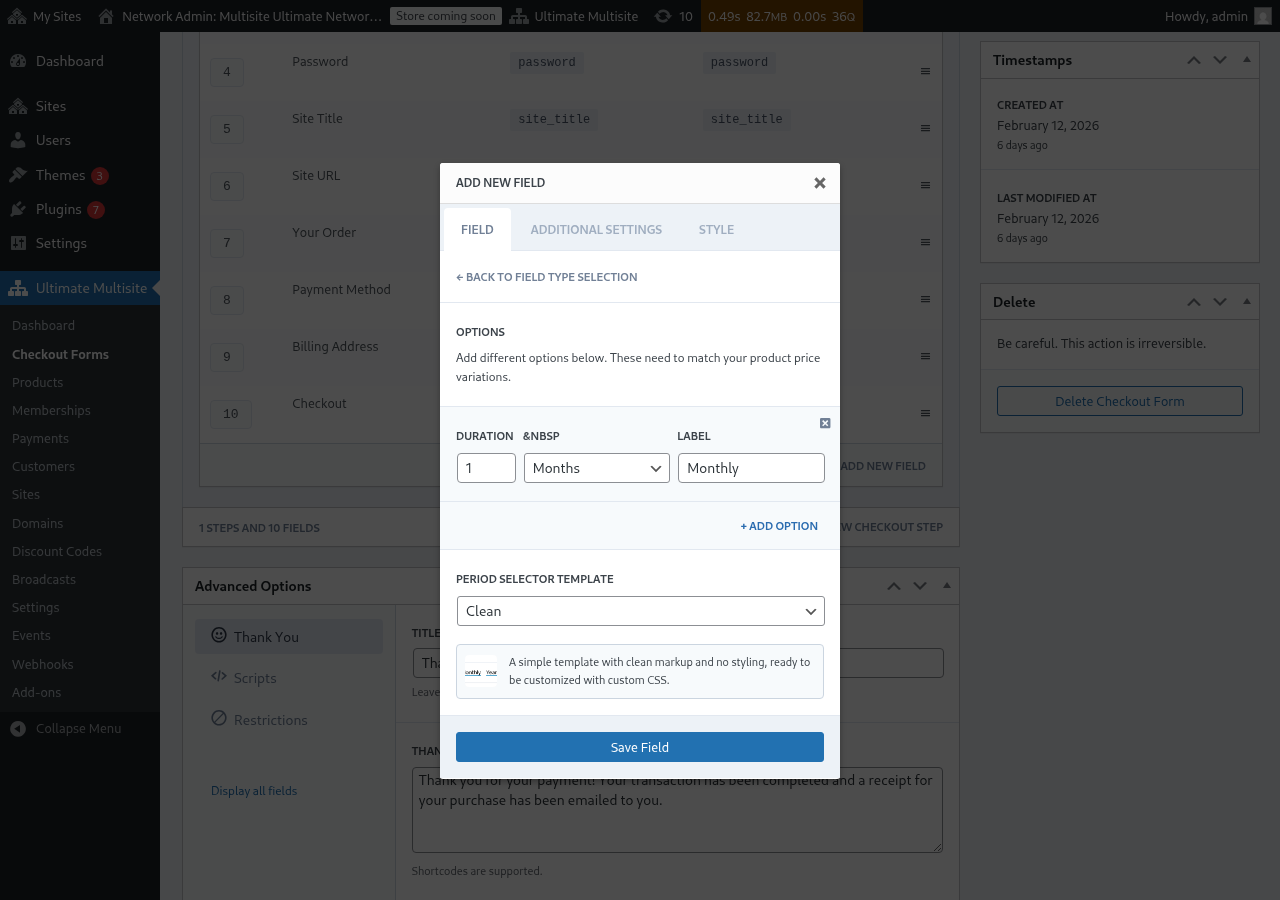
קאָנפֿיגורירט די פּעריאָד־אָפּציעס. יעדע אָפּציע דאַרף:
- משך: די צאָל (למשל
1) - משך־איינהייט: דער פּעריאָד־טיפּ (טעג, וואָכן, חדשים, אָדער יאָרן)
- עטיקעט: דער טעקסט וואָס קונים וועלן זען (למשל "חודשלעך", "יערלעך")
- משך: די צאָל (למשל
-
גיט אַ קוועטש אויף + צולייגן אָפּציע צו צולייגן מער פּעריאָד־ברירות. די אָפּציעס מוזן שטימען מיט די פּרײַז־וואַריאַציעס וואָס איר האָט קאָנפֿיגורירט אויף אייערע פּראָדוקטן.
-
קלײַבט אַ פּעריאָד־אויסקלײַבער מוסטער (Clean איז דער נאָרמאַלער, וואָס גיט אַרויס אַ פּשוטן סטיליזירטן אויסקלײַבער גרייט פֿאַר אייגענעם CSS).
-
גיט אַ קוועטש אויף אויפֿהיטן פֿעלד.
שריט 3: פּאָזיציאָנירן דאָס פֿעלד העכער דער פּרײַז־טאַבעלע
פֿאַר דער בעסטער באַניצער־דערפֿאַרונג, מאַכט זיכער אַז דאָס פּעריאָד־אויסקלייב פֿעלד דערשײַנט איידער דאָס פּרײַז־טאַבעלע פֿעלד אין אייער קויפ־אָפּשלוס־שריט. איר קענט שלעפּן פֿעלדער כּדי צו טוישן זייער סדר אין דעם קויפ־אָפּשלוס־פֿאָרעם רעדאַקטאָר. אַזוי קלײַבן קונים ערשט אַ רעכענונג־פּעריאָד און דערנאָך זען זיי פּרײַזן פֿאַר יענעם פּעריאָד.
ווי עס אַרבעט אויפֿן פֿראָנטענד
אַמאָל קאָנפֿיגורירט, וועלן קונים וואָס באַזוכן אייער רעגיסטראַציע־בלאַט זען דעם פּעריאָד־אויסקלײַבער העכער דער פּרײַז־טאַבעלע. ווען זיי געבן אַ קוועטש אויף אַן אַנדער רעכענונג־פּעריאָד:
- די פּרײַז־טאַבעלע דערהײַנטיקט זיך גלײַך צו ווײַזן פּרײַזן פֿאַר דעם אויסגעקליבענעם פּעריאָד (קיין בלאַט־איבערלאָדונג איז נישט נייטיק).
- אויב צווינגען אַנדערע משכים איז נישט אַקטיווירט אויפֿן פּרײַז־טאַבעלע פֿעלד, וועלן פּראָדוקטן אָן אַ פּרײַז־וואַריאַציע פֿאַר דעם אויסגעקליבענעם פּעריאָד באַהאַלטן ווערן.
- אויב צווינגען אַנדערע משכים איז אַקטיווירט, בלײַבן אַלע פּראָדוקטן זעעוודיק אַפֿילו אויב זיי האָבן נישט קיין וואַריאַציע פֿאַר דעם אויסגעקליבענעם פּעריאָד (זיי וועלן ווײַזן זייער נאָרמאַלן פּרײַז).
פֿאָרויס־אויסקלײַבן אַ רעכענונג־פּעריאָד דורך URL
איר קענט אויך פֿאָרויס־אויסקלײַבן אַ פּראָדוקט און רעכענונג־פּעריאָד דורך דעם URL. Ultimate Multisite שטיצט די URL מוסטערן:
/register/premium— קלײַבט פֿאָרויס נאָר דעם "Premium" פּראָדוקט/register/premium/12— קלײַבט פֿאָרויס דעם פּראָדוקט און אַ 12־חודשיקן משך/register/premium/1/year— קלײַבט פֿאָרויס דעם פּראָדוקט מיט אַ 1־יאָריקן משך
דאָס מוסטער־אויסקלייב פֿעלד
דאָס מוסטער־אויסקלייב פֿעלד לאָזט קונים קלײַבן אַ וועבזײַטל־מוסטער בעת קויפ־אָפּשלוס. עס איז איצט אַרײַנגענומען ווי נאָרמאַל אין די איין־שריט און מער־שריט קויפ־אָפּשלוס־פֿאָרעם מוסטערן צוגעלייגט אין Ultimate Multisite v2.6.1.
צולייגן דאָס פֿעלד האַנטיש
אויב איר אַרבעט מיט אַ פֿאָרעם וואָס איז געשאַפֿן געוואָרן איידער v2.6.1, אָדער האָט אָנגעהויבן פֿון אַ ליידיקן מוסטער:
- גייט צו Ultimate Multisite > קויפ־אָפּשלוס־פֿאָרמען און רעדאַקטירט אייער קויפ־אָפּשלוס־פֿאָרעם.
- אין דעם שריט וווּ וועבזײַטל־פּרטים ווערן געזאַמלט, גיט אַ קוועטש אויף צולייגן נײַ פֿעלד.
- קלײַבט מוסטער־אויסקלייב פֿון דעם פֿעלד־טיפּ דיאַלאָג.
- קאָנפֿיגורירט דאָס פֿעלד:
- עטיקעט — די קעפּל וואָס קונים זען העכער דעם מוסטער־גריד (למשל "קלײַבט אַ וועבזײַטל־מוסטער").
- נייטיק — צי קונים מוזן אויסקלײַבן אַ מוסטער איידער ווייטערגיין.
ווי עס אַרבעט
ווען אַ קונה קלײַבט אַ מוסטער בעת קויפ־אָפּשלוס, ניצט Ultimate Multisite אים בײַם צוגרייטן זייער נײַ וועבזײַטל. די געוויזענע מוסטערן קומען פֿון אייער וועבזײַטל־מוסטערן רשימה (Ultimate Multisite > וועבזײַטל־מוסטערן). נאָר מוסטערן אָנגעצייכנט ווי בנימצא פֿאַר קונים דערשײַנען דאָ.
באַזע־דאָמענס פֿון קויפ־אָפּשלוס־פֿאָרמען
Ultimate Multisite v2.13.0 באַהאַנדלט דאָמענס קאָנפֿיגורירט אויף קויפ־אָפּשלוס־פֿאָרעם וועבזײַטל URL פֿעלדער ווי נעץ־באַזע־דאָמענס. ניצט די בנימצא־דאָמיין אײַנשטעלונגען פֿונעם פֿעלד ווען איר ווילט אַז קונים זאָלן שאַפֿן וועבזײַטן אונטער איינעם אָדער מערערע געטיילטע רעגיסטראַציע־דאָמענס, ווי example.com און sites.example.com.
געטיילטע אָפּצאָל־פֿאָרעם־באַזע־דאָומיינס ווערן נישט באַהאַנדלט ווי פּראָ־פּלאַץ אייגענע דאָומיין־צושרײַבונגען. ווען אַ קונה שאַפֿט אַן אונטער־טעקע־פּלאַץ אויף איינעם פֿון יענע באַזעס, שאַפֿט Ultimate Multisite נישט קיין צוגeschריבענעם־דאָומיין־רעקאָרד וואָס וואָלט געמאַכט אַז דער געטיילטער האָסט זאָל געהערן בלויז צו יענעם איין פּלאַץ. דער געטיילטער האָסט בלײַבט בנימצא פֿאַר געשוויסטער־פּלאַץ וואָס נוצן די זעלבע אָפּצאָל־פֿאָרעם־באַזע.
האַלט אייגענע דאָומיינס פֿאַר פּער־קונה צוגeschריבענע האָסטן, ווי customer-example.com. האַלט אָפּצאָל־פֿאָרעם־באַזע־דאָומיינס פֿאַר געטיילטע רעגיסטראַציע־האָסטן וואָס אַ סך פּלאַץ קענען נוצן.
אַראָפּנעמען דאָס פֿעלד
אויב איר אָפערט נישט קיין פּלאַץ־מוסטערן, נעמט אַראָפּ דאָס מוסטער־אויסקלייב־פֿעלד פֿון אײַער פֿאָרעם. קונים וועלן דאַן באַקומען וועלכן נאָרמאַלן מוסטער עס איז קאָנפֿיגורירט אונטער Ultimate Multisite > אײַנשטעלונגען > פּלאַץ־מוסטערן.