结账表单
结账表单是一种简单而灵活的方式,可用于在尝试转化新客户时试验不同的方法。
Ultimate Multisite 2.0 提供了一个结账表单编辑器,允许你创建任意数量的表单,并配置不同的字段、提供的产品等。
要访问此功能,请前往左侧边栏中的结账表单菜单。
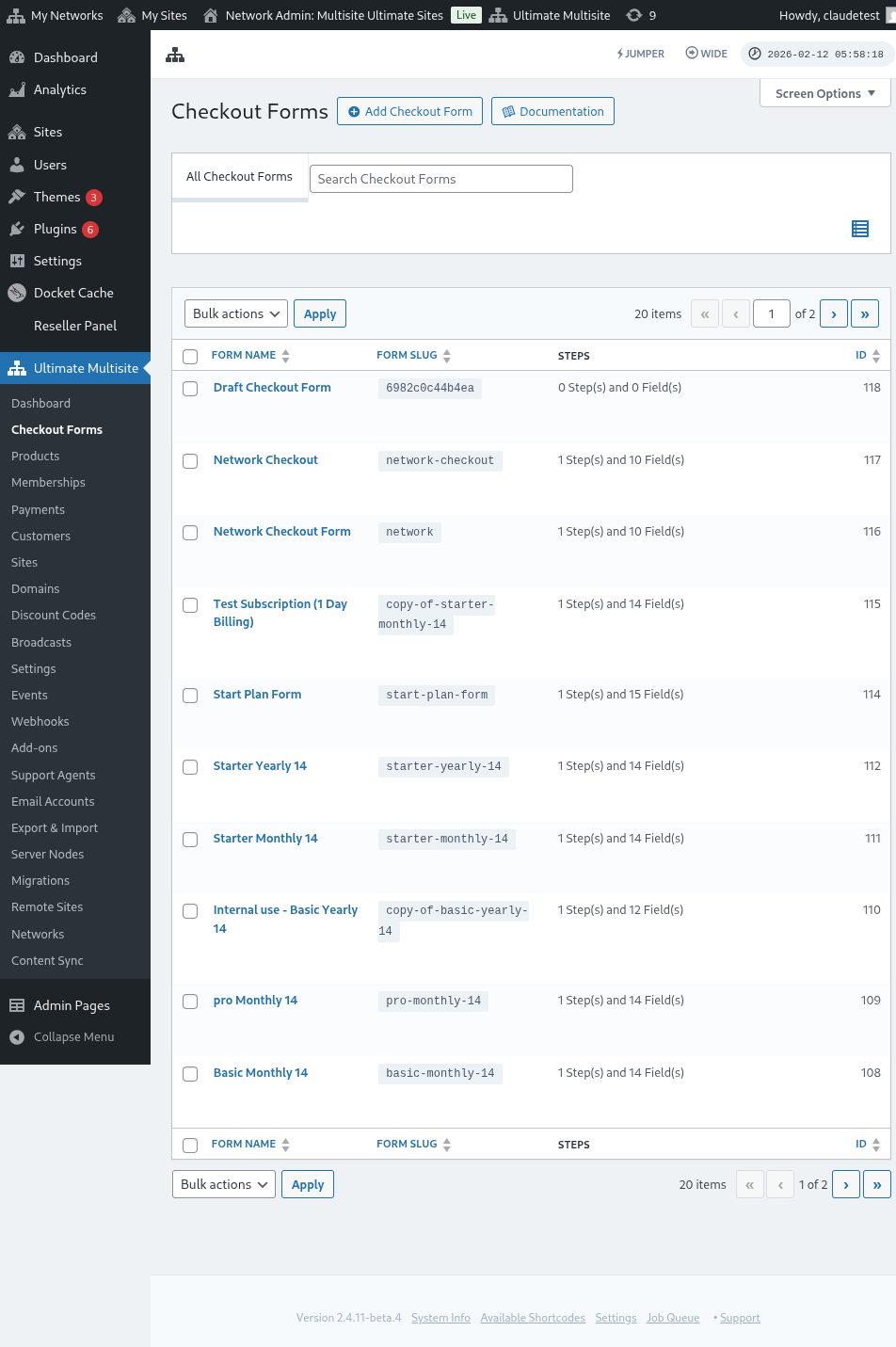
在此页面上,你可以看到你拥有的所有结账表单。
列表表格包含一个 状态 列,因此你可以确认每个表单当前是否可供客户使用:
| 状态 | 含义 |
|---|---|
| 启用 | 该表单可在其短代码或注册页面已发布的任何位置使用。 |
| 停用 | 该表单已保存但被禁用。在你重新启用之前,客户无法使用它完成结账。 |
在编辑公开注册流程之前,请使用状态列进行确认,尤其是当你将草稿或季节性结账表单与正在使用的表单并存时。
如果你想创建一个新的表单,只需点击页面顶部的添加结账表单。
你可以选择以下三个选项之一作为起点:单步、多步或空白。然后,点击进入编辑器。
当你选择 单步 或 多步 作为起点时,表单模板现在默认包含一个 模板选择 字段。此字段允许你的客户在注册过程中选择一个站点模板。你可以将其保留在原位、移除它,或像编辑器中的任何其他字段一样重新定位它。
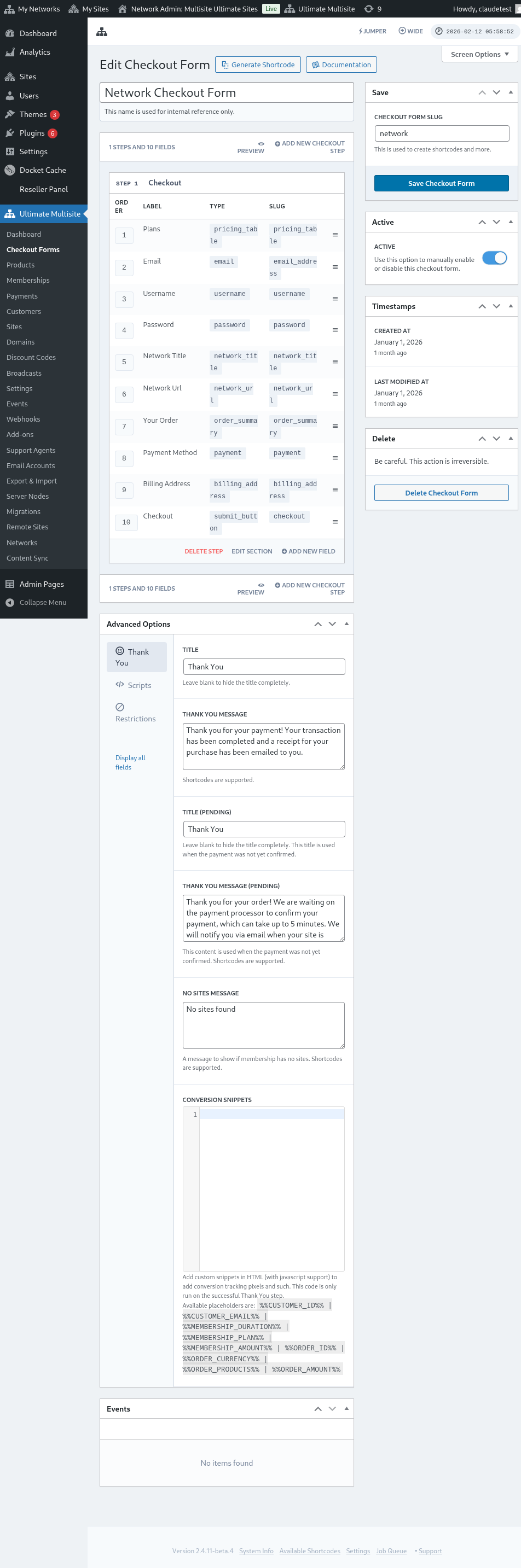
或者,你可以通过点击表单名称下方的选项来编辑或复制已有表单。在那里,你还会找到复制表单短代码或删除表单的选项。

结账表单编辑器概览
结账表单编辑器提供了一个全面的界面,用于构建你的注册表单。以下是编辑器布局概览:
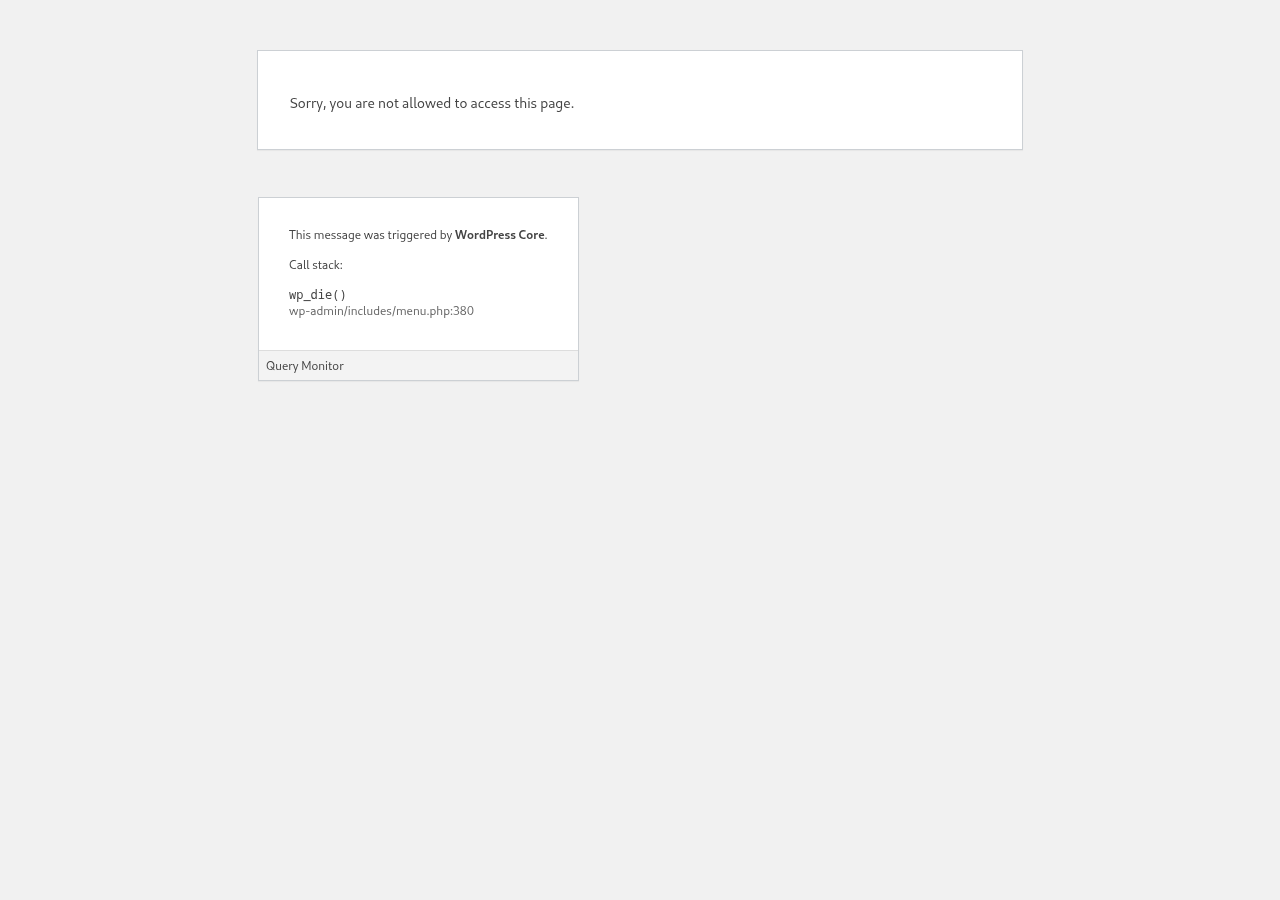
编辑结账表单
你可以为不同目的创建结账表单。在此示例中,我们将处理一个注册表单。
导航到结账表单编辑器后,为你的表单指定一个名称(仅用于内部参考)和一个 slug(例如用于创建短代码)。
表单由步骤和字段组成。你可以点击添加新结账步骤来添加一个新步骤。

在模态窗口的第一个选项卡中,填写表单步骤的内容。为其指定一个 ID、一个名称和一个描述。这些项目主要在内部使用。
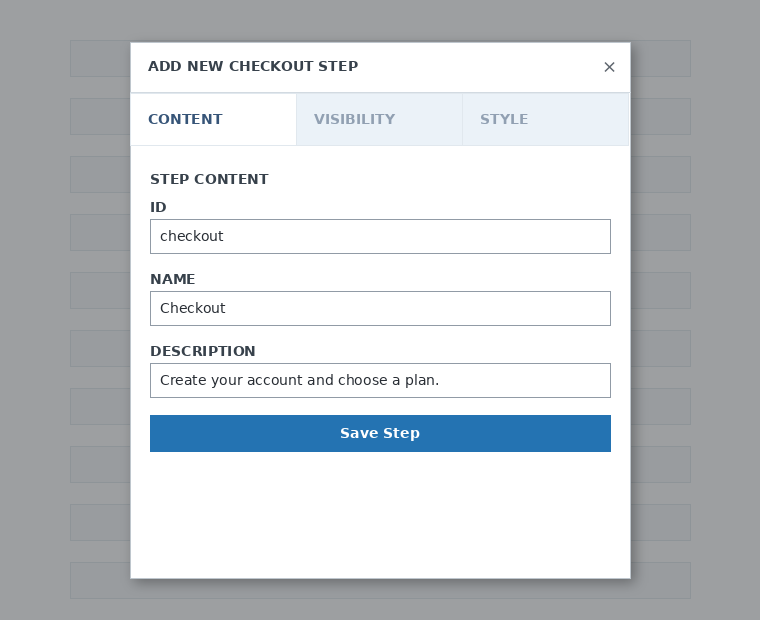
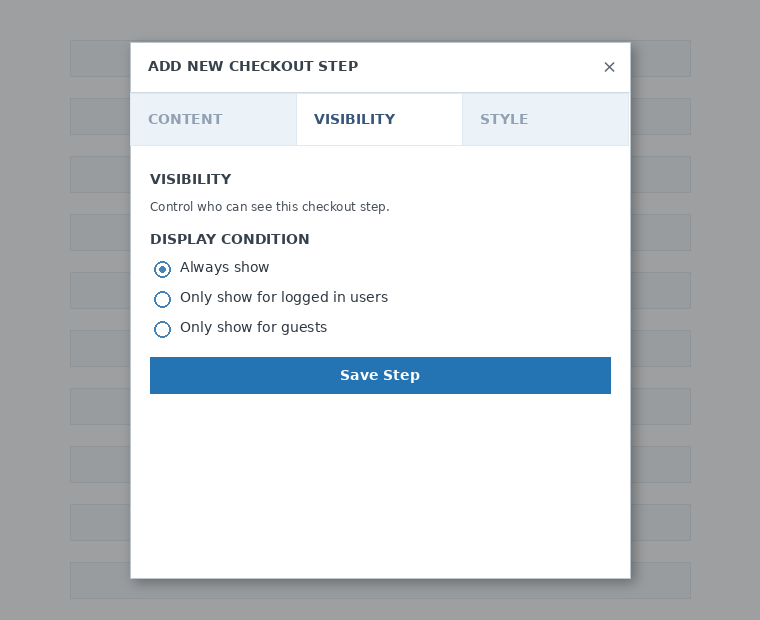
接下来,设置该步骤的可见性。你可以在“始终显示”、“仅向已登录用户显示”或“仅向访客显示”之间选择。
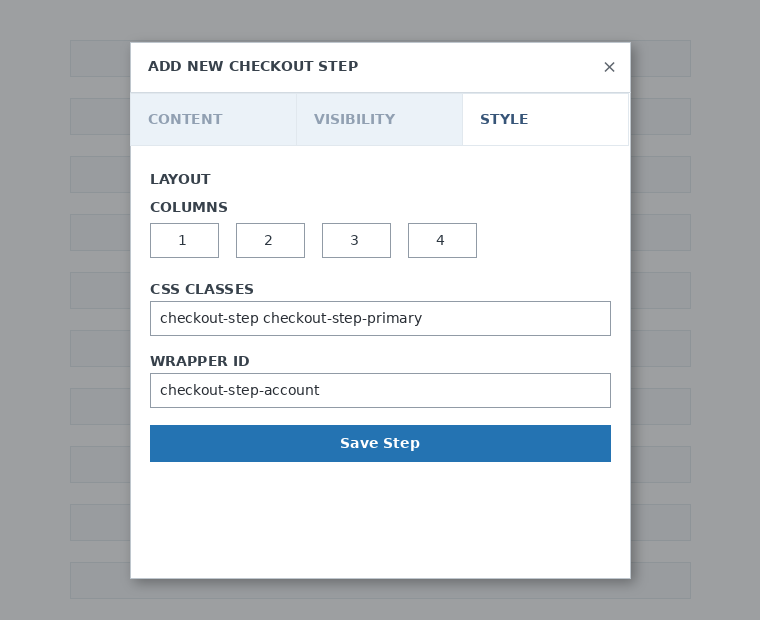
最后,配置步骤样式。这些是可选字段。
现在,是时候向我们的第一步添加字段了。只需点击添加新字段并选择你想要的区块类型。
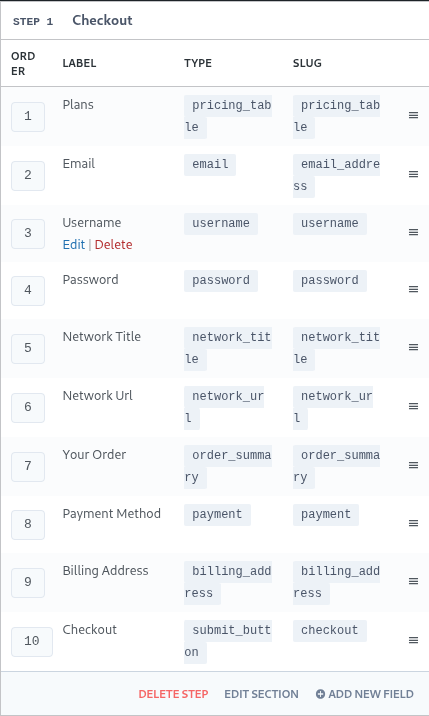
每个字段都有不同的参数需要填写。对于这个第一个入口,我们将选择“用户名”字段。
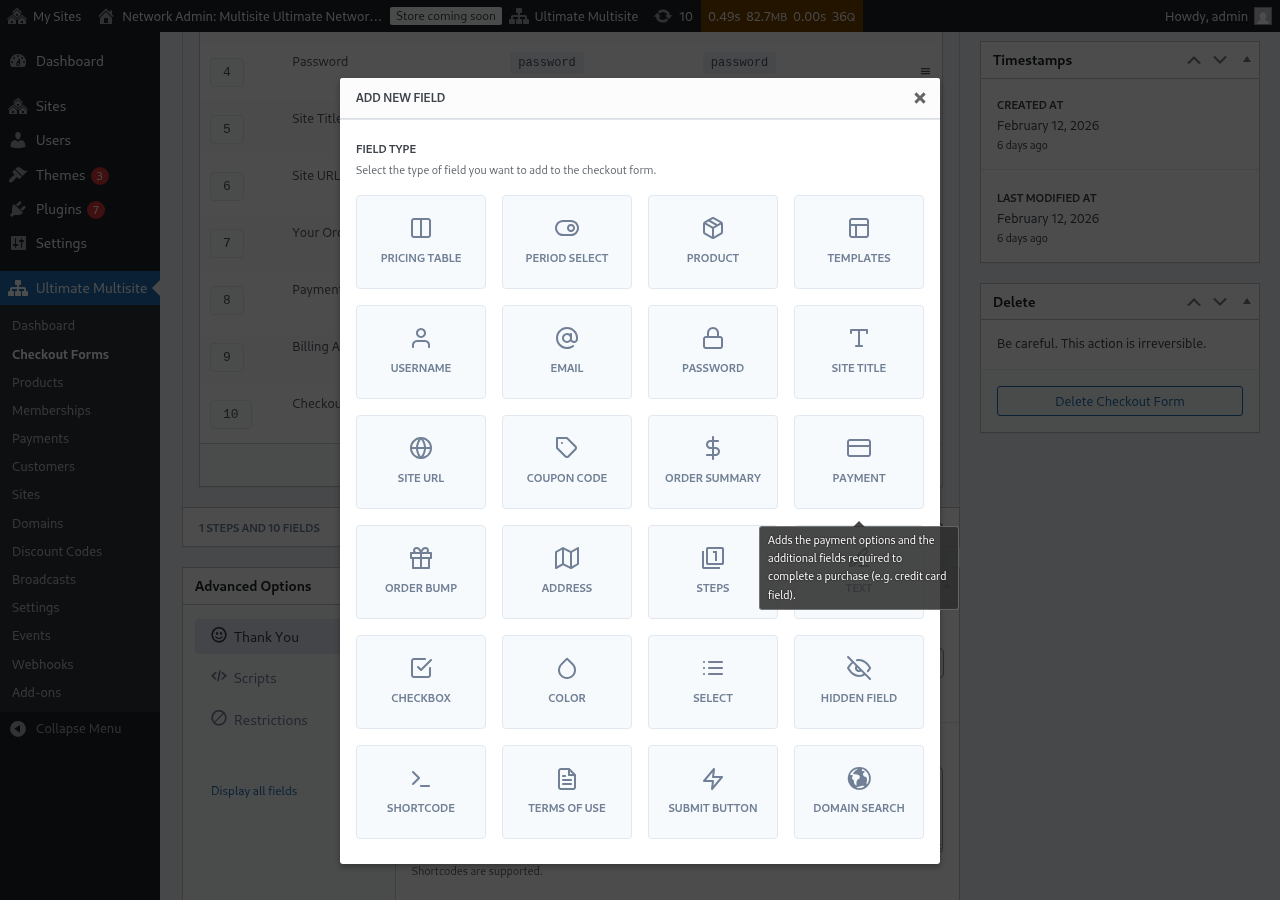
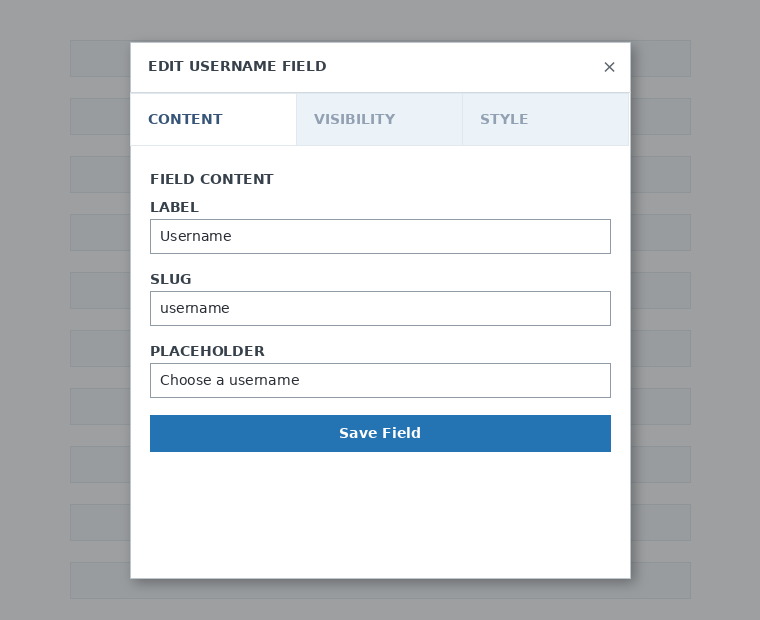
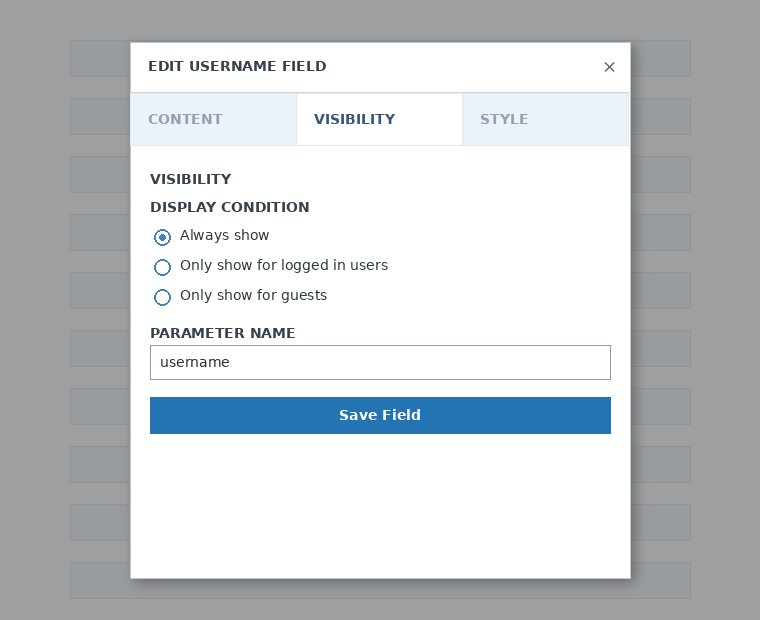
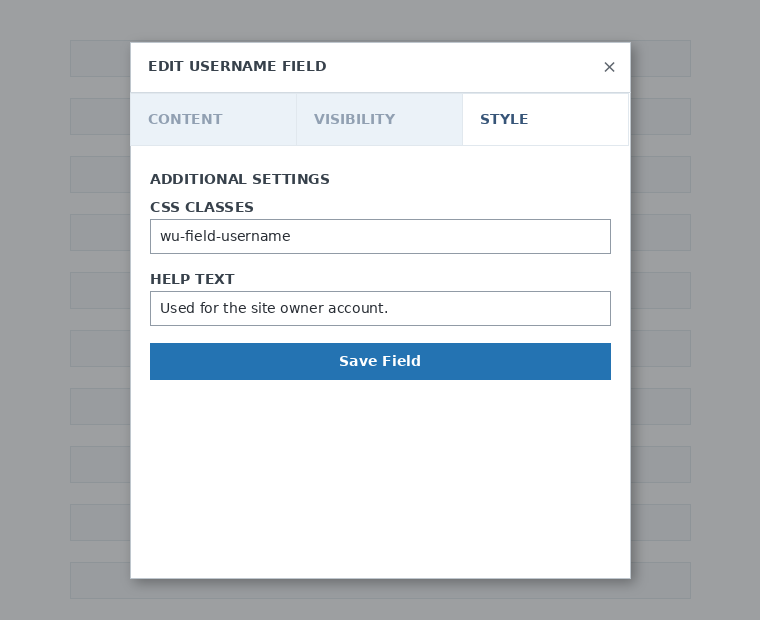
你可以根据需要添加任意数量的步骤和字段。要向客户显示产品以供选择,请使用价格表字段。如果你想让客户选择模板,请添加模板选择字段。依此类推。
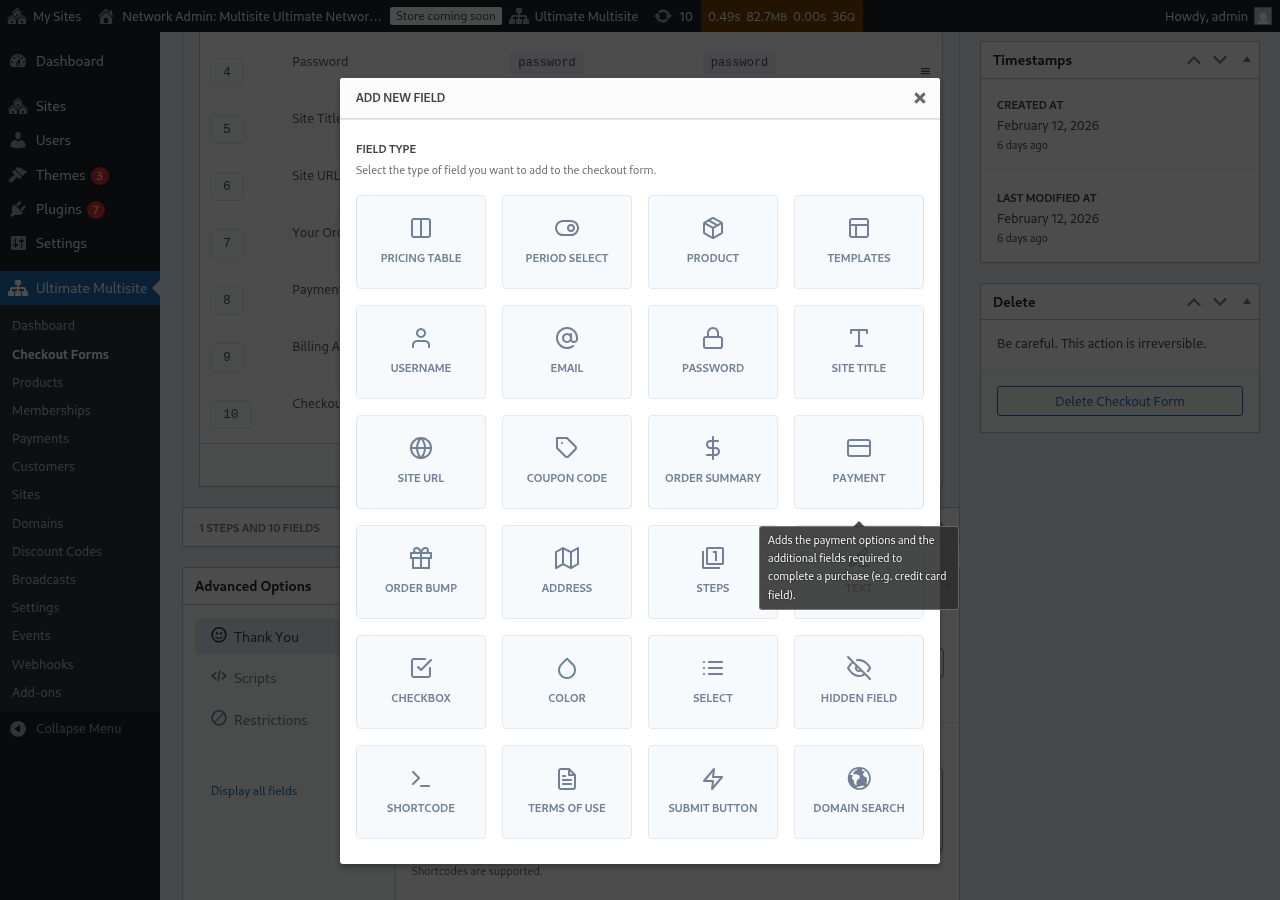
注意: 用户名、电子邮件、密码、站点标题、站点 URL、订单摘要、付款和提交按钮是创建结账表单的必填字段。
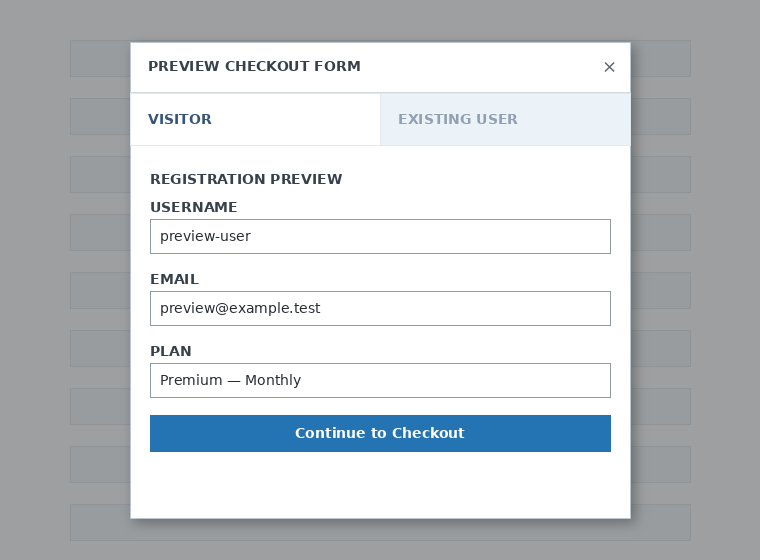
在处理结账表单时,你随时可以使用预览按钮查看客户将如何看到该表单。你也可以在以现有用户或访客身份查看之间切换

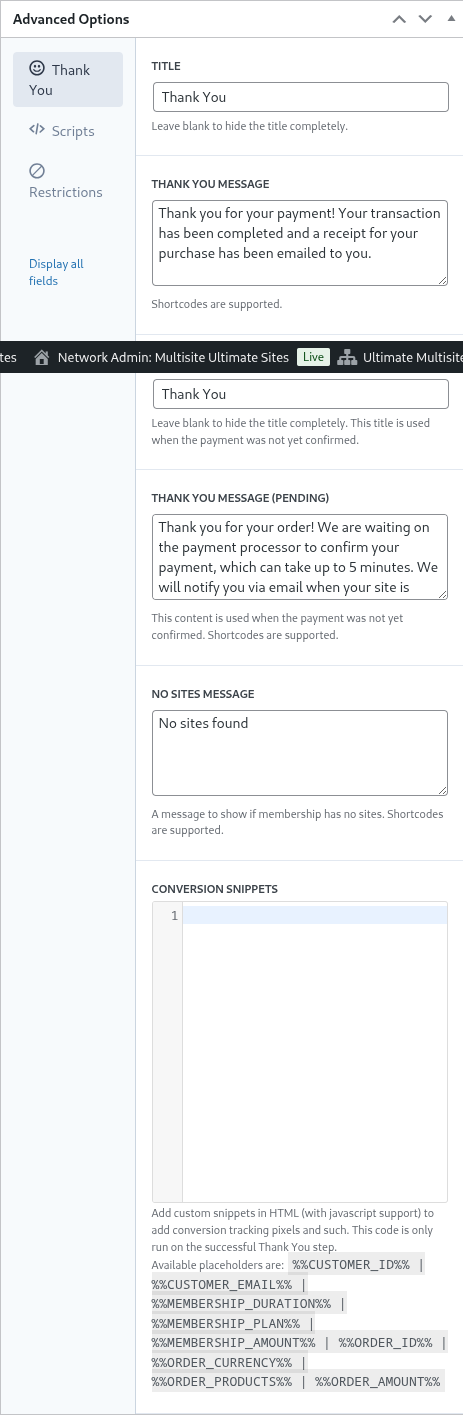
最后,在高级选项中,你可以配置“谢谢”页面的消息、添加用于跟踪转化的代码片段、为结账表单添加自定义 CSS,或将其限制在特定国家/地区使用。
你还可以通过切换右侧列中的此选项来手动启用或禁用你的结账表单,或永久删除该表单。

要删除表单,请点击表单操作中的删除选项:

不要忘记保存你的结账表单!

要获取表单的短代码,请点击生成短代码并复制模态窗口中显示的结果。
价格表字段
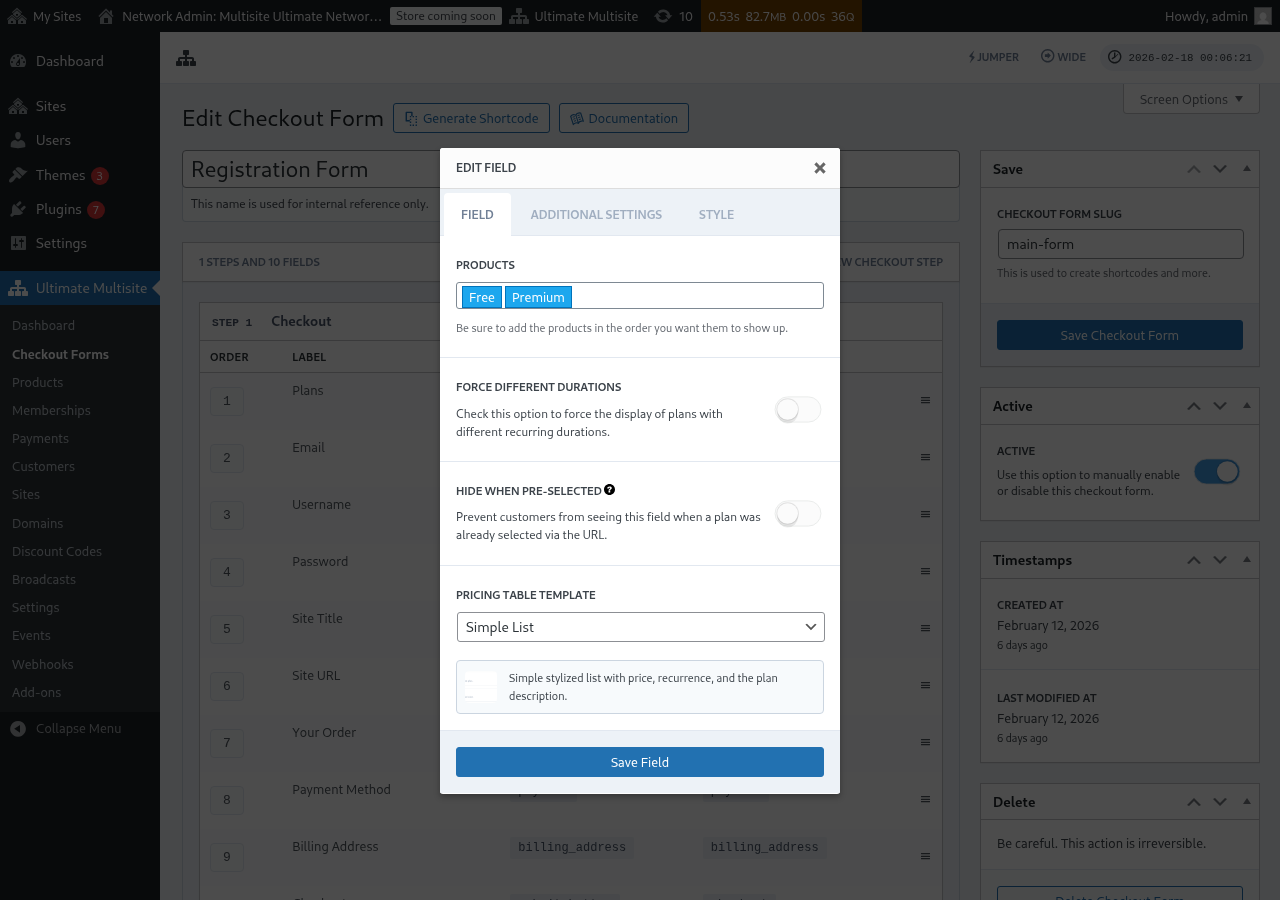
价格表 字段会在结账表单上显示你的产品,以便客户选择一个套餐。编辑此字段时,你可以配置多个选项:
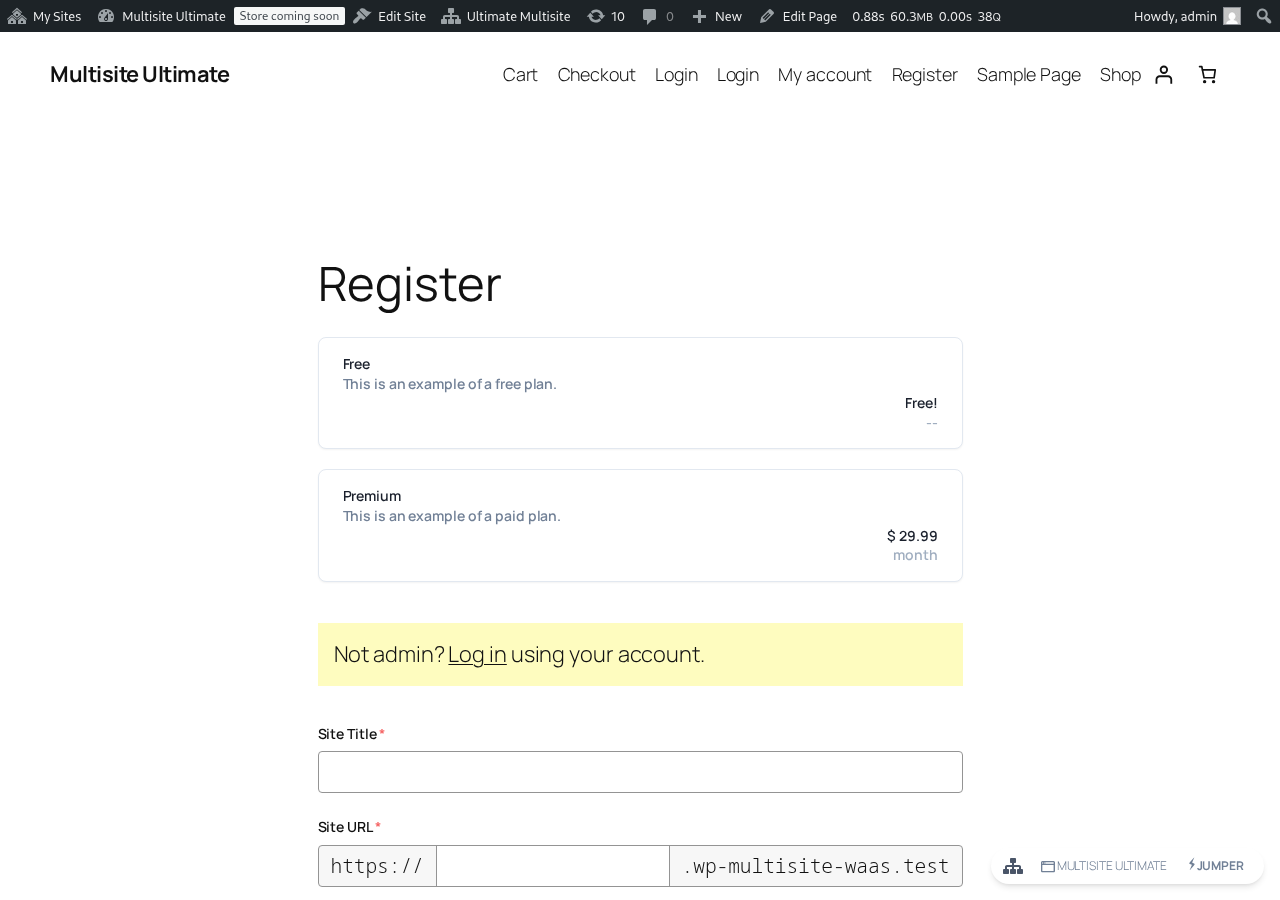
以下是价格表在前端注册表单上的显示方式:
- 产品:选择要显示的产品以及它们的显示顺序。
- 强制不同周期:启用后,无论产品是否具有与当前所选计费周期匹配的价格变体,都会显示所有产品。禁用(默认)时,没有所选周期变体的产品会被隐藏。
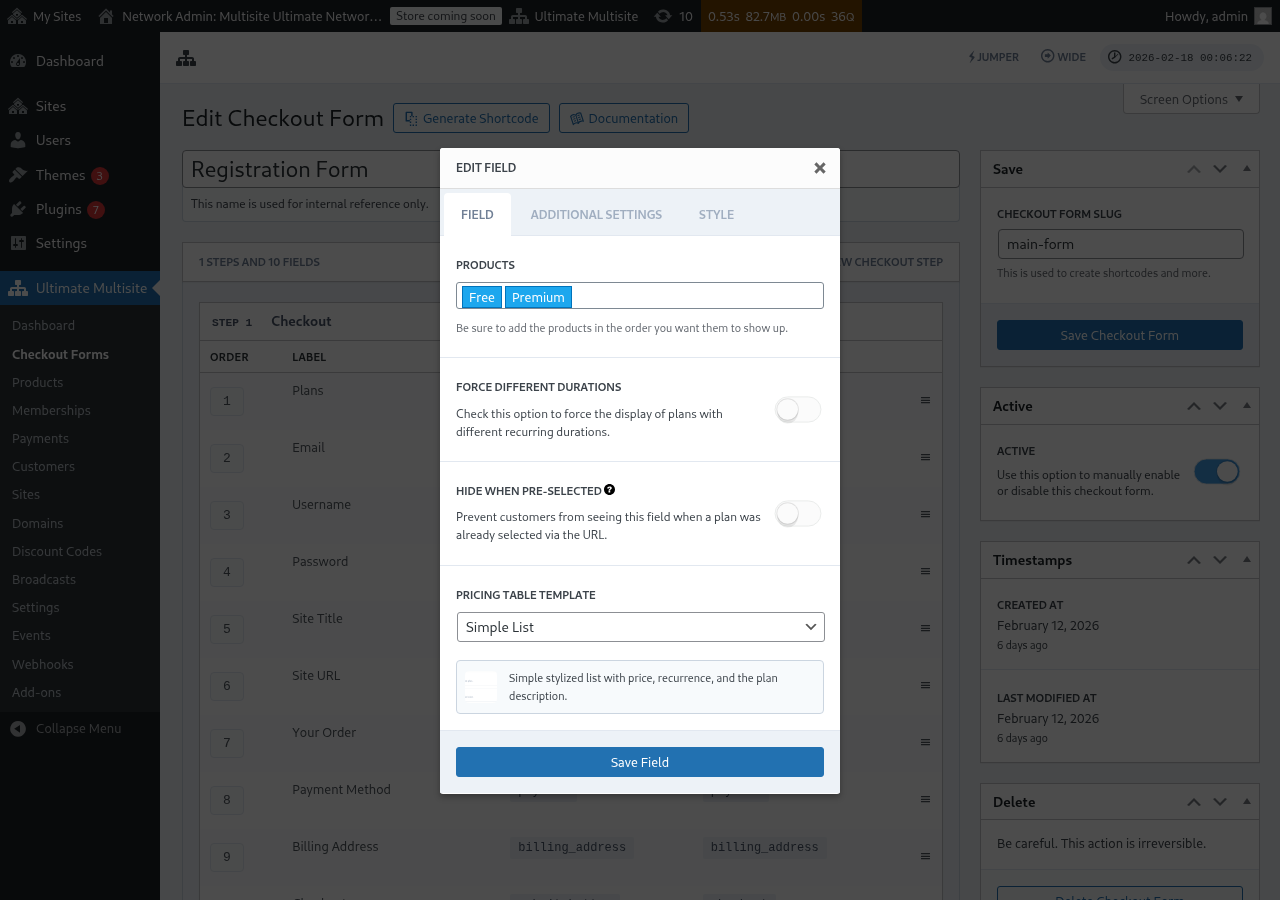
- 预选时隐藏:当计划已通过 URL(例如
/register/premium)选择时,隐藏价格表。 - 价格表模板:选择价格表的视觉模板(简单列表、旧版等)。
如果你在表单包含完成该产品结账流程所需字段之前,将某个产品添加到价格表,编辑器现在会显示警告。请使用该警告在发布或保存实时注册表单的更改之前添加缺失的必填字段。
添加周期选择切换
如果你已在产品上配置了价格变体(例如月付和年付价格),则可以向结账表单添加一个周期选择字段。此字段会显示一个切换控件,允许客户在计费周期之间切换,并且价格表会实时动态更新。
步骤 1:在你的产品上设置价格变体
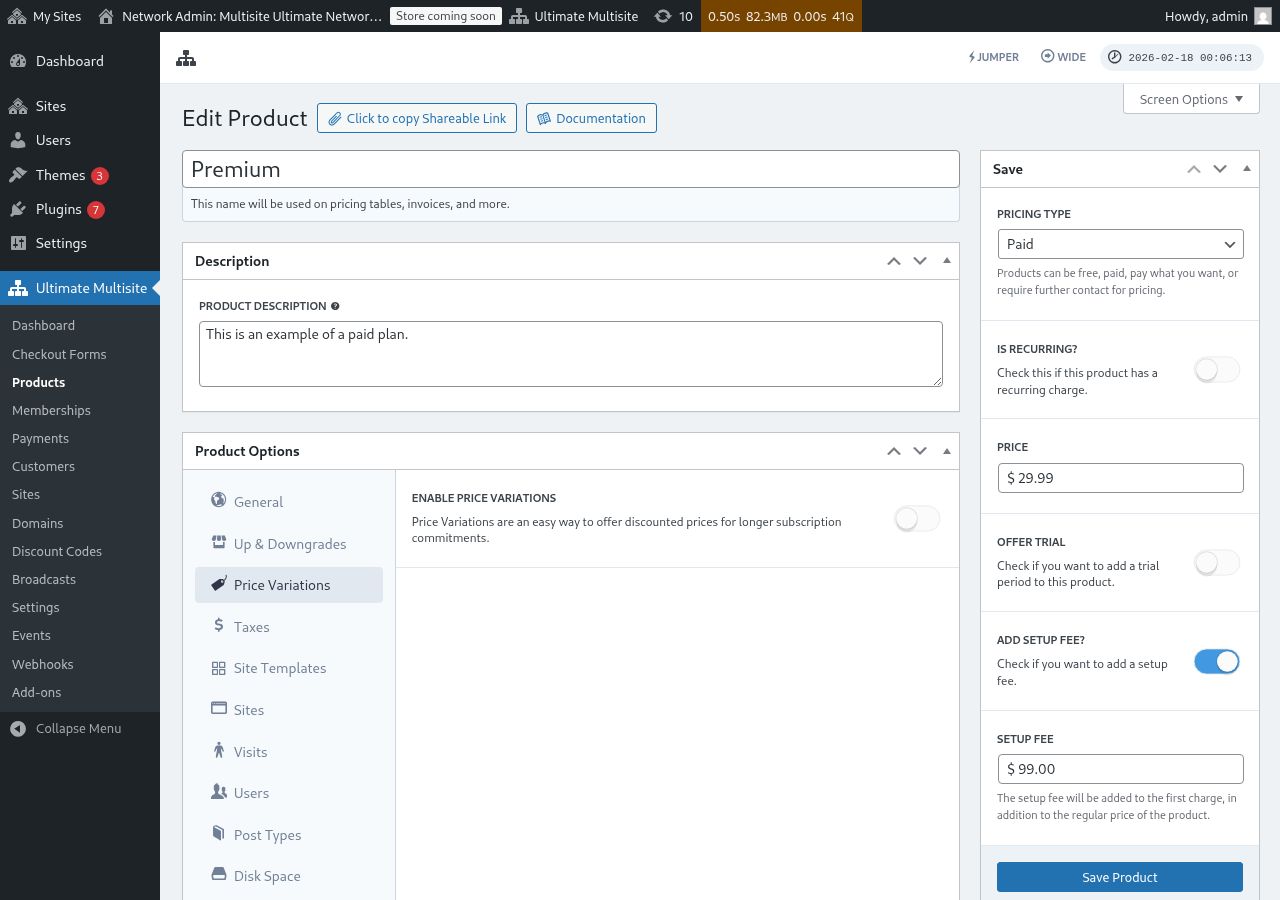
在添加周期选择字段之前,请确保你的产品已配置价格变体。前往 Ultimate Multisite > 产品,编辑一个产品,并导航到价格变体选项卡以添加替代计费周期(例如以折扣价按年付费)。
步骤 2:将周期选择字段添加到你的结账表单
-
前往 Ultimate Multisite > 结账表单 并编辑你的结账表单。
-
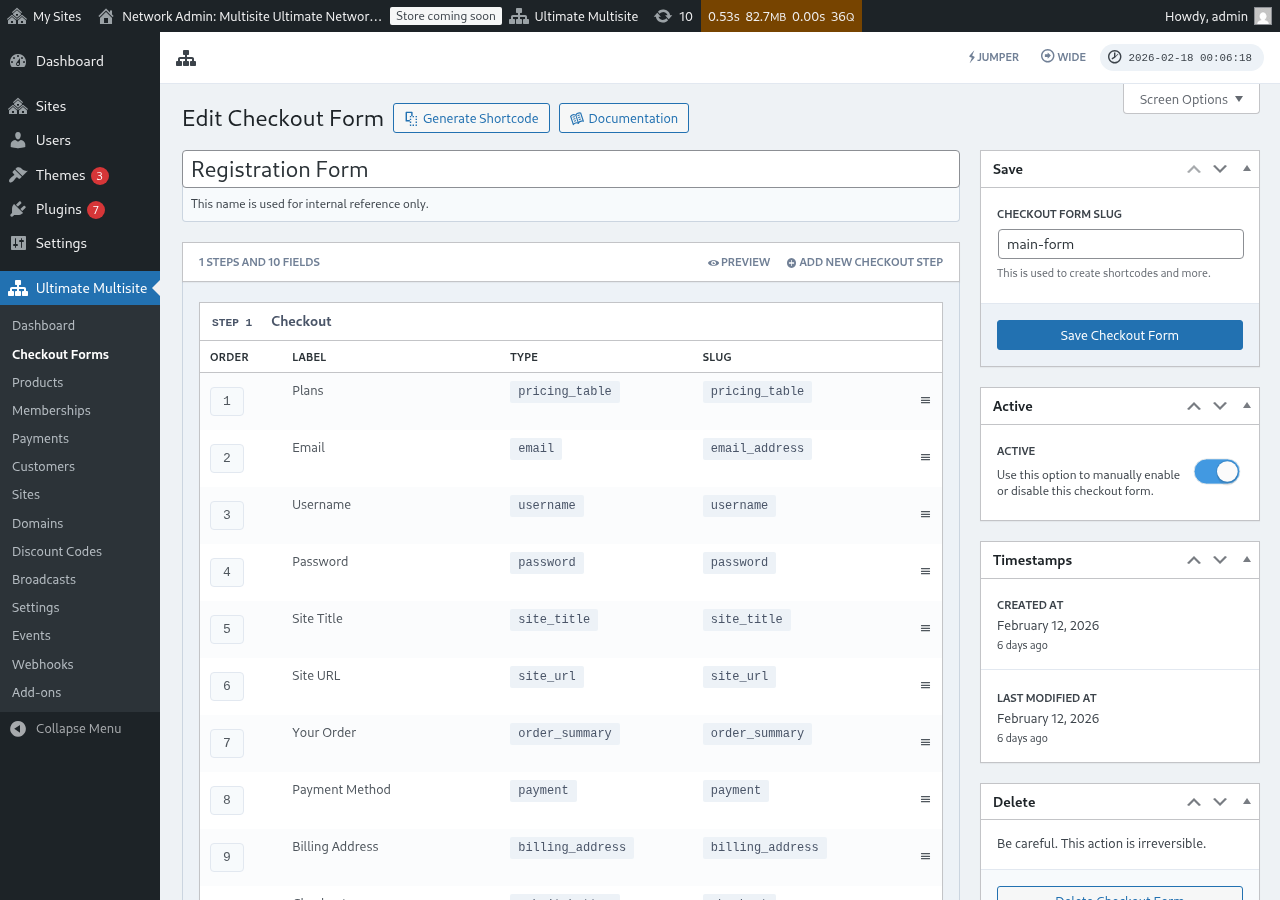
向下滚动到包含你的价格表字段的步骤,然后点击添加新字段。
-
在字段类型选择对话框中,点击周期选择。
-
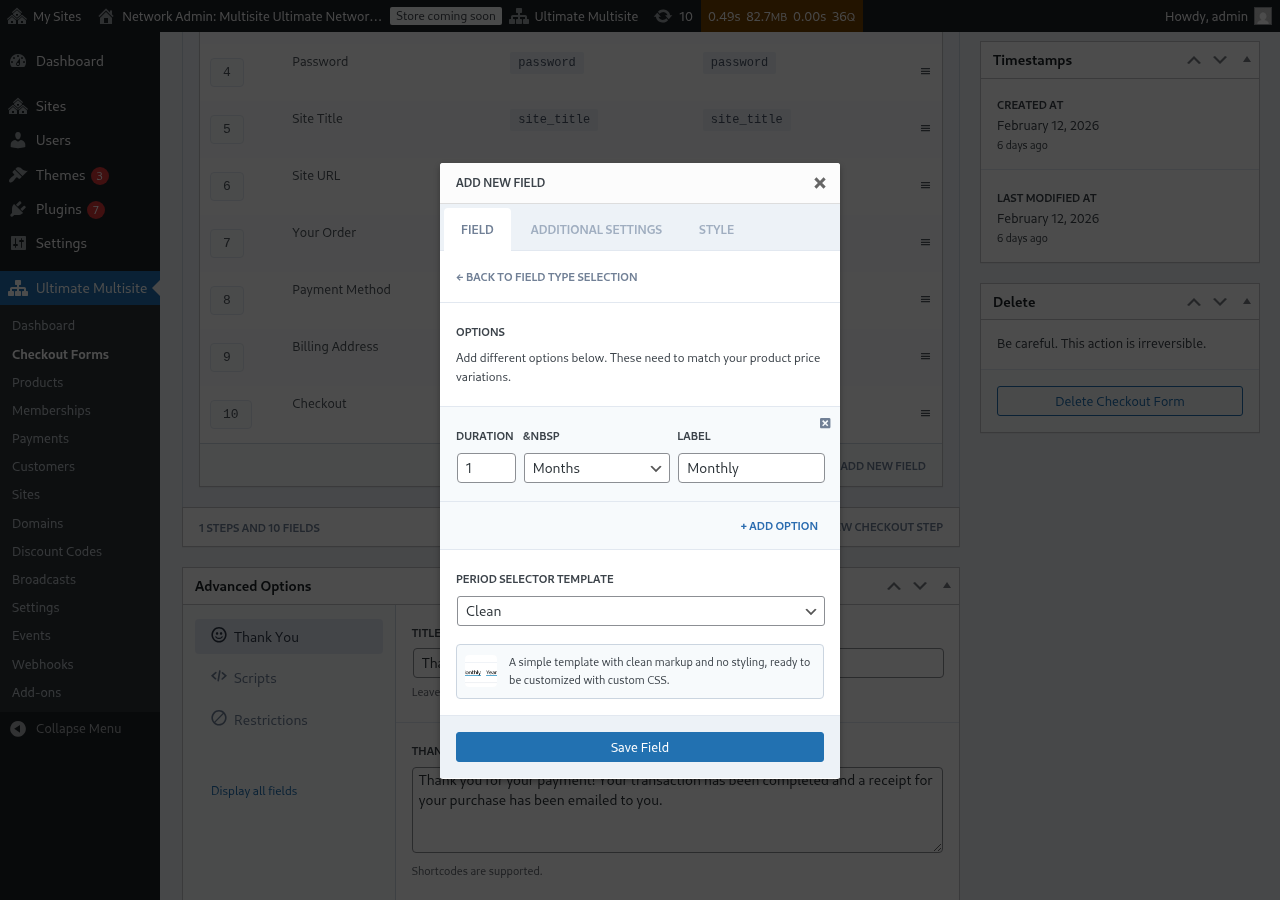
配置周期选项。每个选项都需要:
- 时长:数字(例如
1) - 时长单位:周期类型(天、周、月或年)
- 标签:客户将看到的文本(例如“月付”、“年付”)
- 时长:数字(例如
-
点击 + 添加选项 以添加更多周期选择。这些选项必须与你在产品上配置的价格变体匹配。
-
选择一个周期选择器模板(Clean 是默认值,会渲染一个简单的样式化选择器,可用于自定义 CSS)。
-
点击保存字段。
步骤 3:将字段放置在价格表上方
为了获得最佳用户体验,请确保周期选择字段出现在结账步骤中的价格表字段之前。你可以在结账表单编辑器中拖动字段以重新排序。这样,客户会先选择计费周期,然后查看该周期的价格。
它在前端如何工作
配置完成后,访问你的注册页面的客户会在价格表上方看到周期选择器。当他们点击不同的计费周期时:
- 价格表会立即更新以显示所选周期的价格(无需重新加载页面)。
- 如果价格表字段上禁用了强制不同周期,则没有所选周期价格变体的产品将被隐藏。
- 如果启用了强制不同周期,即使产品没有所选周期的变体,所有产品也仍会保持可见(它们会显示默认价格)。
通过 URL 预选计费周期
你还可以通过 URL 预选产品和计费周期。Ultimate Multisite 支持以下 URL 模式:
/register/premium— 仅预选“Premium”产品/register/premium/12— 预选产品和 12 个月时长/register/premium/1/year— 预选产品并使用 1 年时长
模板选择字段
模板选择字段让客户在结账期间选择站点模板。它现在默认包含在 Ultimate Multisite v2.6.1 中添加的单步和多步结账表单模板中。
手动添加字段
如果你正在使用在 v2.6.1 之前创建的表单,或从空白模板开始:
- 前往 Ultimate Multisite > 结账表单 并编辑你的结账表单。
- 在收集站点详细信息的步骤中,点击添加新字段。
- 从字段类型对话框中选择模板选择。
- 配置字段:
- 标签 — 客户在模板网格上方看到的标题(例如“选择站点模板”)。
- 必填 — 客户是否必须在继续之前选择模板。
工作方式
当客户在结账期间选择模板时,Ultimate Multisite 会在预配其新站点时使用该模板。显示的模板来自你的站点模板列表(Ultimate Multisite > 站点模板)。只有标记为可供客户使用的模板会显示在这里。
结账表单基础域名
Ultimate Multisite v2.13.0 会将结账表单 Site URL 字段上配置的域名视为网络基础域名。当你希望客户在一个或多个共享注册域名下创建站点时,请使用该字段的可用域名设置,例如 example.com 和 sites.example.com。
共享的 checkout-form 基础域名不会被视为按站点的自定义域名映射。当客户在这些基础域名之一上创建子目录站点时,Ultimate Multisite 不会创建映射域名记录,使该共享主机只属于那一个站点。共享主机仍可供使用同一 checkout form 基础域名的同级站点使用。
将自定义域名用于按客户映射的主机,例如 customer-example.com。将 checkout-form 基础域名用于许多站点都可使用的共享注册主机。
移除字段
如果你不提供站点模板,请从表单中移除“模板选择”字段。随后,客户将收到在 Ultimate Multisite > Settings > Site Templates 下配置的默认模板。