Managing System Emails
Ultimate Multisite sends various system emails for events like signup confirmations, payment receipts, and membership changes. You can customize these email templates to match your brand.
Viewing System Emails
Navigate to Ultimate Multisite → Settings and click on the Emails tab to see email-related settings.
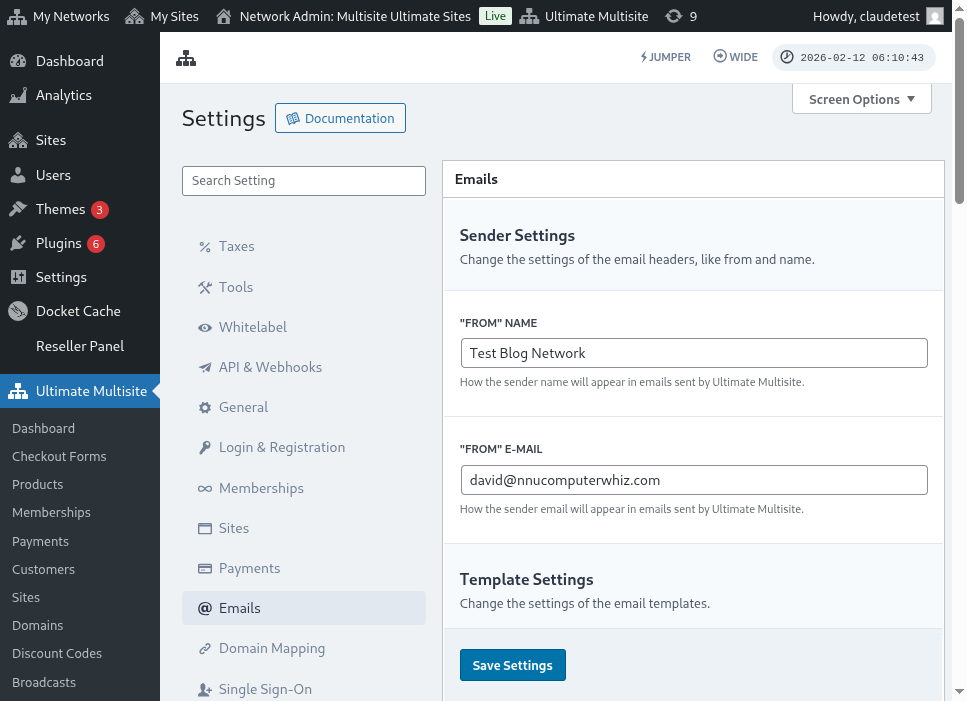
From there, you can access the System Emails page to see all email templates.
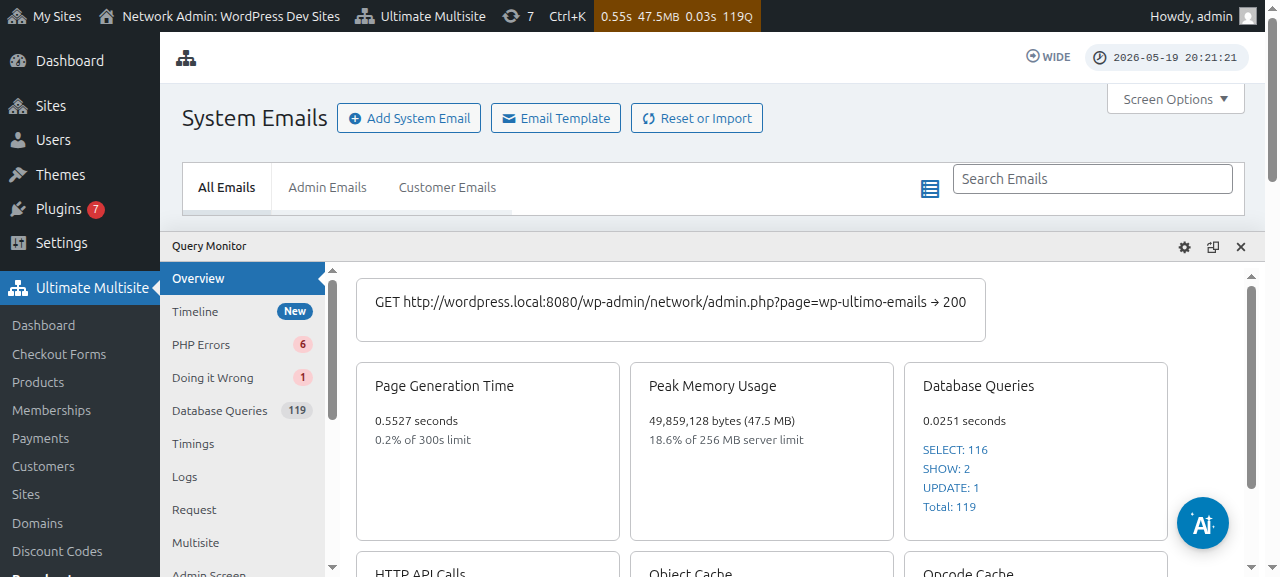
You can also edit individual email templates using the system email editor:
Importing New Email Templates
New Ultimate Multisite versions and add-ons may register new email templates. To prevent conflicts, new templates are not automatically added — you need to import them manually.
To import new email templates:
- Go to the System Emails page
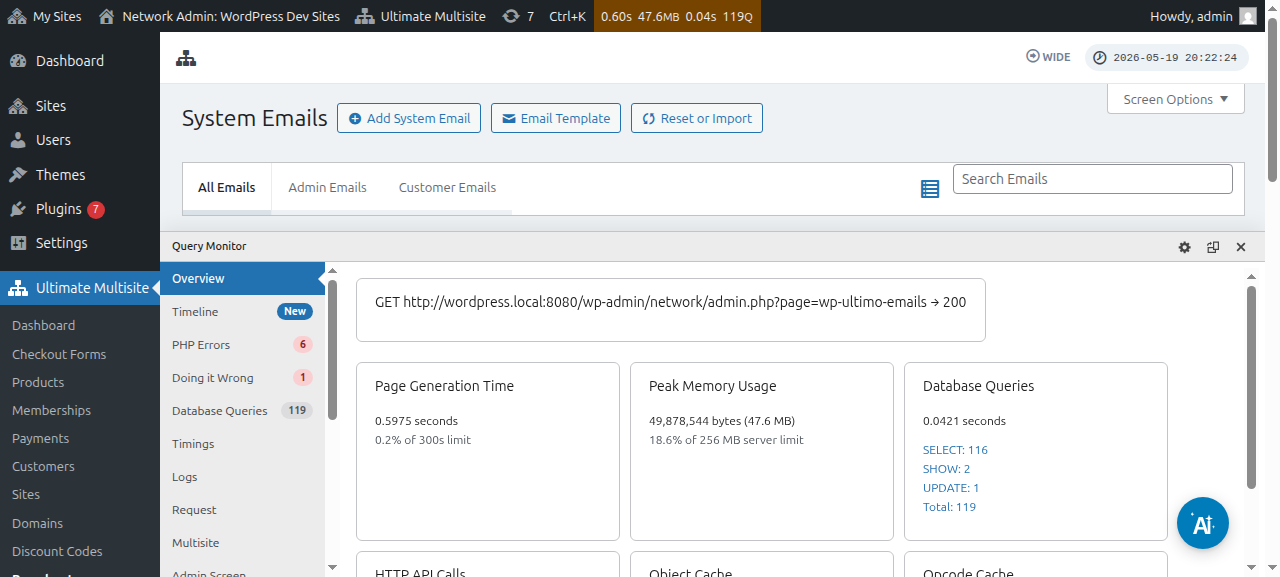
- Click the Reset & Import button at the top of the page
- Toggle the Import Emails option to see available templates
- Select the templates you want to import and confirm
Resetting Email Templates
If you've customized an email template and want to revert to the default content, you have two options:
- Delete and re-import — Delete the system email and import it again (this erases send metrics)
- Reset via the tool — Use the Reset & Import tool, toggle the Reset option, and select the emails you want to reset
The Reset option is preferred as it preserves send metrics and other metadata while restoring the default content.