Managing Payments and Invoices
Payment Settings
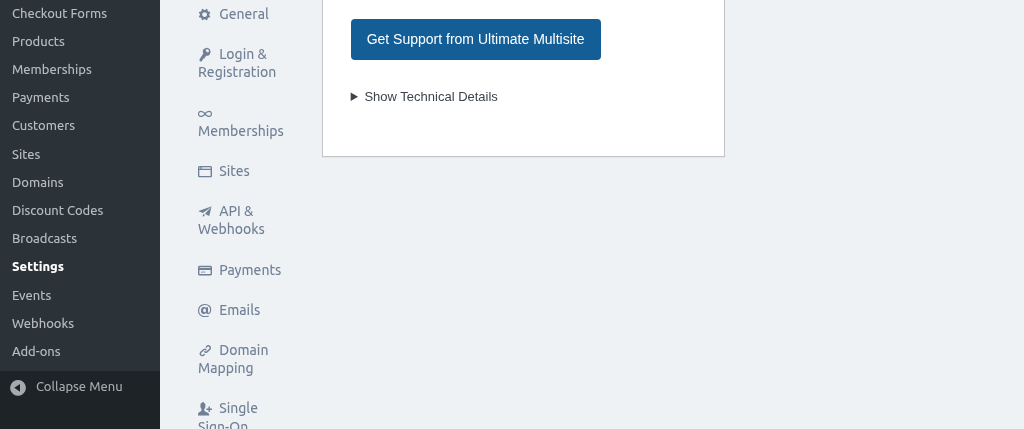
Before you start receiving payments, you'll need to configure the payment-related settings. Navigate to Ultimate Multisite → Settings and click on the Payment tab.
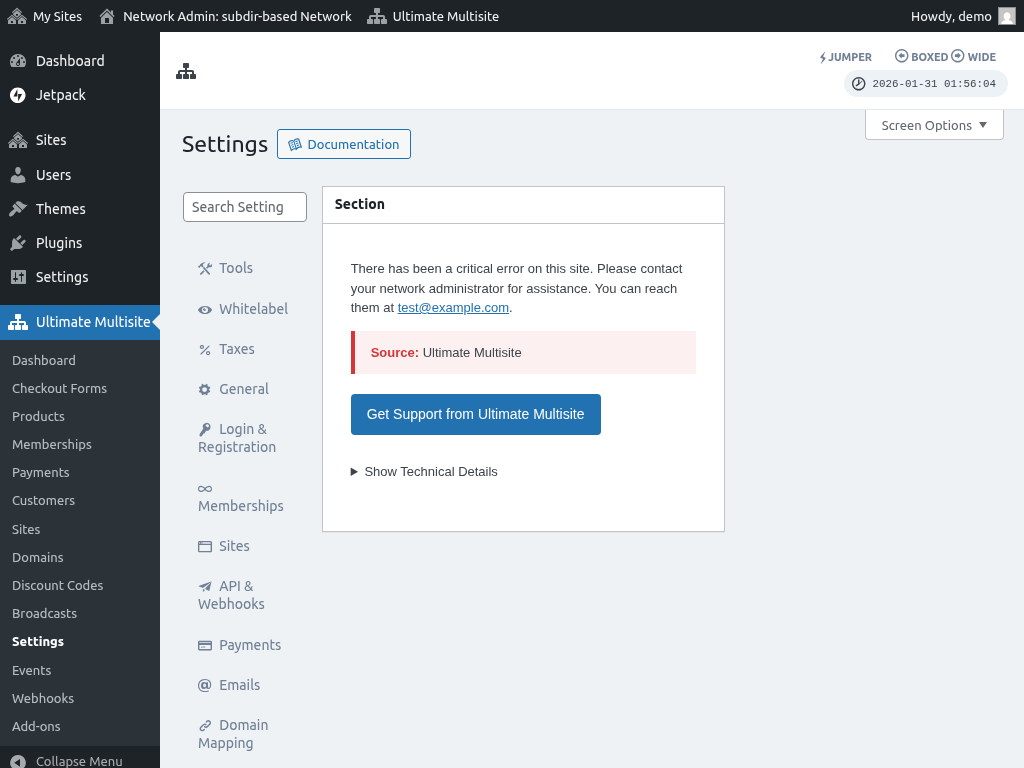
Here's a full view of the payment settings page:
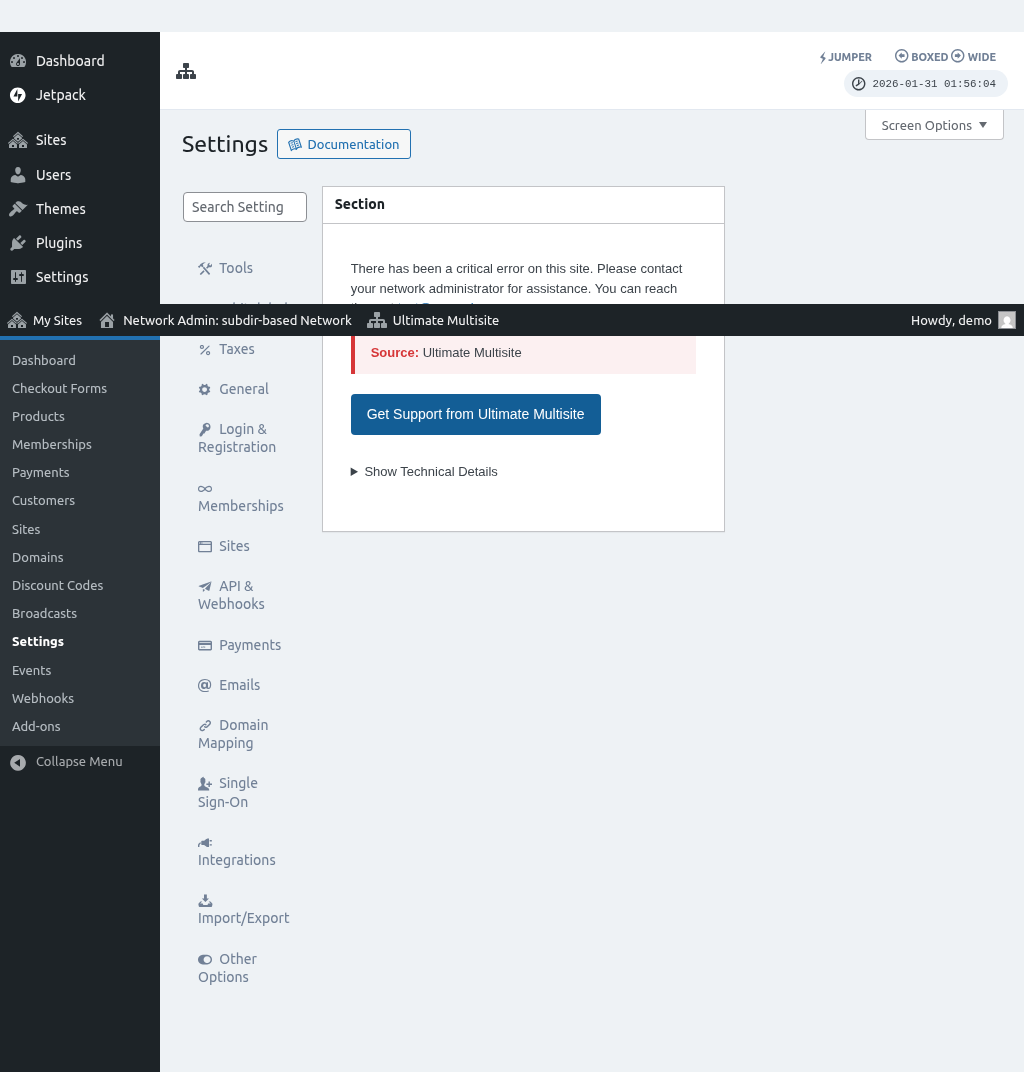
General Payment Options
In the general settings you can configure:
- Currency — The default currency used for transactions
- Currency Position — Where the currency symbol appears (before/after the amount)
Payment Gateways
Ultimate Multisite supports multiple payment gateways. You can enable and configure each one from the Payment settings tab.
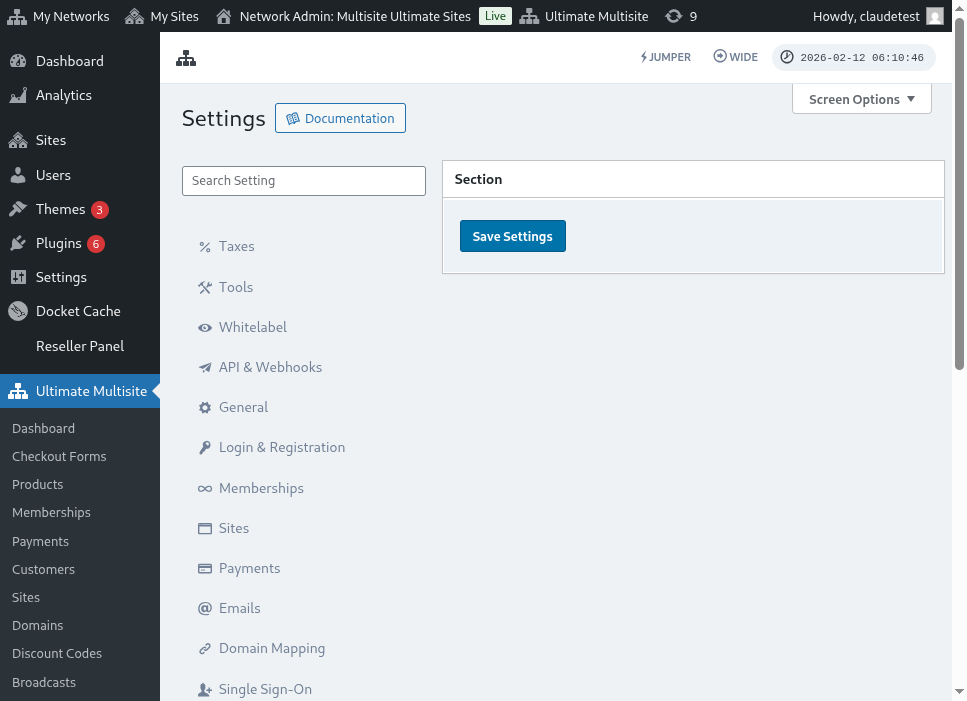
Available gateways include:
- Stripe — Credit card payments via Stripe
- PayPal — PayPal payments
- Manual — For offline or custom payment processing
Each gateway has its own configuration section where you enter API keys and other settings.
Sandbox Mode
You can enable Sandbox Mode to test your payment integration before going live. When sandbox mode is active, no real charges will be made.
Viewing Payments
Navigate to the Payments page under Ultimate Multisite to see all transactions across your network.
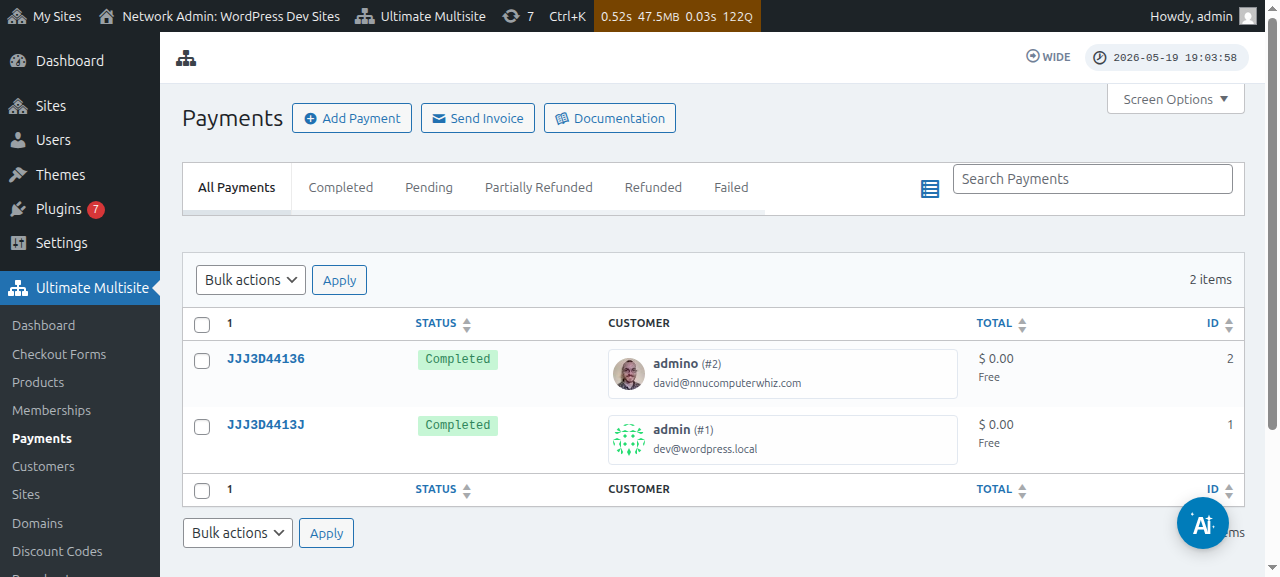
You can filter payments by status (completed, pending, failed, refunded) and search for specific transactions.
Click on a payment to see its full details including the line items, associated membership, customer information, and payment gateway data.
Invoices
Ultimate Multisite can automatically generate invoices for payments. You can customize the invoice template and numbering format from the Payment settings.
Invoice customization options include:
- Company name and address displayed on invoices
- Invoice numbering format and sequence
- Logo displayed on the invoice header
- Custom footer text for terms, notes, or legal information
To customize the invoice template, go to Ultimate Multisite → Settings → Payment and look for the invoice-related settings.