Setting Up The PayPal Gateway (v2)
IMPORTANT NOTE: This article refers to Ultimate Multisite version 2.x.
You can activate up to four methods of payment on our payment settings page: Stripe, Stripe Checkout, PayPal and Manual. In this article, we will see how to integrate with PayPal.
Just like Stripe, PayPal is widely used for online payments, especially on WordPress websites. This article will guide you on how to use PayPal as a payment method available on your network.
Note that you need to have a PayPal Business account to obtain the API credential needed for this integration.
Enabling PayPal on your network
To enable PayPal as an available payment method on your network, go to Ultimate Multisite > Settings > Payments tab and tick the box next to PayPal.
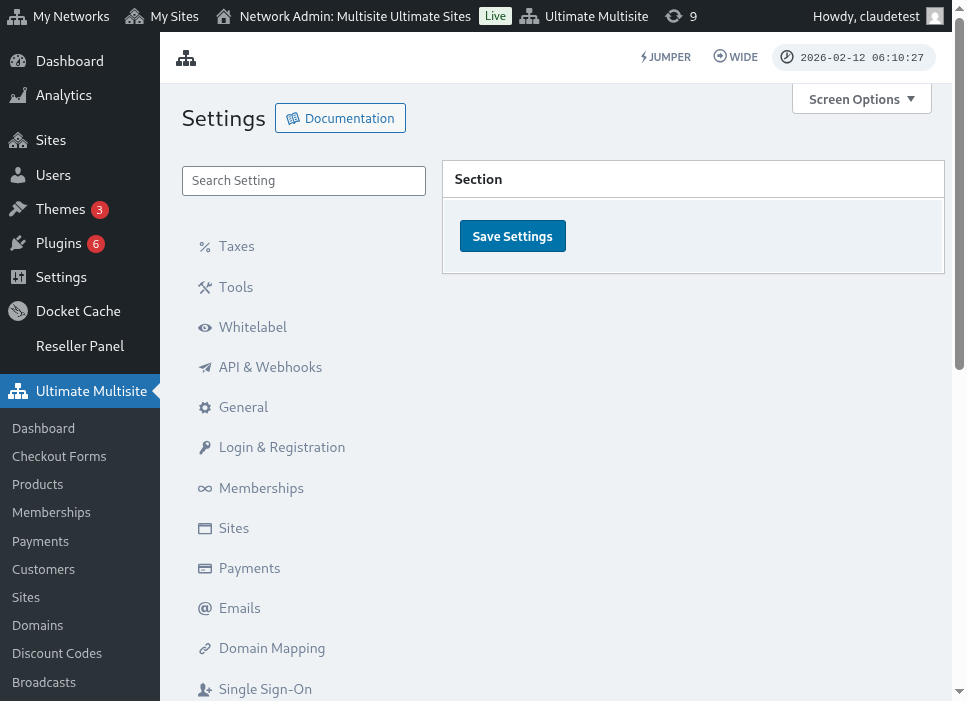
Using the guided setup wizard
Ultimate Multisite 2.10.0 adds a guided PayPal setup wizard to the payment gateway settings. After you enable PayPal, use the wizard on Ultimate Multisite > Settings > Payments to choose how you want to connect the gateway and confirm which credentials are still needed before saving.
The wizard supports two setup paths:
- Manual credential entry: Use this path when you already have PayPal API credentials, when OAuth setup is not available for your account, or when you prefer to copy credentials from PayPal yourself. Enter the API Username, API Password, and API Signature in the PayPal fields, then save the payment settings.
- OAuth connection gate: Use this path only when the OAuth option is available and enabled for your install. The wizard shows the OAuth flow behind a feature flag, so networks without the flag continue to use the manual credential entry fields.
If you do not see the OAuth option in the wizard, complete the manual credential entry flow below. The gateway works with the same PayPal Business API credentials as previous Ultimate Multisite 2.x releases.
Getting the PayPal API credentials
Once PayPal is enabled as a payment gateway, you will need to populate the fields for PayPal API Username , PayPal API Password and PayPal API Signature.
You can get this by logging in to your PayPal Live or Sandbox account.
(Remember that you can use the sandbox mode to test payments and see if the gateway is correctly setup. Just toggle on the correspondent section.)
To request API Signature or Certificate credentials for your PayPal account:
-
Go to your Account Settings.
-
In the API access section, click Update.
-
Under NVP/SOAP API integration (Classic) , click Manage API credentials.
-
If you have already generated an API Signature or Certificate, you will be redirected to a page where you can find your credentials.
-
Note: If you are prompted to verify your PayPal account, then follow the on-screen instructions.
-
-
Select one of the following options, then click Agree and Submit.
-
Request API Signature – Select for API Signature authentication.
-
Request API Certificate – Select for API Certificate authentication.
-
-
PayPal generates your API credentials as follows:
-
API Signature credentials include an API Username, API Password, and Signature, which does not expire. These values are hidden by default for added security. Click Show/Hide to toggle them on and off. When finished, click Done.
-
API Certificate credentials include an API Username, API Password, and Certificate, which expires automatically after three years. Click Download Certificate to save the API Certificate to your desktop.
-
That’s it, your PayPal payment integration is complete!
If you have any questions regarding PayPal settings, you can refer to PayPal's Help Center.