이벤트: Zapier를 통해 Account 등록하기
Ultimate Multisite와 Zapier 통합 문서에서는 트리거와 이벤트를 기반으로 Ultimate Multisite 내에서 다양한 작업을 수행하기 위해 Zapier를 사용하는 방법을 다루었습니다. 이 문서에서는 3rd party 애플리케이션을 통합하는 방법을 보여드립니다. Google Sheets를 데이터 소스로 사용하고 정보를 Ultimate Multisite로 보내 Account를 등록하겠습니다.
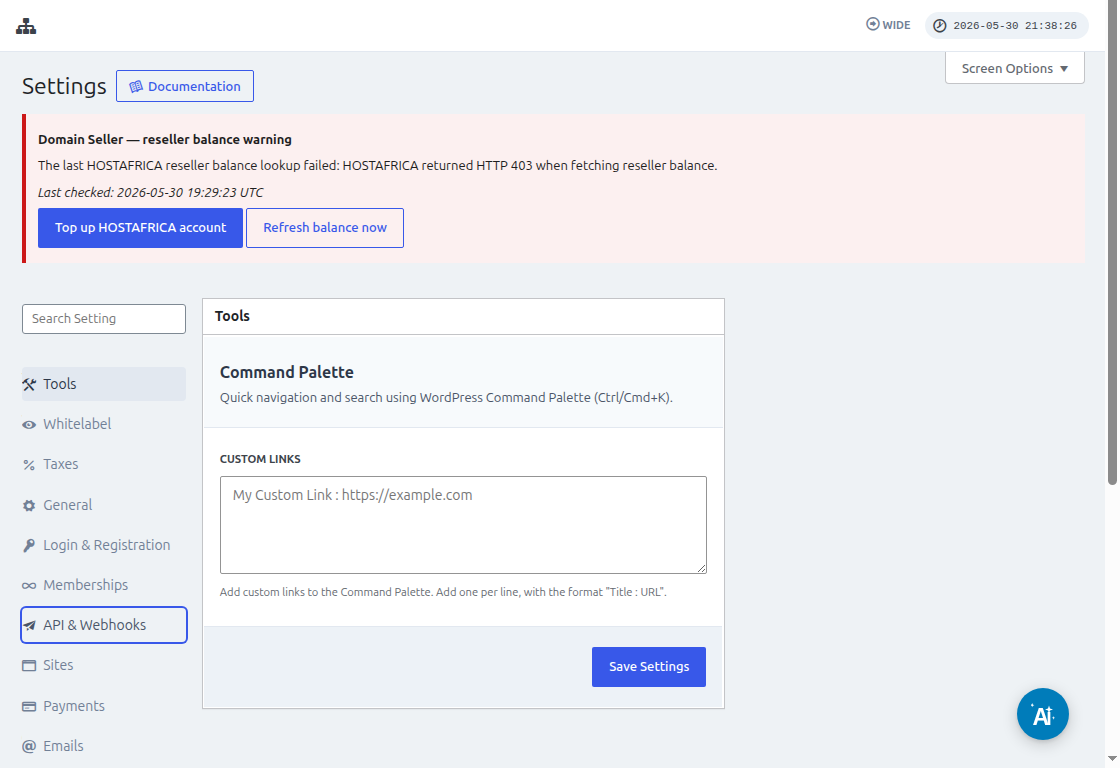
Zapier를 연결하기 전에 Ultimate Multisite > Settings > API & Webhooks로 이동하여 API가 활성화되어 있는지 확인하세요. Zapier가 Ultimate Multisite Account 자격 증명을 요청할 때 이 화면에서 API Key와 API Secret을 복사하세요.
먼저 Google Drive에서 Google Sheet를 만들어야 합니다. 나중에 데이터를 쉽게 매핑할 수 있도록 각 열을 제대로 정의했는지 확인하세요.
Google Sheet를 만든 후 Zapier account에 로그인하여 zap 생성을 시작할 수 있습니다.
"App event" 검색 필드에서 **"Google Sheets"**를 선택하세요
그런 다음 "Event " 필드에서 "New spreadsheet row "를 선택하고 "Continue "를 누르세요
다음 단계에서는 Google Sheet가 저장된 Google Account를 선택하라는 메시지가 표시됩니다. 따라서 올바른 google account가 지정되어 있는지만 확인하세요.
"Set up trigger "에서 사용할 google spreadsheet와 worksheet를 선택하고 지정해야 하며, 데이터는 여기에서 가져옵니다. 계속해서 해당 항목을 입력하고 "Continue "를 누르세요
다음은 google sheet가 제대로 연결되었는지 확인하기 위해 "test your trigger "를 수행하는 것입니다.
테스트가 성공하면 스프레드시트의 일부 값이 표시된 결과를 볼 수 있습니다. 계속하려면 "Continue "를 클릭하세요.
다음 단계는 Ultimate Multisite에서 Account를 생성하거나 등록할 두 번째 작업을 설정하는 것입니다. 검색 필드에서 "Ultimate Multisite(2.0.2) "를 선택하세요
"Event " 필드에서 "Register an Account in Ultimate Multisite "를 선택한 다음 "Continue " 버튼을 클릭하세요.
"Set up an action "에서 고객 데이터, memberships, products 등을 위한 다양한 필드를 볼 수 있습니다. 아래 스크린샷에 표시된 것처럼 google sheet의 값을 매핑하고 채워져야 하는 적절한 필드에 할당할 수 있습니다.
값을 매핑한 후 작업을 테스트할 수 있습니다.