Gebeurtenis: Een Account registreren via Zapier
In het artikel Ultimate Multisite integreren met Zapier hebben we besproken hoe je Zapier kunt gebruiken om verschillende acties binnen Ultimate Multisite uit te voeren op basis van triggers en gebeurtenissen. In dit artikel laten we zien hoe je applicaties van derden kunt integreren. We gebruiken Google Sheets als gegevensbron en sturen de informatie naar Ultimate Multisite om een Account te registreren.
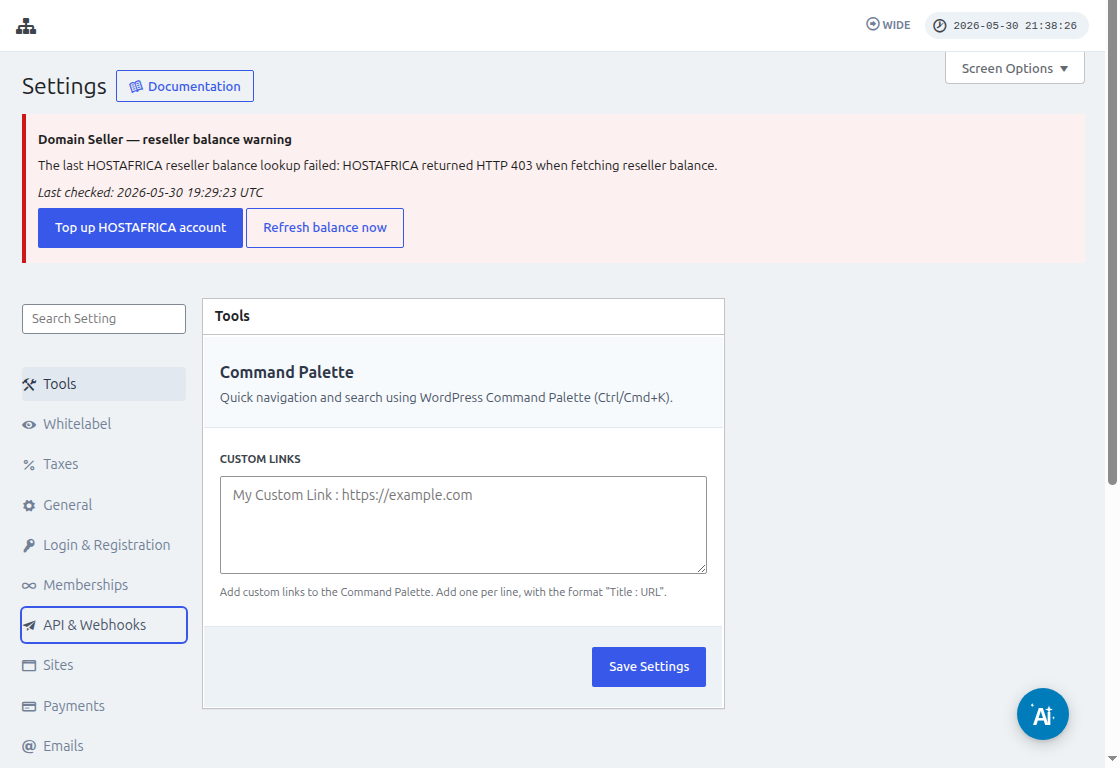
Voordat je Zapier verbindt, ga je naar Ultimate Multisite > Settings > API & Webhooks en bevestig je dat de API is ingeschakeld. Kopieer de API Key en API Secret vanaf dit scherm wanneer Zapier om de Ultimate Multisite Account-inloggegevens vraagt.
Eerst moet je een Google Sheet aanmaken onder je Google Drive. Zorg ervoor dat je elke kolom goed definieert, zodat je de gegevens later gemakkelijk kunt koppelen.
Nadat je een Google sheet hebt aangemaakt, kun je inloggen op je Zapier-account en beginnen met het maken van een zap.
Selecteer onder het zoekveld voor "App-gebeurtenis" "Google Sheets"
Selecteer vervolgens voor het veld "Gebeurtenis " de optie "Nieuwe spreadsheetrij " en klik op "Doorgaan "
In de volgende stap wordt je gevraagd een Google Account te selecteren waar de Google Sheet is opgeslagen. Zorg er dus gewoon voor dat het juiste google-account is opgegeven.
Onder "Trigger instellen " moet je de google-spreadsheet en het werkblad selecteren en opgeven die je zult gebruiken en waar de gegevens vandaan komen. Vul die gewoon in en klik op "Doorgaan "
Daarna moet je "je trigger testen " om te controleren of je google sheet goed is verbonden.
Als je test succesvol is, zou je het resultaat moeten zien met enkele waarden uit je spreadsheets. Klik op "Doorgaan " om verder te gaan.
De volgende stap is het instellen van de tweede actie die een Account in Ultimate Multisite zal aanmaken of registreren. Selecteer in het zoekveld "Ultimate Multisite(2.0.2) "
Selecteer onder het veld "Gebeurtenis " de optie "Een Account registreren in Ultimate Multisite " en klik vervolgens op de knop "Doorgaan ".
Onder "Een actie instellen " zie je verschillende velden die beschikbaar zijn voor klantgegevens, memberships, producten, enz. Je kunt de waarden uit je google sheet koppelen en ze toewijzen aan het juiste veld waar ze moeten worden ingevuld, zoals weergegeven in de onderstaande screenshot.
Nadat je de waarden hebt gekoppeld, kun je de actie testen.