WordPress Multisite는 어떻게 설치하나요?
WordPress Multisite를 사용하면 단일 설치에서 사이트 네트워크를 운영할 수 있습니다. 이는 내장 기능이지만 기본적으로 활성화되어 있지는 않습니다.
Ultimate Multisite에는 이 전체 과정을 자동화하는 **내장 Multisite Setup Wizard**가 포함되어 있습니다. Ultimate Multisite가 설치되어 있다면, 아래의 수동 단계를 따르는 대신 wizard를 사용하는 것을 권장합니다.
Ultimate Multisite는 네트워크 전용 플러그인이므로, 이 튜토리얼에서는 WordPress Multisite를 수동으로 설치하고 설정하는 방법을 배우게 됩니다. 이 글은 WPBeginner의 WordPress Multisite Network 설치 및 설정 방법을 바탕으로 작성되었습니다.
multisite 네트워크를 만들기 전에 주의해야 할 사항:
-
좋은 WordPress 호스팅을 사용하세요! 네트워크의 웹사이트들은 동일한 서버 리소스를 공유합니다.
-
트래픽이 낮은 사이트가 몇 개뿐이라면 공유 호스팅으로도 충분히 작동할 것입니다.
-
대부분의 Managed WordPress 호스팅 제공업체는 Multisite를 기본 제공(WordPress를 Multisite가 이미 활성화되고 구성된 상태로 설치)합니다. WP Engine, Closte, Cloudways 등이 이에 해당합니다. 사용 중인 호스팅 제공업체가 이에 해당하는지 확실하지 않다면, 이 튜토리얼을 계속 진행하기 전에 해당 지원팀에 문의하세요.
-
WordPress 설치와 FTP를 사용한 파일 편집에 익숙한 것도 좋습니다.
중요 : 기존 WordPress 웹사이트에 multisite 네트워크를 설정하는 경우 다음을 잊지 마세요:
-
WordPress 사이트의 전체 백업을 만드세요
-
플러그인 페이지로 이동하여 일괄 작업에서 _비활성화_를 선택한 다음 _적용_을 클릭하여 사이트의 모든 플러그인을 비활성화하세요
Multisite를 활성화하려면 먼저 FTP 클라이언트 또는 cPanel 파일 관리자를 사용하여 사이트에 연결한 다음, wp-config.php 파일을 열어 편집하세요.
That’s all, stop editing! Happy blogging. 줄 앞에 다음 코드 스니펫을 추가하세요:
define('WP_ALLOW_MULTISITE', true);
wp-config.php 파일을 저장하고 서버에 다시 업로드하세요.
사이트에서 multisite 기능이 활성화되었으므로, 이제 네트워크를 설정할 차례입니다.
도구 » 네트워크 설정으로 이동하세요
이제 네트워크의 사이트에 사용할 도메인 구조가 어떤 종류인지 WordPress에 알려야 합니다: 서브도메인 또는 하위 디렉터리.
서브도메인을 선택하는 경우, 도메인 매핑을 위해 DNS 설정을 변경하고 multisite 네트워크에 _와일드카드 서브도메인_이 설정되어 있는지 확인해야 합니다.
네트워크 설정으로 돌아가서 네트워크 제목을 입력하고, 네트워크 관리자 이메일의 이메일 주소가 올바른지 확인하세요. 계속하려면 _설치_를 클릭하세요.
WordPress에서 제공한 이 코드를 _wp-config.php_에 추가하세요:
define('MULTISITE', true); define('SUBDOMAIN_INSTALL', true); define('DOMAIN_CURRENT_SITE', 'multisite.local'); define('PATH_CURRENT_SITE', '/'); define('SITE_ID_CURRENT_SITE', 1); define('BLOG_ID_CURRENT_SITE', 1);
그리고 WordPress에서 제공한 이 코드도 .htaccess 파일에 추가하세요:
RewriteEngine On RewriteBase / RewriteRule ^index.php$ - [L]
add a trailing slash to /wp-admin
RewriteRule ^wp-admin$ wp-admin/ [R=301,L]
RewriteCond %{REQUEST_FILENAME} -f [OR] RewriteCond %{REQUEST_FILENAME} -d RewriteRule ^ - [L] RewriteRule ^(wp-(content|admin|includes).) $1 [L] RewriteRule ^(..php)$ $1 [L] RewriteRule . index.php [L]
FTP 클라이언트 또는 파일 관리자(예: cPanel 같은 것을 사용하는 경우)를 사용하여 이 두 파일에 코드를 복사해 붙여넣으세요.
마지막으로, multisite 네트워크에 접근하려면 WordPress 사이트에 다시 로그인하세요.
Ultimate Multisite를 설치하기 전에 WordPress Multisite 설치에서 하위 사이트를 만들 수 있는지 테스트하고 확인하는 것이 중요합니다.
하위 사이트를 만들려면:
-
웹사이트의 wp-admin을 여세요
-
내 사이트 > 사이트(/wp-admin/network/sites.php)로 이동하세요
-
상단의 새로 추가를 클릭하세요
-
모든 필드를 입력하세요:
-
사이트 주소 — “www”는 절대 사용하지 마세요
-
서브도메인: siteaddress.yourdomain.com
-
하위 디렉터리: yourdomain.com/siteaddress
-
사이트 제목 — 사이트의 제목이며 나중에 변경할 수 있습니다
-
관리자 이메일 — 하위 사이트의 초기 관리자 사용자로 설정됩니다
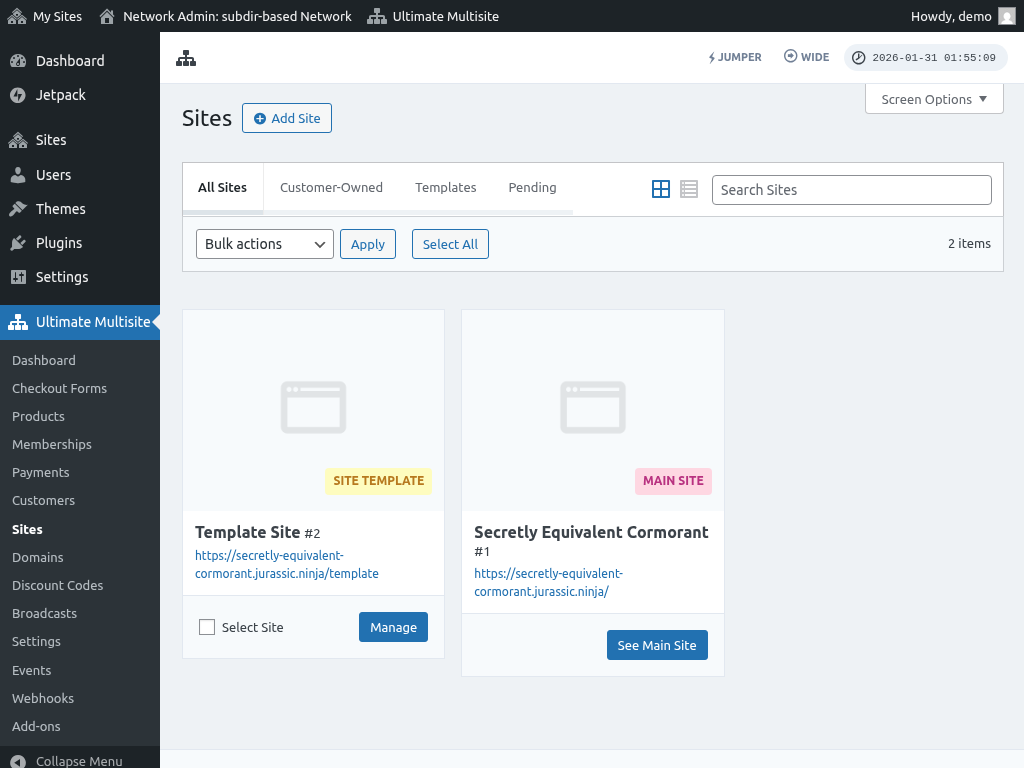
필드를 모두 입력한 후 "사이트 추가" 버튼을 클릭하세요. 새 하위 사이트가 생성되면, 계속해서 접속해 하위 사이트가 정상적으로 작동하는지 확인하세요.
일반적인 문제:
1. 새 사이트를 만들 수는 있지만 접근할 수 없습니다.
서브도메인을 선택했다면 multisite 네트워크에 대한 와일드카드 서브도메인도 설정해야 합니다.
이를 위해 웹사이트 호스팅 계정의 제어판 Dashboard(예: 호스팅 제공업체에 따라 cPanel/Plesk/Direct Admin)로 이동하세요.
“도메인” 또는 “서브도메인” 옵션을 찾으세요. 일부 제어판에서는 “도메인 관리”로 표시됩니다.
서브도메인 필드에 별표(*)를 입력하세요. 그러면 서브도메인을 추가할 도메인 이름을 선택하라는 메시지가 표시됩니다.
선택한 도메인 이름의 문서 루트는 자동으로 감지됩니다. 와일드카드 서브도메인을 추가하려면 생성 또는 저장 버튼을 클릭하세요. 항목은 “*.mydomain.com”처럼 보여야 합니다.