WooCommerce Integration
The WooCommerce Integration works in a very similar way to the way our Manual Gateway works. It offers a ton of flexibility to your users, allowing them to choose any of the payment forms available on your WooCommerce install. And it's simple: once the user billing period ends, the user subscription is put on hold. At the same time, an order will be created on the WooCommerce install of the main site of the network. The user then receives an invoice in their email, with a link to perform the payment. Once the payment is received, the subscription is renewed.
Features
- Easy integration between Ultimate Multisite and WooCommerce
- Several payment methods available
- Automated recurring billing using the bundled subscriptions core, with optional WooCommerce Subscriptions plugin enhancements
- Checkout totals include Ultimate Multisite taxes as separate, non-taxable WooCommerce fee lines so customers can review tax amounts before payment
Documentation
Setting Up The WooCommerce Integration
Extending your Payment Options with Ultimate Multisite: WooCommerce Integration
Installation
- Upload 'ultimate-multisite-woocommerce' to the '/wp-content/plugins/' directory
- Activate the plugin through the 'Plugins' menu in WordPress
- Follow the step by step Wizard to set the plugin up
Usage Guide
IMPORTANT NOTE: This article refers to Ultimate Multisite version 2.x.
ATTENTION: Ultimate Multisite: WooCommerce Integration requires WooCommerce to be activated at least on your main site.
We understand that Stripe and PayPal are not available in some countries which limit or hinders Ultimate Multisite users from effectively using our plugin. So we created an add-on to integrate WooCommerce.
WooCommerce is a very popular eCommerce plugin. Developers around the world created add-ons to integrate different payment gateways to it. We took advantage of this to extend the payments gateways you can use in the Ultimate Multisite billing system.
Setting It Up
First, you need to install the WooCommerce Integration add-on which is free for licensed users. To install it, click on Ultimate Multisite on your super admin dashboard and select Add-ons.
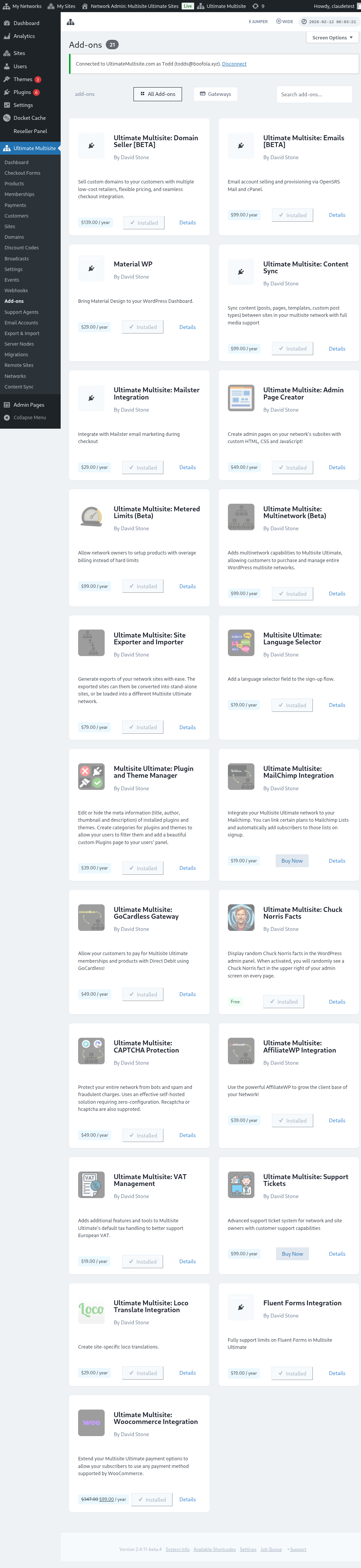
Here you can find all Ultimate Multisite add-ons. Click on the Ultimate Multisite: WooCommerce Integration add-on.
A window will pop up with the add-on details. Just click on Install Now .
After the installation is done, you will be redirected to the plugins page. Here, just click on Network Activate and the WooCommerce add-on will be activated on your network.
After activating it, if you still don't have the WooCommerce plugin installed and activated on your website, you will receive a reminder.
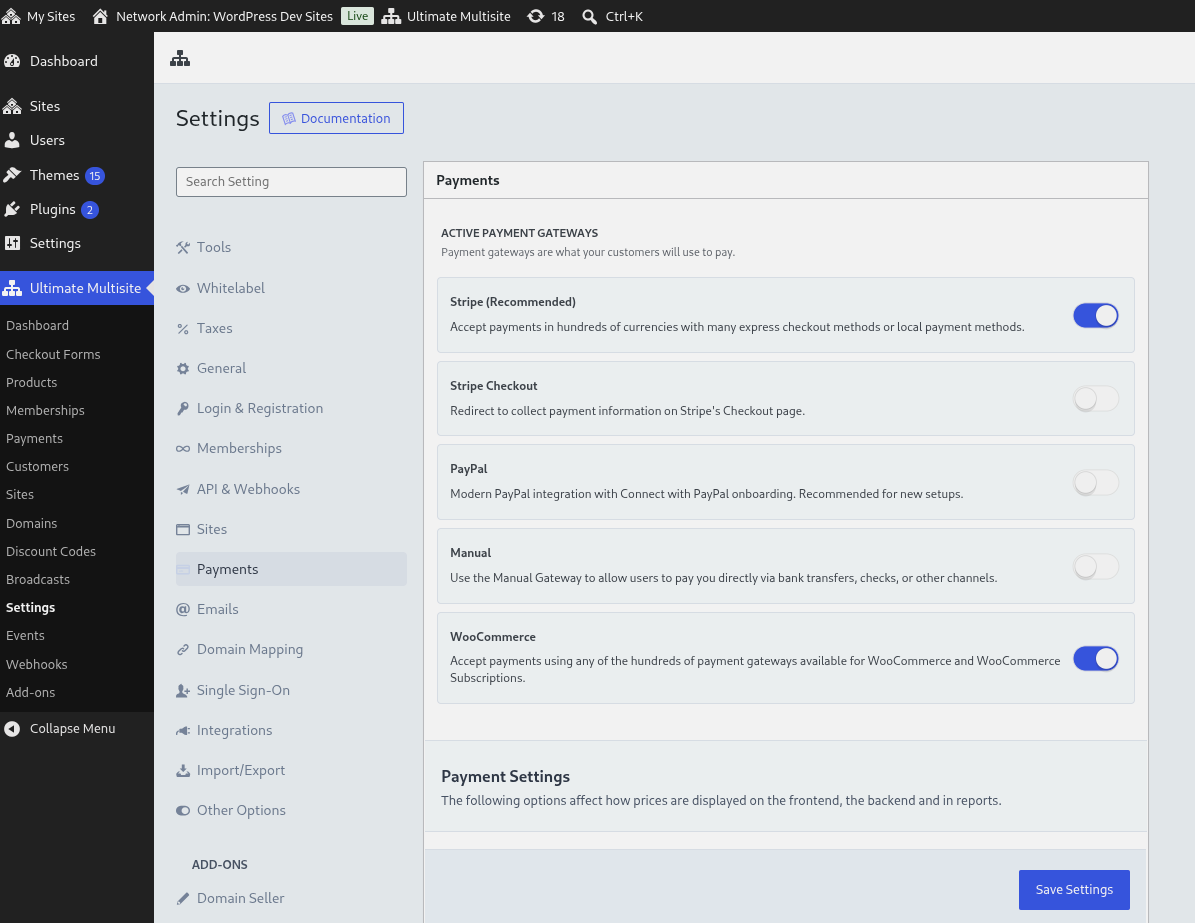
Once installed, you will see an additional option under the Ultimate Multisite payments settings. You can then enable the WooCommerce option from there.
You can configure some basic settings like the display name that will show in the front end and instructions to guide your users in their checkout flow. Then you can go to your Main site’s WooCommerce settings to enable and configure the payment gateway you prefer to use.
Checkout tax fee lines
When an Ultimate Multisite checkout includes taxes, the integration adds each Ultimate Multisite tax amount to WooCommerce checkout as a separate, non-taxable fee line. This keeps the tax total visible before payment while preventing WooCommerce from taxing the tax fee again.
How to manage the payment
The WooCommerce Integration works in a very similar way to the way our Manual Gateway works. The downside is that every payment must be paid manually at the end of the billing period. Here is how the flow works:
-
Once the user’s billing cycle ends, the membership is put on hold. At the same time, an order will be created on the WooCommerce install on your network’s main site.
-
Users then receive an invoice in their email, with a link to perform the payment (the link also appears on their billing history from their subsite dashboard). That link redirects the user to the WooCommerce checkout , where users will be able to select one of the available WooCommerce gateways in order to process their payment.
-
Once the payment is received, the membership is renewed , the payment is logged on Ultimate Multisite and the order is set to complete.
Some Important Notes:
-
The default functionality of Ultimate Multisite still works with this integration form. For example, issuing refunds from the Subscription Management screen will communicate with WooCommerce to issue the refund using the selected payment form.
-
Ultimate Multisite: WooCommerce Integration relies on WP-Cron to work. This works very well most times, but if the site has low traffic then the cron is not prompted to check for scheduled events and the event is missed, which can cause execution delays.
WooCommerce Subscriptions Plugin
Manually initiating a payment each month is not ideal for end-users because subscriptions are expected to recur automatically every billing cycle. The WooCommerce Integration add-on now bundles the core subscriptions code, so recurring products always use subscriptions for recurring billing.
You do not need to purchase or install the separate WooCommerce Subscriptions plugin to sell recurring products through this integration. If that plugin is purchased, installed, and available on your main site, Ultimate Multisite will use it and WooCommerce will expose additional subscription management features. When it is not available, the bundled subscriptions core still handles recurring products.
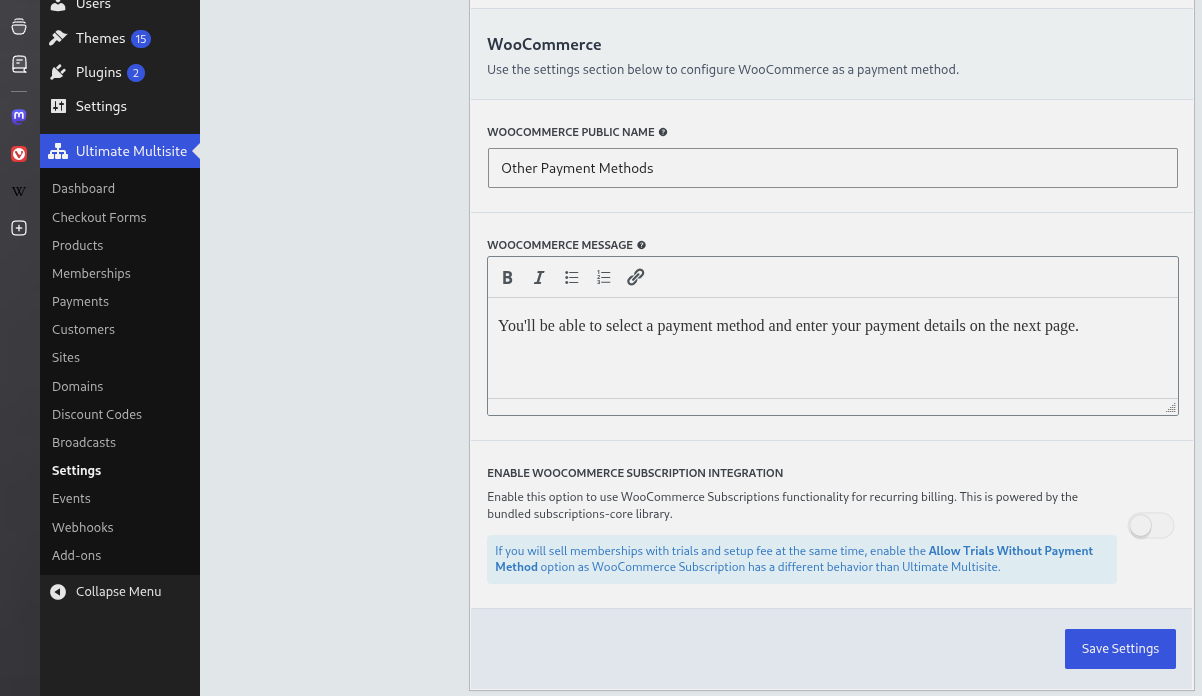
And that is it. Your end-users will no longer need to manually make a payment at the end of their billing cycle for recurring products.
Aside from an order being created on your main site under WooCommerce, it will also create a subscription for each account.
Failed renewal suspension behavior
By default, memberships remain active while WooCommerce Subscriptions processes its failed-payment retry schedule. This preserves the normal WooCommerce Subscriptions grace window so a recovered renewal can bring the subscription and membership back into sync without prematurely interrupting access.
Administrators who want stricter access control can enable Suspend Memberships Immediately on Failed Renewals in the WooCommerce Integration settings. When this opt-in setting is enabled, Ultimate Multisite suspends the related membership as soon as a renewal payment fails instead of waiting for WooCommerce Subscriptions retry handling to finish.
Developers can override the same decision with the wu_woo_suspend_on_payment_failure filter. Hook reference pages are generated from the add-on source, so this overview only calls out the filter name for custom suspension policies.