Your Client's Websites (v2)
After registering on your network, your customers can access their dashboard.
Besides the Account page, where they can see important information regarding their payments, memberships, domains, plan limitations and more, they also have access to the My Sites page, where they can see and manage all their websites. All they have to do is to click on My Sites on their dashboard.
They will be shown all their websites, with a Manage button right below each one of them. If they click on it, they will be redirected to the dashboard of this specific website.
They can also see which one of their websites is the primary one for plans that allow them to have more than one website.
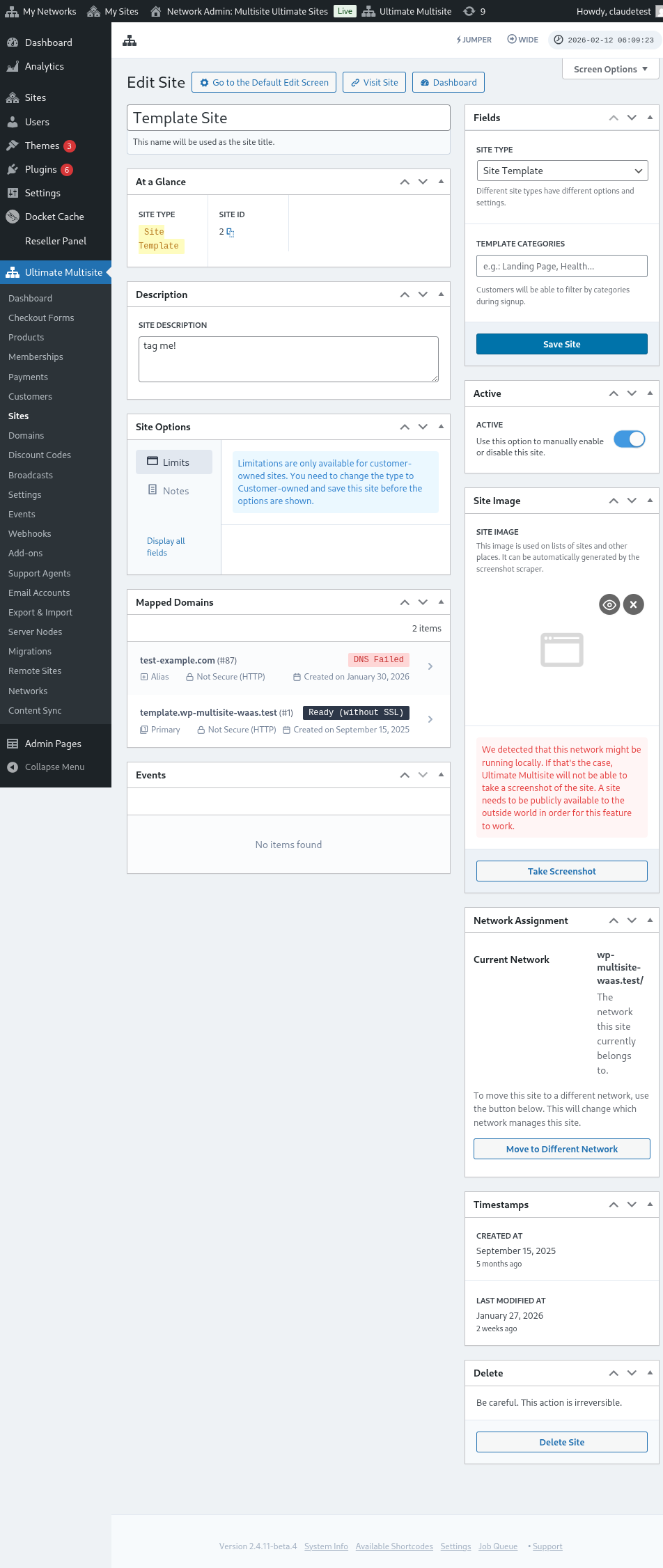
Here's a full view of the site edit interface:
If they want to change their primary website, they need to go to the Account page by clicking on the Account menu.
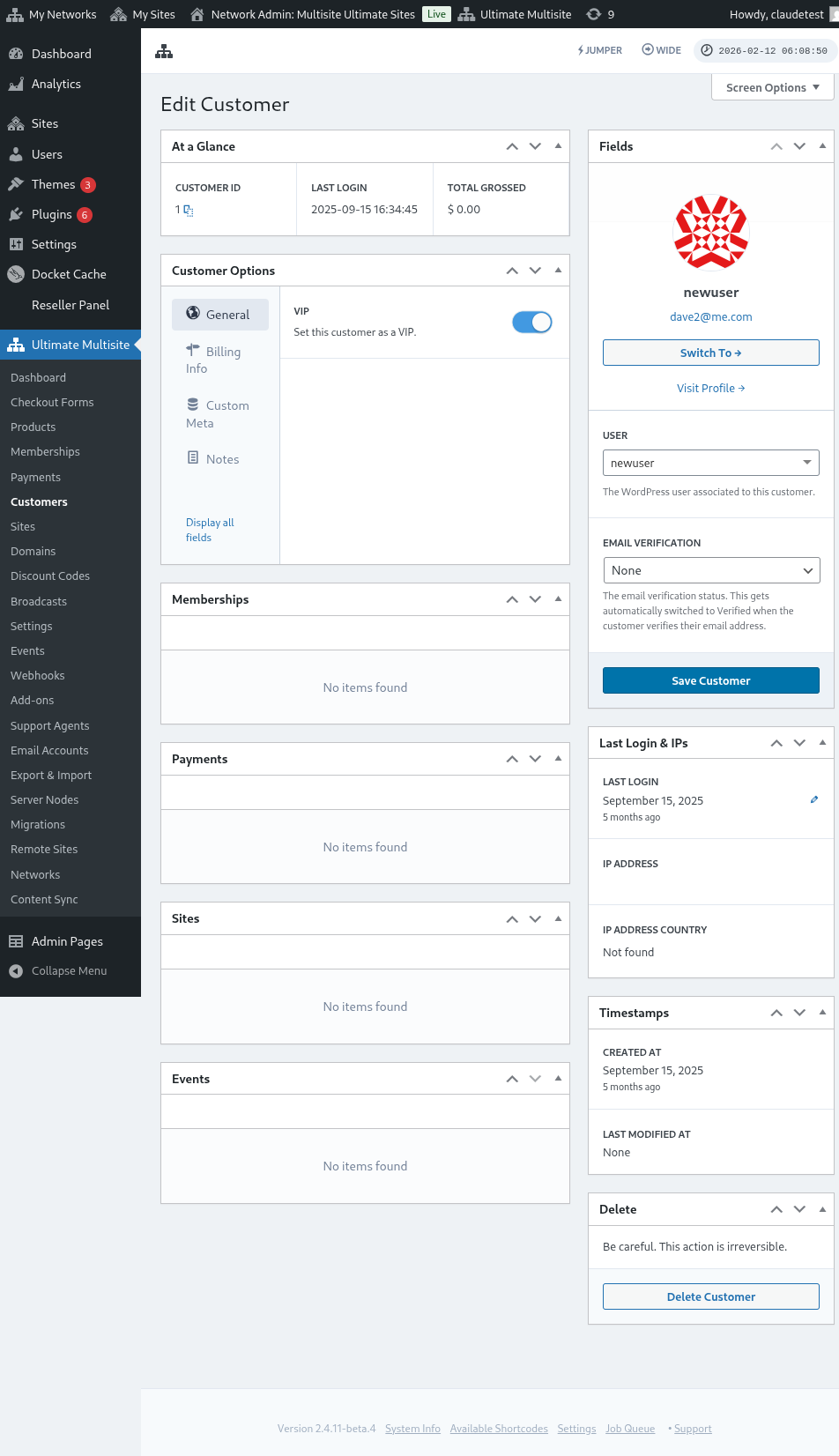
You can also view and edit customer details:
Then, they should click on Change Default Site.
A pop-up window will appear. Click on the drop-down list and select which website you want to make the primary website.
Then, just click on Change Default Site and you are done!