Build a frontend customer account
Give your customers one place to manage their membership, sites, billing and account details—without making the WordPress dashboard their starting point.
This guide builds a real account page, not a static mockup. The example uses Ollie 1.6.0, native Ultimate Multisite shortcodes, and a small optional presentation plugin. The theme supplies the WordPress foundation; the downloadable example supplies the account canvas and its scoped styling. No page builder, external fonts, paid theme or custom billing API is required.
Prefer visual editing without shortcode text? Follow the separate native block editor example. It builds the same account sections with real Ultimate Multisite blocks inside editable layout blocks, plus a native Checkout block page.
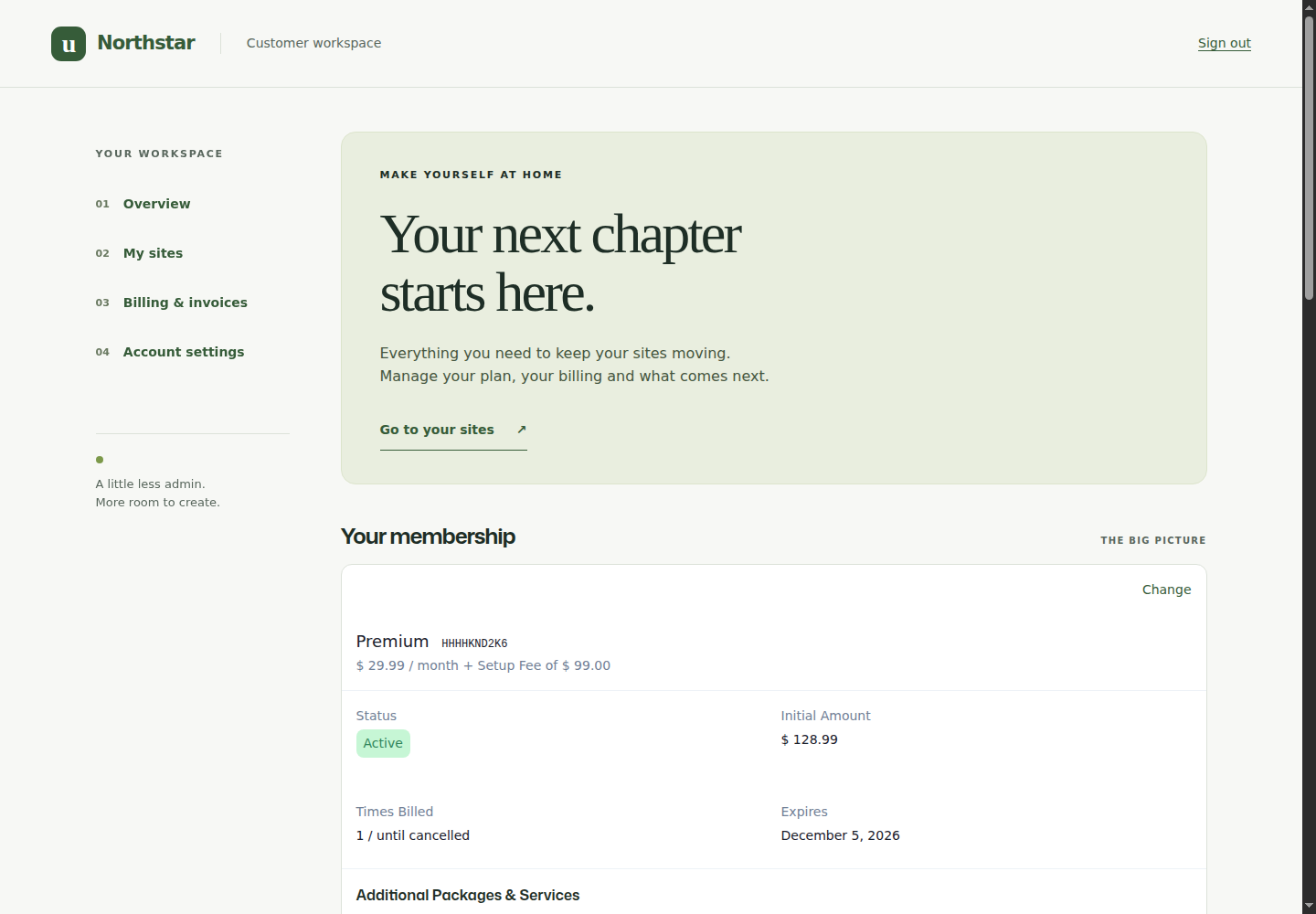
The screenshots were captured on a local WordPress Multisite installation with the frontend-account fixes proposed in plugin PR #2086. The version string alone does not establish that those fixes are installed. Until that PR is released, some older installations may not provide the same recovery states, Manage focus, resubscription, cancellation validation or Stripe return behavior. Use the release containing those fixes for production; do not install an unreviewed development branch on a live network.
1. Understand the two account views
There is no single central account shortcode. Build the landing page from account-wide widgets, then let the customer choose a site for site-specific controls.
| Shortcode | What it does | When it appears |
|---|---|---|
[wu_current_membership] | Current plan, status, amounts, expiry and Change link | When the customer has membership context |
[wu_billing_info] | Billing address and its Update form | Account/membership context |
[wu_payment_methods] | Current gateway/card and a Change link when supported | Account/membership context and gateway support |
[wu_invoices] | Payment records and invoice PDF links | Account/membership context; records must exist |
[wu_my_sites] | Owned sites and their Manage links | Signed-in customer with sites |
[wu_current_site] | Selected site's details, Edit Site, Visit Site and Admin Panel | After choosing a site |
[wu_account_summary] | Selected site's plan, storage and trial information | After choosing a site; newer versions show a chooser/recovery state beforehand |
[wu_limits] | Selected site's usage against plan limits | After choosing a site |
[wu_site_actions] | Account actions plus available membership/site actions | Actions depend on context, membership state and settings |
[wu_magic_link_url] | A site-login link for a customer site | Optional; treat generated links as sensitive |
The example includes the first nine widgets. It deliberately omits the optional magic link: native Visit Site and Admin Panel actions are sufficient for this layout. Do not publish a generated magic token in screenshots, HTML examples or support messages.
Account landing: membership, billing, invoices and a list of sites. Selected-site view: the same account page plus that site's details, usage and actions. For customers with multiple memberships, keep the membership/site context generated by the plugin's links; do not hard-code someone else's identifiers into your page.
Main site or customer subsite?
Create the frontend Account, Membership and Login pages on the network's main site. Native frontend account elements are not registered on customer-owned subsites in the standard setup; pasting these shortcodes into a subsite may leave literal shortcode text.
The customer's subsite wp-admin Account screen is an alternative interface to the same network-managed membership. You do not need to duplicate account records or create an account page on every customer site. Add a link back to the main-site Account page in your site template's navigation if desired. Sovereign/multi-tenancy deployments may additionally route management actions back to the authoritative main-site customer panel; follow their integration guidance.
2. Create the pages and connect plan changes
Before starting, make sure Ultimate Multisite is active on a working WordPress Multisite network, your products and checkout form are configured, and your test WordPress user is linked to an Ultimate Multisite customer, membership and owned site. Use a disposable customer on staging, not a live customer's account, for cancellation, deletion or payment tests.
On a staging network, create these published main-site pages:
| Page | Suggested slug | Content |
|---|---|---|
| Account | account | Account shortcodes, or the complete example below |
| Choose your plan | membership | [wu_checkout slug="wu-checkout"] or the example plans page |
| Login | login | [wu_login_form], if using Ultimate Multisite's custom login page |
wu-checkout is the checkout-form slug used in this example, not a universal requirement. Replace it with your actual published form's slug, found under Ultimate Multisite → Checkout Forms. The form must expose the products/plans the customer is allowed to choose. See Checkout Forms.
In Network Admin → Ultimate Multisite → Settings → Memberships, set Default Membership Update Page to the published Choose your plan page and save. This is what keeps the membership Change action in the frontend instead of falling back to the customer dashboard's checkout.
If using a custom login page, configure it under Settings → Login & Registration. Otherwise the example uses WordPress's configured login URL. Test both sign-in and forgotten-password email delivery before launch.
The native Change link carries the selected membership into checkout. A plain navigation link to /membership/ does not carry that context and is not a substitute. Likewise, Resubscribe must reuse the existing cancelled membership, not send the customer through a new-site registration form.
3. Start with the minimal working page
If you want your current theme's normal header and footer, use separate Shortcode blocks in the Account page:
- Open Pages → Add Page on the main site and enter your account page title.
- Click the + Block Inserter, search for Shortcode, and insert WordPress's Shortcode block—not Code or Custom HTML.
- Paste
[wu_current_membership]into its text box. Add another Shortcode block for each remaining widget below. Use List View to reorder them and Heading or Group blocks to organize your sections. - Publish, then view the page as a real customer. Shortcode blocks show shortcode text in the editor; they do not show the customer's live account there.


[wu_current_membership]
[wu_my_sites]
[wu_current_site]
[wu_account_summary]
[wu_limits]
[wu_billing_info]
[wu_payment_methods]
[wu_invoices]
[wu_site_actions]
Place these blocks directly in the page content. A wrapper that only runs the shortcodes later in PHP can prevent early shortcode detection and asset setup. Do not paste them into a Code block, which displays them as text.
Protect the page for signed-in customers using your site's access controls. The styled example below includes a sign-in-only guest state, but presentation restrictions never replace Ultimate Multisite's server-side ownership checks.
4. Install the complete styled example
Download the complete example ZIP
The archive contains every source file used for the screenshots:
ums-account-example/
├── ums-account-example.php   # Optional template registration, assets and no-cache headers
├── canvas.php               # Header, guest state, page content and footer
├── portal.css               # Scoped desktop/mobile design
├── account-page.html        # Complete Gutenberg Account page markup
├── plans-page.html          # Shortcode-based Membership page
├── account-blocks.html      # Native blocks alternative; no Shortcode/HTML blocks
└── plans-blocks.html        # Native Checkout block alternative
- Back up your staging site and note its current theme and membership-update page.
- Install/activate Ollie on the main site. The example was tested with 1.6.0. Ollie is not a dependency for the native shortcodes; another theme can work, but test its inherited styles.
- Upload the ZIP using the network's plugin installation screen, then activate Ultimate Multisite Account Page Example for the main site. Do not replace or edit the Ultimate Multisite plugin.
- Edit the Account page. Open the block editor's Code editor and paste the entire contents of
account-page.html, including its block comments. Return to the visual editor and save. The mixed HTML/Shortcode blocks create the layout while keeping the native shortcodes detectable. - Set that page's template to Account workspace (example) in the page settings. If the template choice is not shown in your editor, use the page list's Quick Edit → Template, then reload the editor. This template is supplied by the example plugin; it is not an Ollie template.
- Repeat for Choose your plan, using
plans-page.htmland the same template. Replace its checkout-form slug if necessary. - If your Account page is not
/account/, update the Back to your account link inplans-page.html. For WordPress installed in a subdirectory, include that subdirectory in the link too. - Set Default Membership Update Page as described above, then add the Account page to the main site's navigation and, if useful, your customer site templates' menus.
The canvas takes its brand name from Settings → General → Site Title. “Northstar,” “Alex” and the sites shown here are synthetic demonstration data, not required settings or records created by the example plugin. Change the editorial copy in the HTML files and the color variables in portal.css to fit your brand.
The example never creates customers, sites, memberships, payments or credentials. Installing it on an empty network does not populate the screenshot data.
Design and mobile behavior
The page uses a muted green palette, serif editorial heading, system-font controls, a left section navigation on desktop and a two-column navigation on mobile. Actions remain the plugin's real links and forms. Product/site images are disabled with supported attributes because preview artwork is optional—not a prerequisite for account management.

The supplied stylesheet is scoped to this canvas; it does not globally restyle your theme or the network admin. The example has visible keyboard focus, a skip link and no animated navigation. Native widget markup can evolve: recheck your scoped overrides after plugin updates.
5. Walk through the customer experience
Choose and manage a site
The customer starts with My sites. Each Manage link selects that owned site and brings its controls into view. Keep these generated links intact rather than building a URL from numeric IDs.

After selection, Current Site shows the site's actual URL and native Visit Site, Edit Site and Admin Panel actions. Your Sites returns to the account landing page. Account Summary and Site Limits now refer to this selected site.
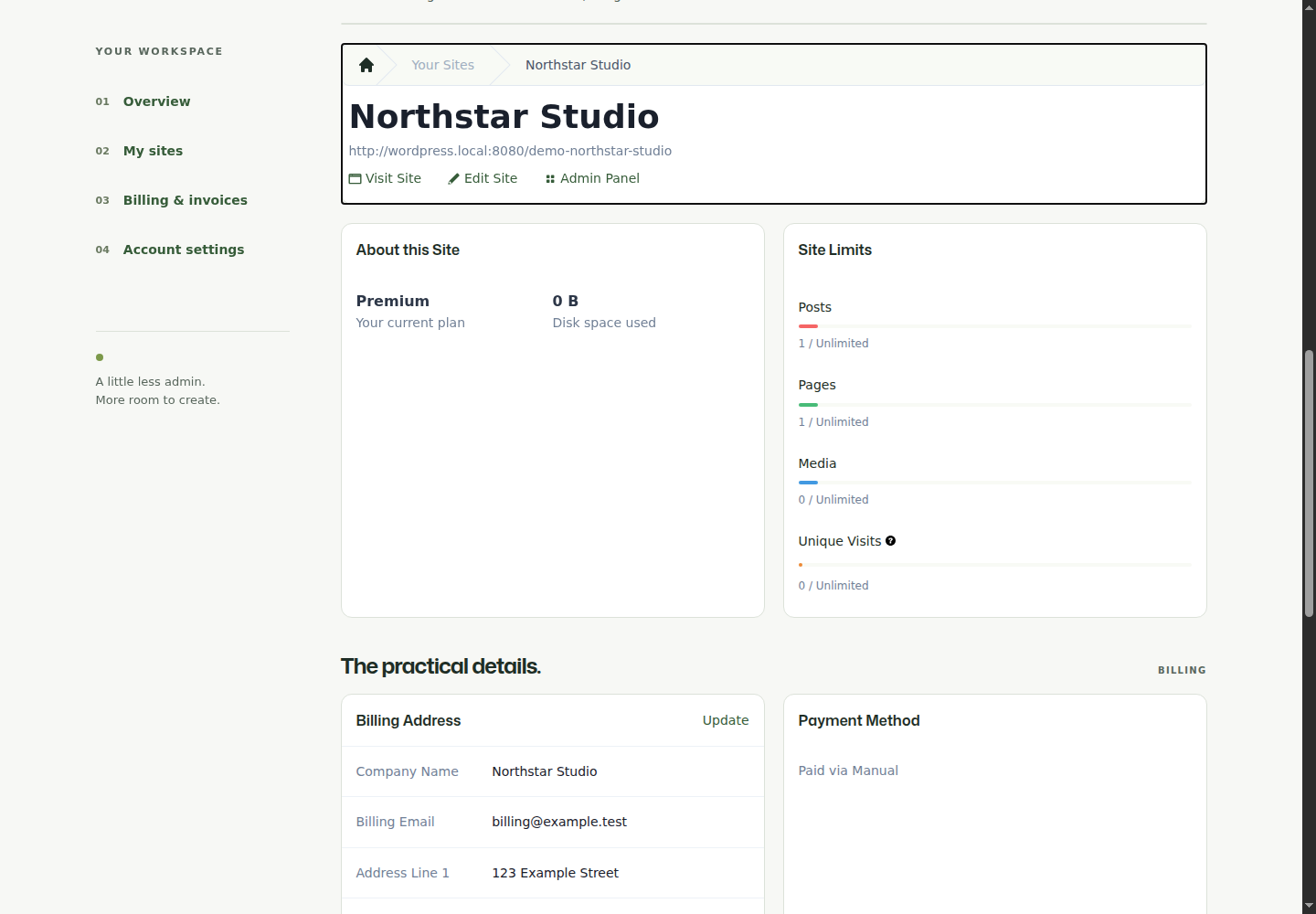
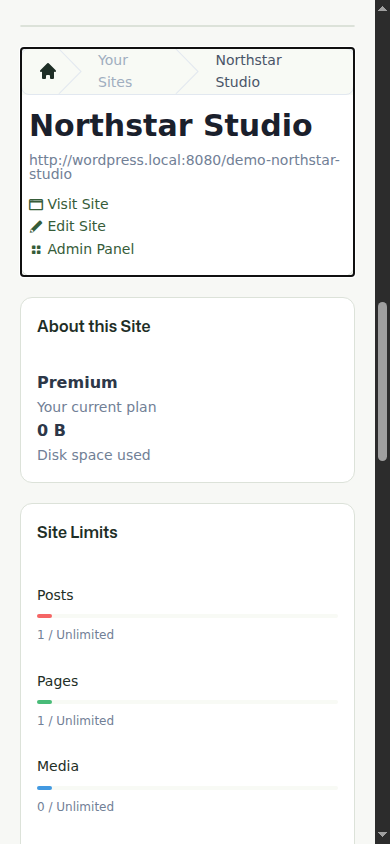
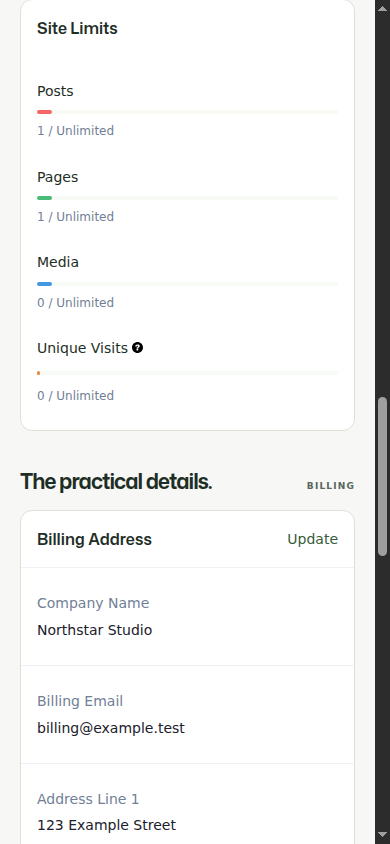
An empty site list is a data/context issue, not something to fill with static cards: check the customer's site ownership, membership assignment and provisioning state. A signed-in WordPress user without an Ultimate Multisite customer/membership will not automatically receive account data.
Change the membership plan
The membership's Change link opens the configured frontend checkout. The example deliberately uses the native checkout rather than implementing its own purchase form.

The customer chooses a plan and reviews the recalculated total before completing checkout. A downgrade may be scheduled for the existing period's end rather than replacing the plan immediately. Confirm the resulting membership state and scheduled date; do not infer success just because the Thank You page renders.

These screenshots use example products. Your prices, taxes, signup fees, prorating and available gateways come from your own checkout/product configuration.
Update billing and payment details
Billing Address opens the native address form. Payment Method shows the actual configured gateway or effective card information. Invoice references link to the customer's actual invoice PDFs.
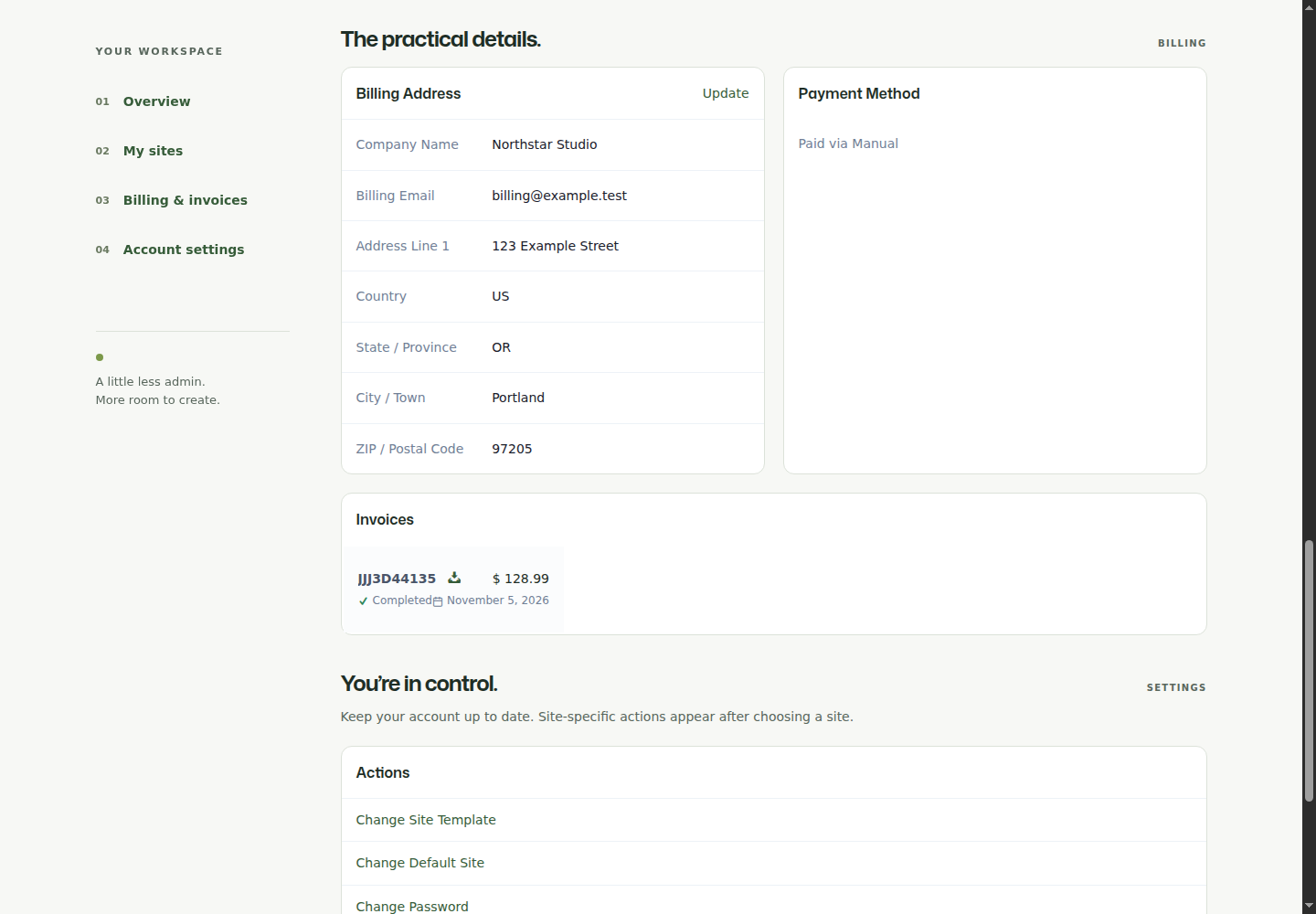
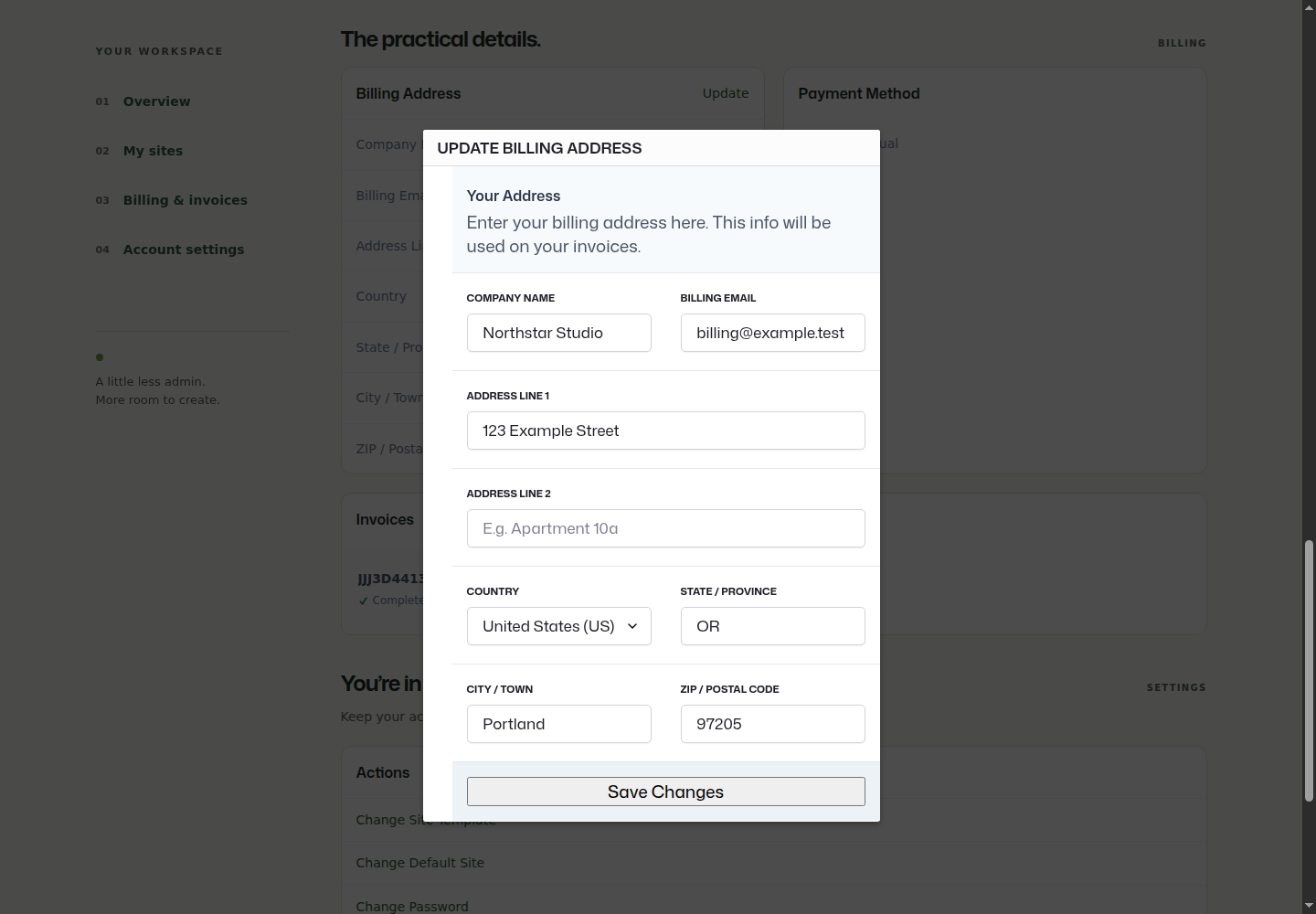
Manual/Free: an online card-change link is not expected for a gateway that does not support it. Manual paid upgrades/reactivations can remain On Hold until an administrator confirms payment and explicitly activates the membership in the payment editor.
Stripe: enable Use Stripe Billing Portal for the membership's Stripe gateway and configure the correct test/live credentials. The membership needs valid Stripe customer/subscription references. The portal opens on Stripe's own domain and returns to the originating account page. The card display must respect a subscription-specific card when set, or the customer's default when the portal removes that override. See Stripe.
A real sandbox replacement and frontend return were verified while preparing this guide, as was remote Stripe cancellation, with zero charges. The screenshots here deliberately show the Manual example: they do not simulate a card or contain gateway/session tokens. Configure and test your own sandbox before enabling live payments.
Change email, password and default site
The Settings section renders available account actions rather than a hard-coded list. Password and email changes use the customer's current password. The default-site selector is useful when the customer belongs to more than one site.
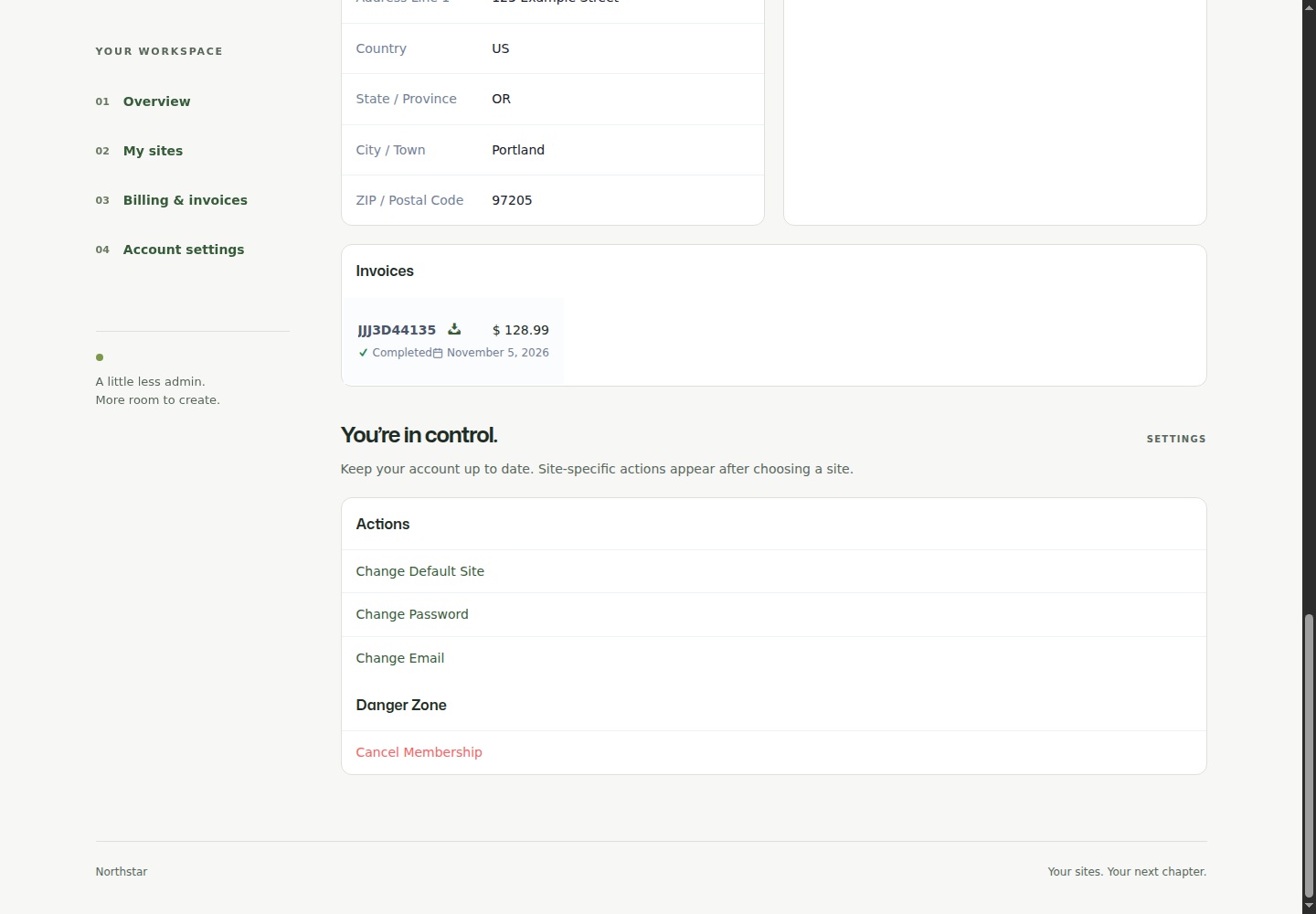

Forgotten-password recovery is a separate flow: request the reset email, follow its link, set a new password and sign in again. A success message after requesting email is not proof that the message was delivered; test your mail transport.
Cancellation, resubscription and destructive actions
Membership cancellation requires a reason and the confirmation phrase shown by the form. The account then reflects the cancelled membership and can offer Resubscribe. Whether sites remain available until expiration depends on the membership dates and your access-blocking configuration.
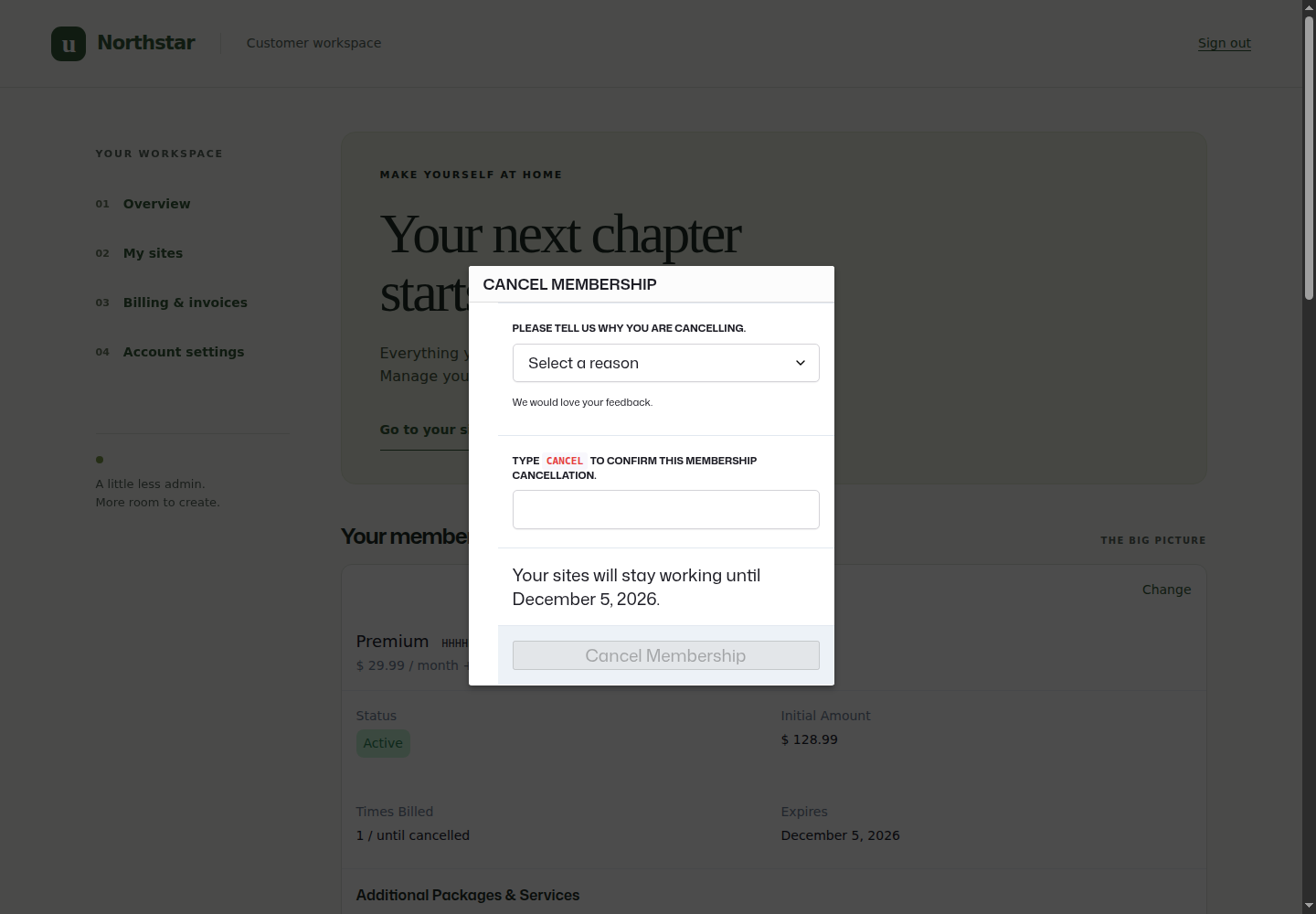
Delete Site, template switching/reset and other site-specific actions appear only when a site is selected and the feature is allowed. Template replacement/reset can overwrite site content. Keep native confirmations and backups; do not turn these into one-click custom links. Site deletion is distinct from membership cancellation and must return to a valid account page afterward.
Optional domain management and new-site signup
If your plans allow customer domains, you can add [wu_domain_mapping] in a
separate Shortcode block beside the selected-site controls. Enable domain
mapping at the network and product levels, and test ownership, DNS instructions
and verification on staging. This optional widget is not included in the nine-
widget screenshot example. See Domain Mapping.
The example is an account-management page, not a replacement signup funnel. Adding another site must follow your network's permitted new-site checkout flow. Do not reuse an existing membership's Change or Resubscribe link as an "Add site" button, and do not hard-code a template-change URL: use the native site action, which may legitimately open the selected site's admin interface.
Signed-out customers
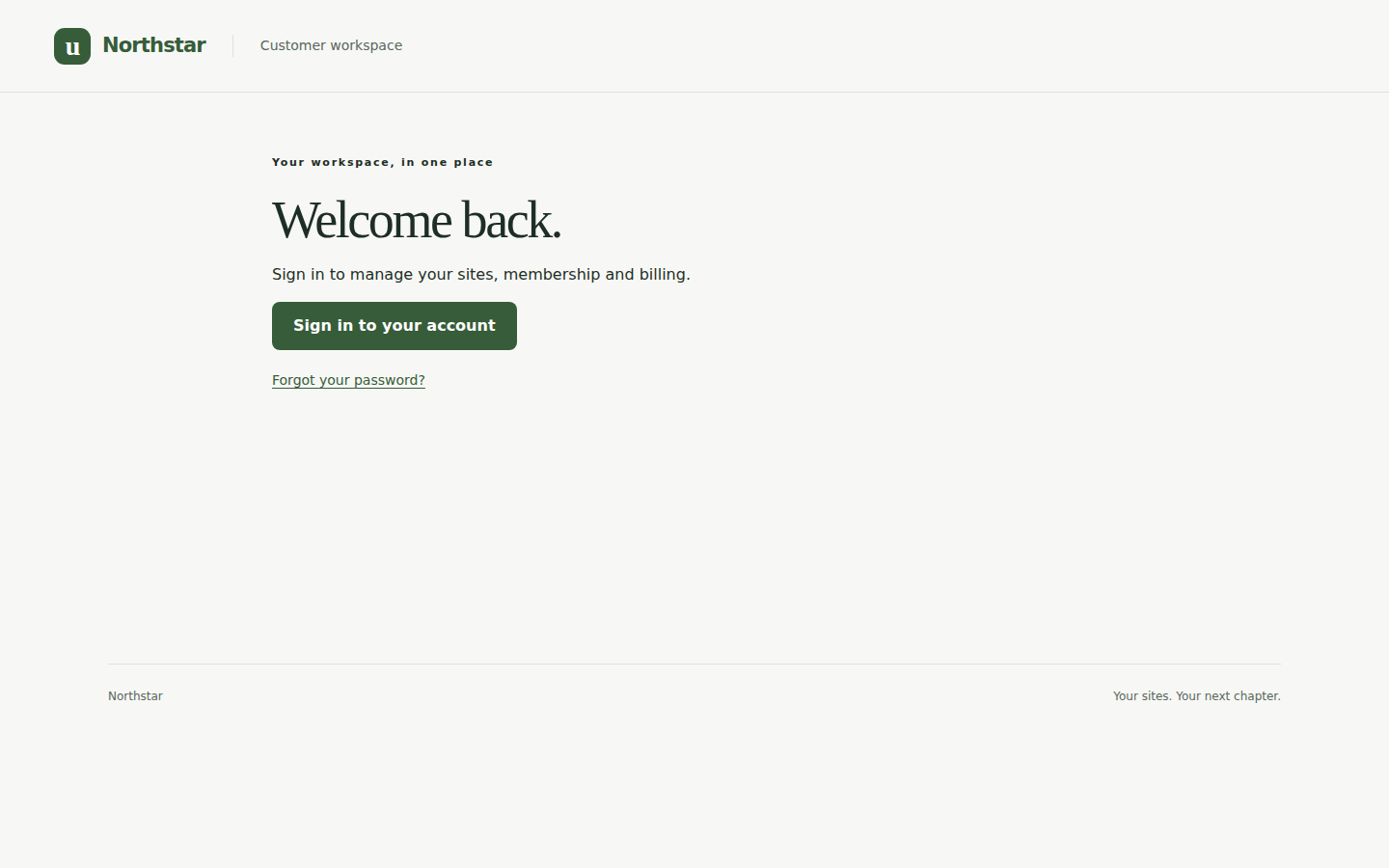
The example canvas does not render account widgets for guests. Instead, it shows the configured sign-in URL and password-recovery link. Sign out after testing to verify this state in a separate browser.
6. Security, caching and launch checklist
- Use HTTPS in production and keep the plugin's ownership checks intact. Never trust a membership/site selector solely because it is hashed.
- Exclude Account, Membership, Login, selected-site account URLs and plugin form/AJAX endpoints from full-page/CDN caching. The example sends no-cache headers, but an upstream cache can serve a response before WordPress runs. Verify exclusions at the cache layer too.
- Do not cache one customer's rendered HTML and serve it to another. Test with two different customers and an anonymous browser.
- Do not paste API keys, passwords, generated magic links, portal session URLs or reset tokens into page content or screenshots.
- Test a new customer with no sites, a customer with one site, multiple sites/memberships, a trial, an active subscription and a cancelled subscription.
- Follow Manage, Change, Update, invoice, Visit Site and Admin Panel links. Submit actual account changes on disposable fixtures, then verify the saved records.
- Exercise plan change, offline confirmation, cancellation/resubscription and password reset. Test payment-method replacement in a genuine provider sandbox.
- Check desktop and mobile, keyboard focus and modal dismissal. A screenshot of a form is not proof that its save handler works.
- Keep a route back to Account from your login, membership checkout and customer-site menus.
Troubleshooting
| Symptom | Check |
|---|---|
| A shortcode displays literally on a subsite | Move the frontend account pages to the main site; check that it is a Shortcode block and the plugin is active. |
| Summary or limits are empty | Select an owned site using My Sites → Manage. Check the customer/site/membership relationship, including migrated records. |
| Most widgets are empty for a signed-in user | Check that the WordPress user has a corresponding Ultimate Multisite customer and usable membership. |
| Manage seems to do nothing | Keep Current Site or Account Summary on the same page. Check the selected-site URL and focus/fragment behavior; use a release with the frontend-account fixes. |
| Change opens admin or bounces to a dashboard | Select a published main-site Default Membership Update Page containing a valid checkout shortcode; inspect redirect/custom-login plugins too. |
| Checkout asks for a new site during resubscription | Preserve the native membership-context link and use the release containing the corrected resubscription flow. |
| No Change link under Payment Method | Check gateway support, Stripe Billing Portal setting, credentials and membership gateway references. Manual/Free do not have an online card-change flow. |
| Card changes in Stripe but the widget loses card details | Use the fixed gateway that reads the effective customer default when there is no subscription override. |
| Manual payment says Completed but membership is On Hold | In the administrator payment editor, explicitly activate the membership when confirming the offline payment. |
| CSS/layout differs from these screenshots | Confirm the example plugin is active, the Account workspace template is selected and cached CSS is cleared. Inspect inherited theme styles. |
| A previous customer's information appears | Stop using the cached page, purge it and repair the cache/ownership issue before reopening access. Do not hide the symptom with CSS. |
Full source code
The source reference contains all seven presentation and page files, including both native block page exports. All seven are also in the ZIP. No Python script, generator or build step is needed to install or use either example. PHP goes in the example plugin folder—not the page editor or Ultimate Multisite itself. Paste the HTML exports into the block editor's Code editor, then switch back to visual editing.
Open the complete source reference.
Removing the example
Choose a normal theme template for the two pages, replace the styled markup with your preferred native Shortcode blocks, and deactivate the example plugin. Keep a published valid membership-update page selected. This removes only the presentation layer; it does not delete customer sites, memberships, billing records or the main Ultimate Multisite plugin.