Ukukhangela nokuTshintsha ngokuZenzekelayo kwiiTemplate zeSayithi (v2)
Esi sifundo sifuna WP UItimo inguqulelo 2.x.
Enye yezona mpawu zinamandla ze-Ultimate Multisite kukukwazi ukongeza umbhalo, umbala, kunye nemihlaba yokukhetha oyifunayo kwifomu yobhaliso. Nje ukuba siyibambe loo datha, singayisebenzisa ukuzalisa kwangaphambili umxholo kwiindawo ezithile ze-template yesayithi ekhethiweyo. Emva koko, xa isayithi entsha ipapashiwe, Ultimate Multisite iza kutshintsha izibambi-ndawo ngolwazi lokwenyani olufakwe ngexesha lobhaliso.
Umzekelo, unokwenza iisayithi zakho ze-template ngezibambi-ndawo. Izibambi-ndawo kufuneka zongezwe zijikelezwe ziibrace ezimbini ezigobileyo - {{placeholder_name}}.
Emva koko, unokongeza nje umhlaba wobhaliso ohambelanayo ukuze ubambe loo datha
Umthengi wakho uya kuba nako ukugcwalisa loo mhlaba ngexesha lobhaliso.
Ultimate Multisite iza kutshintsha izibambi-ndawo ngedatha enikwe ngumthengi ngokuzenzekelayo.
Ukusombulula ingxaki "ye-template egcwele izibambi-ndawo"
Konke oko kuhle, kodwa siyadibana nengxaki embi: ngoku ii-template zethu zesayithi - ezinokutyelelwa ngabathengi bethu - zigcwele izibambi-ndawo ezimbi ezingachazi nto ingako.
Ukusombulula oko, sinika ukhetho lokuseta amaxabiso obuxoki ezibambi-ndawo, kwaye sisebenzisa loo maxabiso ukukhangela nokutshintsha imixholo yazo kwiisayithi ze-template ngelixa abathengi bakho betyelela.
Unokufikelela kumhleli wezibambi-ndawo ze-template ngokuya ku-Ultimate Multisite > Iisetingi > Iisayithi, uskrole uye kwindawo yeeNketho ze-Template yeSayithi, emva koko ucofe ikhonkco elithi Hlela Izibambi-ndawo.
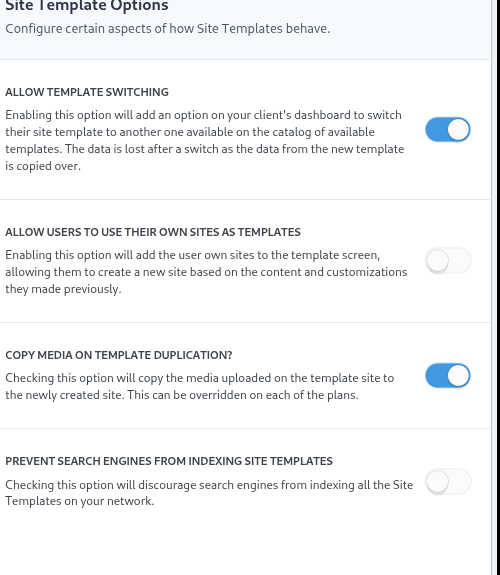
Oko kuya kukusa kumhleli womxholo wezibambi-ndawo, apho unokongeza izibambi-ndawo kunye nomxholo wazo ohambelanayo.